Your WordPress site can disappear in seconds. A complete backup includes two essential parts: your database and all your files.
The database holds your posts, pages, comments, and settings. Your files include themes, plugins, images, and the WordPress core itself.
When you need to restore your site, you will bring both pieces back together. This guide shows you exactly how to do that using two different approaches.
You will learn the plugin method first. This works well for most people and takes about 15 minutes.
Then you will see the manual method. This gives you more control but requires FTP access and database tools.
Both methods work. Choose based on your comfort level with technical tasks.
Why Backing Up Your WordPress Site Matters Right Now
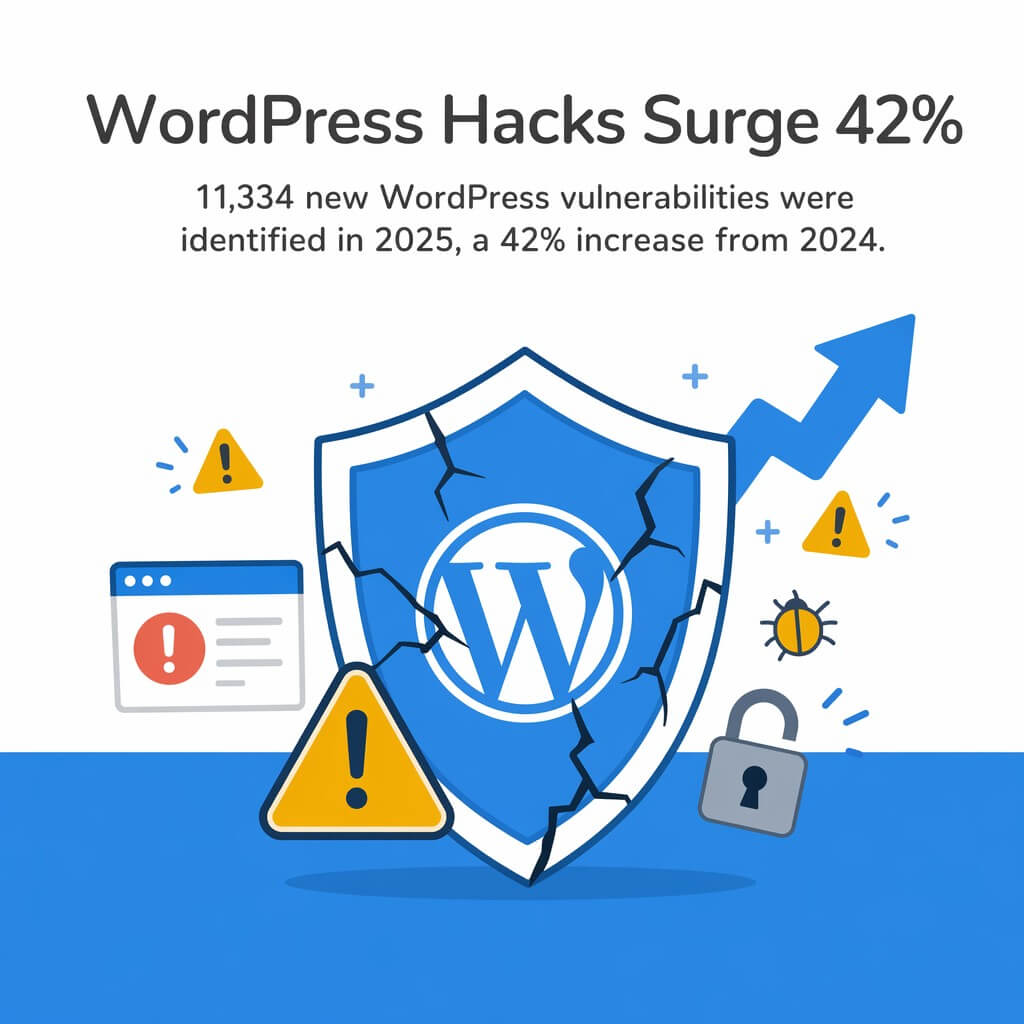
Website security threats keep growing. 11,334 new WordPress vulnerabilities were identified in 2025, a 42% increase from 2024.
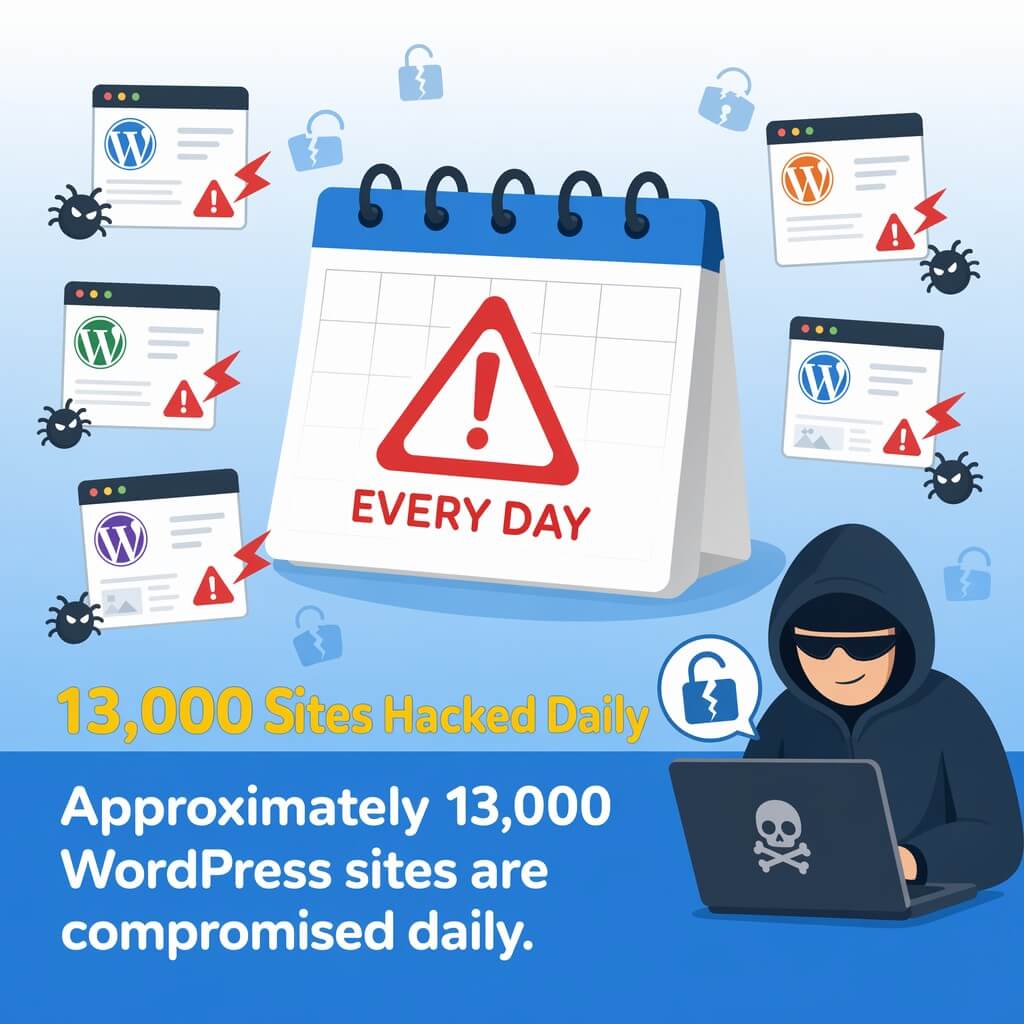
Your site faces real risk every single day. Approximately 13,000 WordPress sites are compromised daily.
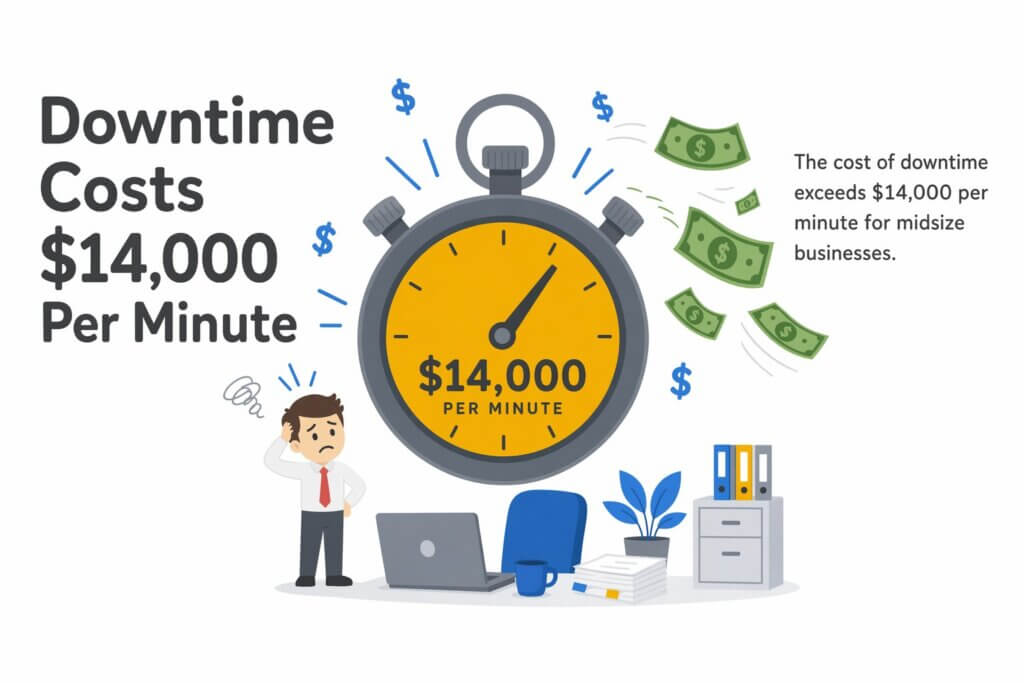
The financial impact hits hard when something goes wrong. The cost of downtime exceeds $14,000 per minute for midsize businesses.
Data breaches cost money too. The average global cost of data breaches dropped to $4.44 million USD, but that number still means disaster for smaller operations.
Recent vulnerabilities show how quickly things can break. The CVE-2025-11705 vulnerability in the Anti-Malware Security plugin affects over 100,000 sites.
Backups protect you from more than just hackers. Plugin conflicts break sites. Failed updates cause white screens. Human errors delete important content.
You cannot prevent every problem. You can prepare for recovery.

Understanding What Makes Up a Complete WordPress Backup
WordPress stores different types of information in different places. You need both to fully restore your site.
Your WordPress Database Contains Dynamic Content
The database holds everything that changes on your site. Posts, pages, comments, and user accounts live here.
Your settings get stored in the database too. This includes permalink structures, site title, and plugin configurations.
When you publish new content, WordPress writes it to the database. When visitors leave comments, those go in the database.
The database file ends in .sql when exported. It contains all your structured data in a format MySQL can read.
Your WordPress Files Include Everything Else
Files make up the visible parts of your site. Themes control how your site looks. Plugins add functionality.
The wp-content folder matters most. Your uploads folder lives inside it, holding every image and PDF you have added.
The WordPress core files make the platform work. These include wp-admin and wp-includes folders.
Your wp-config.php file sits in the root directory. It contains your database credentials and security keys.
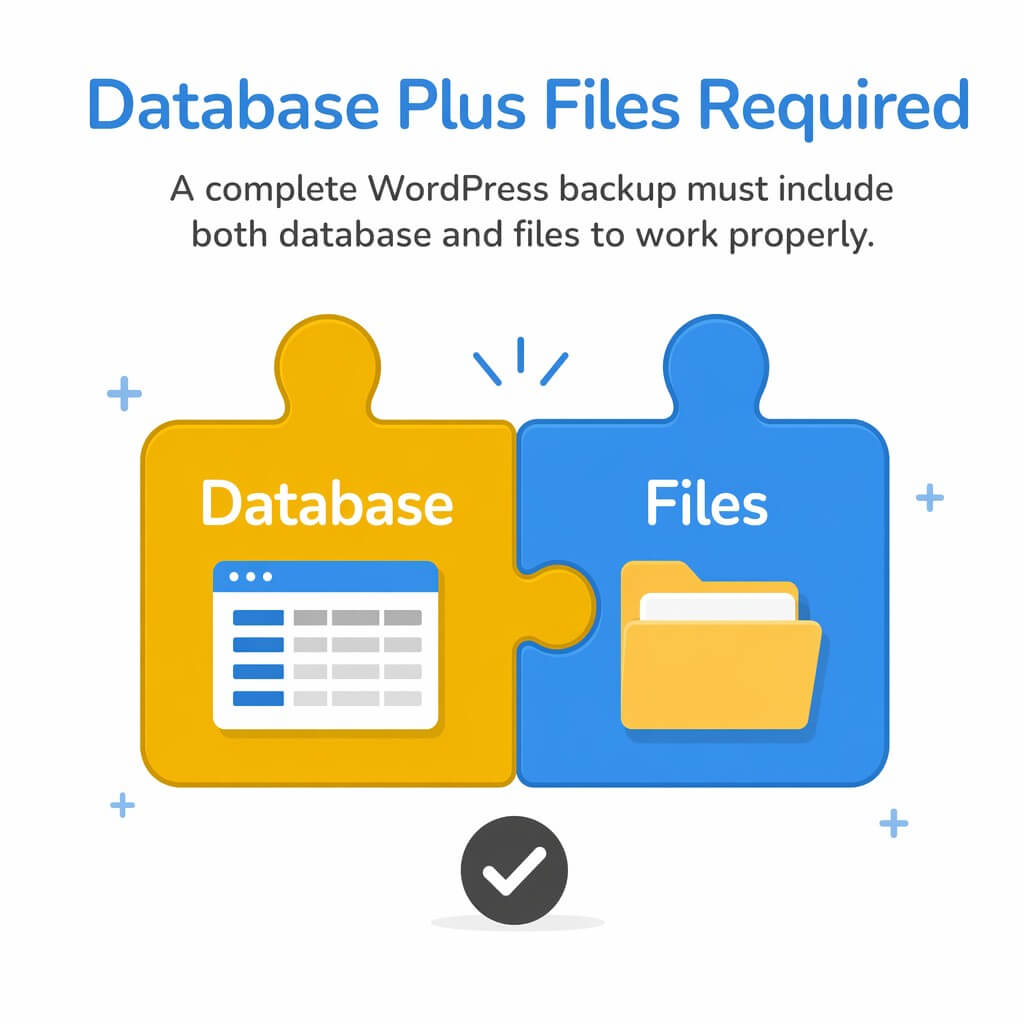
A complete WordPress backup must include both database and files to work properly.
How These Parts Work Together During Restoration
When you restore WordPress, you need both pieces in sync. The database points to files. The files pull data from the database.
If you restore only the database, your site shows content but displays broken images. If you restore only files, your site shows themes but has no content.
Timing matters when creating backups. Take the database backup and file backup at the same moment. This prevents mismatches.
Method 1: Using a Backup Plugin to Restore Your WordPress Site
Backup plugins handle the technical details for you. They create backups automatically and make restoration simple.
Most backup plugins work the same way. They connect to your site, download everything, and save it somewhere safe.
When trouble hits, you log into WordPress and click restore. The plugin puts everything back where it belongs.
Choosing the Right Backup Plugin for Your Needs
UpdraftPlus works well for most WordPress sites. It backs up your database and files separately.
The free version handles basic backup and restore tasks. UpdraftPlus premium versions start at $70 per year and add features like automatic backups and migration tools.
All-in-One WP Migration makes moving sites between servers easier. It packages everything into one file.
VaultPress integrates with Jetpack and includes security scanning. It costs more but adds protection features.
Pick a plugin that stores backups off your server. Cloud storage like Google Drive or Dropbox keeps your backups safe if your server fails.
Installing and Configuring Your Backup Plugin
Go to your WordPress dashboard. Click Plugins, then Add New.
Search for your chosen backup plugin. Click Install Now, then Activate.
Find the plugin in your WordPress menu. Most backup plugins add their own menu item.
Connect your cloud storage account. This step varies by plugin but usually involves clicking a button and authorizing access.
Set your backup schedule. Daily backups are essential for active WordPress sites following the 3-2-1 backup strategy.
Test your backup immediately. Run a manual backup to make sure everything works before you need it.
Running Your First Backup
Click the Backup Now button in your plugin dashboard. Most plugins make this obvious.
Choose what to include. Select both database and files for a complete backup.
Pick your storage location. Send the backup to your cloud storage, not just your server.
Wait for the backup to finish. The time depends on your site size. Small sites take minutes. Large sites with many images take longer.
Check that the backup completed successfully. Look for a success message or check your cloud storage.
Download a copy to your computer. The 3-2-1 backup rule recommends storing backups in three different copies with two different media.
Step-by-Step: Restoring WordPress with UpdraftPlus
UpdraftPlus makes restoration straightforward when your site still works. You can log into WordPress and access your dashboard.
Preparing Your Site for Restoration
Log into your WordPress dashboard. You need admin access to restore backups.
Go to Settings, then UpdraftPlus Backups. You will see your existing backups listed.
Find the backup you want to restore. Look at the date and time to pick the right one.
Download the backup files if they are stored remotely. UpdraftPlus can do this automatically, but checking first helps.
Restoring Your Database and Files
Click the Restore button next to your chosen backup. A popup appears showing what the backup contains.
Select which components to restore. Check the boxes for plugins, themes, uploads, database, and other files.
Click Restore now. UpdraftPlus downloads the backup and begins putting files back in place.
Wait while restoration runs. The plugin shows progress on screen. Do not close your browser.
The database restoration happens last. WordPress might log you out when the database updates.
Verifying Your Restored Site Works Properly
Log back into WordPress. Use your admin credentials to access the dashboard.
Check your homepage. Open it in a private browser window to see the live version.
Test your main pages. Click through your menu items to confirm everything displays correctly.
Upload a test image. This confirms your media uploads work after restoration.
Check your plugins. Go to the plugins page and make sure everything activated properly.
Review your theme settings. Some themes lose customizations if you restore an old backup.

Method 2: Manual WordPress Backup and Restoration
Manual backup gives you complete control over the process. You handle files and databases directly without depending on plugins.
This method works when plugins fail or when you need to move between servers. It requires more technical knowledge but proves more reliable.
What You Need Before Starting Manual Restoration
Get your FTP credentials from your hosting provider. You need the hostname, username, password, and port number.
Download an FTP client like FileZilla. This program connects to your server and transfers files.
Find your phpMyAdmin login information. Most hosting control panels include direct access to phpMyAdmin.
Locate your backup files. You need both your .sql database file and your complete WordPress files folder.
Make a new backup of your current site before changing anything. This gives you a safety net if something goes wrong.
Accessing Your Server via FTP or SFTP
Open your FTP client. FileZilla is free and works on all operating systems.
Enter your server details in the quick connect bar. Use the hostname, username, password, and port your host provided.
Click connect. Your site files appear on the right side of the screen.
Manual backup procedures involve downloading website files via SFTP for maximum security.
Find your WordPress installation folder. This is usually public_html, www, or a folder with your domain name.
Backing Up Your Current Files
Select your entire WordPress folder on the server. Right-click and choose Download.
Pick a location on your computer. Create a new folder specifically for this backup.
Wait for all files to download. Large sites with many images take time. The transfer might take 30 minutes or more.
Compress the downloaded folder. Right-click and create a zip file. This makes the backup easier to store and transfer.
Restoring WordPress Database Through phpMyAdmin
The database holds all your content and settings. Restoring it brings back your posts, pages, and configurations.
Exporting Your Current Database
Log into your hosting control panel. Look for phpMyAdmin in the database section.
Click your WordPress database name. It appears in the left sidebar with other databases.
Click the Export tab at the top. This opens the export options page.
Choose Quick export method and SQL format. These are usually selected by default.
Click Go. Your browser downloads a .sql file containing your entire database.
Save this file somewhere safe. Name it with today’s date so you know when you created it.
Importing Your Backup Database
Return to phpMyAdmin. Make sure you have the correct database selected.
Click the Import tab. This is where you upload your backup database file.
Click Choose File. Find your backup .sql file on your computer.
Scroll down and click Go. phpMyAdmin uploads and processes your database file.
Watch for a success message. It confirms all tables imported correctly.
Updating Database Credentials in wp-config.php
Open your wp-config.php file in a text editor. You can edit this through FTP or your hosting file manager.
Find the database settings near the top. Look for DB_NAME, DB_USER, DB_PASSWORD, and DB_HOST.
Check that these match your current hosting setup. If you moved servers, you need to update these values.
Get the correct values from your hosting provider. They should appear in your control panel or welcome email.
Save the file after making changes. Upload it back to your server if you edited it locally.
Restoring WordPress Files via FTP or File Manager
Your WordPress files include themes, plugins, uploads, and core files. Putting them back completes your site restoration.
Deleting Old Files from Your Server
Connect to your server via FTP. Navigate to your WordPress installation folder.
Select all files except wp-config.php. You want to keep your current database connection settings.
Delete the selected files. This clears out the current installation.
Empty the trash if your FTP client has one. This ensures files are actually removed.
Keep wp-config.php and any backup files you stored on the server. Everything else should go.
Uploading Your Backup Files
Unzip your backup files on your computer. You need the files extracted, not compressed.
Select all files from your backup folder. Do not select the folder itself, just the contents.
Drag the files to your server in the FTP client. Drop them into your WordPress installation folder.
Wait for the upload to complete. This takes time depending on your connection speed and site size.
Check that the upload finished successfully. Look for any error messages in your FTP client.
Setting Correct File Permissions
Right-click on your WordPress folders in the FTP client. Choose File Permissions.
Set folders to 755. This allows WordPress to read and write as needed.
Set files to 644. This provides appropriate security while letting WordPress function.
Apply permissions recursively. This updates all files and folders at once.
Set wp-config.php to 440 or 400 for extra security. This restricts access to your database credentials.
Troubleshooting Common WordPress Restoration Problems
Restoration does not always go smoothly. These common issues have straightforward fixes.
White Screen After Database Restoration
A blank white screen means PHP encountered an error. Check your error logs in your hosting control panel.
The database might not match your files. Make sure you restored both the database and files from the same backup.
Your wp-config.php settings might be wrong. Double-check your database name, username, password, and host.
Memory limits can cause white screens. Add define(‘WP_MEMORY_LIMIT’, ‘256M’); to your wp-config.php file.
Missing Images After Restoration
Images live in wp-content/uploads. Check that this folder exists and contains your image files.
File permissions might block image display. Set the uploads folder to 755 permissions.
Your database might point to old URLs. Install a search and replace plugin to update image paths.
Your theme might cache image locations. Clear your site cache and browser cache, then refresh.
Cannot Log Into WordPress Dashboard
Database restoration sometimes breaks login cookies. Clear your browser cookies and try again.
Your password might have changed if you restored an old backup. Use the Lost Password link on the login screen.
The site URL might be wrong in your database. Access phpMyAdmin and check wp_options table for siteurl and home values.
Security plugins sometimes block logins after restoration. Rename the plugin folder via FTP to disable it temporarily.
When to Ask for Professional Help
Some restoration problems need expert attention. You should not struggle alone when your business depends on your site.
Corrupted database files require careful repair. If phpMyAdmin shows errors during import, the backup might be damaged.
Server configuration issues block proper restoration. Wrong PHP versions or missing extensions cause mysterious failures.
Large sites with thousands of files hit timeout limits during restoration. Hosts impose time restrictions that stop the process partway through.
Complex multisite installations need special handling. The database structure differs from standard WordPress setups.
If you have tried multiple restoration methods and still see errors, professional WordPress support can diagnose deeper issues faster than continued trial and error.
Protecting Your Site with Regular Backups Going Forward
One successful restoration does not mean you are safe forever. Regular backups protect you from future problems.
Setting Up Automated Daily Backups
Configure your backup plugin to run automatically. Most plugins let you set a schedule in their settings.
Choose a time when traffic is low. Early morning hours work well for most sites.
Keep multiple backup versions. Store at least 7 days of daily backups.
Test your automated backups monthly. Download a backup and verify you can open the files.
Where to Store Your WordPress Backups
Never keep backups only on your server. If your server fails, you lose both your site and backups.
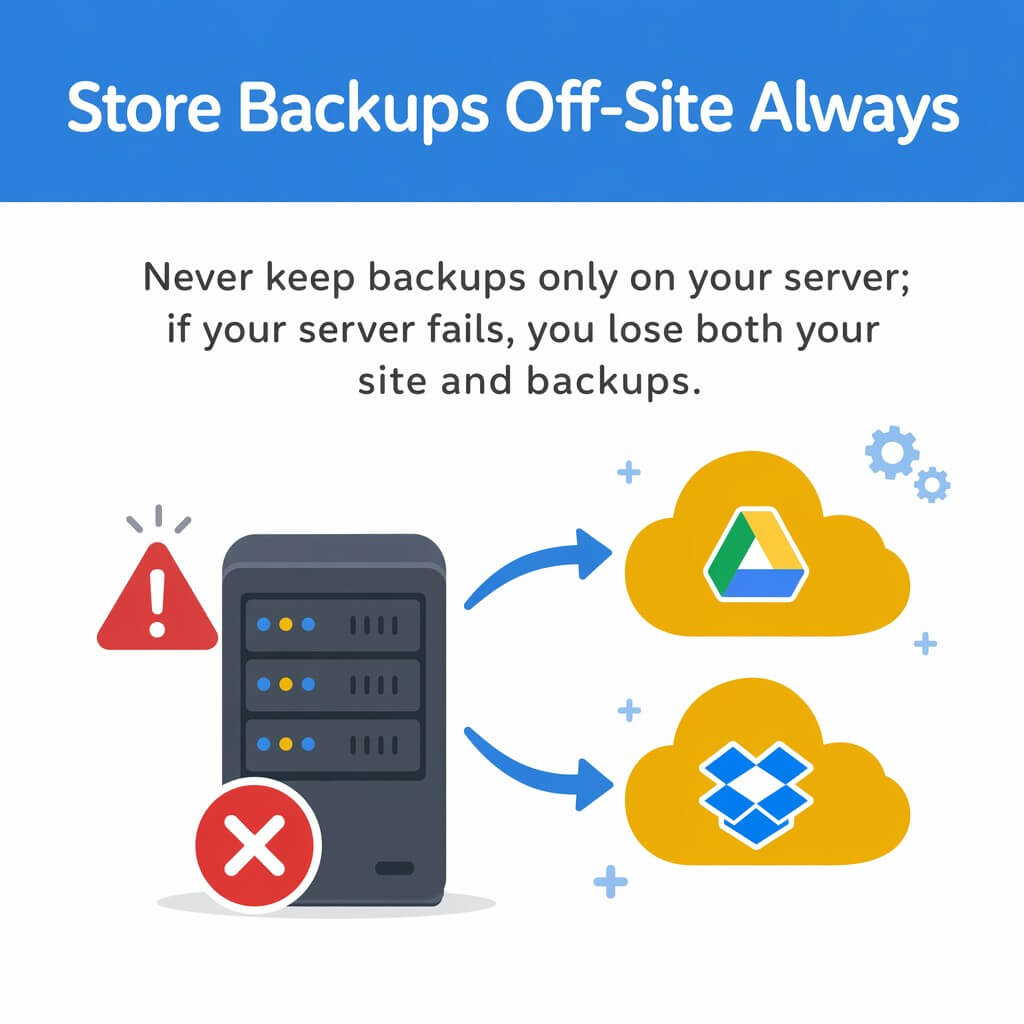
Use cloud storage like Google Drive, Dropbox, or Amazon S3. These services keep your backups off-site automatically.
Download important backups to your computer. Keep local copies of backups before major changes.
Consider a dedicated backup service. Services like UpdraftVault or BackupBuddy Stash specialize in WordPress backups.
Including Backups in Your Maintenance Routine
Create a backup before every WordPress update. This gives you a restore point if the update breaks something.
Back up before installing new plugins or themes. Test new additions on a staging site when possible.
Schedule weekly backup checks. Verify that your automated system is still working correctly.
Document your backup process. Write down where backups are stored and how to access them.
Many site owners find that WordPress care plans provide peace of mind with regular automated backups included.
Moving Beyond Basic Backups
You now know how to backup and restore your WordPress site using both plugins and manual methods.
Pick the method that matches your technical comfort. Plugins work great for most people. Manual methods give you more control when you need it.
Set up your backup system today. The best backup is the one you create before you need it.
Test your restoration process at least once. Knowing you can actually restore your site removes the worry.
Your site deserves better than hoping nothing goes wrong. Regular backups turn disasters into minor inconveniences.