Your WordPress database gets bloated over time. That bloat slows down every single page load.
You can clean it up yourself using free plugins or manual methods. Both approaches work well when you follow the right steps.
The key is knowing what to remove and what to keep. Delete the wrong data and your site breaks. Skip the cleanup and your site crawls.
Why Your WordPress Database Needs Regular Cleaning
Database bloat happens naturally as you use WordPress. Every edit, every spam comment, every plugin test adds data.
WordPress powers 43% of all websites. Most of those sites carry unnecessary database weight.
Your database stores everything. Post revisions pile up. Spam comments sit in limbo. Deleted plugins leave orphaned data behind.
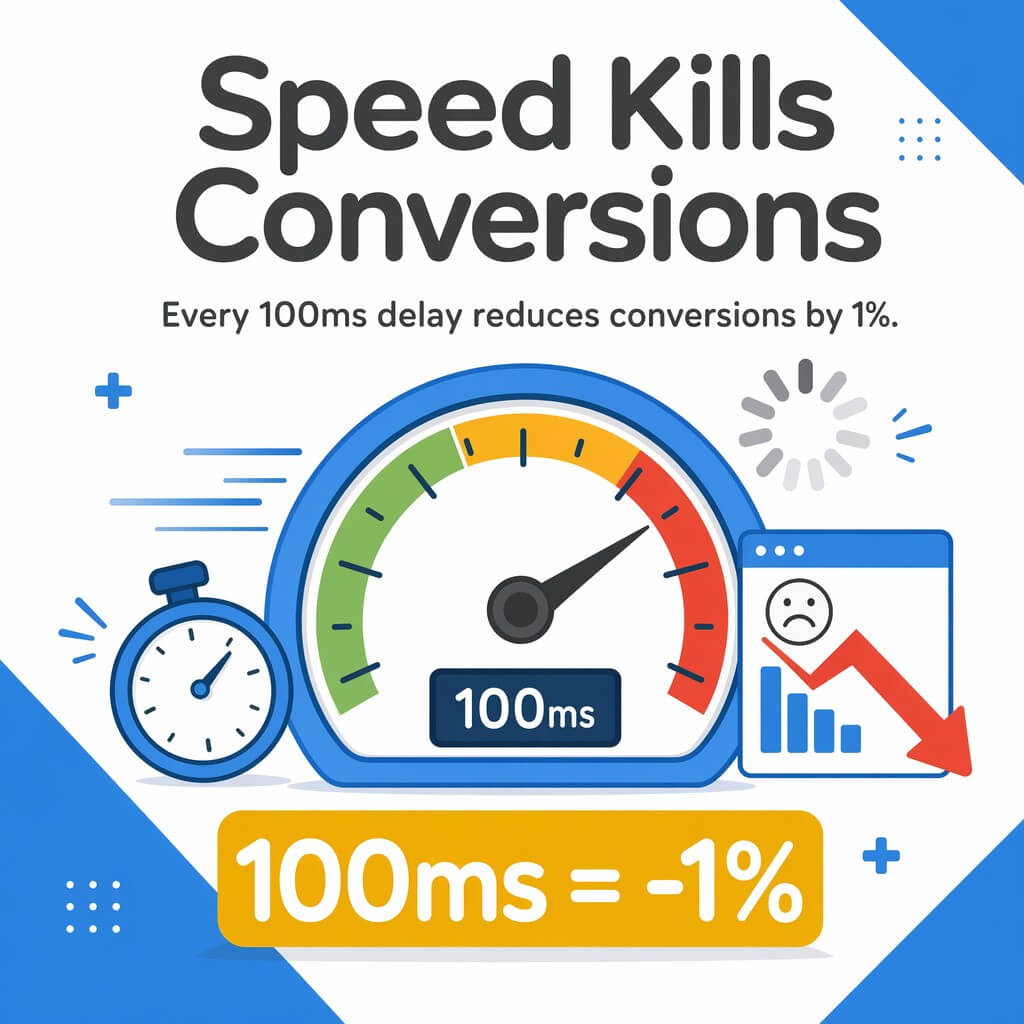
This clutter affects your site speed directly. Every 100ms delay reduces conversions by 1%. Slow database queries cause those delays.
The wp_options table gets particularly messy. Transients expire but stay in the database. Autoloaded data grows until page loads suffer.
Regular cleanup prevents these problems. You remove unused data before it impacts performance.
What Creates Database Bloat in WordPress
Post revisions are the biggest offender. WordPress saves every draft, every change you make.
Write a blog post with 20 edits? You now have 20 copies in your database. Multiply that across hundreds of posts.
Spam comments add up fast. 99% of trackbacks and pingbacks are spam. Each one takes up database space.

Trashed content never fully disappears. Deleted posts and pages sit in your trash folder indefinitely.
Transients and Temporary Data
Transients are temporary cache entries. Plugins create them to store data for a set time period.
Many transients expire but never get deleted. They sit in your wp_options table forever.
Orphaned transients come from deleted plugins. The plugin removes itself but leaves its data behind.
Orphaned Metadata Problems
Metadata connects to posts, users, and comments. When you delete the parent item, the metadata often stays.
Orphaned postmeta has no post to connect to. Orphaned usermeta links to deleted user accounts.
This data serves no purpose. It just makes your database tables larger.
Auto-Drafts and Revisions
WordPress creates auto-drafts while you write. These save your work automatically.
Most auto-drafts never become published posts. They accumulate in your database anyway.
Post revisions work similarly. They provide version history but take up significant space over time.

Essential Backup Steps Before Any Database Work
Never touch your database without a current backup. This rule has no exceptions.
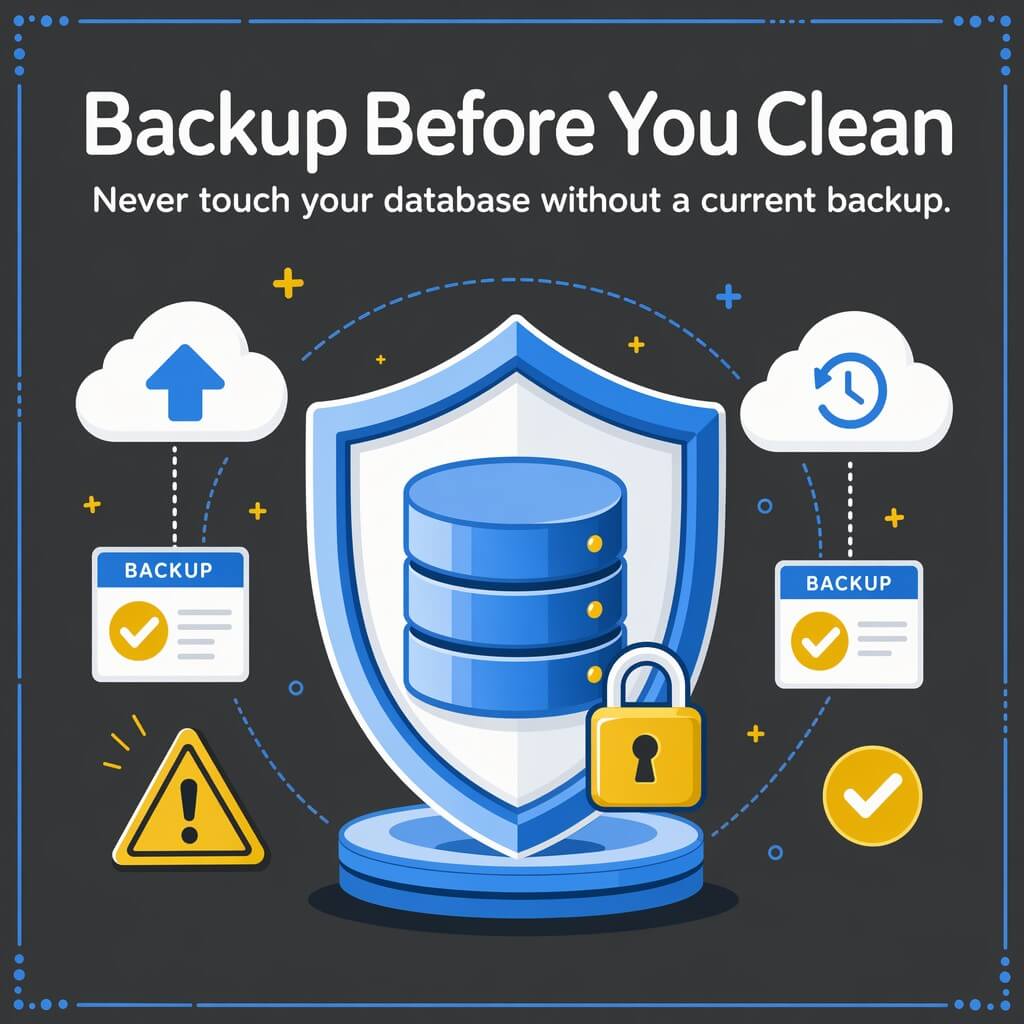
Database cleanup can break your site if something goes wrong. A backup lets you restore everything quickly.
Your hosting control panel probably includes backup tools. Use them before you start cleaning.
Download the backup file to your computer. Do not rely only on server-stored backups.
Creating a Complete Database Backup
Export your entire database through phpMyAdmin. This creates a .sql file with all your data.
Log into your hosting control panel. Find the phpMyAdmin link under databases.
Select your WordPress database from the left sidebar. Click the Export tab at the top.
Choose Quick export method and SQL format. Click Go to download the file.
Testing Your Backup File
Open the downloaded .sql file in a text editor. You should see SQL commands and table data.
Check the file size. A typical WordPress database backup ranges from 5MB to 50MB or more.
Store this backup file safely. You might need it if cleanup causes problems.
Top WordPress Database Cleanup Plugins Compared
Plugins make database cleanup simpler. They handle the technical work for you.
Three plugins stand out for reliability and features. Each takes a different approach to optimization.
| Plugin | Best For | Key Strength |
|---|---|---|
| WP-Optimize | All-in-one cleanup | Combines optimization with caching |
| Advanced Database Cleaner | Deep cleaning | Finds orphaned data other plugins miss |
| WP-Sweep | Manual control | Shows exactly what gets deleted |
All three plugins work well. Your choice depends on how much control you want.
WP-Optimize Features and Benefits
WP-Optimize handles database cleanup and page caching in one plugin.
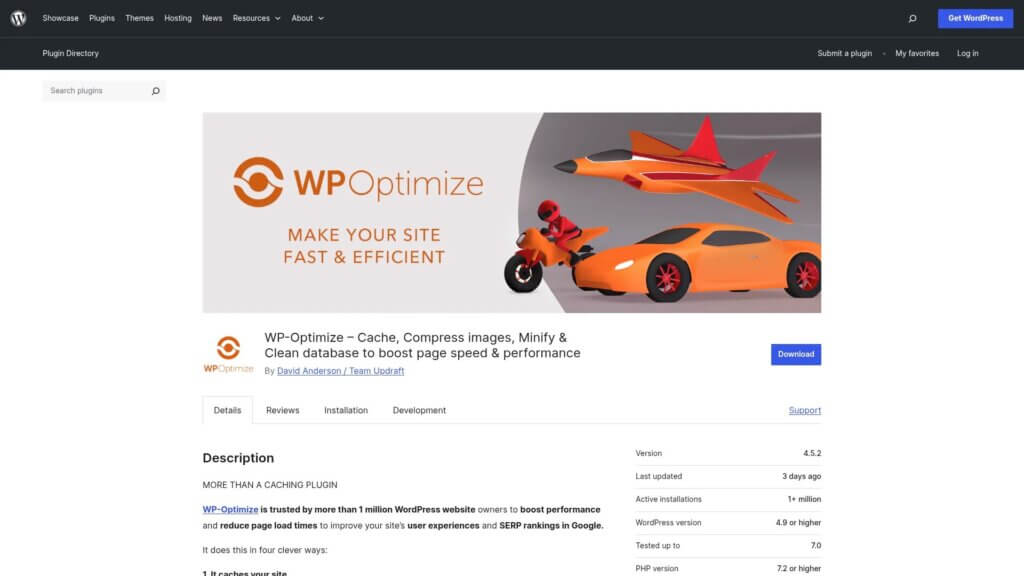
It removes post revisions, spam comments, and transients automatically. You can schedule these cleanups to run weekly.
The plugin shows exactly how much database space each cleanup type saves. This helps you prioritize which items to remove first.
WP-Optimize includes table optimization. This reorganizes your database tables for better performance.
Advanced Database Cleaner Capabilities
Advanced Database Cleaner finds orphaned data other plugins leave behind.
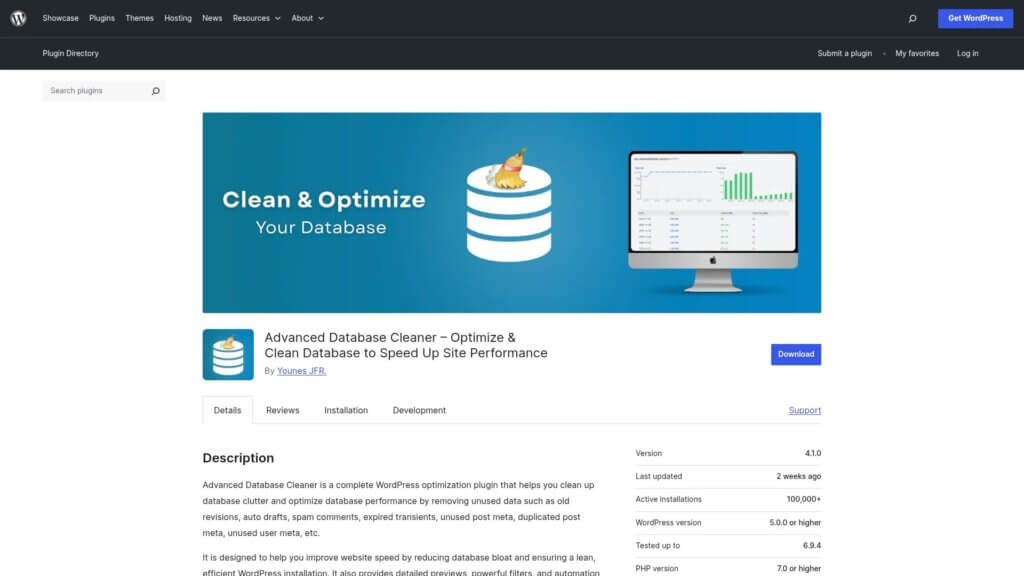
It scans for orphaned postmeta, usermeta, and commentmeta. These often slip past basic cleanup tools.
The plugin identifies orphaned database tables from deleted plugins. You can remove these safely once you verify they are unused.
Scheduled cleanups run automatically. Set them to daily, weekly, or monthly frequency.
WP-Sweep Manual Control
WP-Sweep gives you complete control over what gets deleted.
It lists every cleanup item with exact counts. You see how many revisions, spam comments, and orphaned items exist.
Each cleanup type has its own button. You choose what to remove and when.
This manual approach works well if you want to understand your database better. You learn what creates bloat on your specific site.
Step-by-Step Database Cleanup Using WP-Optimize
WP-Optimize handles most cleanup tasks through its main dashboard. The process takes about 10 minutes.
Install the plugin from your WordPress dashboard. Go to Plugins, click Add New, search for WP-Optimize.
Activate the plugin after installation. You will see a new WP-Optimize menu item in your sidebar.
Running Your First Database Cleanup
Click WP-Optimize in your WordPress sidebar. The dashboard shows all available optimizations.
Each optimization displays how many items it will remove. Review these numbers before proceeding.
Check the boxes next to the optimizations you want to run. Start with post revisions and spam comments.
Click Run all selected optimizations. The plugin processes each task and shows results.
Configuring Automatic Cleanups
Click the Settings tab in WP-Optimize. Find the Auto-clean settings section.
Enable the option to run automatic cleanups. Choose a schedule that fits your publishing frequency.
Select which optimizations to include in automatic runs. Weekly cleanups work well for most sites.
Save your settings. WP-Optimize now maintains your database automatically.
Understanding WP-Optimize Results
After each cleanup, WP-Optimize shows how much database space you recovered. This appears in megabytes or kilobytes.
The plugin lists each optimization it performed. You see exactly what got removed.
Check your site immediately after cleanup. Make sure all pages load correctly and content appears normally.

Manual Database Optimization with phpMyAdmin
Sometimes you need more control than plugins provide. phpMyAdmin lets you work directly with your database.
This approach requires care. One wrong query can break your site completely.
Always work from a fresh backup. Test each query on a staging site first if possible.
Accessing Your Database Tables
Log into your hosting control panel. Find the phpMyAdmin icon under databases.
Select your WordPress database from the left sidebar. You will see all your database tables listed.
WordPress tables start with wp_ by default. Some sites use a custom prefix for security.
Optimizing Database Tables
Database tables develop overhead as data gets added and removed. Optimization reclaims this wasted space.
In phpMyAdmin, check all tables by clicking the checkbox at the top of the table list.
Open the dropdown menu at the bottom that says “With selected.” Choose Optimize table.
phpMyAdmin processes each table and shows results. This can take several minutes on large databases.
Cleaning Specific Data with SQL Queries
The SQL tab in phpMyAdmin lets you run custom cleanup queries. These target specific types of data.
To remove post revisions, use this query:
DELETE FROM wp_posts WHERE post_type = 'revision';For auto-drafts, run:
DELETE FROM wp_posts WHERE post_status = 'auto-draft';Always verify the query syntax before clicking Go. One typo can delete important data.
Cleaning Up Specific Database Elements
Different types of database bloat need different cleanup approaches. You can target each element individually for better results.
This focused approach helps when one area causes most of your problems. You clean what matters most first.
Managing Post Revisions Effectively
Post revisions provide useful version history. But unlimited revisions create massive bloat.
Limit future revisions by adding code to your wp-config.php file. This line keeps only 5 revisions per post:
define('WP_POST_REVISIONS', 5);To disable revisions completely, use false instead of 5. Most sites work fine with 3-5 revisions.
Delete existing old revisions through WP-Optimize or manually via phpMyAdmin. This reclaims space immediately.
Removing Transients and Expired Data
Expired transients stay in your wp_options table indefinitely. They serve no purpose but slow down queries.
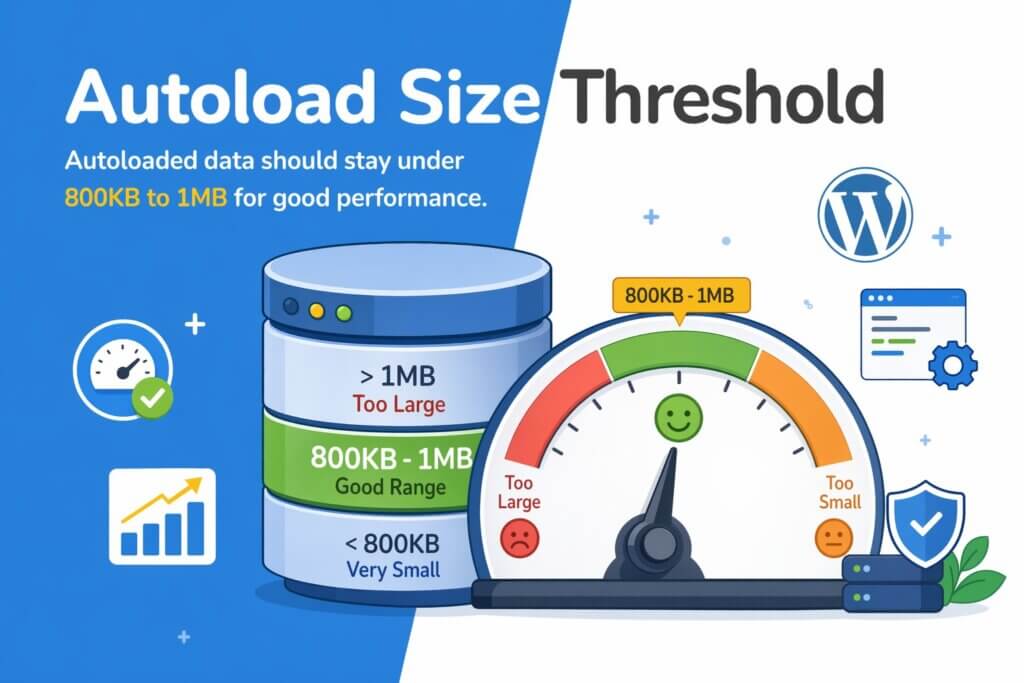
Autoloaded data should stay under 800KB to 1MB for good performance.
Plugins like WP-Optimize remove expired transients automatically. Run this cleanup weekly for active sites.
Manual removal through phpMyAdmin works too. Search for _transient_ in the wp_options table and delete expired entries.
Spam Comment Cleanup
Spam comments accumulate quickly if you leave moderation settings loose. Each one adds database rows.
Empty your spam folder regularly. WordPress keeps spam comments for 30 days by default.
Change this in Settings, Discussion. Set “Automatically delete spam comments older than X days” to 7 days.
Plugins like Akismet catch spam before it enters your database. This prevents bloat from starting.
Orphaned Metadata Removal
Orphaned metadata lacks a parent record. It connects to posts, users, or comments that no longer exist.
Advanced Database Cleaner finds these orphaned records automatically. Other plugins often miss them.
Manual removal requires careful SQL queries. You must verify that metadata truly has no parent before deleting.
This query finds orphaned postmeta:
SELECT * FROM wp_postmeta pm LEFT JOIN wp_posts p ON p.ID = pm.post_id WHERE p.ID IS NULL;Review results before changing SELECT to DELETE. Make absolutely certain the data is orphaned.
Optimizing the wp_options Table for Performance
The wp_options table handles site settings, plugin options, and cached data. It affects every page load.
Bloated wp_options tables slow down your entire site. Each page load queries this table multiple times.
Autoloaded data creates the biggest problems. WordPress loads this data on every single page request.
Understanding Autoloaded Data
Autoloaded options load into memory on every page. This speeds up access to frequently needed settings.
But too much autoloaded data does the opposite. It bloats memory usage and slows initial page loads.
Check your autoloaded data size through a database query. This shows total autoloaded bytes:
SELECT SUM(LENGTH(option_value)) as autoload_size FROM wp_options WHERE autoload='yes';Results over 1MB indicate a problem. You need to identify which options cause the bloat.
Identifying Problem Options
List all autoloaded options sorted by size. This query shows the biggest offenders:
SELECT option_name, LENGTH(option_value) as option_size FROM wp_options WHERE autoload='yes' ORDER BY option_size DESC LIMIT 20;Look for large options from inactive plugins. These can often be safely removed.
Transients should never autoload. If you see _transient_ entries, investigate which plugin created them.
Reducing Autoload Safely
Change unnecessary autoloaded options to no. This keeps the data but stops it from loading on every page.
Never change core WordPress options. Only modify plugin-created options after verifying they are safe to change.
Some plugins rely on autoloading. Changing their settings breaks functionality. Research before modifying unknown options.
Database Cleanup Impact on Site Performance
Database optimization creates measurable speed improvements. You should see faster page loads immediately after cleanup.
Average WordPress page size reaches 3.25MB with 91 requests per page. Database bloat adds query time to each request.
Cleaning your database reduces query execution time. Pages load faster when databases respond quickly.
Measuring Performance Improvements
Test your site speed before and after database cleanup. This shows actual impact.
Use tools like GTmetrix or Pingdom. They measure total page load time and database query time separately.
Focus on Time to First Byte (TTFB). Average TTFB for WordPress sites improved to 167ms recently.
Good database cleanup can reduce TTFB by 50-100ms. That translates directly to better user experience.
Long-Term Performance Benefits
Regular database maintenance prevents performance degradation over time. Your site stays fast as it grows.
Clean databases use less server resources. This means lower hosting costs and better stability during traffic spikes.
Backups complete faster with smaller databases. This improves your disaster recovery capabilities.
Preventing Future Database Bloat
Cleanup solves current problems. Prevention stops them from returning.
Set up automated systems that maintain your database continuously. This beats manual cleanups every time.
Configuring Automatic Maintenance
Schedule weekly database cleanups through WP-Optimize or similar plugins. This prevents bloat from accumulating.
Limit post revisions in wp-config.php. This stops new bloat at the source.
Set aggressive spam comment deletion. Seven days is plenty for reviewing potential false positives.
Plugin Management Best Practices
Delete unused plugins completely. Deactivating is not enough because their database tables remain.
When removing plugins, check if they leave orphaned tables. Advanced Database Cleaner identifies these.
Choose plugins carefully before installation. Some plugins create excessive database bloat by design.
Content Creation Habits
Empty trash regularly after deleting posts and pages. Set WordPress to auto-delete trash after 7 days.
Add this to wp-config.php:
define('EMPTY_TRASH_DAYS', 7);Review draft posts monthly. Delete abandoned drafts that will never get published.
Advanced Optimization Techniques
Basic cleanup handles most database bloat. Advanced techniques squeeze out extra performance.
These methods require more technical knowledge. They deliver smaller gains but help high-traffic sites.
Database Table Indexing
Indexes speed up database queries by creating quick lookup references. WordPress creates some indexes automatically.
Custom queries benefit from custom indexes. Add indexes to frequently queried columns.
Check existing indexes in phpMyAdmin. Click a table, then select the Structure tab.
Add indexes carefully. Too many indexes slow down write operations while speeding up reads.
Query Optimization
Slow queries cause performance problems even in clean databases. Identify problem queries using tools like Query Monitor.
Install the Query Monitor plugin. It shows every database query WordPress runs.
Sort queries by execution time. Focus on queries taking over 0.05 seconds.
Optimize slow queries by adding appropriate indexes or changing how plugins make requests.
Separating Database From Web Server
Large sites benefit from dedicated database servers. This separates database load from web traffic.
Your hosting provider can set this up. It requires updating wp-config.php with new database host details.
This advanced setup improves performance under heavy traffic. It adds complexity for minimal gain on smaller sites.
Database Security During Cleanup
Database access creates security risks. Protect your data while optimizing.
Use secure connections when accessing phpMyAdmin. Check for HTTPS in the URL.
User Permissions and Access
Limit who can access your database. Only administrators should have phpMyAdmin access.
Change your database password regularly. Use strong passwords with mixed characters.
Some hosts allow IP restrictions for database access. Enable this if available.
Backup Verification
Test your backup files periodically. A backup only helps if it actually works.
Download a backup and open it. Verify the SQL commands look correct.
Consider keeping multiple backup generations. Keep backups from before and after major cleanups.
When to Get Professional Database Help
Most database cleanup works fine as a DIY project. Some situations need expert help.
If your database exceeds 1GB, professional optimization often works better. Large databases need specialized approaches.
Corrupted databases require expert repair. Do not attempt manual fixes on corrupted tables.
If cleanup breaks your site, professional help gets you back online faster. We handle WordPress speed optimization and database repairs daily.
Sites with custom database modifications need careful handling. Standard cleanup plugins might remove important custom data.
Our WordPress care plans include regular database maintenance. We handle cleanups, backups, and optimization automatically.
Take a breath. You now understand how database cleanup works and why it matters.
Start with a backup. Always. Then choose your cleanup method based on your comfort level.
Plugins work great for most sites. They automate everything and prevent mistakes.
Manual optimization gives you more control. But it requires careful attention to detail.
Your first cleanup will show the biggest improvements. Regular maintenance keeps those gains.
If any step feels overwhelming, we are here to help. Visit our support page and we will handle the technical work for you.