A server status check tells you whether your website is online and accessible to visitors. This matters because every minute of downtime means lost customers and revenue. You need to know immediately when your server goes down, not hours later when customers complain.
The basics are straightforward. You enter your website URL into a monitoring tool, and it tests your server from multiple locations worldwide. The tool checks if your server responds correctly and measures how quickly it loads.
We know this can feel overwhelming, especially when you’re already managing a business and don’t have technical expertise. But checking your server status isn’t complicated once you understand what to look for and which tools work best.
This guide walks you through everything you need to know. You’ll learn what server status means, how to check it effectively, and how to prevent problems before they hurt your business. We’ll keep everything simple and practical.
What is Server Status Check?
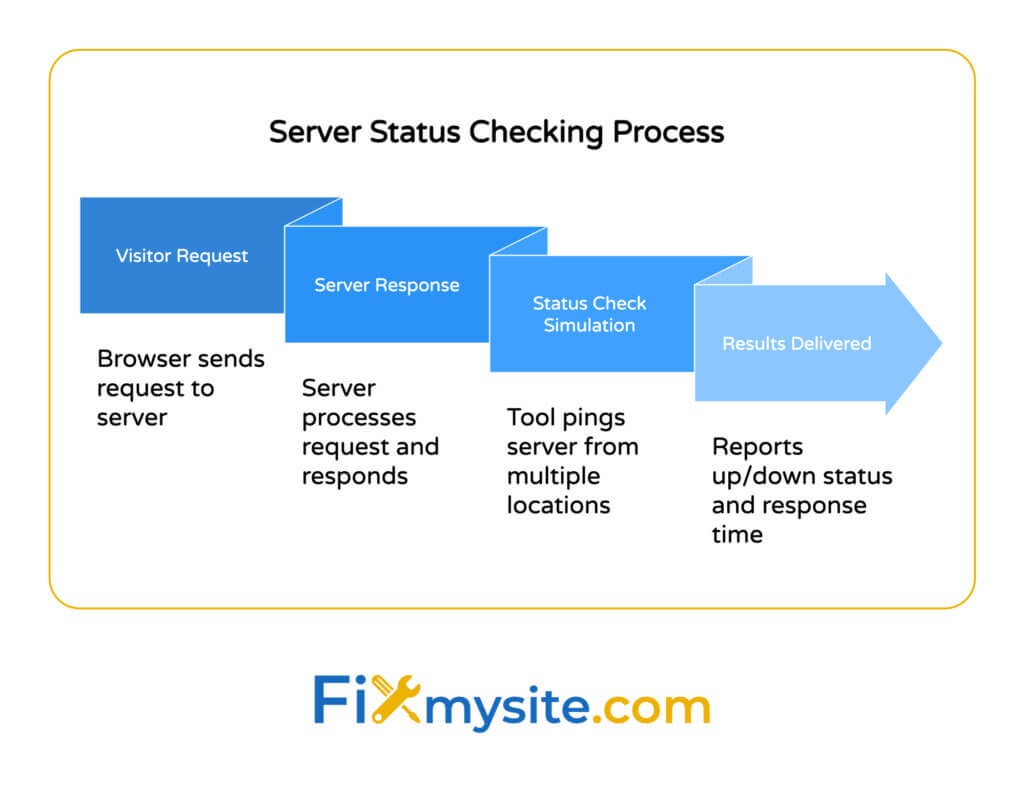
Server status checking monitors whether your website’s server is working properly. Think of it like checking if a store is open before you drive there.
When someone visits your website, their browser sends a request to your server. Your server responds with the website content. A status check simulates this process to verify everything works.
The check happens in seconds. Tools ping your server from different global locations. They test whether your server responds and how fast it performs.
You get immediate feedback about your website availability. The tool reports if your site is up, down, or experiencing issues. It measures response time and identifies specific problems.
Real-time website status checking functionality matters for business continuity. Your customers can’t wait when your site goes down. You need instant alerts to fix problems quickly.

How to Check Server Status
Start by choosing a monitoring tool that fits your needs. Free online checkers work well for basic status verification. Professional services offer deeper insights and continuous monitoring.
Using Online Status Checkers
Open any web browser and search for “server status check.” Pick a reputable tool from the results.
Enter your website URL in the checker’s search box. Include the full domain with https:// prefix. Click the check or test button.
Wait 5-10 seconds for results. The tool contacts your server from one or more locations. It reports whether your site responds correctly.
Look at the HTTP status code in the results. A code of 200 means your server is working perfectly. Error codes indicate specific problems we’ll cover below.
Setting Up Continuous Monitoring
Sign up for a monitoring service if you need ongoing surveillance. Most offer free plans for basic website monitoring.
Add your domain to the monitoring dashboard. Configure how often you want checks to run. Site24x7 provides 1-minute interval checks from 130+ monitoring locations for thorough coverage.
Set up alert preferences next. Choose how you want notifications: email, SMS, or platform integrations. Pingdom integrates with platforms like Slack and PagerDuty for instant team alerts.
Configure multiple location checking for accurate results. Uptrends offers over 230 checkpoints worldwide with concurrent monitoring from multiple checkpoints to confirm true outages rather than false alarms.
Why Server Status Monitoring Matters
Downtime costs money immediately. Every minute your website stays offline, potential customers visit competitors instead. They often don’t come back.
Your business reputation depends on reliability. Customers trust websites that work consistently. Frequent downtime damages credibility faster than almost anything else.
Search engines penalize unreliable websites. Google monitors uptime as a ranking factor. Sites that frequently go down lose search visibility over time.
Early detection prevents bigger problems. Small server issues often signal larger underlying problems. Catching them early saves time and repair costs.
Response time monitoring helps you maintain good performance. Slow servers frustrate visitors as much as offline ones. Monitoring helps you optimize before users notice problems.
Understanding HTTP Status Codes
Status codes are your server’s way of communicating its condition. Each three-digit code tells a specific story about what happened with a request.
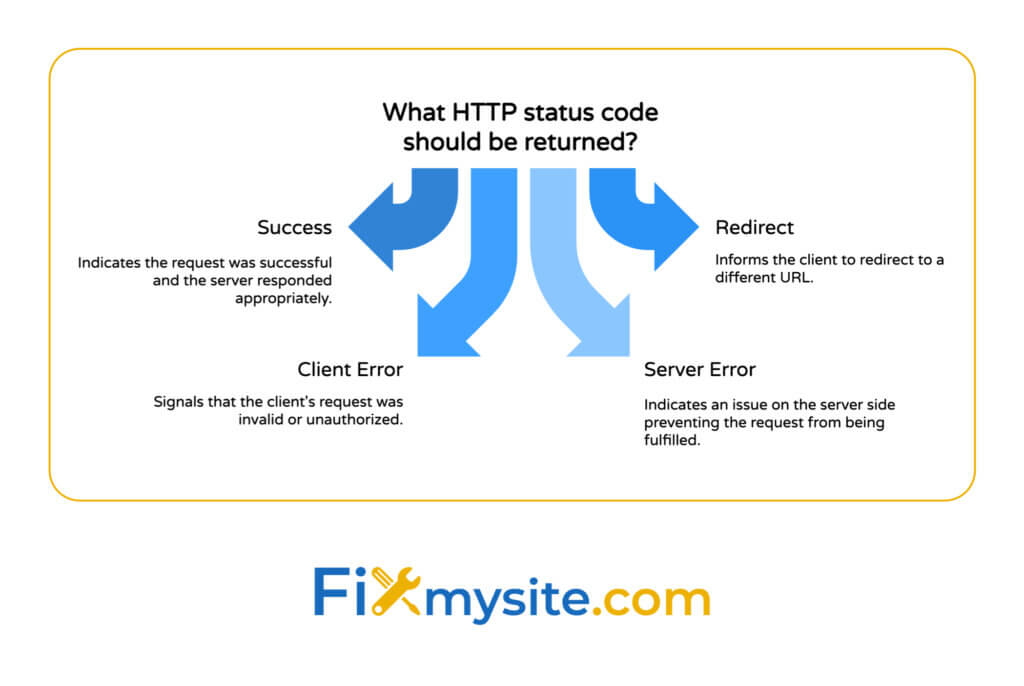
Success Codes (200-299)
Code 200 means “OK” – your server handled the request perfectly. This is what you want to see every time.
Code 201 indicates successful creation of new resources. This appears when forms submit correctly or content uploads successfully.
Code 204 shows success with no content to return. This happens with certain update requests where no response body is needed.
Redirect Codes (300-399)
Code 301 signals a permanent redirect. Your server moved content to a new URL permanently. Search engines transfer ranking signals to the new location.
Code 302 indicates a temporary redirect. The content moved temporarily but will return to the original URL. Search engines keep the original URL indexed.
Code 304 means “not modified” – the cached version is still current. This speeds up page loads by reusing stored content.
Client Error Codes (400-499)
Code 404 is the famous “not found” error. The requested URL doesn’t exist on your server. Check for broken links and fix them.
Code 403 means “forbidden” – the server refuses access. Permissions settings or security rules block the request. Review your access controls.
Code 401 requires authentication. The visitor needs to log in before accessing the requested resource.
Server Error Codes (500-599)
Code 500 indicates an internal server error. Something went wrong on your server, but the specific problem isn’t clear. Check your error logs for details. Our guide on fixing internal server errors explains troubleshooting steps.
Code 502 signals a bad gateway. Your server received an invalid response from an upstream server. This often happens with proxy configurations or hosting issues.
Code 503 means service unavailable. Your server is temporarily unable to handle requests, usually during maintenance or overload. Learn more about handling technical difficulties on WordPress sites.

Types of Server Status Checks
Different check types reveal different aspects of server health. Using multiple methods gives you complete visibility into your website’s status.
Uptime Monitoring
This tracks whether your server responds to requests. The monitor pings your website at regular intervals. It records every successful response and every failure.
Uptime percentage measures reliability. A site with 99.9% uptime is down for about 43 minutes per month. Aim for 99.95% or higher for professional websites.
Performance Monitoring
Response time checks measure how quickly your server loads. Monitors request a page and time how long it takes to fully load.
Multiple location testing shows performance differences globally. Your server might respond quickly in North America but slowly in Asia. This data helps you optimize delivery.
SSL Certificate Monitoring
Pingdom provides specialized capabilities including SSL certificate monitoring that alerts you before certificates expire. Expired SSL certificates break your site’s security and display browser warnings.
Certificate checks verify encryption is working properly. They test that your security protocols remain up to date and functional.
DNS Monitoring
DNS checks verify that your domain name resolves to the correct IP address. DNS problems prevent visitors from finding your server at all.
These checks test from multiple DNS servers worldwide. They catch propagation issues and configuration errors early. If you’re seeing “site can’t be reached” errors, DNS issues might be the cause.
Key Features of Server Status Checkers
The right monitoring tool makes all the difference. Look for these essential capabilities when choosing a service.
Real-Time Alerts and Notifications
Instant alerts let you respond to problems immediately. Configure notifications through your preferred channels: email, SMS, Slack, or phone calls.
Alert customization prevents notification fatigue. Set different urgency levels for different issues. Critical downtime needs immediate attention, while minor slowdowns can wait.
Global Monitoring Locations
Multiple location checking confirms real outages versus local network problems. Your site might be down in Europe but working fine in North America.
Geographic coverage matters for international businesses. Test from locations where your customers actually live. This reveals regional performance problems.
Detailed Reporting and Analytics
Historical data shows patterns over time. You’ll spot recurring problems and identify their causes. Track improvements after making server changes.
Site24x7’s RUM product visualizes how users interact with websites, providing insights into real problems affecting user experience in real-time, with analysis across different browsers, geographies, ISPs, and platforms.
Integration Capabilities
Connect monitoring to your existing workflow. Integrate with incident management tools, team communication platforms, and ticketing systems.
Automated workflows speed up response. Create rules that automatically notify the right team members when specific problems occur.
Benefits of Real-Time Monitoring
Continuous monitoring transforms how you handle website reliability. You shift from reactive firefighting to proactive problem prevention.
Immediate problem detection minimizes downtime impact. The faster you know about issues, the faster you can fix them. Minutes saved on detection mean revenue preserved.
Automated alerts work 24/7 without human oversight. Your monitoring never sleeps, takes breaks, or goes on vacation. Problems get caught at 3 AM just as quickly as 3 PM.
Performance tracking helps you optimize before users complain. You’ll see response times creeping up and can investigate before they become noticeable problems.
Uptime reports provide accountability. Share statistics with stakeholders to demonstrate reliability. Use data to justify infrastructure investments.
Historical data reveals trends and patterns. You’ll identify peak traffic times, recurring issues, and seasonal variations. This intelligence guides capacity planning.
Common Server Status Issues and Solutions
Even with monitoring in place, problems still occur. Here’s how to handle the most frequent issues.
Website Shows as Down
First, verify the problem from multiple locations. Use different checking tools to confirm your site is actually down and not just experiencing local issues.
Check your hosting provider’s status page. Many outages affect multiple customers simultaneously. Your host might already be working on fixes.
Review recent changes to your website. New plugins, theme updates, or configuration changes often cause problems. Our WordPress troubleshooting guide covers quick recovery steps.
Contact your hosting support if the problem persists. Provide them with error messages and status codes. This speeds up their diagnosis.
Slow Response Times
Identify what’s slowing down your server. Check if the problem is consistent or happens at specific times. Traffic spikes often cause temporary slowdowns.
Optimize large images and media files. These are common culprits for slow loading. Compress images and use appropriate formats.
Review your caching configuration. Proper caching dramatically improves response times. Our WordPress speed optimization service can help if you need expert assistance.
Consider upgrading your hosting plan. Shared hosting has performance limits. Growing sites eventually need more resources.
Intermittent Connection Problems
Log every occurrence with timestamps. Intermittent problems are harder to diagnose. Detailed logs help identify patterns.
Check for resource limitations during problem times. Your server might hit memory or CPU limits during traffic spikes. Monitor server resources alongside uptime.
Review DNS settings and configurations. DNS propagation issues sometimes cause intermittent availability problems.
Test from different networks and devices. This helps determine if problems are universal or specific to certain connections.
SSL Certificate Errors
Verify your certificate hasn’t expired. Expired certificates are a common oversight. Set up monitoring alerts 30 days before expiration.
Check that your certificate covers all necessary domains. Certificates must match the exact domain visitors use, including www variations.
Ensure proper installation and configuration. Even valid certificates won’t work if incorrectly installed. Test your SSL configuration using online validation tools.
Quick Answers
What is the server status?
Server status indicates whether a server is operational, experiencing issues, or down. You can check specific service status pages like Cloudflare’s or Okta’s for real-time updates on service performance.
How do I check my current server?
Use monitoring tools like Cloudflare Status for performance and security insights or Downdetector for real-time network status updates. Enter your URL and these tools test server availability immediately.
Why is the server down now?
Servers go down due to maintenance, technical issues, or service disruptions. Check your service’s official status page for specific reasons and estimated recovery times.
Don’t wait for customers to tell you your website is down. Regular server status monitoring catches problems before they affect your business. The tools and techniques in this guide give you everything needed to maintain reliable uptime.
Start with basic status checks today. Set up at least one monitoring tool with email alerts. Then gradually expand to more detailed monitoring as you learn what works for your website.
Need help getting your WordPress site back online or optimizing performance? Our team specializes in WordPress support and can handle technical issues while you focus on your business. We’re here when you need us.