Customizing your WordPress theme safely requires one essential practice: never edit your parent theme files directly.
The safest way to customize WordPress themes is by creating a child theme that preserves all your changes when updates arrive. A child theme acts as a protective layer between your customizations and the parent theme. When the parent theme gets updated, your child theme keeps every single one of your customizations intact.
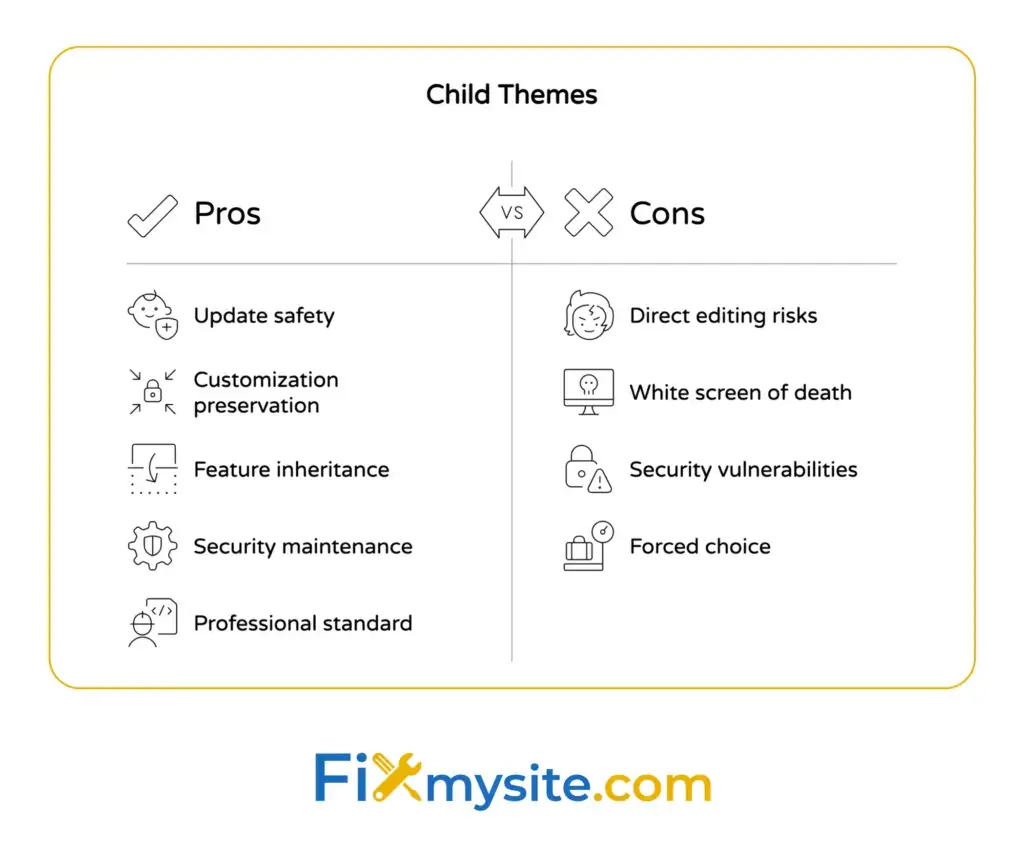
Direct edits to parent theme files or core WordPress files create a ticking time bomb. The moment an update arrives, all your hard work disappears. Worse, editing theme files incorrectly can break your entire site instantly.
This guide shows you exactly how to customize WordPress themes safely using child themes as your primary method. You will learn how to create child theme files, use the WordPress Customizer for quick visual changes, and implement plugins for functionality without touching a single line of theme code. We will walk through creating style.css and functions.php files, adding custom CSS safely, and using hooks for advanced customizations.
By the end, you will know how to customize any WordPress theme without the constant worry of breaking your site or losing changes. You will understand why child themes matter, how to set them up correctly, and when to use alternative methods like the WordPress Customizer or plugins.
Why You Should Never Edit Your WordPress Theme Files Directly
Editing your parent theme files directly is one of the fastest ways to create serious problems for your WordPress site. When you modify files in your main theme folder, those changes vanish the instant you update the theme.
Theme updates overwrite every file you have edited. This happens automatically if you have updates set to auto-install. One morning you wake up and your customizations are gone. Your carefully crafted design changes, your custom functions, your CSS tweaks all disappear without warning.
The consequences go beyond just losing changes. Direct edits to theme files can break your site completely. A single syntax error in functions.php triggers the white screen of death. Your site becomes inaccessible to you and your visitors.
Security vulnerabilities make this even worse. Pre-built themes often include outdated libraries with known vulnerabilities that hackers actively exploit. When you skip theme updates to preserve your direct edits, you leave these security holes wide open.
Core WordPress files and template files in your theme directory should remain untouched. Modifying core files breaks WordPress functionality and makes troubleshooting nearly impossible. When something goes wrong, support teams cannot help you because your installation no longer matches standard WordPress behavior.
Theme developers release updates for good reasons. They fix security issues, patch bugs, add features, and improve performance. Your direct edits force you to choose between security and keeping your customizations. This is a choice you should never have to make.

What Happens When Theme Updates Overwrite Your Work
Picture this scenario. You spend hours customizing your theme files to get the perfect layout. You edit header.php to add a custom banner. You modify style.css to change colors and fonts. Everything looks exactly how you want it.
Then a theme update arrives. WordPress installs it automatically overnight. The next morning, your custom banner is gone. Your color scheme has reverted. All those CSS changes have vanished.
This is not a hypothetical situation. It happens to WordPress users every single day. Theme updates replace every modified file with the original version from the theme developer.
The Risk of Breaking Your Site Completely
Breaking your site happens faster than you might think. One missing semicolon in your CSS can break the entire layout. One incorrect PHP function call in functions.php can crash your entire site.
The white screen of death appears when PHP errors occur in theme files. Your site becomes completely inaccessible. You cannot log into your WordPress dashboard. Visitors see nothing but a blank white screen.
Recovering from a broken site requires technical knowledge most WordPress users do not have. You need to access your site via FTP or your hosting control panel. You need to identify which file caused the error. You need to fix the code or restore a backup. If you need help with these situations, you can get reliable WordPress support from experienced professionals.
The Primary Safe Customization Method: Child Themes
Now that you understand why direct edits are dangerous, you need a safe alternative. Child themes solve every problem we just discussed. They protect your customizations from theme updates while keeping your site secure and functional.
A child theme is a separate theme that inherits everything from your parent theme. It loads after the parent theme and overrides only the specific parts you want to change. The parent theme can update freely without touching any of your custom work.
When WordPress loads your site, it checks the child theme first. If a file exists in your child theme, WordPress uses that version. If a file does not exist in your child theme, WordPress falls back to the parent theme version. This inheritance system keeps you safe.
Child themes preserve your customizations permanently. Theme updates happen in the parent theme folder, never in your child theme folder. Your custom code stays exactly where you put it. Your design changes remain intact through every single update.
Professional WordPress developers use child themes exclusively for customizations. This is the industry standard method. Child themes should always be used for customizations to preserve parent theme updates and avoid direct edits to the parent theme.
The setup process takes less than 10 minutes. You create a new folder, add two required files, and activate your child theme. After that initial setup, you can customize with complete confidence.
How Child Themes Protect Your Customizations
Child themes create a protective barrier between your work and theme updates. Think of the parent theme as the foundation and the child theme as your custom layer on top. The foundation can be repaired and improved without disturbing your custom layer.
Every customization lives in your child theme folder. Your custom CSS goes in the child theme style.css file. Your custom functions go in the child theme functions.php file. Your template modifications go in child theme template files.
When the parent theme developer releases version 2.0 with major changes, your child theme simply inherits those new features. Your customizations continue working exactly as before. No manual work required.
When Child Themes Are the Right Solution
Child themes work perfectly for most customization needs. Use a child theme when you need to add custom CSS, modify template files, add custom functions, or change your site structure.
Child themes handle visual design changes beautifully. Change colors, adjust spacing, modify layouts, add custom fonts. All of these customizations belong in your child theme style.css file.
For functionality changes, child themes give you the power of functions.php. Add custom post types, modify WordPress behavior, integrate third-party services. Your child theme functions.php file is the safe place for all custom code.
How to Create a Child Theme Step by Step
Creating a child theme requires two essential files in a new folder. This section walks you through the exact process from start to finish. You will have a working child theme in less than 10 minutes.
First, connect to your website using FTP or your hosting control panel file manager. Navigate to wp-content/themes/ where all WordPress themes live. Create a new folder for your child theme. Name it something clear like “parenttheme-child” or “mytheme-child”.
Inside this new folder, you need to create two files. The first file is style.css. The second file is functions.php. These two files make your child theme functional.
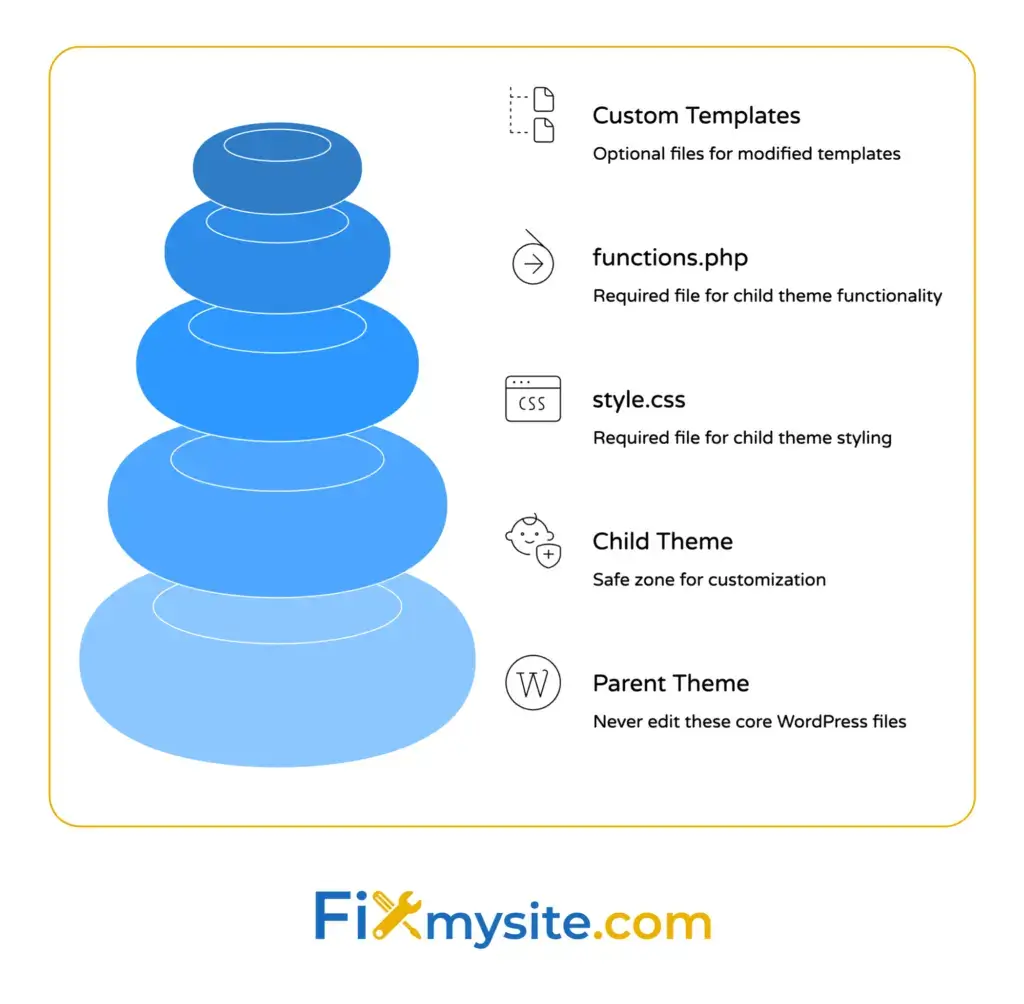
Your child theme folder structure should look like this:
wp-content/themes/
  your-parent-theme/
  your-child-theme/
    style.css
    functions.php
Creating Your Child Theme style.css File
The style.css file tells WordPress that this folder is a child theme. Open a text editor and create a new file. Add this header information at the very top:
/*
 Theme Name:   Your Parent Theme Child
 Theme URI:    https://yoursite.com
 Description:  Child theme for Your Parent Theme
 Author:       Your Name
 Author URI:   https://yoursite.com
 Template:     your-parent-theme
 Version:      1.0.0
*/
The Template line is critical. It must exactly match the folder name of your parent theme. If your parent theme folder is called “twentytwentyfour”, then Template must be “twentytwentyfour”. Case matters here.
Save this file as style.css in your child theme folder. This file will also hold all your custom CSS later. Any custom styles you add below this header will override the parent theme styles.
Creating Your Child Theme functions.php File
The functions.php file loads your parent theme styles correctly and provides a place for custom functions. Create a new file in your text editor and add this code:
This code enqueues both the parent theme stylesheet and your child theme stylesheet in the correct order. The parent styles load first, then your child styles load and override as needed.
Save this file as functions.php in your child theme folder. Later, you can add custom functions below this enqueue code. This is where your custom PHP code will live.
Activating Your Child Theme
Log into your WordPress dashboard and go to Appearance > Themes. You should see your new child theme listed alongside other themes. Click Activate on your child theme.
Your site now runs on the child theme. It looks identical to the parent theme because you have not added any customizations yet. But now you have a safe foundation for all future changes.
Visit your site to confirm everything loads correctly. Check a few pages to make sure nothing broke during activation. If you see any issues, you can quickly switch back to the parent theme from the Themes screen.
Using the WordPress Customizer for Safe Visual Changes
The WordPress Customizer provides a safe way to make visual changes without touching any theme files. It is a built-in tool that comes with every WordPress installation. No plugins required, no coding needed.
The Customizer shows you live previews of every change before you publish. You can modify colors, fonts, layouts, and widgets while seeing exactly how they will look. If you do not like something, just close the Customizer without saving.
Access the Customizer by going to Appearance > Customize in your WordPress dashboard. The left panel shows all available customization options. The right panel shows a live preview of your site.
Common Customizer options include Site Identity for logos and titles, Colors for color schemes, Menus for navigation, and Widgets for sidebar content. Your theme may include additional custom options like header styles or footer layouts.
The Customizer is perfect for non-technical users who want to customize their WordPress theme safely. Everything happens through simple click-and-type interfaces. No CSS knowledge required. If you run into issues with the Customizer tool itself, check out this WordPress Customizer troubleshooting guide.
Making Safe Changes Through the Customizer Interface
Start with the simplest changes first. Change your site title and tagline in Site Identity. Upload a new logo if your theme supports it. These changes take seconds and carry zero risk.
Color changes come next. Many themes include color pickers in the Customizer. Click a color option, choose your new color, and watch it update instantly in the preview. You can experiment with different combinations until you find what works.
Typography options let you change fonts and text sizes. Some themes offer Google Fonts integration right in the Customizer. Select a new font family and adjust sizes without writing any CSS code.
Using the Custom CSS Box in the Customizer
The Additional CSS section in the Customizer gives you a safe place to add custom CSS. This CSS applies to your site without modifying any theme files. It stores in your database instead.
Click Additional CSS in the Customizer menu. A code editor opens on the left. Type or paste your CSS code here. The preview updates instantly so you can see your changes in real time.
This method works great for small CSS customizations. Change button colors, adjust spacing, hide elements, or modify fonts. Your CSS survives theme updates because it stores separately from your theme files.
One limitation exists with the Customizer CSS box. If you deactivate or change themes, you lose this CSS. For extensive CSS customizations you want to keep long-term, use your child theme style.css file instead.
Adding Custom CSS Safely Without Breaking Your Theme
Custom CSS changes how your site looks without modifying template files. You have three safe methods for adding custom CSS: the Customizer Additional CSS box, your child theme style.css file, or a custom CSS plugin.
The safest location for custom CSS is your child theme style.css file. Open the style.css file in your child theme folder. Scroll past the header comments. Add your custom CSS below the header.
Every custom CSS rule you add here overrides the parent theme styles. Specificity matters in CSS, so make your selectors specific enough to override parent styles but not more specific than necessary.
Test each CSS change immediately after saving. Refresh your site in your browser to see the results. Check multiple pages to ensure your CSS works consistently across your entire site.
Where to Add Custom CSS Code
For permanent CSS changes, use your child theme style.css file. This keeps your CSS organized in one place and preserves it through theme updates. Add comments above each section to explain what your CSS does.
For experimental CSS changes, use the Customizer Additional CSS box. Try different styles and see instant previews. Once you confirm the CSS works perfectly, copy it to your child theme style.css file for permanent storage.
For clients who need to add CSS without touching files, install a custom CSS plugin. These plugins provide a simple interface for adding CSS through the WordPress dashboard. The CSS stores in the database safely.
Common CSS Customizations That Stay Safe
Button styling represents one of the most common CSS customizations. Change button colors, add hover effects, adjust padding, or modify borders. Target button classes specifically to avoid affecting other elements.
Typography adjustments let you fine-tune font sizes, line heights, and letter spacing. Override your theme’s default typography without modifying template files. Just target the appropriate heading or paragraph selectors.
Layout modifications can adjust spacing, change column widths, or alter container sizes. Use padding and margin adjustments to create more breathing room. Modify max-width values to make content areas narrower or wider.

Safe Customization with Plugins Instead of Code
Plugins provide a code-free way to add functionality to your WordPress site. Instead of adding custom functions to your theme files, you install a plugin that does the work for you. This approach keeps functionality separate from your theme.
When you add functionality through your child theme functions.php file, that functionality only works while your child theme is active. If you change themes, you lose that functionality. Plugins solve this problem.
Functionality plugins work regardless of your active theme. Custom post types, contact forms, SEO features, and security enhancements all stay active when you switch themes. This separation of concerns follows WordPress best practices.
Choose plugins carefully. Only install plugins from the official WordPress plugin directory or trusted developers. Check plugin ratings, read reviews, and verify the plugin receives regular updates.
When to Use Plugins vs Child Theme Customizations
Use plugins for functionality that should work regardless of your theme. Contact forms, SEO optimization, caching, security features, and custom post types all belong in plugins. These features are site-wide, not theme-specific.
Use child themes for customizations tied directly to your theme’s appearance or structure. Custom CSS, template modifications, theme-specific functions, and design overrides belong in your child theme.
The rule of thumb: if you would want the feature to keep working after changing themes, use a plugin. If the feature only makes sense with your current theme, use your child theme.
Popular Plugins for Safe Customization
For custom CSS, Simple Custom CSS provides a clean interface for adding styles. For custom functions, Code Snippets lets you add PHP code without editing functions.php. For page layouts, Elementor or Beaver Builder give you visual builders.
For custom post types and fields, Advanced Custom Fields and Custom Post Type UI handle complex content structures. For footer modifications, any widgetized footer plugin works. For header changes, header builder plugins provide visual interfaces.
Security plugins deserve special mention. Use security plugins like Wordfence or Sucuri for file monitoring, malware scans, and brute force protection. These tools protect your customizations from security threats.
Advanced Safe Methods: Hooks, Filters, and Custom Functions
WordPress hooks give you the power to modify functionality without editing core files or parent theme files. Hooks let you insert your custom code at specific points in WordPress execution. This is the professional way to extend WordPress.
Two types of hooks exist: actions and filters. Actions let you add custom code at specific points. Filters let you modify data before WordPress uses it. Both hook types keep your customizations separate from core functionality.
All custom hook code belongs in your child theme functions.php file. This keeps hooks organized and protects them from theme updates. Developers creating custom themes must follow WordPress Coding Standards using functions like sanitize_text_field(), esc_html(), and $wpdb->prepare() to prevent SQL injection and XSS attacks.
Using Action Hooks Safely
Action hooks let you add custom code at specific execution points. Common action hooks include wp_head for adding code to the header, wp_footer for adding code to the footer, and init for running code when WordPress initializes.
The add_action function connects your custom code to an action hook. The first parameter is the hook name. The second parameter is your custom function name. Optional third and fourth parameters control priority and accepted arguments.
Example of a safe action hook in your child theme functions.php:
add_action( 'wp_footer', 'add_custom_footer_script' );
function add_custom_footer_script() {
    echo '<script>console.log("Custom script loaded");</script>';
}
Using Filter Hooks to Modify Content
Filter hooks let you modify data before WordPress displays it. Common filters include the_content for modifying post content, the_title for modifying titles, and excerpt_length for changing excerpt length.
The add_filter function connects your custom function to a filter hook. Your function receives the data, modifies it, and returns the modified version. WordPress then uses your modified data instead of the original.
Example of a safe filter hook in your child theme functions.php:
add_filter( 'excerpt_length', 'custom_excerpt_length' );
function custom_excerpt_length( $length ) {
    return 50;
}
Essential Safety Practices and Testing Your Customizations
No matter which customization method you use, certain safety practices are non-negotiable. These practices protect you from catastrophic failures and make recovery simple when problems occur.
Backups come first. Before making any customization, create a complete backup of your site. Your backup should include all files and your entire database. Store backups in a safe location separate from your hosting server.
Testing environments give you a safe place to experiment. A staging site is an exact copy of your live site where you can test changes without affecting real visitors. Most quality hosts provide staging sites. For more information on this, read about setting up WordPress hosting with staging.
Small changes work better than massive overhauls. Make one customization at a time. Test thoroughly. Move to the next customization only after confirming the previous one works perfectly. This approach makes troubleshooting simple.
Creating Backups Before Making Changes
Manual backups give you complete control. Use your hosting control panel to download your site files and export your database. Store both in a labeled folder on your local computer. Include the date in the folder name.
Backup plugins automate the process. UpdraftPlus and BackupBuddy create scheduled backups automatically. Configure them to store backups in cloud storage like Dropbox or Google Drive for extra security. Learn more about backup strategies in this WordPress backup guide.
The backup frequency should match your customization frequency. If you customize daily, back up daily. If you customize weekly, back up before each session. Never skip backups for “quick” changes.
Testing Changes in a Staging Environment
Staging sites mirror your production site exactly. They use the same theme, plugins, and content. The only difference is the URL and the fact that no real visitors see it.
Make all customizations on staging first. Test every single change thoroughly. Check different browsers. View on mobile devices. Try various user actions. Only after confirming everything works perfectly do you move changes to production.
Moving changes from staging to production requires care. For child theme changes, download your child theme folder from staging and upload it to production. For plugin settings, document each setting change and replicate them manually on production.
What to Do When Customizations Break Your Site
When your site breaks, stay calm and follow a systematic recovery process. First, determine if you can access your WordPress dashboard. If yes, deactivate your most recent changes through the dashboard.
If your dashboard is inaccessible, connect via FTP. Rename your child theme folder to deactivate it. Your site will switch to the parent theme automatically. This confirms whether your child theme caused the problem.
For complete site crashes, restore from your most recent backup. This is why backups matter so much. A good backup gets you back online in minutes instead of hours or days. If you need immediate help recovering from a broken theme, professional WordPress theme repair service can restore your site quickly.
Common Mistakes to Avoid When Customizing Themes
Even with child themes and safe methods, certain mistakes happen repeatedly. Learning from these common errors saves you time and frustration. These mistakes can turn safe customizations into site-breaking disasters.
The biggest mistake is skipping the child theme entirely. Users edit parent theme files directly because it seems faster. Then they lose everything on the next update. Always use a child theme for any modification to theme files.
The second mistake is editing core WordPress files. Never modify anything in the wp-includes or wp-admin directories. These are core WordPress files. Changes here break your site and make updates impossible.
The third mistake is copying entire template files to child themes unnecessarily. Only copy template files you actually need to modify. Copying unmodified files creates maintenance headaches when parent theme updates improve those templates.
Template File Mistakes and How to Fix Them
When you copy a template file to your child theme, you take full responsibility for maintaining it. Parent theme updates to that template do not reach your site anymore. Your child theme version takes complete precedence.
Only copy template files when you need to modify their structure. For CSS-only changes, use your child theme style.css file instead. For small functionality tweaks, use hooks instead of copying entire templates.
If you copy a template file, add comments explaining exactly what you changed. Future you will thank past you when you need to update that template later. Clear comments make maintenance possible.
CSS Specificity Problems and Solutions
CSS specificity determines which styles win when multiple rules target the same element. Child theme styles should be specific enough to override parent styles but not overly complicated.
If your child theme CSS is not working, check specificity. The parent theme might use more specific selectors. Increase your selector specificity by adding additional classes or IDs to your CSS rules.
The nuclear option is adding !important to your CSS rules. This forces your rule to win regardless of specificity. Use !important sparingly as it makes future CSS modifications harder.
Plugin Conflicts and How to Troubleshoot Them
Plugin conflicts occur when two plugins try to do similar things or load conflicting JavaScript libraries. Symptoms include broken layouts, missing features, or JavaScript errors in your browser console.
Troubleshoot plugin conflicts by deactivating all plugins except one. Test your site. Reactivate plugins one at a time, testing after each activation. When your site breaks, you have found the conflicting plugin.
For conflicts between your child theme and a plugin, check if both are modifying the same functionality. You might need to choose one approach or the other. Contact plugin support with specifics about your theme customizations.
Maintaining Your Customizations Long Term
Creating safe customizations is only the beginning. Maintaining them over time requires ongoing attention and good documentation practices. Your future self needs to understand what you changed and why.
Document every customization you make. Keep a simple text file listing each change with the date and reason. Include code snippets for reference. When you need to modify something later, your documentation tells you exactly what you did.
Update your child theme version number when you make significant changes. This helps you track when changes occurred. Update the version number in your child theme style.css header comment.
Regular maintenance protects your customizations. Check your site after every theme update. Verify all customizations still work correctly. Test thoroughly before real visitors encounter problems. Consider WordPress care plans for ongoing maintenance and monitoring.
Keeping Child Themes Compatible with Parent Theme Updates
Parent theme updates sometimes change template structures or remove functions your child theme depends on. Check parent theme changelogs before updating to see what changed.
If an update breaks your customizations, you have options. Review the changelog to understand what changed. Update your child theme code to match the new parent theme structure. Test thoroughly in staging before updating production.
Major parent theme updates might require child theme rewrites. When a theme releases version 2.0 with major structural changes, your child theme might need significant updates. Budget time for this maintenance work.
Documentation Practices That Save Time Later
Comment your code extensively. Explain what each function does, why you added it, and what problem it solves. Good comments make future modifications simple.
Keep a customization log separate from your code. List every change with dates, reasons, and related support tickets or client requests. This history helps when you need to reverse changes or understand decisions.
Screenshot your site before and after major customizations. Visual records help you remember what changed. Store screenshots in a dated folder for easy reference.
Getting Professional Help When You Need It
Sometimes customizations exceed your comfort level or available time. Knowing when to get professional help prevents costly mistakes and saves hours of frustration.
Complex customizations require advanced knowledge. Custom post types with specific relationship structures, e-commerce integrations, or membership site customizations often need professional developers. Attempting these without proper knowledge can break your site badly.
Time constraints matter too. If you need customizations done quickly for a launch or deadline, professional help ensures quality results on schedule. Your time might be better spent on business activities than learning advanced WordPress development.
Professional WordPress support gives you access to experienced developers who handle customizations daily. They know safe practices, common pitfalls, and efficient solutions. They also fix problems when customizations go wrong.
Whether you need a one-time customization or ongoing support for multiple sites, getting expert help keeps your site secure and functional. Professional developers follow best practices, document their work, and ensure your customizations survive theme updates.
For any WordPress customization needs, from simple tweaks to complex functionality, reach out for professional WordPress support. Experienced help ensures your customizations are safe, effective, and maintainable long term.