Disabling an unused plugin in WordPress is quick and simple. Log into your WordPress dashboard, go to Plugins, find the inactive plugin, and click Deactivate. If you want to permanently remove it, click Delete after deactivation. But before you do anything, create a backup of your entire site. This protects you if something goes wrong during the process.
You should also understand the difference between deactivate and delete. Deactivating stops a plugin from running but keeps its files and settings on your server. Deleting removes everything permanently. Most site owners deactivate first to make sure nothing breaks, then delete later if they’re certain they won’t need that plugin again.
We know how overwhelming WordPress maintenance can feel, especially when you’re trying to keep your site fast and secure. That’s why we’ve put together this simple guide to help you manage unused plugins without stress. You’ll learn exactly when to deactivate, when to delete, and how to clean up any leftover data safely.
Why Remove Unused WordPress Plugins
Every plugin you install adds code to your WordPress site. When those plugins sit inactive, they still create problems.
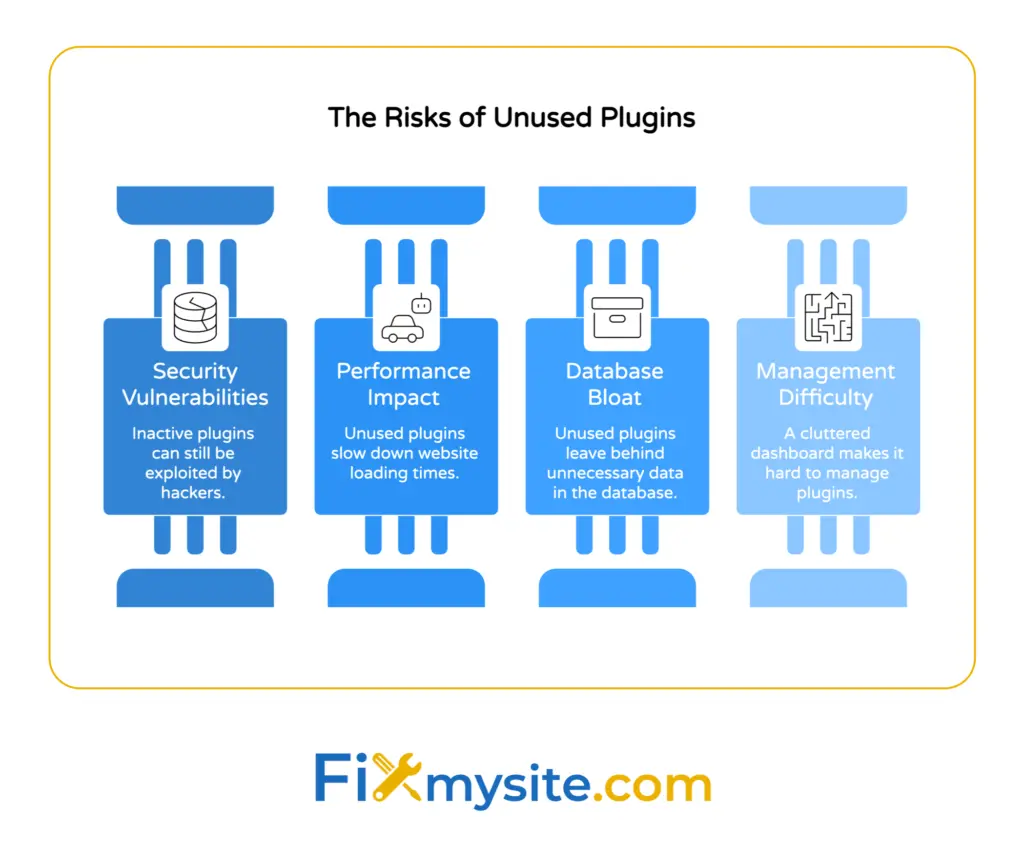
Inactive plugins slow down your site. They take up disk space and sometimes leave database entries that pile up over time. Your server has to work harder, which affects loading times for your visitors.
Security is another serious concern. Having unused or inactive plugins on a WordPress site poses a major security risk, as they can introduce vulnerabilities even when not active. Hackers scan for known plugin weaknesses. If you have an outdated or abandoned plugin sitting on your server, you’re leaving a door open for attacks.
Database bloat is a hidden cost of keeping old plugins around. Many plugins create custom tables or add rows to your existing database. When you deactivate them, those database entries often stay behind. Over time, this slows down your site and makes backups larger than they need to be.
Managing plugins regularly keeps your WordPress dashboard clean and organized. It’s easier to find what you need and update the plugins you actually use. A lean site is a fast site.
Understanding the Difference Between Deactivate and Delete
The terms deactivate and delete sound similar, but they work very differently in WordPress.
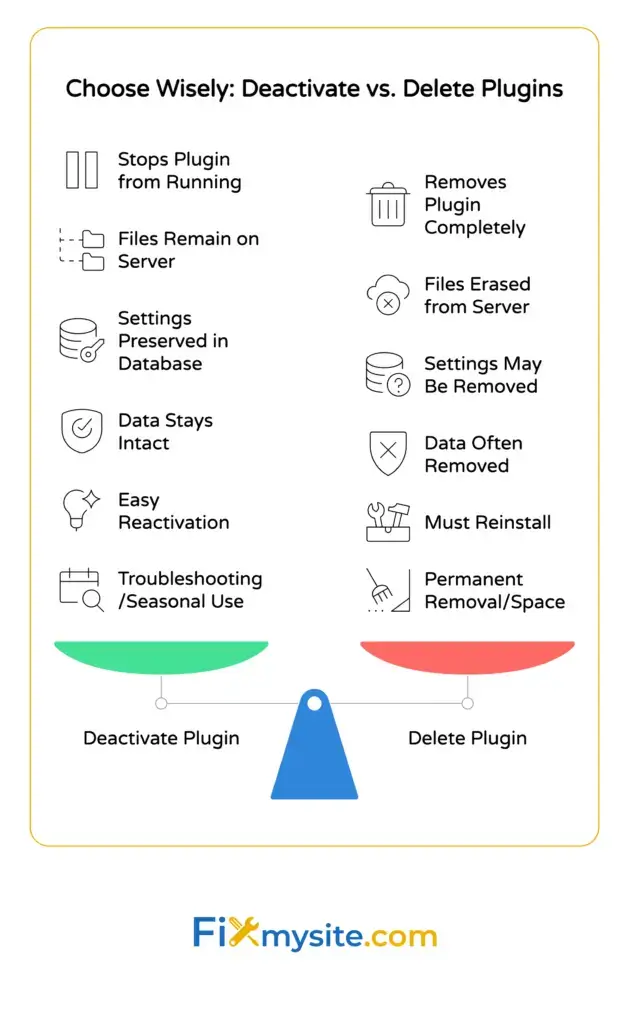
Deactivating plugins via the WordPress admin dashboard involves navigating to the Plugins menu, selecting the unused plugin, and clicking the Deactivate link, which temporarily disables it while preserving files for potential reactivation. The plugin’s code stops running on your site. WordPress no longer loads its functions or features. But all the plugin files stay on your server, and any settings or data remain in your database.
This is useful when you’re troubleshooting. If you think a plugin might be causing a conflict, you can deactivate it to see if the problem goes away. You can always reactivate it later without losing your settings.
Deleting a plugin removes it completely. WordPress erases the plugin files from your server. Some plugins also clean up their database tables and settings when you delete them. Others leave orphaned data behind, which we’ll cover in a later section.
When should you choose each option? Deactivate if you’re testing, troubleshooting, or think you might use the plugin again. Delete when you’re certain you won’t need it anymore and you want to free up space.
One important note is that only WordPress Administrators have permission to deactivate plugins by default, allowing site owners to control access through user roles without additional tools. This keeps your site secure by preventing lower level users from making changes that could break your site.

How to Deactivate a WordPress Plugin
Deactivating a plugin is straightforward. Start by logging into your WordPress dashboard. This is the backend area where you manage your site.
Once you’re logged in, look for the Plugins option in the left sidebar. Click on Installed Plugins. You’ll see a list of every plugin currently on your site.
Find the plugin you want to deactivate. Active plugins are highlighted in white, while inactive plugins have a light blue background. Underneath each active plugin name, you’ll see a Deactivate link.
Click Deactivate. WordPress will refresh the page, and the plugin will move to the inactive section. That’s it. The plugin is no longer running on your site.
If you want to deactivate multiple plugins at once, you can use bulk actions. Check the boxes next to the plugins you want to turn off. Then, select Deactivate from the Bulk Actions dropdown menu at the top of the list. Click Apply, and WordPress will deactivate all selected plugins in one go.
After deactivation, check your site to make sure everything still works. Visit your homepage, test your forms, and check your most important pages. If something breaks, you can reactivate the plugin immediately.
This is also a good time to review your plugin management and update practices to keep your site running smoothly.
How to Delete a WordPress Plugin Permanently
Before you delete any plugin, make sure it’s deactivated first. WordPress won’t let you delete an active plugin. This is a safety feature to prevent accidental removal of something your site depends on.
Go to Plugins and then Installed Plugins. Find the deactivated plugin you want to remove. Underneath the plugin name, you’ll see a Delete link.
Click Delete. WordPress will ask you to confirm the deletion. This is your last chance to change your mind. If you’re sure, click OK.
WordPress removes the plugin files from your server. Depending on the plugin, it may also delete its settings and database entries. Some plugins leave data behind for future reinstallation, which is why database cleanup is important.
After deletion, check your site again. Make sure nothing is broken. Visit pages where the plugin was used. If you deleted a contact form plugin, test your contact page. If it was a caching plugin, check your site speed.
If you accidentally delete the wrong plugin, don’t panic. You can reinstall it from the WordPress plugin directory. Go to Plugins and then Add New. Search for the plugin by name, install it, and activate it. If it was a premium plugin, you’ll need to reinstall it manually by uploading the files.
For sites with performance issues related to plugins, consider our WordPress speed optimization service to identify and fix slowdowns.
Cleaning Up Your Database After Plugin Removal
When you delete a plugin, WordPress removes the files. But many plugins leave data in your database. This includes custom tables, settings, and transient data that can pile up over time.
Manually cleaning transients from the wp_options table with queries like DELETE FROM wp_options WHERE option_name LIKE ‘_transient_%’ OR option_name LIKE ‘_site_transient_%’; helps eliminate temporary data often left by unused plugins. You can run this query through phpMyAdmin or a similar database tool.
Before you touch your database, create a complete backup. If something goes wrong, you’ll need that backup to restore your site. Many hosting providers offer one click backups through their control panel. You can also use plugins like UpdraftPlus or All-in-One WP Migration to create a backup yourself.
To access your database, log into your hosting control panel and find phpMyAdmin. This is a tool that lets you view and edit your database tables. Navigate to the database that your WordPress site uses.
Look for tables that start with wp_ followed by the plugin name. For example, if you deleted a form plugin, you might see tables like wp_forms or wp_formdata. These are likely orphaned tables left behind.
You can delete these tables manually, but be careful. Only delete tables you’re certain belong to the removed plugin. If you’re not sure, search online for the table name or ask in WordPress support forums.
For a safer approach, use a database cleanup plugin like WP-Optimize or Advanced Database Cleaner. These tools scan for orphaned data and let you remove it without manual SQL queries.
Regular database maintenance keeps your site fast and prevents bloat. If you’re not comfortable working with databases yourself, our small WordPress tasks service can handle cleanup for you safely.

Best Practices for Plugin Management
Managing plugins well means fewer headaches down the road. Start by only installing plugins you truly need. Every extra plugin adds complexity and potential security risks.
Before installing any new plugin, check when it was last updated. Plugins that haven’t been updated in over a year may be abandoned. Look at the support forum to see if the developer responds to questions. Active support is a good sign.
Read reviews and check how many active installations the plugin has. Thousands or millions of active installs usually means the plugin is reliable. But always test new plugins on a staging site first if possible.
Update your plugins regularly. Outdated plugins are a common entry point for hackers. Most hosting dashboards show you when updates are available. Set aside time each week to review and apply updates.
Audit your installed plugins every few months. Go through the list and ask yourself if you still need each one. If you haven’t used a plugin in six months, deactivate it. If you’re certain you won’t use it again, delete it.
Keep your plugin count low. Aim for quality over quantity. Two or three well coded, actively maintained plugins are better than ten poorly coded ones.
If you run into plugin conflicts or compatibility issues, troubleshoot by deactivating plugins one at a time to identify the problem.
When to Deactivate vs When to Delete
Knowing when to deactivate and when to delete saves you time and prevents mistakes.
Deactivate when you’re troubleshooting site problems. If your site is loading slowly or showing errors, turn off plugins one by one to find the cause. Once you identify the problem plugin, you can decide whether to delete it or look for an alternative.
Deactivate seasonal plugins too. If you use a plugin for holiday promotions or special events, deactivate it when the event ends. You can reactivate it next year without reinstalling or reconfiguring.
Delete when you’re certain you won’t use a plugin again. If you’ve switched to a better alternative or no longer need the functionality, delete it. Keeping unused plugins around just creates clutter and security risks.
Delete abandoned plugins that haven’t been updated in years. Even if you’re still using them, outdated plugins are dangerous. Find a modern replacement and delete the old one.
Delete after testing alternatives. When you’re trying out new plugins, you might install several options to compare. Once you’ve chosen the best one, delete the others. There’s no reason to keep inactive alternatives on your server.
Always backup before deleting. You never know when you might need to restore something. A quick backup takes minutes and can save hours of recovery work.
Frequently Asked Questions
Can inactive plugins slow down my site?
Inactive plugins don’t run code on the frontend of your site, so they won’t affect loading times for visitors. But they still take up disk space and may leave database entries that contribute to bloat. This can slow down admin tasks and increase backup sizes.
Will deleting a plugin remove its settings?
It depends on the plugin. Some plugins clean up all their data when you delete them. Others leave settings and database tables behind in case you reinstall later. Check the plugin’s documentation or settings page to see if it offers a cleanup option.
What happens if I delete a plugin by mistake?
You can reinstall most plugins from the WordPress plugin directory. Go to Plugins, then Add New, search for the plugin, and install it again. If you had custom settings, you’ll need to reconfigure them unless the plugin left its data in the database.
How do I find out which plugins I’m not using?
Check the Installed Plugins page in your dashboard. Inactive plugins are clearly labeled. You can also use a plugin like Query Monitor to see which plugins are loaded on different pages of your site.
Should I delete plugins or just deactivate them?
Deactivate when you’re testing or think you might need the plugin again. Delete when you’re certain you won’t use it. Keeping too many inactive plugins creates security risks and makes your site harder to manage.
Can I bulk delete multiple plugins at once?
Yes. First, deactivate all the plugins you want to remove using bulk actions. Then, select them again and choose Delete from the bulk actions menu. WordPress will remove all selected plugins in one step.
Will deleting a plugin affect my site’s SEO?
Only if the plugin was actively managing SEO features like meta tags, sitemaps, or redirects. If you delete an SEO plugin, make sure you have an alternative in place first. Otherwise, you might lose important SEO configurations.
If you need help managing your WordPress plugins safely or want ongoing maintenance to keep your site secure and fast, take a look at our WordPress care plans. We handle updates, backups, security, and performance monitoring so you don’t have to worry about the technical details.