
We know how frustrating it is when your website suddenly stops working, especially when the browser console shows a CORS error. Do not worry, this problem is fixable.
A CORS error occurs when a browser blocks a response because the server did not include the required permission headers. Your website tries to fetch data from another domain, but the browser steps in to protect your users. The good news is that CORS errors are not bugs. They are security features doing their job.
This guide will walk you through what CORS errors actually mean. You will learn why browsers block cross-origin requests, how to identify the specific error you are facing, and the safest ways to fix it. We will cover server-side fixes, client-side workarounds, and security practices that keep your site safe.
By the end, you will understand how to configure CORS headers correctly and avoid common mistakes that leave sites vulnerable. Take a deep breath and follow along.
What Is a CORS Error?
CORS stands for Cross-Origin Resource Sharing. It is a browser security mechanism that controls how web pages request resources from different domains.
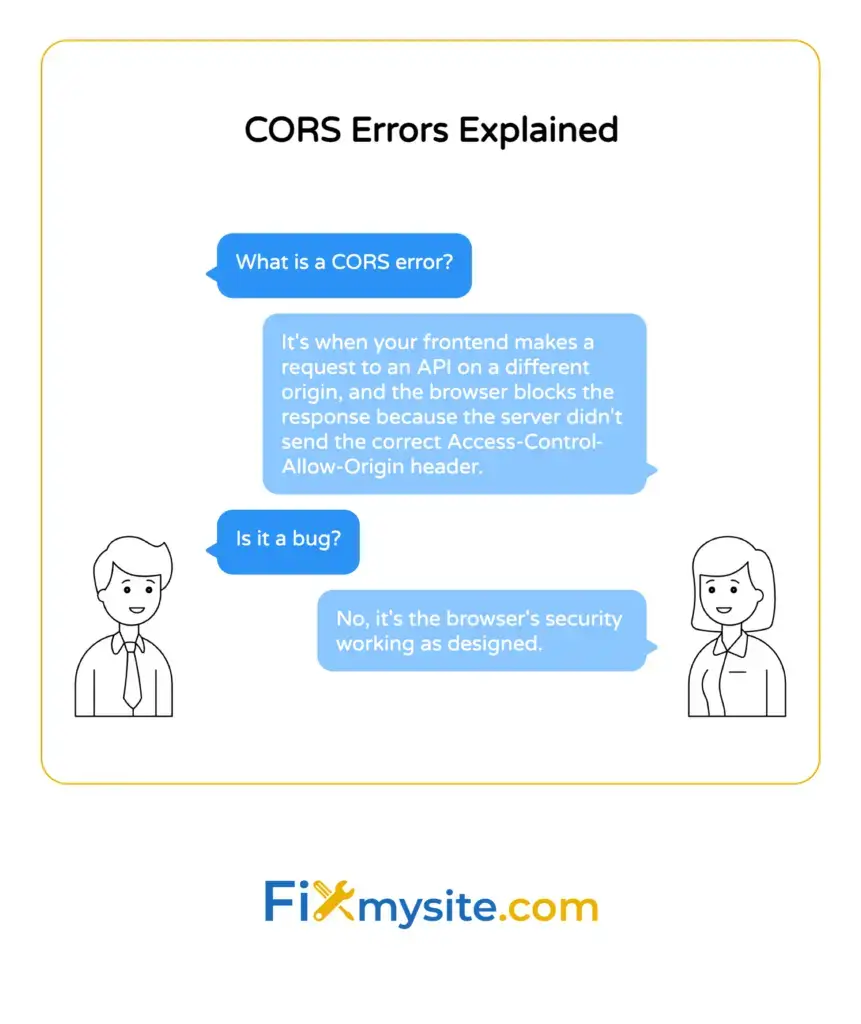
A CORS error happens when your frontend code running on one domain tries to access an API or resource on another domain. The browser checks if the server explicitly allows this cross-origin request. If the server does not send the right permission headers, the browser blocks the response and throws a CORS error.
Here is what makes a request cross-origin. Two URLs have different origins if they differ in protocol, domain, or port. For example, https://yoursite.com and https://api.yoursite.com are different origins because the domain changed. Similarly, https://yoursite.com and http://yoursite.com are different origins because one uses HTTPS and the other uses HTTP.
The key point is this: CORS errors are not really errors at all. They are the browser enforcing security rules. The browser is protecting your users from potentially malicious requests.
Most CORS issues show up when you are building features that fetch data from external APIs. Your JavaScript code might work perfectly in your development environment, then fail in production because of origin differences. This happens because localhost and your production domain count as separate origins.
Understanding Same-Origin Policy and CORS
Before CORS existed, browsers enforced something called the Same-Origin Policy. This policy is still active today and forms the foundation of web security.
The Same-Origin Policy prevents scripts on one website from accessing data on another website without permission. The Same-Origin Policy protects against two critical categories of web attacks: cross-site scripting and cross-site request forgery. Without this protection, malicious websites could read your emails, steal your banking details, or perform actions on your behalf.
The policy is strict. If you load a page from https://example.com, JavaScript on that page cannot read responses from https://api.different.com. The browser blocks access completely.
This strictness created a problem. Legitimate websites often need to access resources from different origins. APIs typically run on separate domains from frontend applications. Third-party services need to integrate with your site. Same-Origin Policy blocked all of this.
CORS was created to solve this problem. It is an HTTP-header based mechanism that allows servers to tell browsers which cross-origin requests they permit. The server can say “I allow requests from https://yoursite.com” by sending specific headers in its response.
When you make a cross-origin request, the browser checks for CORS headers in the server response. If the headers grant permission to your origin, the browser allows your JavaScript to access the response. If the headers are missing or do not match, the browser blocks the response and shows a CORS error.
This approach keeps the Same-Origin Policy active while giving servers control over which cross-origin requests to allow. Security stays strong, but flexibility increases.

Common CORS Errors and What They Mean
CORS errors come in several forms. Each error message tells you what went wrong with the cross-origin request.
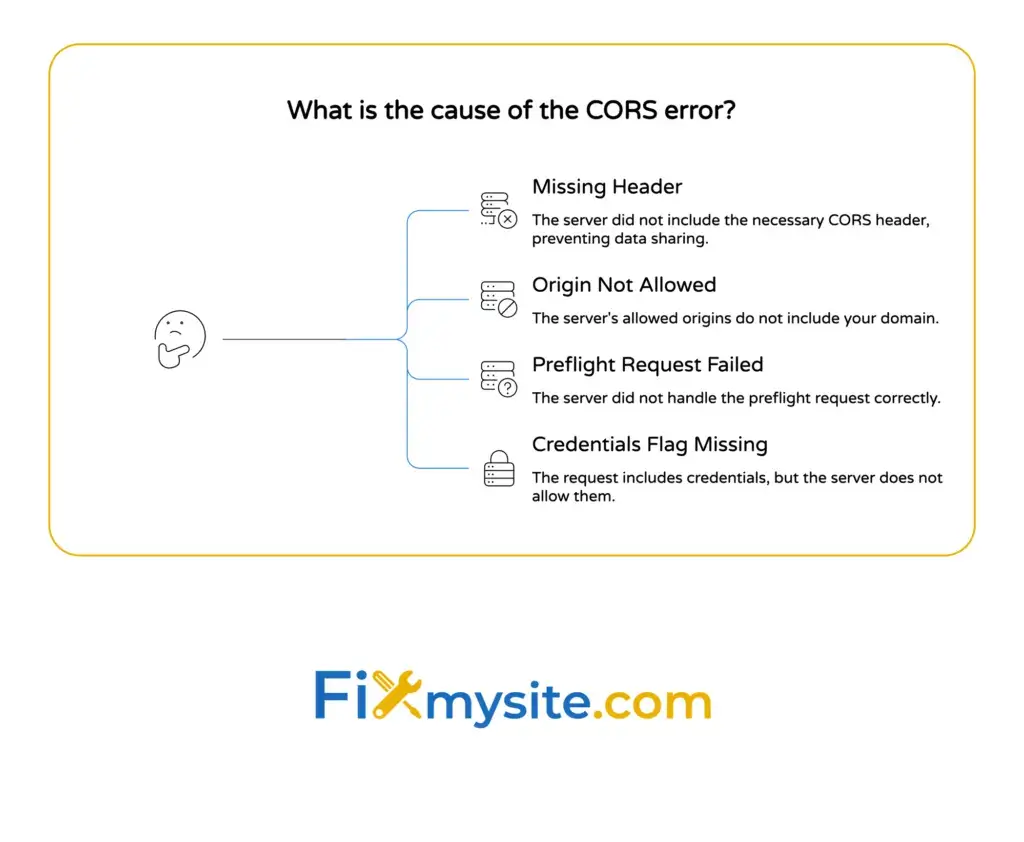
Missing Access-Control-Allow-Origin Header
This is the most common CORS error. The browser message usually says something like “No Access-Control-Allow-Origin header is present on the requested resource.”
This error means the server sent a response, but did not include the Access-Control-Allow-Origin header. Without this header, the browser has no permission to share the response with your JavaScript code. The browser blocks access completely.
The fix requires server-side changes. You cannot solve this error from the frontend alone.
Origin Not Allowed by Access-Control-Allow-Origin
This error appears when the Access-Control-Allow-Origin header exists but does not match your origin. The server might allow requests from https://allowed-site.com, but your request comes from https://your-site.com.
The server needs to add your origin to its allowed list. Alternatively, it can use the wildcard (*) to allow all origins, but this approach has security implications we will cover later.
Preflight Request Failed
Some cross-origin requests trigger what is called a preflight check. The browser sends an OPTIONS request before the actual request to ask the server if the cross-origin request is allowed.
If the preflight request fails, you will see errors about OPTIONS methods or preflight responses. This usually means the server does not handle OPTIONS requests correctly or does not send the right CORS headers in the preflight response.
Credentials Flag Set But Access-Control-Allow-Credentials Missing
When requests include credentials such as cookies, HTTP authentication, or client certificates, special configuration is required. You will see this error when your request includes credentials but the server response lacks the Access-Control-Allow-Credentials header.
For credentialed requests, the server must explicitly set Access-Control-Allow-Credentials to true. The server also cannot use the wildcard (*) for Access-Control-Allow-Origin when credentials are involved.
How to Identify CORS Errors
CORS errors show up in your browser’s developer console. Open the console before testing cross-origin requests so you can see exactly what is happening.
In Chrome, Firefox, Safari, or Edge, right-click anywhere on the page and select “Inspect” or press F12. Navigate to the Console tab. When a CORS error occurs, you will see red error messages that mention CORS, cross-origin, or Access-Control headers.
The Network tab provides even more detail. Click the Network tab and reload your page or trigger the request that causes the error. Find the failed request in the list and click it. Check the Headers section to see what headers the server sent.
Look for the Access-Control-Allow-Origin header in the Response Headers section. If it is missing, that is your problem. If it exists but shows a different origin than yours, that is also your problem.
For preflight issues, look for an OPTIONS request that appears just before your actual request. Click the OPTIONS request and examine its response headers. The Access-Control-Max-Age header tells the browser how long it can cache the preflight response in seconds. Check if Access-Control-Allow-Methods and Access-Control-Allow-Headers are present and include the methods and headers your request needs.
Sometimes what looks like a CORS error is actually a different problem. If the request never reaches the server, check for network issues or incorrect URLs. If the server returns a 500 error, you have a server-side bug, not a CORS configuration issue.
Mixed content errors can also be confused with CORS problems. If your HTTPS page tries to load HTTP resources, browsers block this for security reasons. The error message mentions mixed content, not CORS.
How to Fix CORS Errors: Server-Side Configuration
Fixing CORS errors requires server-side changes. The server must send the correct headers to grant permission for cross-origin requests.
Adding Access-Control-Allow-Origin Header
The Access-Control-Allow-Origin header is the minimum requirement for CORS to work. The Access-Control-Allow-Origin header is exceptionally strict in how it must be configured. The header accepts either a specific origin or the wildcard (*).
For a specific origin, set the header to match the requesting domain exactly:
Access-Control-Allow-Origin: https://yoursite.comFor allowing all origins during development, use the wildcard:
Access-Control-Allow-Origin: *Do not use wildcards in production unless your API is truly public and requires no authentication. We will cover security implications shortly.
Configuring CORS in Different Server Environments
Each server platform has its own way to set CORS headers. Here is how to configure CORS in common environments.
For Node.js with Express, install the cors package and use it as middleware:
const cors = require('cors');
const express = require('express');
const app = express();

app.use(cors({
  origin: 'https://yoursite.com',
  credentials: true
}));
For Apache servers, add this to your .htaccess file:
Header set Access-Control-Allow-Origin "https://yoursite.com"
Header set Access-Control-Allow-Methods "GET, POST, PUT, DELETE"
Header set Access-Control-Allow-Headers "Content-Type, Authorization"
For Nginx, add these lines to your server block:
add_header Access-Control-Allow-Origin "https://yoursite.com" always;
add_header Access-Control-Allow-Methods "GET, POST, PUT, DELETE" always;
add_header Access-Control-Allow-Headers "Content-Type, Authorization" always;
For WordPress sites using REST API, you can add CORS headers through your theme’s functions.php file or a custom plugin. Many WordPress developers face CORS issues when building custom integrations or using external APIs.
Handling Preflight Requests
Not all requests trigger a CORS preflight. Simple requests with GET or POST methods and basic headers skip the preflight. Requests with custom headers, PUT or DELETE methods, or certain content types trigger a preflight OPTIONS request first.
Your server must respond to OPTIONS requests with the appropriate CORS headers. In Express, the cors middleware handles this automatically. For other servers, you need to configure OPTIONS handling explicitly.
The preflight response should include Access-Control-Allow-Methods to list allowed HTTP methods and Access-Control-Allow-Headers to list allowed request headers. You can also set Access-Control-Max-Age to tell the browser how long to cache the preflight response.
Working with Credentials
If your cross-origin requests need to include cookies or authentication headers, you must set up credentials correctly on both the client and server.
On the client side, set the credentials option in your fetch or XMLHttpRequest call:
fetch('https://api.example.com/data', {
  credentials: 'include'
});
On the server side, set Access-Control-Allow-Credentials to true and specify an exact origin. You cannot use the wildcard (*) with credentials. Safari can be overly strict with cookies and credentialed requests, especially when third-party cookies are blocked.
Each browser handles third-party cookies differently. Test your credentialed requests across browsers to ensure they work consistently.

Client-Side Workarounds and Considerations
You cannot fix CORS errors purely from the client side. CORS is a server-side security mechanism. However, some client-side approaches can help during development or in specific situations.
Using a Proxy Server
A proxy server sitting between the client and the target API can forward requests with appropriate CORS headers set. This approach works because the request goes from your frontend to your proxy (same origin), then from your proxy to the target API (server-to-server, no CORS restrictions).
You can run a simple proxy locally during development. For production, only use a proxy if you control both the proxy server and understand the security implications.
Public CORS proxy services exist, but do not use them for sensitive data. Your API requests pass through third-party servers, creating security and privacy risks.
CORS Mode Options in Fetch API
The fetch API accepts a mode option that changes how CORS is handled. The default mode is ‘cors’, which enforces CORS restrictions. You can set mode to ‘no-cors’, but this does not bypass CORS or give you access to the response.
In ‘no-cors’ mode, the request still goes to the server, but your JavaScript cannot read the response. The response is opaque. You cannot access headers, status codes, or body content. This mode only works for fire-and-forget requests where you do not need to process the response.
Do not use ‘no-cors’ as a CORS fix. It does not solve the underlying problem.
Browser Extensions and Development Tools
Browser extensions can disable CORS checks temporarily. These tools help during development when you are testing against APIs you do not control yet.
Only use CORS-disabling extensions in development browsers, never in production. They reduce browser security and can create vulnerabilities. Turn them off when you are done testing.
Some developers run Chrome with CORS disabled using command-line flags. This approach works for isolated testing but requires restarting the browser each time. Again, only use this technique in development.
CORS Security Best Practices
CORS configuration directly affects your website’s security. Mistakes can expose your users to attacks or leak sensitive data.
Avoid Wildcard Origins in Production
The Access-Control-Allow-Origin wildcard (*) allows any website to make requests to your API. This setup is convenient during development but dangerous in production.
Using wildcards means malicious websites can send requests to your API from their visitors’ browsers. If your API returns sensitive user data or allows state-changing operations, wildcards create serious security holes.
Always specify exact origins in production. If you need to allow multiple origins, implement server-side logic that checks the request origin against an allowed list and returns the matching origin in the header.
Be Careful with Credentials
When you enable Access-Control-Allow-Credentials, you allow cross-origin requests to include cookies and authentication data. This increases attack surface.
Never combine credentials with wildcard origins. Browsers block this combination, but even attempting it shows poor security understanding.
Only enable credentials when absolutely necessary. If your API uses token-based authentication in headers rather than cookies, you might not need credentials at all.
Validate the Origin Header
Servers should validate the Origin header from incoming requests. Do not blindly reflect the Origin header back in Access-Control-Allow-Origin. Attackers can manipulate the Origin header.
Maintain a strict list of allowed origins. Check incoming origins against this list before setting the Access-Control-Allow-Origin header. Reject requests from unknown origins.
The null origin represents a special edge case; attackers can forge this origin by hosting CORS exploit scripts within sandboxed iframes. Never allow the null origin in production.
Limit Allowed Methods and Headers
The Access-Control-Allow-Methods header specifies which HTTP methods are permitted. Only include methods your API actually uses. If you only support GET and POST, do not allow DELETE or PUT.
Similarly, Access-Control-Allow-Headers should only include headers your API expects. Do not allow arbitrary custom headers unless your API needs them.
Restricting methods and headers reduces the attack surface. It prevents unexpected requests from reaching your application logic.
Set Appropriate Cache Times for Preflight
The Access-Control-Max-Age header controls how long browsers cache preflight responses. Longer cache times reduce server load by minimizing preflight requests. However, long cache times mean CORS configuration changes take longer to propagate to clients.
Start with moderate cache times like 600 seconds (10 minutes) in development. Increase to 86400 seconds (24 hours) in stable production environments.
Monitor and Log CORS Failures
CORS errors appear in browser consoles but not always in server logs. Implement server-side logging for rejected CORS requests. This helps you identify configuration problems or potential attacks.
If you see many CORS failures from unexpected origins, you might be under attack or have a misconfigured client application.
When Not to Bypass CORS
CORS exists for good reasons. Understanding when not to bypass it is as important as knowing how to configure it.
If you are trying to access a third-party API that does not allow your origin, do not try to bypass CORS. That API owner explicitly chose not to allow cross-origin requests from browsers. Respecting this decision is both legally and ethically correct.
Instead, make those API requests from your backend server. Server-to-server requests do not have CORS restrictions. Your backend can fetch data from the third-party API, then send it to your frontend through your own API endpoint.
If you are building a public API and worried about unauthorized access, CORS is not sufficient protection. CORS prevents browsers from accessing your API, but it does not stop direct HTTP requests from tools like curl or Postman. Implement proper authentication and authorization instead.
If you work on a team, do not disable CORS checks locally without telling other developers. They might rely on CORS working correctly to catch integration issues early. Disabling CORS can hide problems that will appear in production.
For WordPress sites dealing with REST API issues, fixing JavaScript problems often involves understanding how different scripts interact across origins. If you are embedding content through iframes, troubleshooting iframe issues might reveal CORS-related blockers.
When you see CORS errors, resist the urge to immediately disable security features. Take time to understand what the error means and what security boundary it protects. Only then should you implement a proper fix.
Sometimes CORS errors indicate deeper architectural problems. If your frontend and backend cannot communicate because of origin mismatches, consider whether they should be deployed to related domains. Using subdomains (api.yoursite.com and app.yoursite.com) can simplify CORS configuration while maintaining security.
For Lambda proxy integration or HTTP proxy integration, the backend is responsible for returning the CORS headers. If you use serverless architectures, ensure your function responses include appropriate headers. Many developers forget this step when migrating from traditional servers.
If your WordPress site shows errors about invalid JSON responses, fixing JSON response errors often requires checking CORS configuration alongside other server settings. These issues frequently overlap.
For general troubleshooting approaches that apply to CORS and other technical problems, our step-by-step WordPress error troubleshooting guide provides a systematic method for identifying root causes.
We understand that CORS errors can feel overwhelming, especially when you just want your site to work. But take a moment to appreciate what these errors represent. They show that web security is working. Your browser is actively protecting users from potential threats.
With the knowledge you have now, you can configure CORS correctly and keep your site both functional and secure. If you need help implementing these fixes or dealing with other technical issues, our team is ready to help. We handle WordPress website repair and can get your site back on track quickly.