Automated WordPress backups save your site without you lifting a finger. You schedule backups once, and they run daily or weekly in the background. If your site crashes or gets hacked, you restore it with one click. Most backup plugins connect to cloud storage like Google Drive or Dropbox, keeping your files safe offsite.
We know how overwhelming it feels when you realize your site could vanish in seconds. A server crash, a bad update, or a hacker can wipe out months of work. You lie awake wondering if today is the day something goes wrong.
Take a breath. Automated backups remove that worry completely.
This guide walks you through the best WordPress backup plugins, how to set up automated backups, and where to store them safely. You will learn which plugins offer one click restore, how to schedule backups without slowing your site, and what to do if you need to recover your site fast.
Why Automated Backups Matter for Your WordPress Site
Manual backups fail because people forget. You intend to back up your site weekly, but life gets busy. Before you know it, six months have passed with no backup at all.
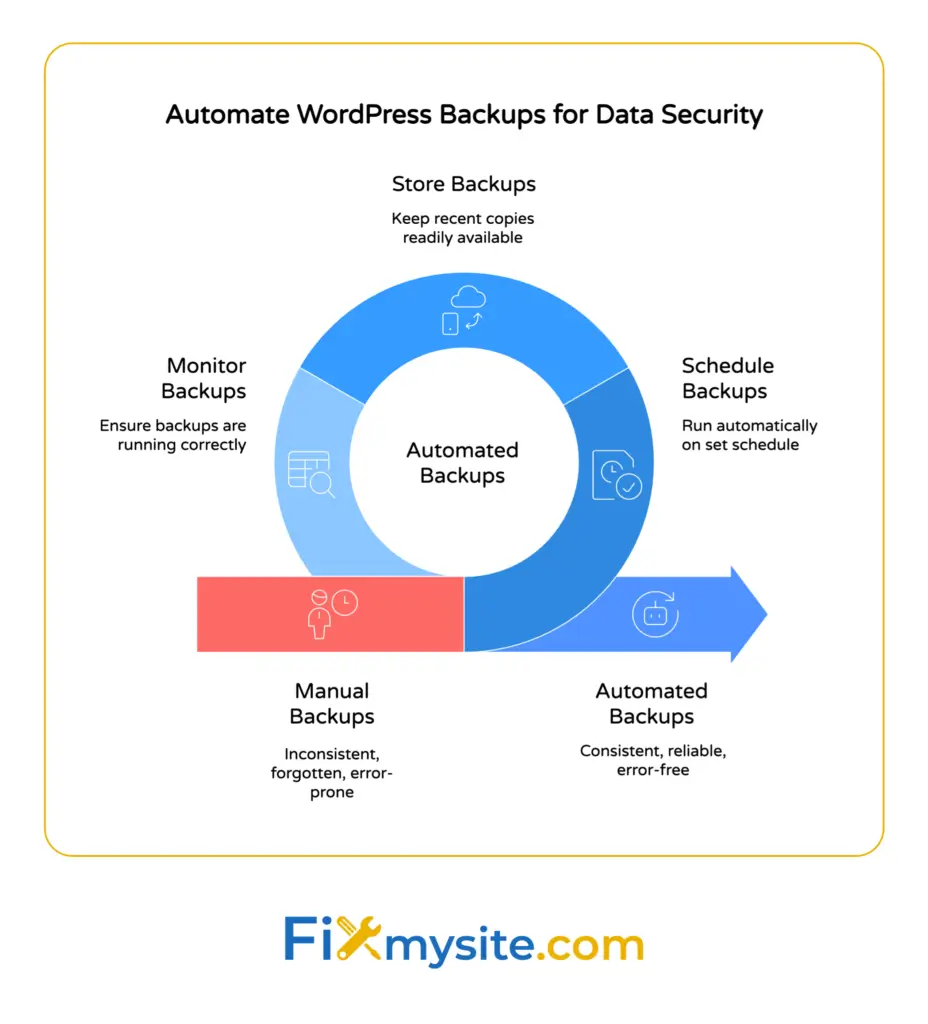
Automated backups run on schedule without your involvement. They create copies of your WordPress files and database while you sleep. If disaster strikes, you have a recent backup ready to restore.
Your site faces constant threats. Hackers probe WordPress sites daily looking for weak points. WordPress security includes backups as your last line of defense. When malware infects your site, you restore a clean backup instead of rebuilding from scratch.
Updates cause problems too. A plugin update might crash your site or conflict with your theme. Without a backup, you scramble to fix it. With automated backups, you restore yesterday’s version and move on with your day.
E-commerce sites need backups even more urgently. WooCommerce stores process orders and payments constantly. Losing customer data or order history destroys trust and costs money. Real time backups capture every transaction so you never lose a sale.
What Happens Without Automated Backups
Sites without backups face total loss when something breaks. You might recover some content from Google’s cache or the Wayback Machine, but custom designs, settings, and databases vanish forever.
We have seen site owners lose years of blog posts, product catalogs, and customer accounts. The stress and financial damage add up fast. Some businesses never recover.
Manual backups create other risks too. You download files to your computer, but your laptop crashes. Now both your site and your backup are gone. Offsite storage solves this problem by keeping backups separate from your computer and server.
How Automated Backups Protect Your Business
Automated backups give you peace of mind. You focus on growing your business instead of worrying about data loss. Your backup plugin quietly creates copies in the background while you write content or serve customers.
Most backup plugins let you set retention policies. You keep daily backups for a week, weekly backups for a month, and monthly backups for a year. This gives you multiple restore points if you need to go back further in time.
Scheduled backups also help with testing and development. You try a major change on your site knowing you can restore the previous version instantly if something breaks.
What to Look for in a WordPress Backup Plugin
Not all backup plugins work the same way. Some create full backups every time, copying your entire site. Others use incremental backups, which only save what changed since the last backup. Incremental backups save server resources and storage space.
Your backup plugin should include these core features.
Automatic Scheduling and Cloud Storage
Automated backups run on whatever schedule you choose. Daily backups work well for active sites that publish often. Weekly backups suit smaller sites with less frequent updates.
The plugin must connect to cloud storage. Storing backups on the same server as your site defeats the purpose. If the server fails, you lose both your site and your backups. Cloud storage sends copies to Google Drive, Dropbox, or Amazon S3.
Database backups matter as much as file backups. Your WordPress database holds all your posts, pages, comments, and settings. A complete backup includes both files and database.
One Click Restore and Migration Tools
One click restore saves you when disaster hits. You log into your backup plugin, choose a restore point, and click restore. The plugin overwrites your broken site with the backup version.
Some plugins make you download backup files and manually upload them through FTP. This takes longer and requires technical knowledge. Look for plugins that handle restore automatically.
Migration capabilities help when you change hosting providers. The same backup you use for disaster recovery works for WordPress migration. You restore your backup on the new server and update the domain settings.
Performance and Security Considerations
Backup plugins use server resources when creating backups. Large sites with thousands of images and posts need plugins that handle big backups without crashing. Incremental backups reduce the load by only copying changed files.
Security matters for backups too. Your backup files contain your entire site, including sensitive data. Encryption protects backup files from unauthorized access. Look for plugins that encrypt backups before uploading to cloud storage.
Some hosting providers limit backup frequency or file sizes. Check your hosting plan before choosing a backup plugin. Managed WordPress hosts often include backups in their service, but you should verify the retention period and restore process.
Best WordPress Backup Plugins
We tested the most popular WordPress backup plugins for reliability, ease of use, and features. These plugins offer automated backups, cloud storage integration, and simple restore processes.
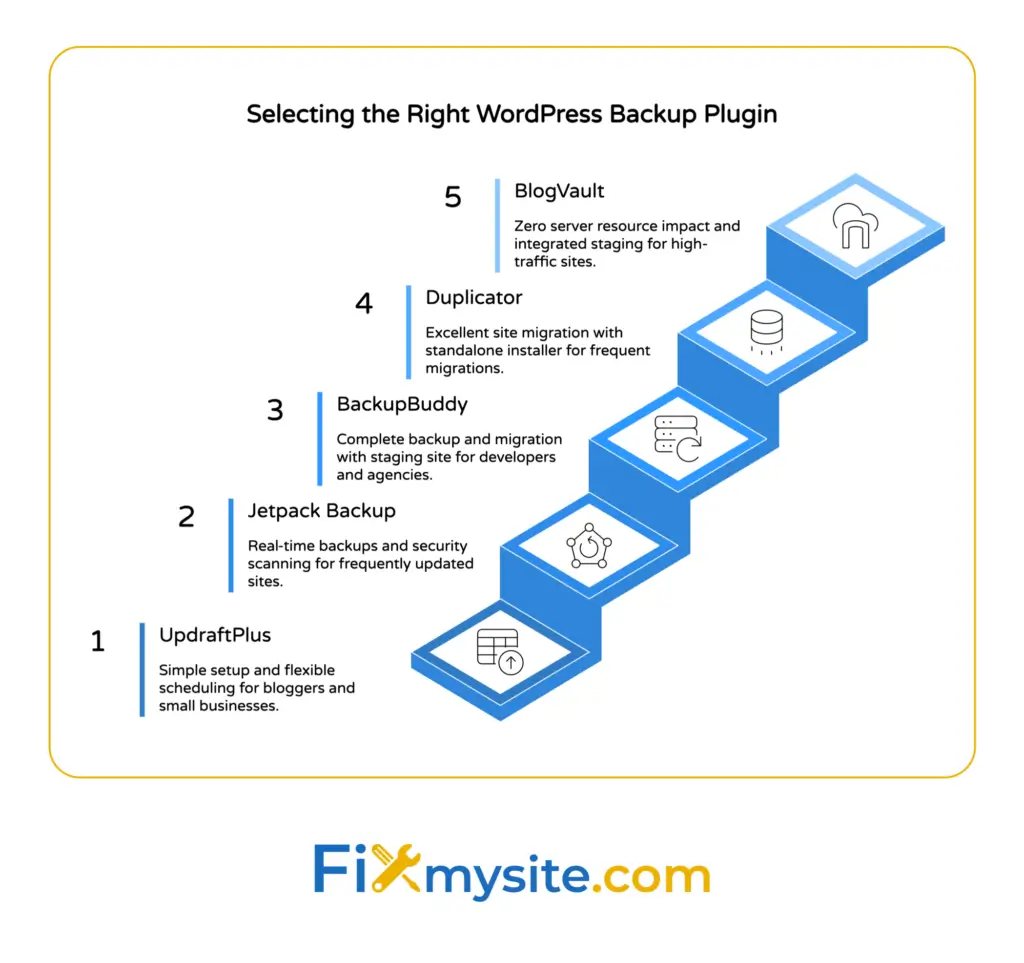
Each plugin serves different needs and budgets.
1. UpdraftPlus: Most Popular Choice
UpdraftPlus is the world’s highest ranking WordPress backup plugin, actively installed on more than 3 million websites. It offers scheduled backups to cloud storage including Google Drive, Dropbox, and Amazon S3.
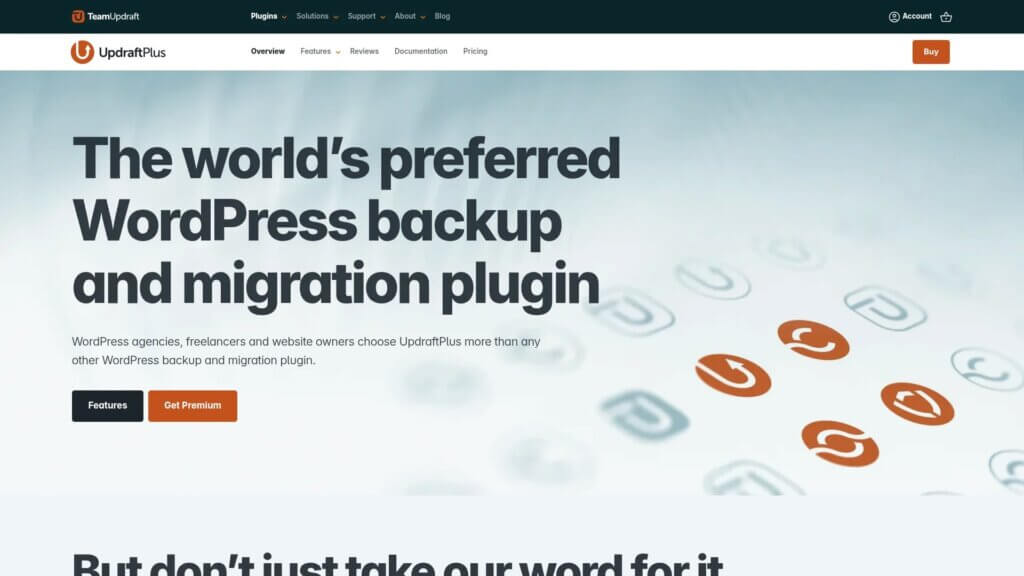
The free version covers most needs. You set backup schedules separately for files and databases. This flexibility helps manage storage space and backup frequency.
UpdraftPlus stores backups offsite automatically. You connect your Google Drive account once, and all future backups upload there. The restore process works through your WordPress dashboard without FTP access.
What We Liked:
- Simple setup takes five minutes or less
- Flexible scheduling for files and database
- Wide range of cloud storage options
- One click restore from WordPress admin
- Free version handles most small to medium sites
Limitations:
- Free version lacks incremental backups
- Advanced features require premium upgrade
- Some cloud storage options need extensions
Pricing: Free version available. UpdraftPlus Premium costs $70 per year for two sites and adds incremental backups and malware scanning.
Best For: Site owners who want reliable automated backups without complexity. The free version suits bloggers and small business sites. E-commerce sites benefit from premium features like incremental backups.

2. Jetpack Backup: Real Time Protection
Jetpack Backup creates real time backups as you make changes to your WordPress site. Every edit, post, or product update triggers an immediate backup. This matters most for WooCommerce stores processing orders constantly.
Jetpack automatically creates offsite copies to WordPress.com servers. You never worry about configuring cloud storage or storage limits. The service handles everything in the background.
One click restore works from your WordPress dashboard or from Jetpack’s website. If your site breaks so badly you cannot access WordPress, you restore through Jetpack’s external interface.
What We Liked:
- Real time backups capture every change instantly
- No storage limits or retention restrictions
- Activity log shows exactly what changed
- Restore works even when site is completely broken
- Automated security scanning included
Limitations:
- No free backup option available
- Cannot use your own cloud storage
- Requires Jetpack account and connection
Pricing: Jetpack Backup pricing starts at around $5 per month billed yearly. Higher tiers include security features and priority support.
Best For: WooCommerce stores and sites that update frequently. Real time backups protect every transaction and content change. The activity log helps track who made changes and when.
3. BackupBuddy: All in One Solution
BackupBuddy (Now Solid Backups) provides scheduled backups, cloud storage options, and staging site functionality. It stores backups to Dropbox, Amazon S3, Google Drive, and iThemes Stash Cloud.
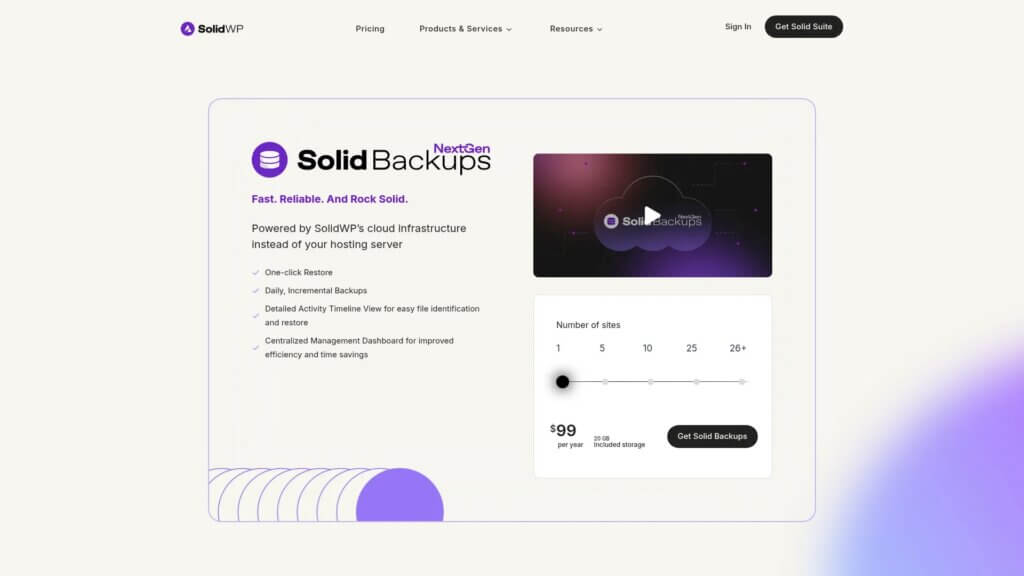
The plugin includes migration tools built in. You back up your site, move to a new host, and restore using the same backup file. This eliminates the need for separate migration plugins.
BackupBuddy creates database backups separately from file backups. You can restore just the database if you only need to recover content and settings without changing files.
What We Liked:
- Complete backup and migration in one plugin
- Staging site included with higher plans
- Malware scanning available on premium tiers
- One year of email support included
- Regular updates and active development
Limitations:
- No free version available
- Higher price than some competitors
- Setup complexity for beginners
Pricing: Starts at $80 per year for one site. Higher tiers include unlimited sites and additional storage.
Best For: Developers and agencies managing multiple client sites. The migration tools and staging capabilities justify the higher price for professional use.
4. Duplicator: Migration Focused
Duplicator specializes in site migration and cloning. While it creates backups, its strength lies in moving sites between servers or creating exact copies for testing.
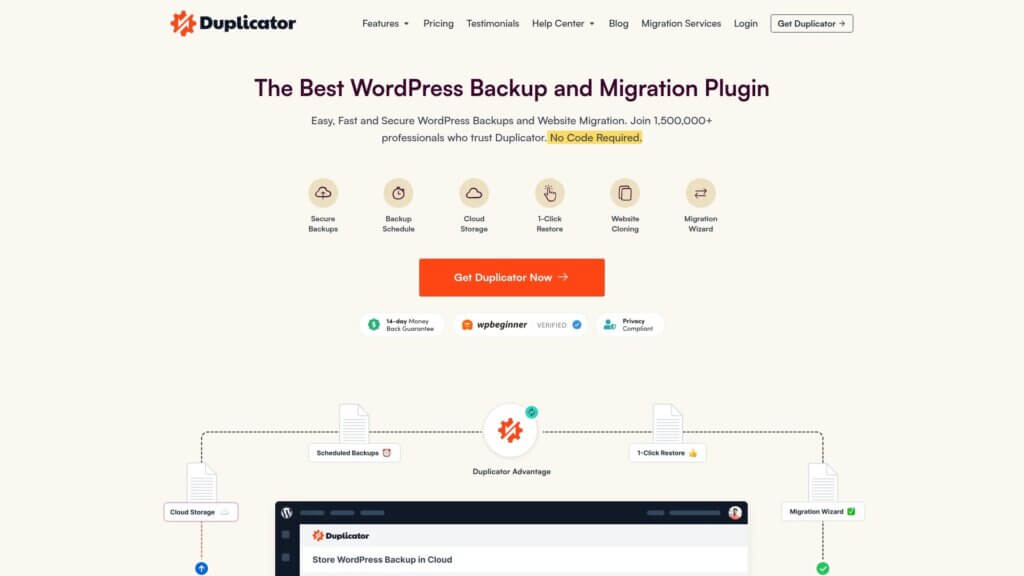
The free version creates manual backups and generates an installer file. You download the backup and installer, then upload them to a new server. The installer rebuilds your site automatically.
Duplicator Pro adds scheduled backups, cloud storage integration, and email notifications. You set up automated backups to run daily or weekly without manual intervention.
What We Liked:
- Excellent for site migration and cloning
- Free version handles basic backup needs
- Creates standalone installer for easy restores
- Works well with large database backups
- Detailed migration documentation
Limitations:
- Free version requires manual backup process
- Less focused on disaster recovery
- Scheduled backups only in pro version
Pricing: Free version available. Duplicator Pro starts at $49.50 per year for basic features, $99.50 per year for unlimited sites.
Best For: Site owners who need to migrate WordPress sites frequently. Also useful for creating staging sites or development copies. The free version works fine for occasional migrations.
5. BlogVault: Managed Backup Service
BlogVault operates as a managed backup service rather than a simple plugin. It stores backups on its own servers and provides staging sites, malware scanning, and migration tools.
The plugin runs backups on BlogVault’s servers instead of your hosting server. This eliminates performance impact on your site. Large sites benefit most from this approach.
BlogVault includes a staging environment where you test changes before pushing them live. The staging site syncs with your live site, making it easy to preview updates safely.
What We Liked:
- Zero impact on your server resources
- Automatic malware scanning with backups
- Integrated staging site for testing
- White label options for agencies
- Excellent for large or high traffic sites
Limitations:
- No free version available
- Higher cost than plugin only solutions
- Requires ongoing subscription
Pricing: Starts at $89 per year for one site. Plans include daily backups, staging, and migration tools.
Best For: High traffic sites or sites on shared hosting with limited resources. The offsite backup process prevents server overload during backups. Agencies appreciate the white label options.
How to Set Up Automated WordPress Backups
Setting up automated backups takes about 15 minutes. Most backup plugins follow similar steps. We will use UpdraftPlus as an example since it powers millions of WordPress sites.
You need a cloud storage account before starting. Google Drive works well for most users and offers 15 GB free storage.
Install Your Backup Plugin
Log into your WordPress dashboard. Go to Plugins, then Add New. Search for your chosen backup plugin by name.
Click Install Now, then Activate after installation completes. The plugin adds a new menu item to your WordPress admin sidebar.
Some backup plugins appear under Settings. Others create their own top level menu. Look for the plugin name in your admin menu.
Connect Cloud Storage
Open your backup plugin settings. Look for the section about remote storage or cloud storage destinations.
Choose your preferred storage service. Google Drive, Dropbox, and Amazon S3 work with most plugins. Click the button to authorize the connection.
You will redirect to the cloud storage login page. Sign in and grant permission for the backup plugin to upload files. The plugin saves the authorization for future backups.
Test the connection by creating a manual backup. Check your cloud storage to verify the backup files appear there.
Configure Backup Schedule
Go to the schedule or settings tab in your backup plugin. Set how often you want automated backups to run.
Most sites need daily database backups and weekly file backups. Your database changes constantly with new posts and comments. Your files change less often unless you add images daily.
Choose how many backups to keep. We recommend keeping at least 7 daily backups and 4 weekly backups. This gives you multiple restore points without using too much storage space.
Select what time backups should run. Choose a time when your site gets the least traffic. Early morning hours between 2 AM and 5 AM work well for most sites.
Choose What to Back Up
Decide whether to back up your entire WordPress installation or just essential parts. Complete backups include WordPress core files, themes, plugins, uploads, and database.
You can exclude WordPress core files from backups since you can easily reinstall WordPress. Focus on backing up your uploads folder, themes, plugins, and database. These contain your unique content and customizations.
Some plugins let you exclude specific folders. You might skip backup cache folders or temporary files to reduce backup size.
Set Up Email Notifications
Enable email notifications so you know when backups complete successfully. You will also get alerts if a backup fails.
Failed backups happen occasionally due to server timeouts, storage limits, or plugin conflicts. Email notifications let you catch problems quickly instead of discovering them when you need to restore.
Some plugins send backup completion reports with file sizes and backup locations. These reports help you monitor backup storage usage over time.
Test Your Restore Process
Create a manual backup now and practice restoring it. You want to test the restore process before you actually need it in an emergency.
Many backup plugins offer staging sites or test environments. Use these to practice restoring without affecting your live site. If your plugin lacks staging, consider testing on a local development environment.
The restore process varies by plugin. Most offer one click restore from the WordPress dashboard. Others require downloading backup files and uploading them manually.
Time how long a restore takes. Large sites might need 30 minutes or more to restore completely. Knowing this helps you set expectations during an actual emergency.

Understanding Backup Types and Storage Options
Backup plugins use different methods to create and store backups. Understanding these differences helps you choose the right approach for your site.
Full Backups vs Incremental Backups
Full backups copy your entire WordPress site every time they run. They create a complete snapshot including all files and the database. Full backups take longer and use more storage space.
Incremental backups only save what changed since the last backup. The first backup is full, but subsequent backups only include modified files. This saves time and reduces storage usage.
Incremental backups work better for large sites or sites with limited storage. You back up more frequently without filling your cloud storage. The trade off is slightly more complex restore processes.
Cloud Storage vs Server Storage
Never store backups only on your web server. If the server fails or gets hacked, you lose both your site and backups. Offsite storage protects against server level disasters.
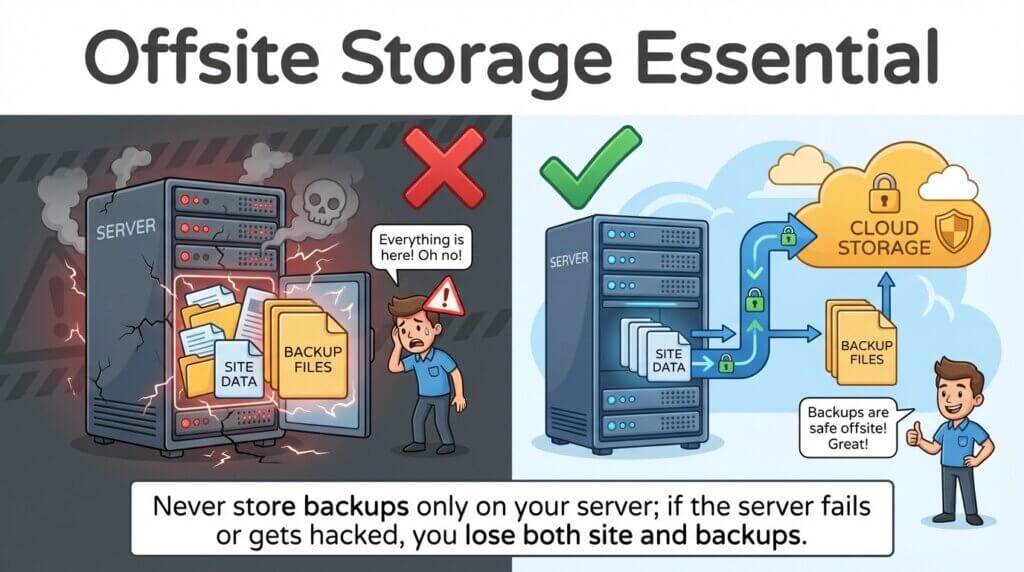
Cloud storage keeps backups separate from your hosting server. Popular options include Google Drive, Dropbox, Amazon S3, and Microsoft OneDrive. Most backup plugins connect directly to these services.
Some plugins offer their own backup storage. BlogVault and Jetpack store backups on their servers. This simplifies setup but means you depend on their service continuing.
You can use multiple storage destinations for extra safety. Configure your backup plugin to upload to both Google Drive and Dropbox. This creates geographic redundancy in case one service has issues.
Database Backup Importance
Your WordPress database holds critical information. Posts, pages, comments, user accounts, and settings all live in the database. File backups alone cannot restore your site fully.
Database backups typically run more frequently than file backups. Your database changes constantly while your files remain mostly static. Daily database backups catch all content updates.
Some backup plugins export databases to SQL files. Others create proprietary backup formats. SQL files offer more flexibility since you can import them through phpMyAdmin if needed.
WooCommerce sites especially need frequent database backups. Every order, product update, and customer account exists in your database. Losing this data means losing business records and customer information.
Manual Backup Methods for Emergency Situations
Sometimes you need to create a manual backup quickly. Maybe you are about to make major changes, or your backup plugin stopped working. Knowing manual backup methods gives you options when automated systems fail.
Manual backups take more time but give you complete control. We walk through the two main components: downloading files and exporting the database.
Using FTP to Download WordPress Files
FTP lets you download your entire WordPress installation to your computer. You need an FTP client like FileZilla and your hosting FTP credentials.
Log into your hosting control panel and find your FTP details. You need the FTP hostname, username, and password. Some hosts use SFTP for better security.
Open FileZilla and enter your FTP credentials. Connect to your server and navigate to your WordPress root folder. This usually sits in a folder called public_html or www.
Select your WordPress folder and drag it to your local computer. The download might take 30 minutes to several hours depending on site size. Large sites with thousands of images take the longest.
This method downloads everything including WordPress core files, themes, plugins, and uploads. You can exclude cache folders or temporary files to speed things up.
Exporting Your Database Through phpMyAdmin
Your database backup requires phpMyAdmin access. Most hosting providers include phpMyAdmin in their control panel.
Log into your hosting control panel and open phpMyAdmin. You will see a list of databases. Find your WordPress database name by checking your wp-config.php file.
Select your WordPress database from the left sidebar. Click the Export tab at the top of the screen.
Choose Quick export method and SQL format. Click Go to download your database. The file downloads as an sql file to your computer.
Store this database export with your downloaded WordPress files. Together they form a complete manual backup of your site.
When to Use Manual Backups
Create manual backups before making major changes. You are about to update your theme, install a new plugin, or edit core files. A fresh manual backup gives you a restore point if something breaks.
Manual backups also help when switching backup plugins. You cannot rely on your old backup plugin during the transition. Create a manual backup, install your new plugin, then configure automated backups.
Some hosting environments limit plugin functionality. Shared hosting might block automated backups from running. Manual backups work around these restrictions though you lose the automation benefit.
Backup Storage Planning and Retention Policies
Backup storage fills up quickly without a clear retention plan. You need enough backups to recover from various scenarios without wasting money on unlimited storage.
Most sites balance storage costs with safety by keeping multiple backup generations.
Calculating Storage Needs
Check your current WordPress site size first. Go to your hosting control panel and look at disk usage. A typical small blog uses 500 MB to 2 GB. E-commerce sites often need 5 GB to 20 GB or more.
Multiply your site size by the number of backups you want to keep. If your site is 2 GB and you keep 10 backups, you need at least 20 GB storage space.
Incremental backups reduce this number significantly. After the first full backup, incremental backups might only add 50 MB to 200 MB each. Your 10 backup retention policy might only use 5 GB total storage.
Cloud storage pricing varies by service. Google Drive offers 15 GB free, then charges $1.99 monthly for 100 GB. Dropbox provides 2 GB free. Amazon S3 costs about $0.023 per GB monthly. For detailed performance improvements that reduce backup size, check our guide on WordPress speed optimization.
Setting Retention Policies
Retention policies define how long you keep each backup. A common approach keeps daily backups for 7 days, weekly backups for 4 weeks, and monthly backups for 12 months.
This gives you multiple restore points without excessive storage use. You can recover from yesterday’s mistake, last week’s bad update, or last month’s security breach.
Adjust retention based on your update frequency. Sites that publish daily need more recent restore points. Sites that rarely change can extend weekly and monthly retention instead.
Some industries require longer backup retention for compliance. Financial sites or medical practices might need to keep backups for several years. Check your industry regulations before setting policies.
Managing Backup Storage Costs
Free cloud storage works for small sites. A 1 GB blog with 10 backups fits easily in Google Drive’s free 15 GB tier.
Larger sites need paid storage. Compare costs between cloud providers. Google Drive and Amazon S3 offer competitive pricing. Some backup plugins include storage in their subscription cost.
Compress backups to save storage space. Most backup plugins compress files automatically. ZIP compression can reduce backup size by 50% or more.
Review your retention policy quarterly. You might discover you never restore backups older than 30 days. Adjust your retention to match actual usage and save storage costs.
Restoring Your WordPress Site From Backup
Eventually you need to restore a backup. Maybe your site crashed, a plugin broke something, or hackers damaged your files. The restore process returns your site to a previous working state.
Different backup plugins use different restore methods. We cover the common approaches so you can handle restoration with confidence. For a complete walkthrough, see our detailed guide on how to restore WordPress from backup.
One Click Restore Through Your Plugin
Modern backup plugins offer one click restore directly from WordPress. Log into your WordPress dashboard and open your backup plugin.
Navigate to the restore or backups section. You see a list of available backups with dates and times. Choose the backup you want to restore.
Click the restore button. The plugin downloads the backup from cloud storage and overwrites your current files and database. This process takes 5 to 30 minutes depending on site size.
Your site might go into maintenance mode during restore. The plugin displays a maintenance message to visitors until restoration completes.
After restore finishes, log back into WordPress and verify everything works. Check your homepage, a few posts, and any important pages. Test contact forms and e-commerce functions if applicable.
Manual Restore When Dashboard Access Fails
Sometimes your site breaks so badly you cannot access the WordPress dashboard. In this case you need manual restore using FTP and phpMyAdmin.
Download your backup files from cloud storage to your computer. Extract the compressed backup archive if needed.
Connect to your server via FTP. Delete your existing WordPress files except wp-config.php. Upload your backup files to replace them.
Open phpMyAdmin and select your WordPress database. Click the Import tab and upload your database backup SQL file. phpMyAdmin restores your database to the backed up version.
Visit your site to verify it works. You might need to clear your browser cache to see the restored version.
Partial Restores for Specific Issues
Some problems only require restoring part of your site. Maybe you accidentally deleted a plugin or corrupted a theme file.
Several backup plugins support partial restoration. You can restore just the database, just plugin files, or just your uploads folder. This saves time compared to full site restoration.
Partial restores also help when testing. You restore just the database to recover deleted content without changing your updated theme files.
Check your backup plugin documentation for partial restore options. Not all plugins support this feature.
Backup Best Practices and Common Mistakes
We have helped hundreds of site owners recover from disasters. Some patterns emerge from these experiences. Following backup best practices prevents most restoration problems.
Test Your Backups Regularly
The worst time to discover broken backups is during an emergency. Test your backups quarterly by creating a test restore.
Use a staging site or local development environment for testing. Never test restores on your live site.
Verify the restored site works completely. Test logins, forms, e-commerce functions, and page loading. A successful test proves your backup system works.
Some backup plugins include backup verification tools. They automatically test backup integrity after creation. Enable this feature if your plugin offers it.
Never Skip Pre-Update Backups
Always create a fresh backup before updating WordPress, themes, or plugins. Updates sometimes cause conflicts or break functionality.
Wait for the backup to complete before proceeding with updates. This gives you a immediate restore point if the update causes problems.
Some backup plugins integrate with WordPress updates. They automatically create a backup before any update runs. Enable this feature for extra protection.
Monitor Backup Success and Failures
Enable email notifications for backup completions and failures. You need to know immediately if a scheduled backup fails.
Check your backup history weekly. Verify that scheduled backups actually run as expected. Plugin conflicts or server issues sometimes stop automated backups.
Failed backups often indicate bigger problems. Server resource limits, storage quota issues, or plugin conflicts need investigation. Address these problems before you actually need to restore.
Secure Your Backup Files
Backup files contain your entire site including passwords and sensitive data. Protect them with strong security measures.
Use encrypted cloud storage connections. Most backup plugins use HTTPS for uploads, but verify this in settings.
Enable two factor authentication on your cloud storage accounts. This prevents unauthorized access even if someone steals your password.
Never store backup files in publicly accessible folders on your server. Hackers scan for common backup file names and download them. Keep backups in cloud storage only.
Avoid These Common Mistakes
Storing backups only on your server defeats the purpose. Server failures, hacks, or account suspensions wipe out both site and backups.
Keeping only one backup creates risk. If that backup is corrupt, you have nothing to restore. Always maintain multiple backup generations.
Ignoring backup file sizes leads to storage limit surprises. Monitor your cloud storage usage and adjust retention policies before hitting limits.
Forgetting to update plugin authorization causes backup failures. Cloud storage authorization tokens expire periodically. Re-authorize your backup plugin when prompted.
Backups and WordPress Security
Backups form a critical part of your WordPress security strategy. They protect against data loss from hacks, malware, and security breaches.
A compromised site needs clean backups to recover. Without backups, you start over from scratch.
Recovering From Hacked Sites
When hackers compromise your WordPress site, they often inject malware into files or database. Simply removing the malware misses hidden backdoors they installed.
The safest recovery method restores a clean backup from before the hack. You wipe the infected site completely and replace it with the backup version. If your site has been compromised, follow our complete WordPress hack recovery roadmap.
Check your backup dates against when the hack occurred. Access logs and security plugins show when hackers first entered your site. Choose a backup from before that date.
After restoring the clean backup, immediately update WordPress, all themes, and all plugins. Hackers likely exploited an outdated component. Updates close those security holes.
Backup Frequency for E-Commerce Sites
WooCommerce stores and other e-commerce sites need more frequent backups. Every order, customer account, and inventory change needs protection.
Real time backups work best for active stores. They capture every transaction immediately. If your site crashes during checkout, you do not lose completed orders.
At minimum, run database backups every few hours on e-commerce sites. Your product files change less often, but your database updates constantly with orders and customer data.
Store separate backups before and after major sales or product launches. These events generate heavy traffic and increased order volume. Extra backups provide insurance during critical business periods.
Backup Verification and Integrity
Corrupt backups fail when you need them most. Backup verification confirms files are complete and restorable.
Some backup plugins include built in verification. They test backup files after creation and alert you to problems. Enable this feature if available.
Manually verify backups by testing restores on staging sites. This proves the backup actually works, not just that files uploaded successfully.
Check backup file sizes for consistency. A sudden drop in backup size might indicate incomplete files or failed uploads. Investigate any size anomalies immediately.
When to Seek Professional Help
Some backup and restoration situations exceed typical DIY comfort levels. Complex problems need professional WordPress support to resolve safely.
You probably need expert help if backups keep failing despite troubleshooting. Persistent failures often indicate server configuration issues, resource limits, or plugin conflicts that require technical investigation.
Large site migrations benefit from professional assistance too. Moving a 20 GB WordPress site with complex database structures risks data loss if done incorrectly. Professionals handle these migrations daily and know how to avoid common pitfalls.
Recovering from severe hacks often needs expert intervention. Hackers install sophisticated backdoors that survive simple restoration attempts. Security experts identify all compromise points and ensure complete cleanup.
Database corruption requires careful handling. If your database backup shows errors during restoration, professionals can often repair the corruption and recover your data.
When you face these situations, our team at Fixmysite provides reliable WordPress support to get your site back on track. We handle backup configuration, failed restores, migration support, and security recovery. You focus on your business while we handle the technical challenges.
Professional support saves time and reduces stress during emergencies. The cost of expert help is minimal compared to losing your site or business data.
Moving Forward With Confidence
You now understand how automated WordPress backups protect your site from disasters. The right backup plugin creates copies automatically, stores them safely offsite, and makes restoration simple when needed.
Start with these immediate steps. Choose a backup plugin from our recommendations above. Install it today and connect your cloud storage. Configure daily database backups and weekly file backups.
Test your first backup by restoring to a staging site. This confirms everything works before you actually need it. Set calendar reminders to verify backups quarterly.
Automated backups remove the worry of losing your WordPress site. You sleep better knowing your content, customer data, and business information stay protected. When problems happen, you restore and move forward instead of rebuilding from nothing.
Your site matters too much to leave unprotected. Take 15 minutes today to set up automated backups. Your future self will thank you when disaster strikes and you have a clean backup ready to restore.