We know how your heart drops when you try to access your website and get nothing but a blank screen or error message. Take a deep breath – you’re not alone in this frustrating situation, and there are clear steps we can take together to get your site back online.
The most common culprit behind loading issues is actually browser cache and cookie conflicts that prevent your site from displaying properly. Before we assume the worst, let’s start with the simplest solutions that resolve 80% of loading problems.
When your website won’t load, it feels like everything is falling apart. We’ve helped hundreds of WordPress site owners work through these exact challenges, and what we’ve learned is that most loading issues stem from just a few predictable causes. Whether you’re seeing error messages, blank pages, or endless loading wheels, we’ll gently guide you through each troubleshooting step.
In the next few minutes, you’ll have a clear action plan to diagnose what’s causing your loading problems and get your site back to welcoming visitors. We’ll start with the quickest fixes that require no technical knowledge, then move to more detailed solutions if needed. By the end, you’ll feel confident handling these issues and know exactly when to seek additional support.
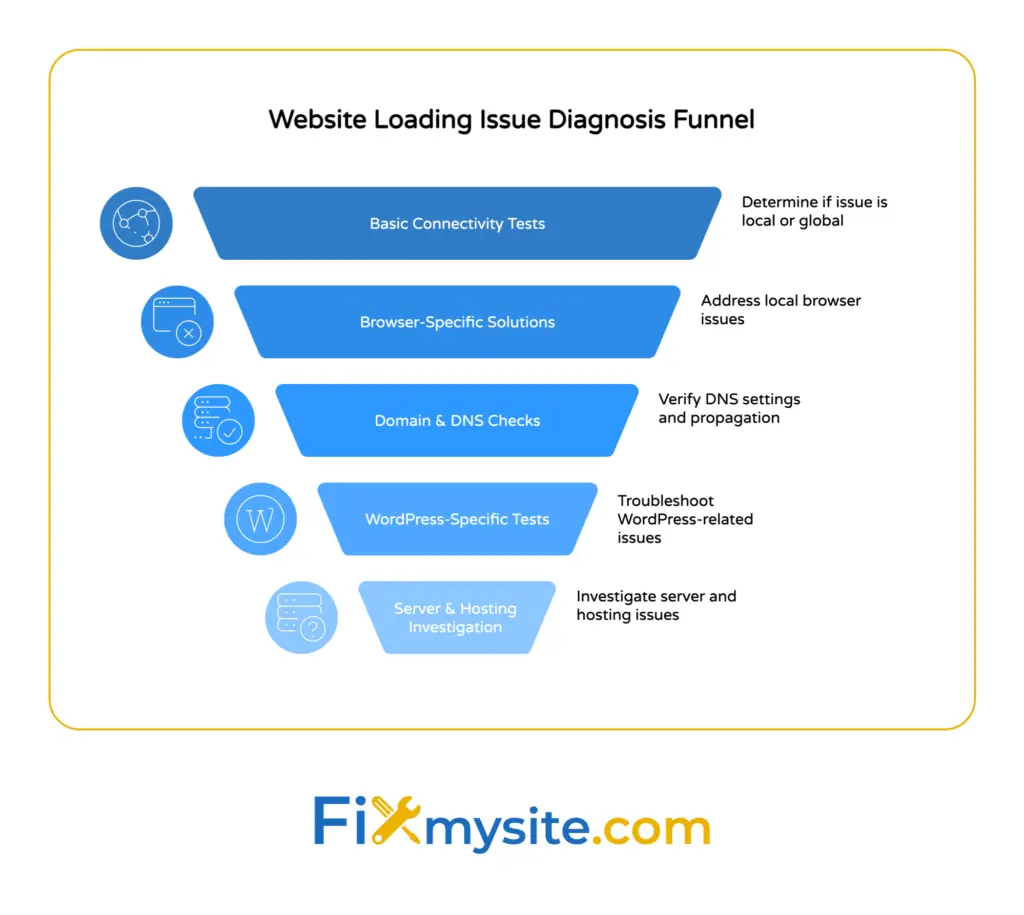
Start With Basic Connectivity Checks
Before we assume your website has a complex problem, let’s rule out the most common causes. Sometimes what feels like a major website crisis is actually a simple connectivity hiccup that affects how you’re accessing your site.
First, test if other websites are loading normally on your device. Open a new tab and visit a few different sites like Google, Facebook, or any news website. If other sites won’t load either, the issue is with your internet connection, not your website specifically.
Next, try accessing your website from a different network. Switch from Wi-Fi to your phone’s mobile data, or ask a friend to check if your site loads for them. This simple test helps isolate whether the problem is with your connection or the website itself.
| Test Method | What It Rules Out | Next Step If It Fails |
| Check other websites | Your internet connection | Contact your ISP |
| Try different networks | Local network issues | Test from mobile data |
| Ask others to check | Device-specific problems | Focus on browser fixes |
If your site loads fine for others but not for you, we can focus on browser and device-specific solutions. If nobody can access your site, we’ll need to look at server and hosting issues.

Clear Browser Issues That Block Loading
Your browser stores lots of information to make websites load faster, but sometimes this cached data becomes outdated and actually prevents sites from loading properly. This is especially common after website updates or changes.
Start by clearing your browser’s cache and cookies. In Chrome, press Ctrl+Shift+Delete (or Cmd+Shift+Delete on Mac) to open the clear browsing data menu. Select “All time” as the time range and check both “Cookies and other site data” and “Cached images and files.”
Next, try opening your website in an incognito or private browsing window. Private mode temporarily disables extensions and ignores cached data, which helps isolate the cause of loading problems.
If your site loads in private mode but not in regular browsing, the issue is likely caused by browser extensions or cached data. Disable your extensions one by one to identify which one might be blocking your site. Ad blockers and security extensions are common culprits.
- Clear browser cache and cookies completely
- Test in incognito/private browsing mode
- Disable browser extensions temporarily
- Try a different browser entirely
- Update your browser to the latest version
Sometimes the fix is as simple as restarting your browser or updating to the newest version. Keeping your browser updated ensures compatibility and security, which can prevent many loading issues.
Check Domain and DNS Settings
When basic browser fixes don’t work, the problem might be with how your domain name connects to your website’s server. This sounds technical, but there are straightforward ways to check and fix these issues.
Domain Name System (DNS) problems occur when your domain isn’t pointing to the correct server where your website files are stored. Checking and correcting DNS settings like A records and name servers can resolve domain resolution issues.
You can test your domain’s DNS settings using online tools like WhatsMyDNS. Enter your domain name and check if the IP address matches what your hosting provider gave you.
| DNS Record Type | What It Does | Common Issues |
| A Record | Points domain to server IP | Wrong IP address entered |
| Name Servers | Directs DNS queries | Old hosting provider still listed |
| CNAME | Redirects subdomains | Conflicting www settings |
If you recently changed hosting providers or updated DNS settings, it can take 24-48 hours for changes to fully take effect across the internet. During this time, your site might load inconsistently for different visitors.
Contact your hosting provider if you’re unsure about your correct DNS settings. They can verify that your domain is properly pointed to their servers and help identify any configuration problems.
Diagnose WordPress-Specific Loading Problems
WordPress sites have their own unique causes for loading failures, often related to themes, plugins, or database connections. Don’t worry – these issues are usually fixable without losing any of your content.
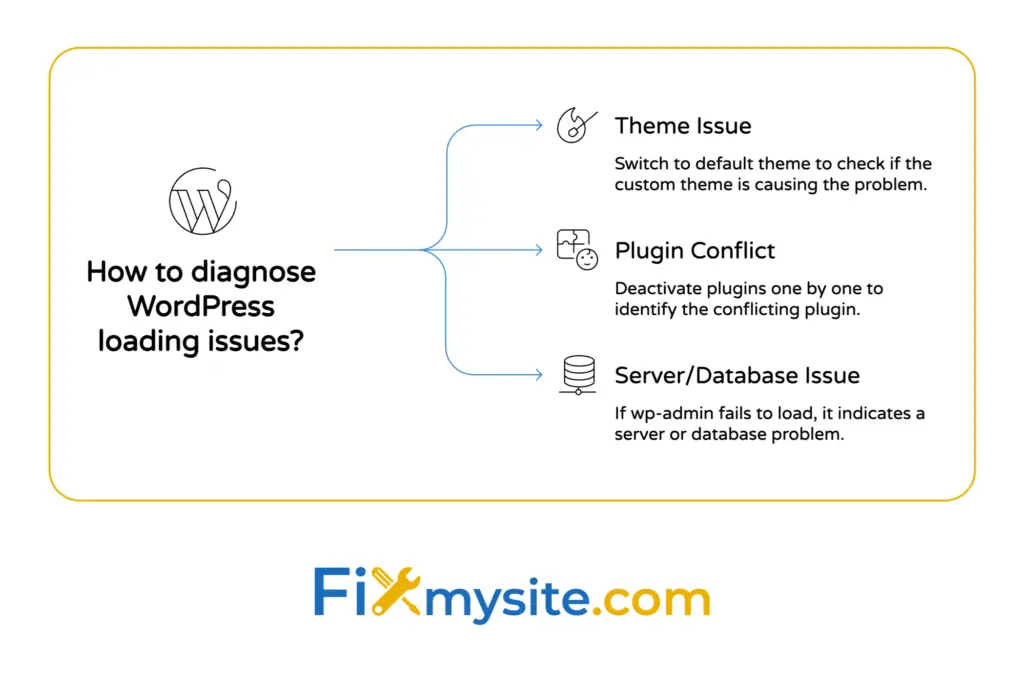
Start by checking if you can access your WordPress admin area by adding “/wp-admin” to your domain name. If the admin loads but your site doesn’t, the problem is likely with your active theme or a plugin conflict.
Try switching to a default WordPress theme temporarily. You can do this through your admin dashboard under Appearance > Themes, or by renaming your current theme folder via FTP. If your site loads with the default theme, your custom theme has an issue that needs fixing.
For plugin conflicts, deactivate all plugins at once and see if your site loads. If it does, reactivate plugins one by one until you identify which one is causing the problem. The most common culprits are caching plugins, security plugins, or recently updated plugins.
- Test if wp-admin loads while the front site doesn’t
- Switch to a default WordPress theme temporarily
- Deactivate all plugins to test for conflicts
- Check if recent plugin updates caused the issue
- Review error logs in your hosting control panel
Many hosting providers offer cPanel or similar control panels where you can view error logs. These logs often contain specific information about what’s preventing your site from loading properly.
If you’re not comfortable making these changes yourself, our team at Fixmysite can handle WordPress troubleshooting while you focus on running your business.
Address Server and Hosting Issues
Sometimes the problem isn’t with your website files or settings, but with the server where your site is hosted. These issues require different troubleshooting approaches and might need your hosting provider’s assistance.
Check your hosting provider’s status page or social media accounts for any reported server outages or maintenance. Most reputable hosts maintain status pages where they announce planned maintenance or report unexpected downtime.
Log into your hosting control panel and look for resource usage indicators. If your site has exceeded bandwidth limits, CPU usage, or database connection limits, it might stop loading until usage decreases or limits are increased.
Server errors often appear as HTTP status codes like 500, 502, or 503. Each code indicates a different type of server problem that your hosting provider can help diagnose and resolve.
| Error Code | What It Means | Typical Causes |
| 500 Internal Server Error | General server problem | Corrupted files, plugin conflicts |
| 502 Bad Gateway | Server communication failure | Overloaded server, configuration error |
| 503 Service Unavailable | Temporary server overload | Too much traffic, maintenance mode |
Contact your hosting provider’s support team if you suspect server issues. Provide them with specific error messages, the time when problems started, and any recent changes you made to your site.
Test Loading Speed and Performance
Sometimes websites technically “load” but do so extremely slowly, creating the impression that they’re not working. Performance issues can make your site practically unusable even when the server is functioning normally.
Use tools like GTmetrix or Google PageSpeed Insights to test your site’s loading speed from different locations. These tools also provide specific recommendations for improving performance.
Large images are one of the most common causes of slow loading. If your site uses high-resolution photos that haven’t been optimized for web use, they can dramatically slow down loading times, especially on mobile connections.
Caching plugins can significantly improve loading speed, but they can also cause problems if configured incorrectly. If you recently installed or updated a caching plugin, try temporarily deactivating it to see if loading improves.
- Test loading speed from multiple locations
- Optimize large images for web display
- Check caching plugin configuration
- Monitor server response times
- Review third-party integrations that might slow loading
Remember that loading speed affects not just user experience but also search engine rankings. Even if your site eventually loads, slow performance can hurt your visibility and conversion rates.

Handle Security-Related Loading Blocks
Security measures sometimes prevent legitimate users from accessing websites, especially if your site has been flagged for suspicious activity or if security plugins are configured too aggressively.
Check if your site appears in Google’s Safe Browsing checker. If your site has been flagged for malware or phishing, browsers will block access until the security issues are resolved.
Security plugins like Wordfence or Sucuri might block your own IP address if they detect unusual activity patterns. Check your security plugin’s blocked IP list and whitelist your own IP if necessary.
Firewall settings, either from your hosting provider or security plugins, can sometimes be overly restrictive. If you recently tightened security settings, try temporarily relaxing them to see if that restores site access.
SSL certificate problems can also prevent sites from loading, especially if the certificate has expired or is configured incorrectly. Most browsers now require secure connections, so SSL issues often result in complete loading failures.
If you suspect malware or other security compromises, don’t attempt to fix them yourself. Professional malware removal ensures that all traces of malicious code are eliminated and your site is fully secured. Our malware removal service can quickly restore your site’s security and accessibility.
When to Seek Professional Help
We understand the urge to fix everything yourself, especially when every minute your site is down feels costly. However, some loading issues require technical expertise that can save you time and prevent additional problems.
Consider professional help if you’ve tried the basic troubleshooting steps but still can’t identify the root cause. Server-level issues, complex plugin conflicts, or database corruption often require specialized knowledge to resolve safely.
If your site handles online transactions or contains sensitive customer information, security-related loading issues need immediate professional attention. Attempting DIY fixes on compromised sites can sometimes make problems worse or leave vulnerabilities exposed.
Time is also a factor. If you’re losing revenue or customer confidence while troubleshooting, the cost of professional help often pays for itself in restored functionality and peace of mind.
Professional WordPress support can also prevent future issues by identifying underlying problems that might not be obvious. Rather than just fixing the immediate loading problem, experienced technicians can optimize your site’s configuration for better reliability.
At Fixmysite, we specialize in quick WordPress fixes that get your site back online while you focus on your business. Our team has seen every type of loading issue and can often diagnose problems within minutes rather than hours.
Prevent Future Loading Problems
Once your site is loading properly again, let’s make sure you’re set up to avoid similar issues in the future. Prevention is always easier and less stressful than emergency troubleshooting.
Keep your WordPress core, themes, and plugins updated regularly. Most updates include security patches and bug fixes that prevent common loading issues. Set aside time monthly to review and install available updates.
Regular backups are essential for quick recovery if something goes wrong. Your hosting provider might offer automatic backups, but having your own backup solution gives you more control and faster restoration options.
| Prevention Task | Frequency | Impact on Loading Issues |
| Update WordPress core | As released | Prevents compatibility conflicts |
| Update themes and plugins | Monthly | Fixes bugs and security holes |
| Monitor site performance | Weekly | Catches slowdowns early |
| Review error logs | Monthly | Identifies emerging problems |
| Test site functionality | After changes | Confirms updates work properly |
Monitor your site’s uptime using tools like UptimeRobot or Pingdom. These services alert you immediately when your site goes down, allowing you to address problems before customers notice.
Consider a WordPress maintenance plan that handles updates, backups, and monitoring automatically. This removes the burden of remembering maintenance tasks and ensures your site stays healthy and accessible.
Our WordPress care packages include proactive monitoring and maintenance that prevents most loading issues before they affect your visitors. Think of it as insurance for your online presence.
Getting your website back online doesn’t have to be a nightmare that keeps you awake at night. Most loading issues have straightforward solutions, and working through them systematically usually reveals the culprit quickly. We’ve walked through the most common causes and fixes, from simple browser cache clearing to more complex server and security issues.
Start with the basic connectivity and browser checks since they resolve the majority of loading problems with minimal effort. If those don’t work, move to the WordPress-specific and server-related troubleshooting steps. Don’t hesitate to seek professional help if the issue persists or if you’re uncomfortable making technical changes.
The most important thing is getting your site accessible to visitors again. Whether you fix it yourself or get help from our team at Fixmysite, focus on restoration first, then prevention. Your website is too important to your business to remain down longer than necessary.