I know how panicked you feel right now. Your website visitors are seeing scary security warnings, and you’re probably wondering if your site has been compromised or if you’ve lost customer trust. Take a deep breath – we’re going to work through this together.
An SSL handshake failure happens when your browser and the server can’t establish a secure connection. Think of it like trying to shake hands with someone in the dark – both parties need to recognize and trust each other first. When this recognition fails, the connection gets blocked for security reasons.
This error is more common than you think, especially with WordPress sites. The good news? Most SSL handshake failures stem from a few predictable causes that we can fix systematically. We’ll walk through each solution step-by-step, starting with the simplest fixes that resolve 80% of these issues.
By the end of this guide, you’ll understand exactly what went wrong and how to prevent it from happening again. More importantly, you’ll have the confidence to tackle similar issues independently or know exactly when to seek professional help.
What Causes SSL Handshake Failures
Understanding why SSL handshakes fail helps you target the right solution faster. The SSL handshake is a complex negotiation process between your visitor’s browser and your web server.
During this handshake, both sides must agree on several critical elements. They need compatible SSL/TLS protocol versions, matching cipher suites, and valid certificate chains. When any part of this negotiation breaks down, the handshake fails.

Certificate-Related Issues
Certificate problems cause the majority of SSL handshake failures. Your SSL certificate might be expired, revoked, or issued by an untrusted certificate authority. Certificate errors, including expired, revoked, or misconfigured certificate chains, are among the most frequent causes of SSL handshake failures.
Self-signed certificates create immediate trust issues. While they provide encryption, browsers don’t recognize them as legitimate because they’re not verified by a trusted certificate authority. This triggers security warnings that block the connection.
Missing intermediate certificates create another common problem. Your server might have the primary certificate but lack the chain certificates that prove its authenticity to browsers.
Protocol and Cipher Mismatches
Outdated SSL/TLS protocols create compatibility issues between browsers and servers. As of 2025, TLS 1.2 or higher is required for secure connections by all major browsers and most servers due to vulnerabilities like POODLE.
When your server only supports older protocols like TLS 1.0 or 1.1, modern browsers refuse to connect. Similarly, if the cipher suites don’t match between client and server, the handshake fails during negotiation.
Some security-focused configurations disable certain cipher suites entirely. While this improves security, it can block legitimate connections if not configured properly.
Server Configuration Problems
Incorrect server configurations frequently cause handshake failures. Your server might be responding on the wrong port, serving HTTP instead of HTTPS, or have misconfigured Server Name Indication (SNI).
SNI problems occur when hosting multiple SSL certificates on the same IP address. If SNI isn’t configured correctly, the server might present the wrong certificate for your domain.
Firewall and security software can also interfere with SSL handshakes. Overly aggressive settings might block legitimate certificate validation requests or interrupt the handshake process.

Step-by-Step Troubleshooting Process
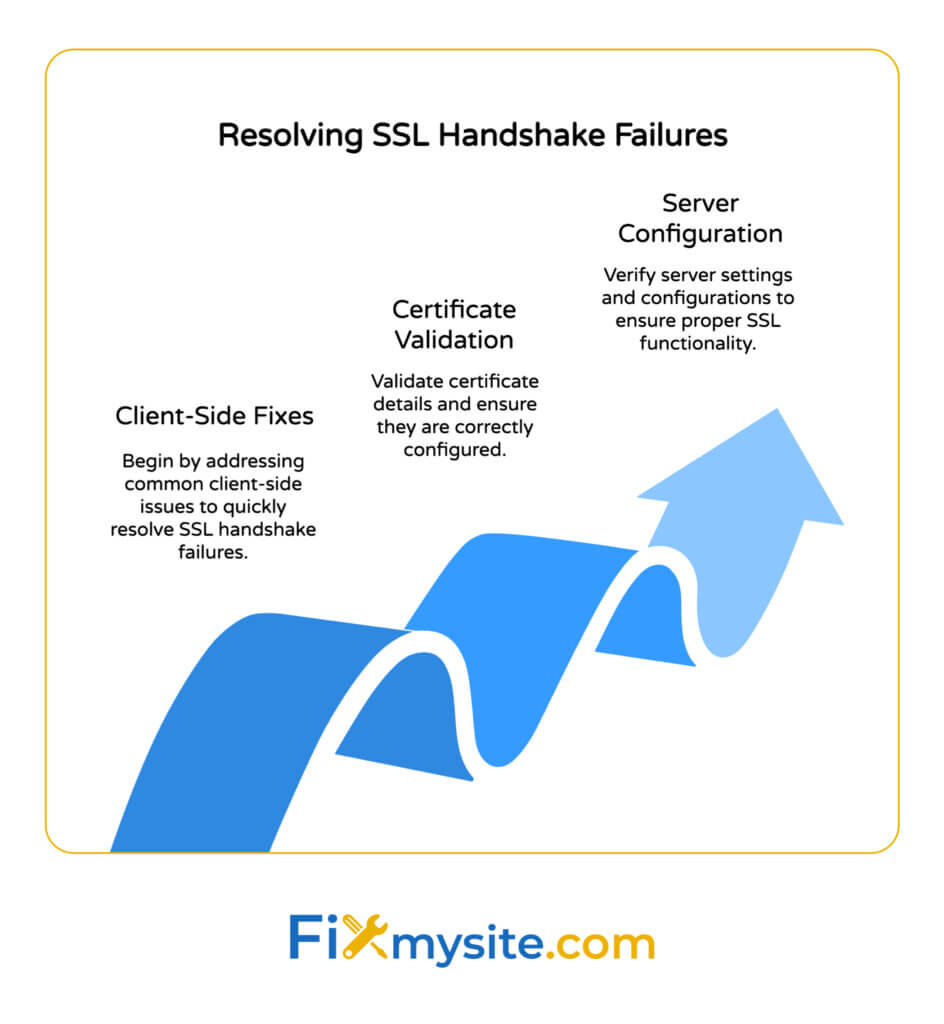
Now that you understand the causes, let’s systematically work through solutions. We’ll start with client-side fixes that you can implement immediately, then move to server-side configurations.
Each step builds on the previous one, so don’t skip ahead. Many SSL issues resolve with simple client-side adjustments before requiring server changes.
Client-Side Quick Fixes
Start with these immediate solutions that resolve most SSL handshake failures:
Check your system date and time. SSL certificates include validity periods that depend on accurate system time. If your computer’s clock is wrong by more than a few minutes, certificates appear invalid even when they’re current.
Clear your browser cache and cookies. Outdated cached certificates or corrupted browser data can cause persistent handshake failures. Use Ctrl+Shift+Delete (or Cmd+Shift+Delete on Mac) to access clearing options.
Update your browser and operating system. Older browsers might not support current TLS protocols or cipher suites. Browser updates often include critical security patches that resolve SSL compatibility issues.
Disable antivirus SSL scanning temporarily. Some antivirus programs intercept SSL connections to scan for threats. This interference can disrupt the handshake process, especially with newer security protocols.
Try accessing the site from a different network. Corporate firewalls or ISP restrictions sometimes block SSL connections. Testing from your mobile data or a different Wi-Fi network helps isolate network-related issues.
Certificate Validation Steps
If client-side fixes don’t resolve the issue, examine the SSL certificate itself:
Verify certificate details in your browser. Click the padlock icon (or warning symbol) in your address bar to view certificate information. Check the expiration date, issuing authority, and domain names covered.
Use online SSL checkers for detailed analysis. Tools like SSL Labs’ SSL Test provide comprehensive reports about certificate chains, protocol support, and configuration issues.
Check for missing intermediate certificates. Your certificate chain should include your domain certificate, intermediate certificates, and link to a trusted root authority. Missing links break the trust chain.
Verify domain name matching. The certificate must cover the exact domain you’re accessing. www.example.com and example.com are different domains unless covered by a wildcard certificate.
Server Configuration Verification
Server-side issues require more technical intervention but follow predictable patterns:
Confirm you’re connecting to the correct port. HTTPS typically uses port 443, while HTTP uses port 80. Make sure your server is configured to serve SSL on the expected port.
Test SNI configuration if hosting multiple domains. Server Name Indication tells the server which certificate to present for multi-domain hosting. Misconfigured SNI causes certificate mismatches.
Review supported TLS protocols and cipher suites. Your server configuration should support TLS 1.2 and 1.3 while disabling older, vulnerable protocols like SSL 3.0 and TLS 1.0.
Import missing root and intermediate certificates. Import the required root and intermediate SSL certificates into your system or application, ensure the server’s certificate is valid, and verify that both client and server support compatible SSL/TLS versions and cipher suites.

WordPress-Specific SSL Solutions
WordPress sites face unique SSL challenges due to plugins, themes, and mixed content issues. These solutions target the most common WordPress-specific SSL problems.
WordPress SSL issues often stem from configuration conflicts between your hosting environment, content management system, and security plugins. Each component must align for proper SSL functionality.
WordPress SSL Plugin Configuration
Install and configure an SSL plugin. Plugins like Really Simple SSL or SSL Insecure Content Fixer automatically handle many WordPress SSL configurations. They fix mixed content issues and update internal links.
Update your WordPress site URL settings. In your WordPress admin, go to Settings > General and ensure both “WordPress Address (URL)” and “Site Address (URL)” use https:// instead of http://.
Clear caching plugin data after SSL changes. Caching plugins store the old HTTP versions of your pages. Clear all caches and refresh your CDN after implementing SSL fixes.
Check for mixed content warnings. Mixed content occurs when HTTPS pages load HTTP resources like images, scripts, or stylesheets. Modern browsers block these insecure resources, breaking page functionality.
Hosting Environment Checks
Verify your hosting provider’s SSL configuration. Contact your host to confirm they’ve properly installed your SSL certificate and configured TLS protocols. Some hosts require manual SSL activation.
Check CDN SSL settings if applicable. Content delivery networks like Cloudflare have their own SSL configurations. Ensure your CDN SSL mode matches your server setup.
Review .htaccess redirects. Your .htaccess file should include redirects from HTTP to HTTPS. Improper redirects can cause SSL handshake failures or redirect loops.
Test WordPress admin SSL access. Sometimes the main site works fine, but the WordPress admin area fails SSL handshakes. This usually indicates configuration issues with the wp-admin directory.
Common WordPress SSL Errors
| Error Type | Typical Cause | Quick Solution |
|---|---|---|
| Mixed Content | HTTP resources on HTTPS pages | Use SSL plugin to fix URLs |
| Redirect Loops | Improper .htaccess rules | Check redirect configuration |
| Admin Access Issues | WordPress URL settings | Update site URLs to HTTPS |
| Plugin Conflicts | Security plugins interfering | Test with plugins deactivated |
Each WordPress SSL error has specific diagnostic steps. The key is isolating whether the issue stems from WordPress itself, your hosting environment, or plugin conflicts.
Advanced SSL Troubleshooting
When basic solutions don’t resolve SSL handshake failures, advanced diagnostic techniques help identify complex configuration issues. These methods require more technical knowledge but provide definitive answers.
Advanced troubleshooting focuses on examining the actual SSL handshake process and identifying exactly where it fails. This precision targeting saves time and prevents unnecessary configuration changes.
Command-Line SSL Testing
Use OpenSSL for detailed handshake analysis. The command “openssl s_client -connect yourdomain.com:443” shows the complete handshake process and identifies specific failure points.
Test specific TLS protocol versions. Add flags like “-tls1_2” or “-tls1_3” to test individual protocol support. This helps identify protocol compatibility issues.
Examine certificate chain details. OpenSSL output shows the complete certificate chain, including intermediate certificates and trust relationships.
Check SNI functionality. Use “openssl s_client -connect yourdomain.com:443 -servername yourdomain.com” to test Server Name Indication when hosting multiple SSL certificates.
Browser Developer Tools Analysis
Monitor network requests during SSL failures. Browser developer tools show exactly which resources fail to load and why. Look for blocked mixed content or certificate errors.
Examine security tab information. The security tab in developer tools provides detailed certificate information, protocol versions, and cipher suite details.
Check console errors for SSL-related messages. JavaScript console errors often reveal mixed content issues or SSL-related resource loading failures.
Use browser SSL test extensions. Extensions like SSL Labs’ browser test provide quick SSL configuration analysis directly from your browser.
Server-Side Log Analysis
Review web server error logs. Apache and Nginx logs contain detailed SSL handshake failure information. Look for certificate validation errors or protocol negotiation failures.
Enable SSL debugging if available. Many web servers support verbose SSL logging that shows each handshake step. This helps identify exactly where the process fails.
Check application-specific logs. WordPress, PHP, or application server logs might contain additional SSL-related error information not visible in web server logs.
Monitor server resource usage during SSL issues. Sometimes SSL handshake failures result from server resource exhaustion rather than configuration problems.
Prevention and Maintenance
Preventing SSL handshake failures requires proactive monitoring and maintenance. Regular checks catch certificate expiration and configuration drift before they impact your visitors.
A systematic approach to SSL maintenance prevents emergency situations and ensures consistent website security. Most SSL issues are predictable and preventable with proper monitoring.
SSL Certificate Management
Set up certificate expiration monitoring. Tools like UptimeRobot or Pingdom send alerts before certificates expire. Set alerts for 30, 14, and 7 days before expiration.
Implement automatic certificate renewal. Services like Let’s Encrypt with ACME clients provide automated certificate renewal. This eliminates manual renewal tasks and reduces expiration risk.
Maintain certificate documentation. Keep records of certificate details, renewal dates, and configuration changes. This documentation helps troubleshoot issues and plan renewals.
Test certificate chains regularly. Monthly certificate chain validation catches missing intermediate certificates before they cause handshake failures.
Configuration Monitoring
| Monitoring Area | Check Frequency | Key Metrics |
|---|---|---|
| Certificate Validity | Daily | Expiration date, trust chain |
| Protocol Support | Monthly | TLS versions, cipher suites |
| Performance | Weekly | Handshake speed, success rate |
| Browser Compatibility | Quarterly | Cross-browser testing results |
Schedule regular SSL configuration audits. Quarterly reviews of SSL settings catch configuration drift and security updates. Include protocol versions, cipher suites, and certificate chain validation.
Monitor SSL performance metrics. Track handshake completion times and failure rates. Performance degradation often indicates configuration issues before complete failures occur.
Stay updated on SSL/TLS security advisories. Security vulnerabilities in SSL/TLS protocols require prompt configuration updates. Subscribe to security advisory feeds for timely notifications.
Quick Answers
How do you fix an SSL handshake error?
To fix an SSL handshake error, ensure the server’s SSL certificate is valid and trusted, update your browser and operating system, check that your device’s date and time are correct, and clear your browser cache. If the problem persists, verify server configuration and import any missing root or intermediate certificates.
How to fix SSL failure?
To fix SSL failure, check that the SSL certificate is valid, not expired, and properly installed. Update your browser, clear cache and cookies, verify your device’s date and time, and ensure antivirus or firewall settings are not blocking SSL connections. If issues persist, review server configuration and certificate chain.
How to resolve error code ssl_error_handshake_failure_alert?
To resolve error code ssl_error_handshake_failure_alert, import the required root and intermediate SSL certificates into your system or application, ensure the server’s certificate is valid, and verify that both client and server support compatible SSL/TLS versions and cipher suites.
When to Seek Professional Help
You don’t have to tackle every SSL issue alone. Some problems require specialized knowledge or server access that’s beyond typical website owner capabilities.
Knowing when to get professional help saves time and prevents security mistakes. SSL configuration errors can create vulnerabilities or completely block legitimate traffic.
Complex server configuration issues often require professional intervention. If you’re dealing with load balancers, multiple servers, or enterprise-level SSL configurations, expert help prevents costly mistakes.
Certificate authority problems sometimes need direct intervention with your CA provider. When certificate chains are fundamentally broken or certificates are incorrectly issued, professional support accelerates resolution.
Persistent handshake failures after trying standard solutions suggest deeper configuration issues. Rather than risking security or breaking working configurations, professional diagnostics identify root causes quickly.
If you’re experiencing ongoing SSL handshake failures that these solutions haven’t resolved, our team at Fixmysite.com specializes in WordPress SSL issues. We can diagnose the exact cause and implement the right solution without disrupting your site’s functionality.
Don’t let SSL errors stress you out longer than necessary. With systematic troubleshooting and the right support when needed, every SSL handshake failure has a solution. Your website’s security and your visitors’ trust are worth getting it fixed properly.