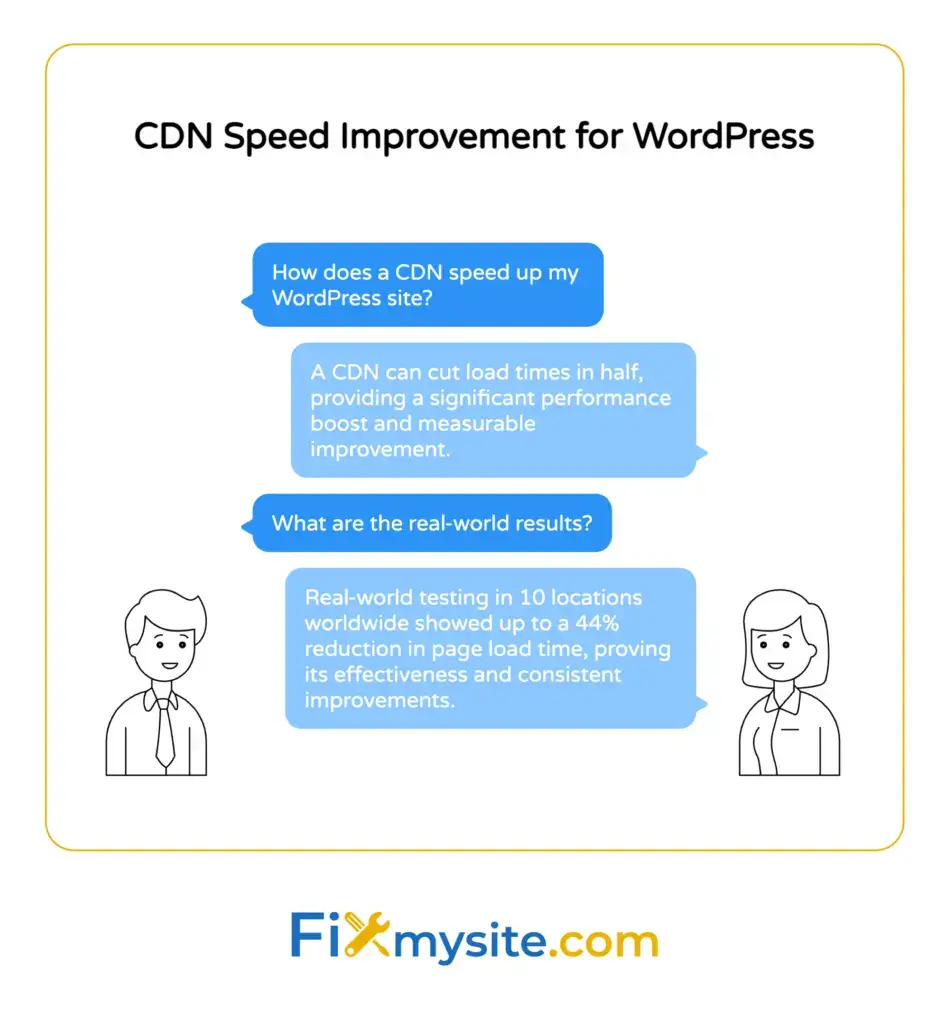
A Content Delivery Network can increase your WordPress site speed by up to 50 percent. That is not a small improvement.
We know slow load times hurt your business. Visitors leave. Google rankings drop. You lose customers.
The good news is that setting up a CDN is straightforward. You do not need technical expertise to make this change work.
In this guide, we will walk you through exactly how a CDN works, why it helps WordPress sites specifically, and how to set one up step by step. By the end, you will understand how to deliver your content faster to visitors anywhere in the world.
What Is a Content Delivery Network?
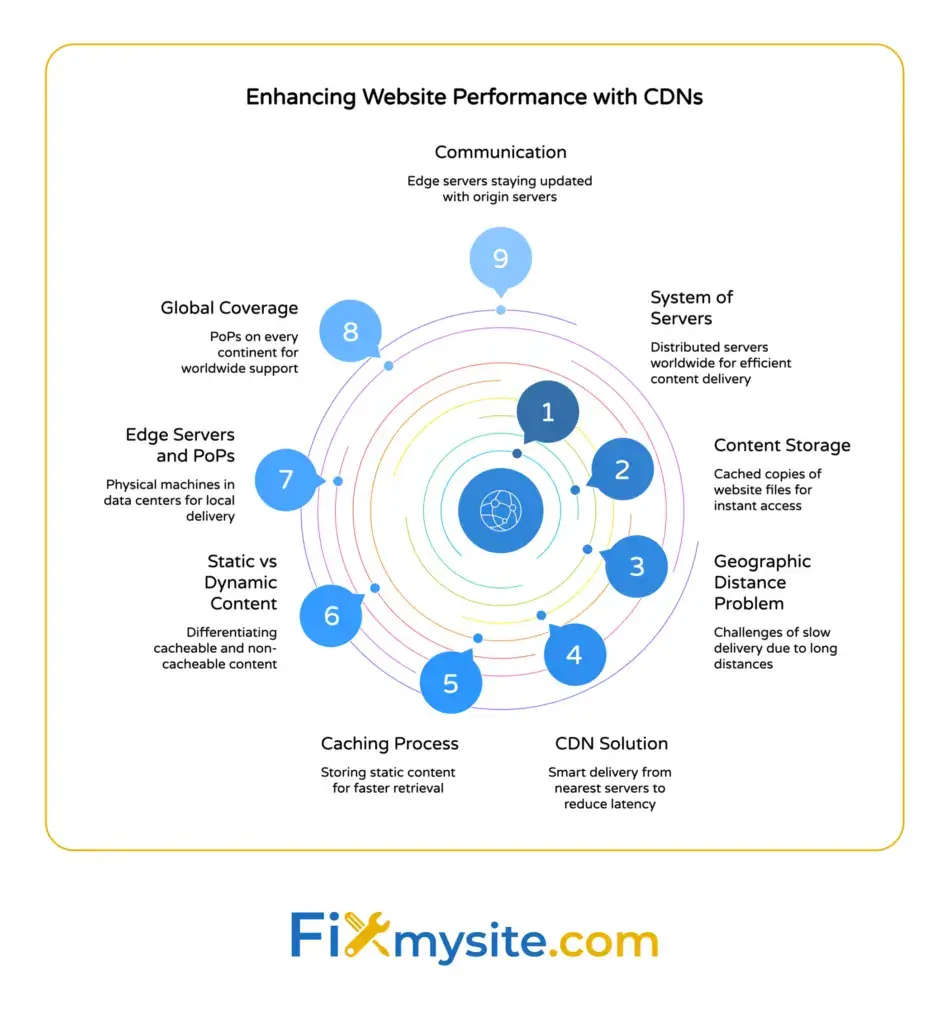
A Content Delivery Network is a system of servers spread across different locations worldwide. These servers store copies of your website files.
When someone visits your WordPress site, the CDN delivers content from the server closest to them. This reduces the distance data travels, which speeds up loading times.
Think of it this way. If your website is hosted in New York and someone in Australia visits your site, data has to travel across the world. That takes time. With a CDN, your content gets served from a server in Sydney instead. The distance shrinks dramatically.
How CDNs Store Your Content
CDNs work through a process called caching. CDNs cache static content like images, CSS, JavaScript files, and even HTML pages.
Static content means files that do not change often. Your logo, stylesheet, and product photos are examples. These files get copied to multiple edge servers around the globe.
When a visitor requests a page, the edge server nearest to them responds. Your origin server (where your WordPress site actually lives) handles only dynamic content like user accounts or shopping carts.
Edge Servers and Points of Presence
Edge servers are the physical machines that store your cached content. They sit in data centers called Points of Presence, or PoPs.
A good CDN provider has PoPs on every continent. Some have hundreds of locations. More locations generally mean better performance for global audiences.
The edge servers communicate with your origin server to stay updated. When you change a file on your WordPress site, the CDN refreshes its cached copies.
How a CDN Works with WordPress
WordPress generates pages dynamically. Every time someone visits, WordPress queries your database, processes PHP code, and assembles the page.
This process takes time and server resources. A CDN helps by handling the heavy lifting for static files.
The Request and Response Flow
Here is what happens when someone visits your WordPress site with a CDN enabled.
First, their browser requests your webpage. The request goes to the CDN instead of directly to your hosting server.
The CDN checks if it has a cached version of the requested files. For static assets like images and stylesheets, the CDN serves them immediately from the nearest edge server.
For dynamic content, the request passes through to your origin server. WordPress processes it and sends it back. The CDN may cache parts of this response for future visitors.
Integration with WordPress Caching
CDNs work alongside WordPress caching plugins. While caching plugins store full pages on your server, CDNs distribute your static files globally.
These two systems complement each other. Your caching plugin reduces database queries. Your CDN reduces latency by serving files from locations closer to visitors.
Most WordPress caching plugins have built in CDN support. You connect your CDN account, and the plugin automatically rewrites URLs to point to the CDN servers.
Benefits of Using a CDN for WordPress
Speed is the obvious benefit, but CDNs offer several other advantages for WordPress sites.
Faster Global Performance
A CDN allows you to serve content quickly to users worldwide regardless of location.
Without a CDN, a visitor in Tokyo accessing a site hosted in London experiences significant delay. Geographic distance creates latency.
With a CDN, that Tokyo visitor gets content from a server in Asia. Load times drop dramatically.
Reduced Server Load and Bandwidth
Your origin server handles fewer requests when a CDN is active. Edge servers field most static file requests.
This reduction in server load means your hosting resources go further. You can handle more concurrent visitors without upgrading your hosting plan.
Bandwidth costs also decrease. Since the CDN serves most files, your hosting account uses less data transfer.
Better Reliability and Uptime
CDNs provide redundancy through their network of servers. If one server fails, another takes over.
This redundancy protects against downtime. Even if your origin server experiences issues, cached content on edge servers may still be accessible.
Many CDN providers also offer DDoS protection and web application firewalls. These features shield your WordPress site from attacks.
Improved User Experience
Faster load times directly improve user experience. Visitors are less likely to abandon your site if pages load quickly.
This matters for all types of WordPress sites. E-commerce stores see higher conversion rates. Blogs enjoy lower bounce rates. Service sites get more contact form submissions.
Speed also affects mobile users significantly. Mobile connections can be slower and less stable. A CDN compensates by delivering content more efficiently.

How CDN Improves WordPress Loading Speed
The speed improvements from a CDN come from several technical optimizations working together.
Reduced Latency
Latency is the time it takes for data to travel from server to browser. Geographic distance increases latency.
By serving files from edge servers close to your visitors, CDNs minimize this travel time. The reduction in latency directly translates to faster page loads.
Testing across 10 locations worldwide showed that enabling a CDN resulted in up to a 44 percent reduction in page load time.
Parallel Downloads and Connection Optimization
Browsers limit how many files they can download simultaneously from a single domain. This limit slows down page rendering.
CDNs serve files from different domains (like cdn.yoursite.com instead of yoursite.com). This allows browsers to download more resources in parallel.
CDNs also optimize connections through techniques like HTTP/2 support, which enables multiplexing. Multiple files transfer over a single connection more efficiently.
File Compression and Optimization
Most CDN providers compress files automatically. Gzip and Brotli compression reduce file sizes without losing quality.
Smaller files transfer faster. This is especially important for CSS and JavaScript files, which can be large.
Some CDNs also offer image optimization. They convert images to modern formats like WebP and resize them based on device type.
Caching Efficiency
CDNs use sophisticated caching rules. They determine which files to cache, for how long, and when to refresh.
Proper cache configuration means edge servers serve most requests without contacting your origin server. This creates the fastest possible response times.
For WordPress specifically, CDNs can cache different versions of pages. Mobile and desktop visitors get appropriately optimized versions.
CDN and SEO: The Connection
Google considers page speed a ranking factor. Faster sites tend to rank higher in search results.
CDNs improve your Core Web Vitals scores. These metrics (Largest Contentful Paint, First Input Delay, and Cumulative Layout Shift) directly impact search rankings.
Page Speed as a Ranking Signal
Google has confirmed that page speed affects rankings, especially for mobile searches. Slow sites provide poor user experiences.
A CDN reduces load times across all devices. This improvement helps your WordPress site perform better in Google’s speed assessments.
The speed boost is particularly valuable for international SEO. If you target audiences in multiple countries, a CDN ensures fast performance everywhere.
Lower Bounce Rates
Visitors leave slow websites quickly. High bounce rates signal to Google that users do not find your content valuable.
Faster load times keep visitors on your site longer. They engage with more pages and spend more time reading.
These positive engagement metrics indirectly support better search rankings. Google interprets them as signals of quality content.
Mobile Performance Advantages
Google uses mobile-first indexing. Your site’s mobile version determines your search rankings.
CDNs significantly improve mobile performance. Mobile connections are often slower, making geographic proximity even more important.
By delivering content from nearby edge servers, CDNs ensure your mobile visitors get fast load times. This directly supports better mobile search rankings.
How to Set Up a CDN for WordPress
Setting up a CDN is simpler than you might think. Most providers offer straightforward integration with WordPress.
Choose a CDN Provider
Start by selecting a CDN service. We will cover specific providers in the next section, but the setup process is similar across most platforms.
Sign up for an account with your chosen provider. Many offer free tiers for small sites or trial periods for testing.
You will need your website URL and access to your WordPress admin dashboard.
Configure Your CDN Account
After signing up, add your WordPress site to the CDN platform. This usually involves entering your domain name.
The CDN will provide you with specific settings. These typically include a CDN URL (like cdn.yoursite.com) or nameserver information.
Some CDNs require DNS changes. Others work through WordPress plugins without DNS modifications. The provider will give you detailed instructions.
Install a WordPress CDN Plugin
Most CDN providers offer dedicated WordPress plugins. These plugins handle integration automatically.
Install the plugin from your WordPress dashboard. Go to Plugins, then Add New, and search for your CDN provider’s plugin.
Activate the plugin and enter your CDN credentials. The plugin will connect your WordPress site to the CDN network.
Configure Plugin Settings
After connecting the plugin, configure which files to serve through the CDN. Typically, you will enable CDN delivery for images, CSS, JavaScript, and fonts.
Set up exclusions if needed. Some plugins or themes may not work properly when served through a CDN. You can exclude specific files or directories.
Enable SSL if your site uses HTTPS. Most modern CDNs provide free SSL certificates for secure content delivery.
Test Your Configuration
After setup, visit your website and check the source code. Look for URLs pointing to your CDN domain instead of your regular domain.
Use browser developer tools to verify files load from the CDN. Check the Network tab to see where resources come from.
Test your site speed using tools like GTmetrix or Google PageSpeed Insights. Compare results before and after CDN implementation.
Clear All Caches
After enabling your CDN, clear all caches. This includes your WordPress cache plugin, browser cache, and the CDN cache itself.
Clearing caches ensures you see the current version of your site. It also prevents conflicts between old and new configurations.
Most CDN plugins include a cache purge option. Use it whenever you make significant changes to your site.

Popular CDN Providers for WordPress
Several CDN providers work well with WordPress. Each offers different features, pricing, and performance characteristics.
Cloudflare
Cloudflare is one of the most popular CDN options for WordPress. They offer a generous free tier with unlimited bandwidth.
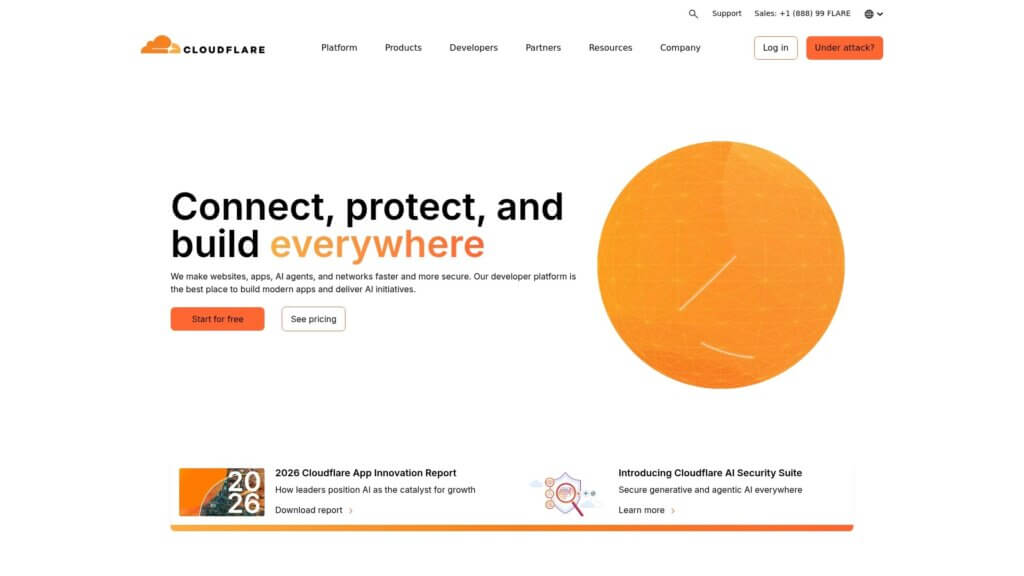
Cloudflare provides more than just CDN services. Their platform includes DDoS protection, web application firewall, and DNS management.
Setup is straightforward. You change your domain’s nameservers to Cloudflare’s, and they handle the rest. Their WordPress plugin simplifies configuration.
The free plan works well for most small to medium WordPress sites. Paid plans add features like image optimization and advanced security.
KeyCDN
KeyCDN offers a performance-focused CDN with pay-as-you-go pricing. You only pay for bandwidth used.
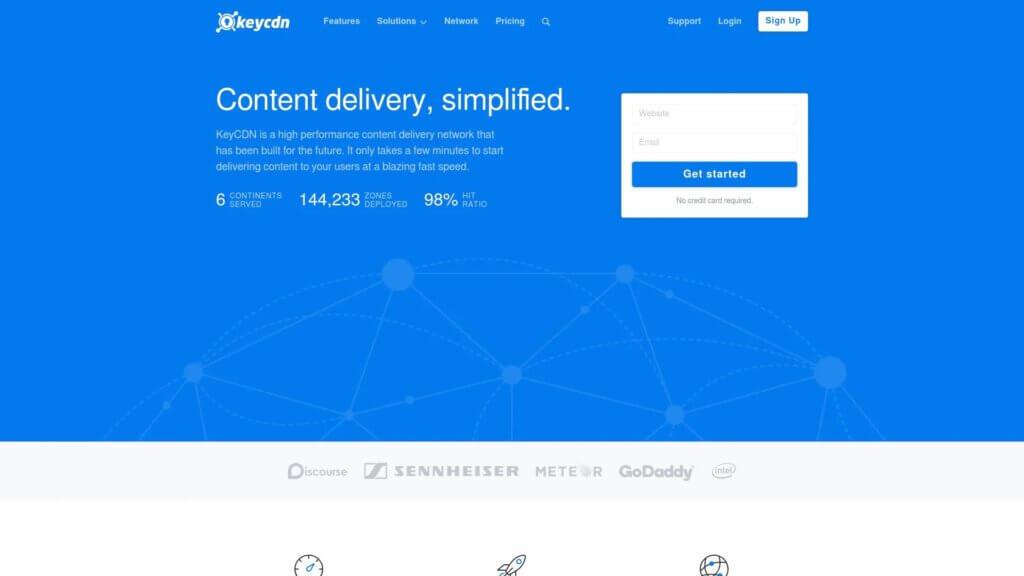
They have PoPs across six continents. Their network emphasizes speed and reliability.
KeyCDN integrates easily with popular WordPress caching plugins like W3 Total Cache and WP Rocket. Setup takes just a few minutes.
Pricing starts low, making KeyCDN cost-effective for growing sites. They also offer HTTP/2 support and instant purging.
BunnyCDN
BunnyCDN combines affordability with strong performance. Their pricing is among the lowest in the industry.
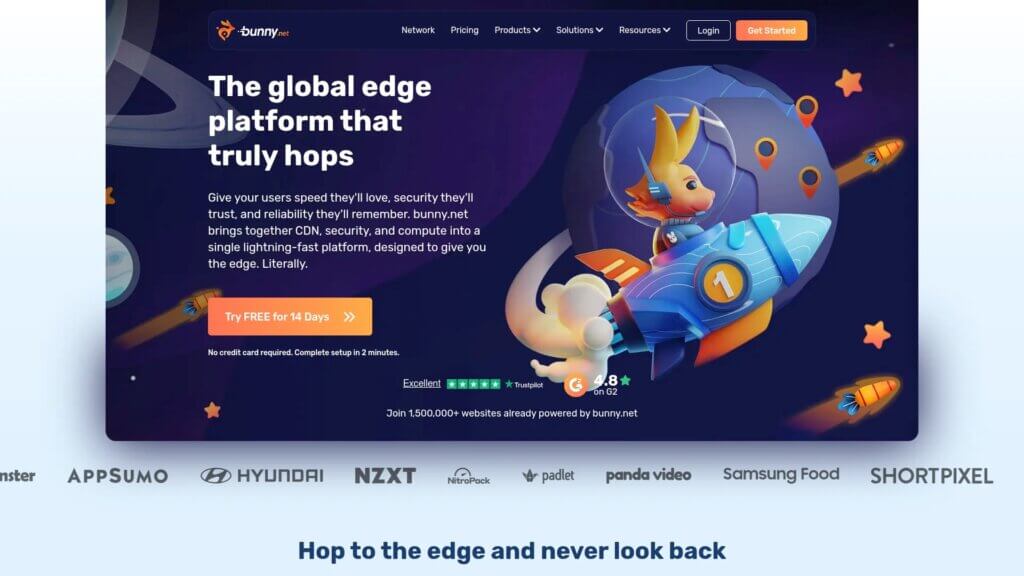
They offer features typically found in more expensive services. This includes edge rules, image optimization, and video streaming capabilities.
BunnyCDN provides detailed analytics. You can see exactly how your CDN performs across different regions.
Integration with WordPress is simple through plugins or manual configuration. Their documentation is clear and helpful.
Amazon CloudFront
Amazon CloudFront is part of AWS. It offers tight integration with other Amazon services.
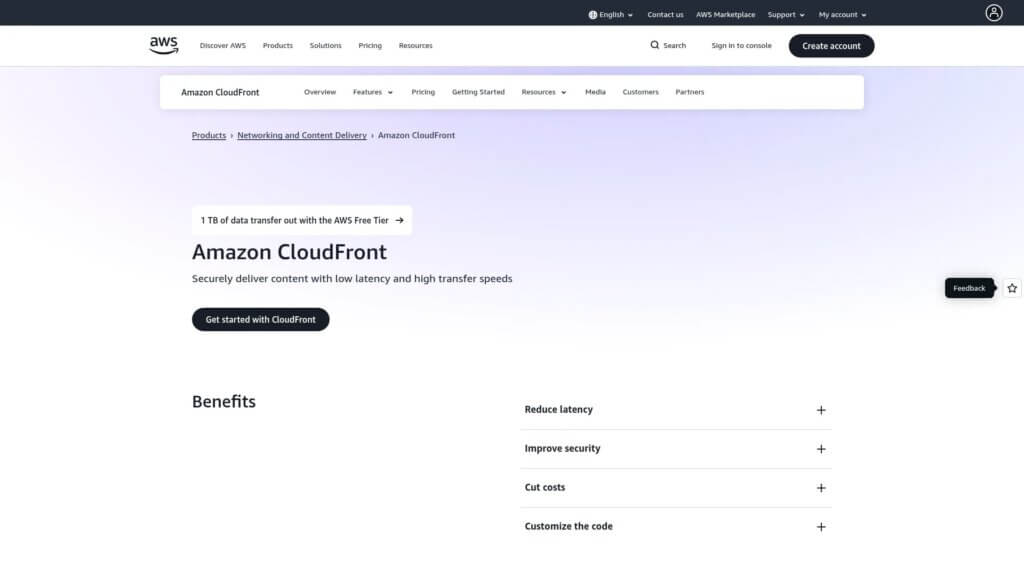
CloudFront works well if you already use AWS for hosting. The integration with services like S3 is seamless.
Pricing is pay-as-you-go based on data transfer. Costs can be higher than alternatives for high-traffic sites.
Configuration is more complex than simpler CDN providers. You will need some technical expertise or help from a developer.
Choosing the Right CDN Provider
Selecting a CDN depends on your specific needs, budget, and technical comfort level.
Consider Your Audience Location
If your visitors come primarily from one region, choose a CDN with strong coverage there. Global audiences need providers with worldwide PoPs.
Check the provider’s PoP map. Ensure they have edge servers in the countries where your traffic originates.
Some CDNs excel in specific regions. Asian-focused CDNs may perform better for audiences in China, Japan, or Southeast Asia.
Evaluate Pricing Models
CDN pricing varies significantly. Some charge per gigabyte of bandwidth. Others offer flat monthly rates.
For sites with predictable traffic, flat rates provide budget certainty. Growing sites benefit from pay-as-you-go models.
Free tiers work well for small sites. However, paid plans often include valuable features like better support and advanced optimization.
Integration Simplicity
Consider how easily the CDN integrates with WordPress. Providers with dedicated plugins simplify setup significantly.
If you are not technically confident, choose a CDN known for easy configuration. Cloudflare and BunnyCDN are particularly beginner-friendly.
Advanced users may prefer providers offering more granular control. This flexibility comes with added complexity.
Additional Features
Look beyond basic CDN functionality. Many providers offer valuable extras.
Security features like DDoS protection and web application firewalls add value. Image optimization can further improve performance.
Analytics help you understand how the CDN affects your site. Detailed reports show traffic patterns and performance metrics.
Support Quality
Good support matters, especially during initial setup. Check what support options the provider offers.
Free plans often have limited support. Paid tiers typically include faster response times and more channels.
Read reviews about support quality. Technical documentation should be thorough and easy to follow.
Optimizing Your CDN Performance
Setting up a CDN is just the first step. Proper configuration ensures you get maximum benefit.
Enable Optimal Cache Settings
Configure cache expiration times appropriately. Static assets like images can cache for long periods (weeks or months).
CSS and JavaScript files should cache until you update them. Set reasonable expiration times that balance performance and freshness.
Dynamic content needs shorter cache times. User-specific content should not cache at all.
Use Cache Purging Strategically
When you update your WordPress site, purge the CDN cache for changed files. This ensures visitors see current content.
Most plugins automate this process. They purge cache automatically when you publish posts or update pages.
Manual purging gives you control. Use it when making theme changes or updating important static files.
Implement Proper Cache Headers
Set correct HTTP headers for caching. These headers tell the CDN and browsers how to handle files.
Cache-Control headers specify caching behavior. Expires headers set expiration dates.
Most WordPress caching plugins configure these automatically. However, you can fine-tune them for better performance.
Monitor Performance Metrics
Track how your CDN affects site performance. Use tools like GTmetrix, Google PageSpeed Insights, or Pingdom.
Monitor load times from different geographic locations. Your CDN should improve performance globally.
Check your CDN provider’s analytics dashboard. Look at cache hit rates (higher is better) and bandwidth savings.
Optimize Images Before CDN Delivery
CDNs deliver images faster, but optimized images load even quicker. Compress images before uploading to WordPress.
Use appropriate image formats. WebP offers better compression than JPEG for most photos.
Implement lazy loading so images load only when visitors scroll to them. Many CDNs and plugins support this feature.
Getting Help with WordPress Speed
We understand that technical optimizations can feel overwhelming. You want your site to work properly without spending hours on configuration.
If setting up a CDN seems complicated, or if you want to ensure everything is configured correctly, we are here to help. Our team handles WordPress speed optimization as part of our support services.
We can implement a CDN for your site, configure all the settings properly, and test performance across different locations. You will see the improvements without needing to handle the technical details yourself.
CDNs work best as part of a complete speed optimization strategy. We can help you with caching, image optimization, database cleanup, and other techniques that work alongside CDN implementation.
If you need assistance making your WordPress site faster, get in touch with our support team. We will take care of the technical work so you can focus on running your business.