Time to First Byte (TTFB) is the amount of time your server takes to send the first byte of data back to a visitor’s browser. Most sites should aim for a TTFB of 0.8 seconds or less, with anything over 1.8 seconds considered poor. This metric directly impacts Core Web Vitals, particularly Largest Contentful Paint (LCP), affecting both SEO rankings and user experience. Slow server response time means visitors wait longer before they see anything on your screen, and Google’s algorithms notice.
The good news is that reducing TTFB in WordPress isn’t rocket science. It requires addressing server-side bottlenecks through hosting upgrades, caching layers, CDN implementation, and database optimization. Each improvement compounds, often dropping your server response time from 2+ seconds to under 600 milliseconds.
This guide walks you through measuring your current TTFB, understanding what’s causing delays, and implementing specific fixes. You’ll learn which optimizations deliver the biggest performance gains and when to consider professional WordPress speed optimization help.
What Is Time to First Byte (TTFB)?
Time to First Byte (TTFB) measures how long it takes for your browser to receive the very first byte of data from the server. It’s the initial server response time that occurs before any visible content loads.
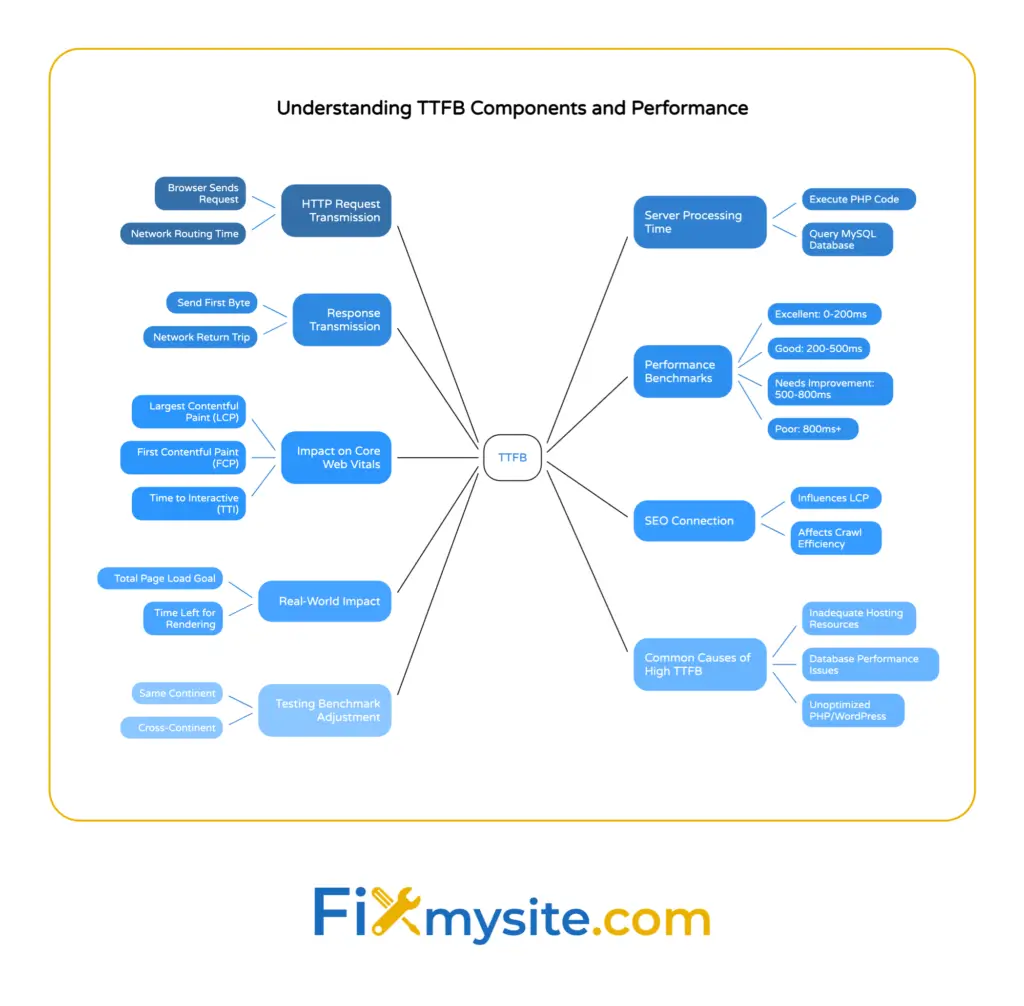
TTFB consists of three distinct components. First, the browser sends an HTTP request to your server. Second, the server processes that request by executing PHP code, querying your MySQL database, and generating HTML. Third, the server sends the response back across the network.
This metric happens before everything else. Before images load, before CSS renders, before JavaScript executes. It’s the foundation of your page load speed.
Think of TTFB as the time between knocking on a door and hearing someone say “come in.” The door opening (full page load) happens later. But if nobody answers for several seconds, you’re already frustrated.
How TTFB Differs From Total Page Load Time
Total page load time includes everything: server response, downloading resources, rendering content, and executing scripts. TTFB is just the first step in that process.
Ideally, you want your WordPress site to be fully loaded within less than 3 seconds of the user hitting Enter. But if your TTFB takes 2 seconds, you’ve only got 1 second left for everything else.
A slow TTFB creates a ceiling for your total performance. Even with optimized images and minified CSS, a 2-second server response time will always drag your site down.
Why TTFB Matters for WordPress Performance
Server response time directly impacts Core Web Vitals, Google’s set of user experience metrics that affect search rankings. A high TTFB slows down Largest Contentful Paint (LCP), the metric measuring when your main content becomes visible.
Google’s algorithms favor sites that load quickly. While TTFB isn’t a direct ranking factor, it influences metrics that are. Poor server response time cascades into worse LCP scores, which do affect rankings.
From a user experience perspective, slow TTFB means longer waiting times. Visitors see a blank screen while your server processes their request. Studies show that even delays of 100-200 milliseconds affect user perception and conversion rates.
The SEO Connection
Search engines favor sites that load quickly because users prefer them. A site with 0.5-second TTFB provides a better experience than one with 2-second server response time.
When Google crawls your site, slow TTFB means crawlers spend more time per page. This can reduce how many pages get crawled during each visit, potentially affecting how quickly new content gets indexed.
Fast TTFB also supports better performance for First Contentful Paint (FCP) and other timing metrics. These create a compound effect on overall site speed and user satisfaction.

What Causes Slow Server Response Time in WordPress?
Multiple factors contribute to high TTFB in WordPress. Understanding the root causes helps you prioritize fixes that deliver the biggest impact.
Inadequate Hosting Resources
Shared hosting often struggles with server response time. When hundreds of sites share the same server resources, your WordPress installation competes for CPU, RAM, and disk I/O.
Budget hosting providers oversell server capacity. During peak traffic times, your site waits in line for processing power. This creates variable TTFB that spikes when the server gets busy.
Server location also matters. If your hosting data center is in Europe and most visitors come from the United States, network latency adds hundreds of milliseconds to server response time.
Database Performance Issues
A bloated database can affect TTFB, making regular database cleanups and optimization essential. WordPress stores everything in MySQL: posts, pages, comments, settings, and plugin data.
Every page load triggers multiple database queries. Unoptimized queries scan entire tables instead of using indexes. This becomes exponentially slower as your database grows.
Post revisions, spam comments, and transient options accumulate over time. A database with 50,000 rows responds faster than one with 500,000 rows containing mostly unnecessary data.
Unoptimized PHP and WordPress Configuration
Outdated PHP versions process code slower than modern releases. PHP 7.4 significantly outperforms PHP 7.3, and PHP 8.0+ delivers even better execution times.
WordPress itself requires optimization. Out-of-the-box, WordPress generates pages dynamically on every request. Without caching, your server rebuilds the same HTML repeatedly.
Too many plugins create processing overhead. Each active plugin adds code execution time. Poorly coded plugins make excessive database queries or API calls that block page generation.
External API Dependencies
WordPress themes and plugins often rely on external APIs: social media feeds, payment gateways, analytics services, and font libraries. If these external servers respond slowly, your TTFB suffers.
Each external HTTP request during page generation adds latency. A slow API can add 500-1000 milliseconds to your server response time.
How to Measure TTFB
Before optimizing, you need baseline measurements. Multiple tools measure server response time, each offering different perspectives on your WordPress performance.
Google PageSpeed Insights
PageSpeed Insights provides real-world data from actual users through Chrome User Experience Report (CrUX). It also runs lab tests using Lighthouse.
Visit PageSpeed Insights, enter your URL, and review the “Reduce initial server response time” diagnostic. This shows your TTFB and compares it to Google’s recommended thresholds.
The Core Web Vitals assessment includes LCP, which TTFB directly influences. Pay attention to both mobile and desktop scores, as they often differ significantly.
GTmetrix Performance Testing
GTmetrix offers detailed waterfall charts showing exactly when each resource loads. The waiting time (shown in orange) represents your server response time.
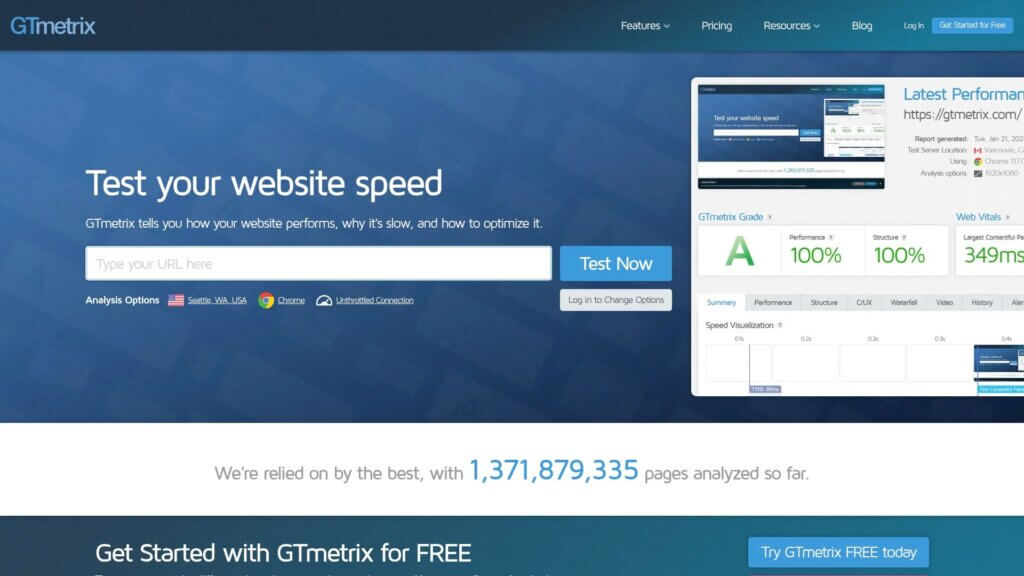
You can test from multiple geographic locations to understand how server location affects TTFB. A site hosted in Los Angeles will show different response times when tested from New York versus Sydney.
GTmetrix also provides historical tracking. Run tests weekly to monitor improvements after implementing optimizations.
WebPageTest Advanced Analysis
WebPageTest gives the most detailed technical analysis. It shows TTFB for the HTML document and every resource your page loads.
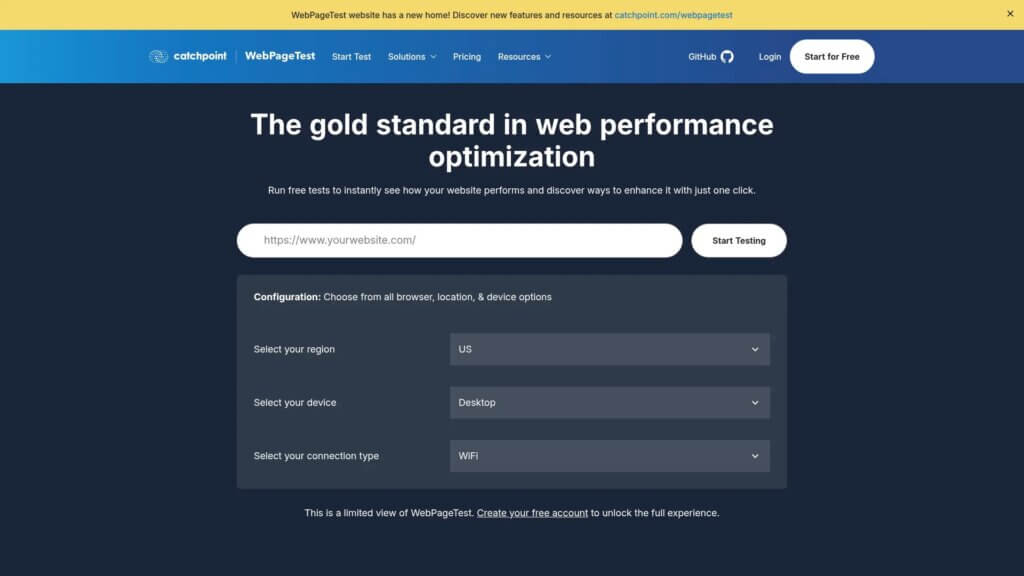
The connection view displays DNS lookup time, initial connection time, SSL negotiation, and waiting time separately. This granular breakdown helps identify specific bottlenecks.
Run multiple tests to account for variability. Server response time fluctuates based on server load, so a single test might not represent typical performance.
Chrome DevTools Network Tab
For real-time testing during development, Chrome DevTools provides immediate feedback. Press F12, select the Network tab, and reload your page.
Click on your page’s HTML document. The Timing tab shows waiting time, which equals TTFB. This method works great for before-and-after comparisons when testing optimizations.
DevTools also reveals which resources have slow server response times. This helps identify problematic external services or unoptimized assets.
What Is a Good TTFB Score?
Google recommends server response time under 200 milliseconds for optimal performance. However, real-world WordPress sites often fall into different categories based on their complexity and hosting quality.
| TTFB Range | Performance Rating | Typical Causes |
|---|---|---|
| 0-200ms | Excellent | Managed WordPress hosting, optimized caching, CDN, minimal plugins |
| 200-500ms | Good | Quality shared hosting, basic caching, well-optimized WordPress |
| 500-800ms | Needs Improvement | Shared hosting, limited caching, unoptimized database or plugins |
| 800ms+ | Poor | Budget hosting, no caching, bloated database, or server issues |
These benchmarks assume testing from a location reasonably close to your server. Geographic distance adds unavoidable network latency that CDNs help mitigate.
For most WordPress sites, achieving 300-600 milliseconds represents realistic optimization. Getting under 200ms typically requires premium managed hosting or VPS configurations with advanced caching.
How to Reduce Server Response Time in WordPress
Now for the practical fixes. These methods are ordered by impact, starting with the changes that typically deliver the biggest TTFB improvements.
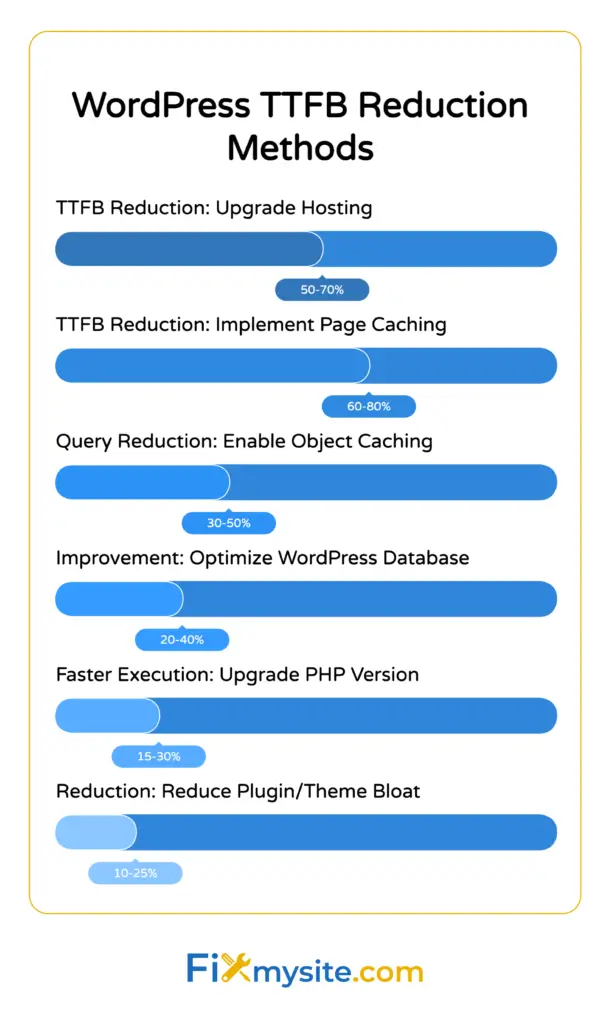
1. Upgrade to Fast WordPress Hosting
Hosting quality has the single biggest impact on server response time. Budget shared hosting simply can’t compete with managed WordPress hosting or VPS solutions.
Managed WordPress hosts like WP Engine, Kinsta, SiteGround, or Fixmysite optimize server configurations specifically for WordPress. They include server-level caching, PHP 8.0+, and dedicated resources.
Key hosting features that improve TTFB include NVMe SSD storage, adequate RAM allocation, LiteSpeed or Nginx web servers, and server-side caching layers. Compare your current hosting against these specifications.
If you’re experiencing consistent TTFB over 1 second on shared hosting, upgrading will likely cut that in half or better. Our SiteGround vs WP Engine comparison and Flywheel vs SiteGround analysis can help you evaluate options.
2. Implement Page Caching
Page caching stores your WordPress-generated HTML as static files. Instead of rebuilding pages on every request, the server delivers pre-built files instantly.
This eliminates PHP execution time and database queries for cached pages. TTFB drops from 500-1000ms to 50-200ms immediately.
For managed WordPress hosting, page caching typically comes built-in. For self-managed sites, install a caching plugin:
- WP Rocket (premium, easiest setup)
- LiteSpeed Cache (free, requires LiteSpeed server)
- W3 Total Cache (free, more complex configuration)
After installing, enable page caching and test your TTFB. You should see immediate improvements for cached pages. The first visitor after cache clears still experiences normal TTFB while WordPress generates the cached version.
3. Enable Object Caching
Object caching stores database query results in memory using Redis or Memcached. This reduces database load significantly.
WordPress queries the database repeatedly for the same information: site options, user data, post content. Object caching returns these from RAM instead of hitting MySQL.
Check if your hosting provider offers Redis or Memcached. Many managed hosts include this. If available, install the Redis Object Cache plugin from the WordPress repository.
After activation, click “Enable Object Cache” in the plugin settings. Monitor your database query count before and after. You should see 30-50% fewer queries per page load.
4. Optimize Your WordPress Database
Database optimization addresses bloat that accumulates over months and years of WordPress use. Regular cleanup keeps query performance fast.
Start by deleting post revisions, spam comments, and trashed items. These clutter your database without serving visitors.
Install WP-Optimize to automate cleanup tasks. Run these optimizations:
- Delete all post revisions (keep 2-3 recent revisions per post)
- Remove spam and trashed comments
- Clean transient options (temporary data plugins create)
- Optimize database tables (reduces storage fragmentation)
Schedule weekly automatic cleanups to prevent bloat from returning. For detailed guidance, see our WordPress database optimization guide.

5. Deploy a Content Delivery Network (CDN)
Your CSS, JS, images, and other static files can be served via a global network (CDN), which reduces load times for users across the world and helps reduce server load while improving TTFB.
A CDN doesn’t technically reduce your origin server’s TTFB, but it can cache your HTML at edge locations worldwide. This means visitors connect to nearby CDN servers instead of your origin server.
Cloudflare offers free CDN services with paid add-ons like Argo Smart Routing and Automatic Platform Optimization (APO) for WordPress. APO caches entire WordPress pages at Cloudflare’s edge network.
Other popular CDN options include BunnyCDN and Amazon CloudFront. Most integrate through WordPress plugins or simple DNS changes.
6. Upgrade PHP Version
PHP version directly affects processing speed. PHP 8.0 and 8.1 execute code significantly faster than PHP 7.4, which outperforms anything older.
First, check your current PHP version. Our guide on checking PHP version in WordPress walks through multiple methods.
Before upgrading, test plugin and theme compatibility. Some older plugins break on newer PHP versions. Most quality plugins support PHP 8.0+ by now.
Access your hosting control panel (cPanel, Plesk, or hosting-specific dashboard). Look for PHP version settings and select PHP 8.0 or 8.1. Changes usually take effect immediately.
Test your site thoroughly after upgrading. Check for PHP errors in your error logs and verify all functionality works correctly.
7. Reduce Plugin and Theme Bloat
Every active plugin adds processing time. Some plugins execute code on every page load, even when their features aren’t needed.
Audit your plugins by deactivating them one at a time while monitoring TTFB. Use a staging environment or maintenance mode to avoid impacting live visitors.
Replace heavy plugins with lighter alternatives:
- Use a lightweight theme like GeneratePress instead of bloated multipurpose themes
- Replace page builders with block editor for simpler pages
- Combine functionality where possible (one optimization plugin instead of three separate ones)
Delete unused plugins entirely rather than just deactivating them. This reduces code WordPress loads on admin pages.
8. Optimize External Service Dependencies
External APIs and services can block page generation. If WordPress waits for a slow external server, your TTFB increases.
Identify external requests by reviewing your theme and plugin code. Common culprits include:
- Social media feed widgets that fetch data on page load
- Payment gateway API calls during checkout
- External font services (Google Fonts)
- Live chat widgets that verify licenses
Where possible, load these resources asynchronously after the page renders. Or cache external data locally and refresh it periodically instead of on every page load.
For Google Fonts, host them locally or use OMGF plugin to serve fonts from your server.
9. Enable GZIP Compression
GZIP compression reduces the size of files sent from server to browser. Smaller response sizes mean faster transmission times.
Most modern hosting includes GZIP by default. Verify by checking response headers in Chrome DevTools Network tab. Look for “Content-Encoding: gzip” in the response headers.
If missing, add this to your .htaccess file (for Apache servers):
<IfModule mod_deflate.c>
  AddOutputFilterByType DEFLATE text/html text/plain text/xml text/css text/javascript application/javascript
</IfModule>
For Nginx servers, your hosting provider needs to enable GZIP in the server configuration. Contact support if it’s not already enabled.
10. Implement Browser Caching
Browser caching instructs visitors’ browsers to store static files locally. This doesn’t affect TTFB for first-time visitors but dramatically reduces it for returning visitors.
Set appropriate cache expiration times for different file types. Images and fonts can cache for months, while CSS and JavaScript might update more frequently.
Most caching plugins configure browser caching automatically. If manual configuration is needed, add cache-control headers through your .htaccess file or server configuration.
For troubleshooting caching issues, our browser cache troubleshooting guide covers common problems.
Troubleshooting Persistent TTFB Issues
Sometimes TTFB remains high despite optimization efforts. This section addresses less common causes.
Check for Server-Level Issues
High server load from other sites on shared hosting can’t be fixed with WordPress optimization. If your server’s CPU constantly runs at 90%+ utilization, your site suffers regardless of optimization.
Contact your hosting provider’s support team. Ask them to check server resource usage and whether other sites are consuming excessive resources. Request migration to a less crowded server if possible.
Monitor your site’s resource usage through your hosting dashboard. Sudden traffic spikes or bot attacks can cause temporary TTFB increases.
Identify Problem Plugins Through Testing
Some plugins cause disproportionate slowdowns. The only reliable way to identify them is systematic testing.
Create a staging environment or enable maintenance mode. Deactivate all plugins and measure TTFB. Then reactivate plugins one by one, testing TTFB after each.
When TTFB suddenly increases, you’ve found the culprit. Look for alternative plugins or contact the plugin developer about performance issues.
Review Theme Performance
Bloated themes with excessive features affect server response time. Page builders particularly impact TTFB through complex shortcode processing and database queries.
Test with a default WordPress theme like Twenty Twenty-Four. If TTFB drops significantly, your theme is the problem.
Consider switching to a lightweight theme or hiring a developer to optimize your current theme’s database queries and PHP code.
Monitoring and Maintaining TTFB
TTFB isn’t a one-time fix. Performance degrades over time without maintenance.
Schedule monthly performance audits using PageSpeed Insights or GTmetrix. Track your TTFB trends to catch degradation early.
Set up automated monitoring through services like UptimeRobot or Pingdom. These alert you when response times spike unexpectedly.
Our WordPress site health guide covers regular maintenance tasks that prevent performance problems from developing.
When to Seek Professional WordPress Speed Optimization
If you’ve implemented these optimizations and TTFB remains above 800ms, deeper issues likely exist. Server misconfigurations, poorly coded custom functionality, or complex hosting environments require technical expertise.
Professional optimization identifies problems invisible to standard testing tools. This includes analyzing MySQL slow query logs, profiling PHP execution, reviewing server configurations, and optimizing custom code.
Our WordPress speed optimization service handles everything from basic caching setup to advanced server-level improvements. We also offer ongoing WordPress care plans that include performance monitoring and maintenance.
Final Thoughts on Reducing TTFB
Reducing server response time in WordPress requires a layered approach. Hosting quality forms the foundation. Caching multiplies those gains. Database optimization and plugin management maintain performance over time.
Start with the biggest wins: hosting upgrade and page caching. These two changes typically cut TTFB by 50-70%. Then work through database optimization, CDN deployment, and PHP upgrades.
Don’t expect overnight perfection. Aim for steady improvement. Getting from 2 seconds to 600 milliseconds is excellent progress. Getting from 600ms to 200ms requires more advanced optimization.
Test after each change to verify improvements. Monitor regularly to catch problems before they impact users. And when technical issues exceed your comfort level, professional help prevents days of frustration.
Your WordPress site’s speed matters for both users and search rankings. Taking action on server response time delivers measurable benefits you’ll see in analytics and user behavior.
If you’re facing persistent performance challenges or need expert help optimizing your site, visit our WordPress support page to get started.