


A 502 bad gateway error stops your WordPress site from loading. Visitors see an error message instead of your content. Your server cannot communicate with another server it needs to display your site.
This error happens when a server acting as a gateway or proxy receives an invalid response from an upstream server. Your hosting server tries to contact another server but gets a broken or incomplete response.
We know how stressful this feels. Your site is down right now. Every minute it stays down, you lose visitors and potential customers. Take a deep breath. We are going to walk through this together with simple fixes that work.
Most 502 bad gateway errors in WordPress come from server problems, not your content. Plugin conflicts, PHP timeouts, CDN issues, and hosting overload all trigger this error. The good news is you can fix most of these issues yourself with the methods below.
We will start with the simplest fixes first. Then we will move to more technical solutions if needed. By the end of this guide, your WordPress site will be back online.

What Is a 502 Bad Gateway Error?
The 502 bad gateway error is an HTTP status code. It tells you that one server received a bad response from another server. In WordPress, this usually means your web server cannot get the information it needs from your PHP server or database.
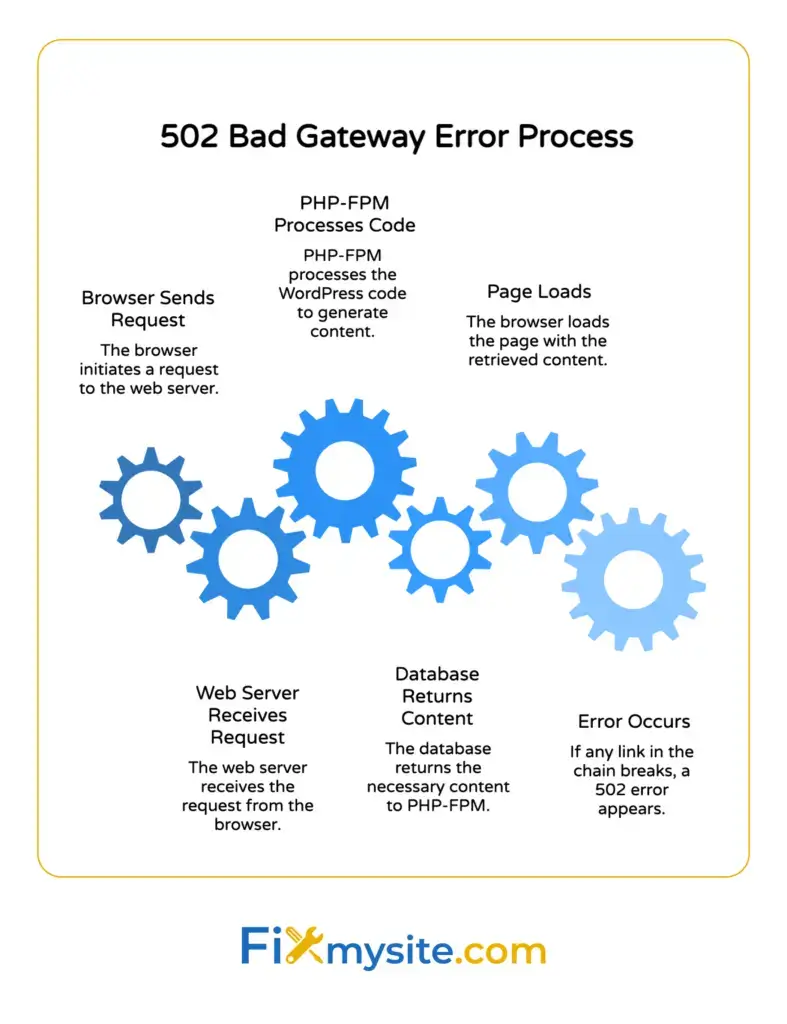
Your WordPress site relies on multiple servers working together. When you visit a WordPress page, your browser contacts your web server. That server talks to PHP-FPM to process WordPress code. PHP then queries your database for content. All of these pieces must communicate properly.
When any link in this chain breaks, you get a 502 error. The error appears on your site for everyone, not just you. This is different from browser problems that only affect individual users.

How the 502 Error Differs From Other Server Errors
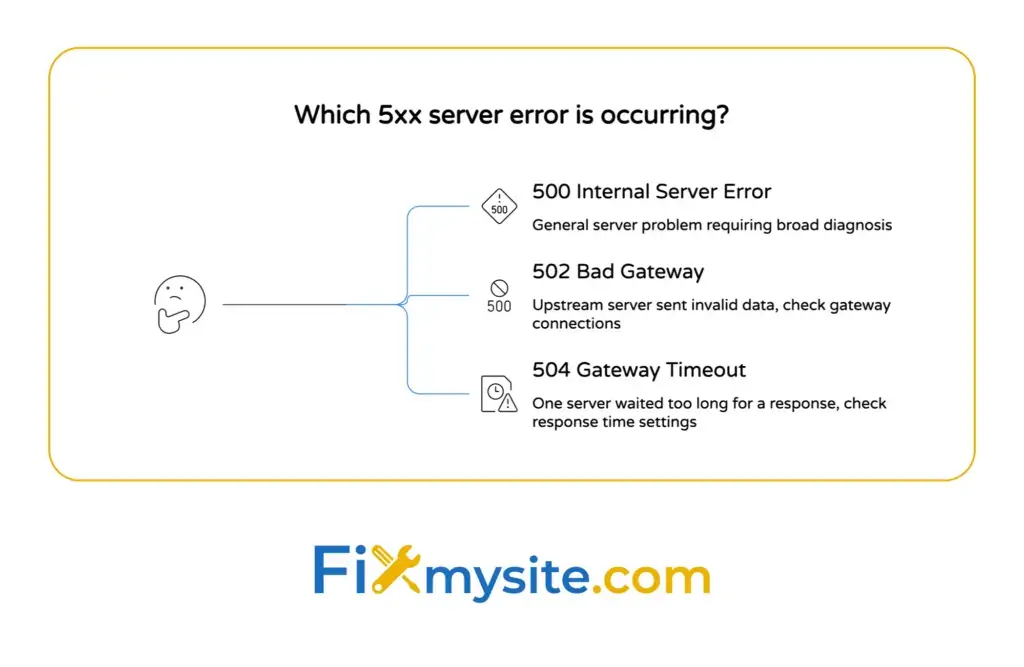
The 502 bad gateway error belongs to the 5xx family of server errors. Each one signals a different problem. A 500 internal server error means your server has a general problem but cannot specify what went wrong.
A 504 gateway timeout happens when one server waits too long for a response from another server. The 502 error is more specific. It means the upstream server sent back invalid or corrupt data.
Understanding this difference helps you fix the right problem. The 502 error tells you to look at server communication, not general server health.
What Causes the Error Message to Appear
Gateway and proxy servers sit between your visitors and your WordPress files. They route traffic, handle security, and improve speed. When these systems fail, the 502 error appears.
CDN services like Cloudflare act as gateways. Load balancers distribute traffic across multiple servers. Reverse proxies like NGINX handle requests before they reach WordPress. Any of these can trigger a 502 bad gateway error when they malfunction.
Your hosting provider controls most of these systems. That is why many 502 errors require contacting support. But several causes stem from your WordPress configuration, which you can fix yourself.
What Causes 502 Bad Gateway in WordPress?
Server communication failures cause most 502 bad gateway errors. PHP-FPM can cause 502 errors when it runs out of worker processes. When too many visitors hit your site at once, PHP cannot handle all the requests.
Your server kills PHP processes that take too long. This protects server resources but breaks the connection WordPress needs. The web server then returns a 502 error because PHP did not respond correctly.
Plugin and Theme Conflicts
Poorly coded plugins overload your server. They make too many database queries or use excessive memory. When a plugin pushes your server past its limits, PHP crashes and triggers a 502 bad gateway error.
Theme files can cause the same problem. Heavy themes with complex features tax your server resources. If your theme loads too many scripts or images at once, it can crash PHP processing.
Security plugins sometimes block legitimate server communication. Firewall rules might prevent your web server from talking to PHP. This breaks the gateway connection and shows the 502 error to your visitors.
PHP Configuration and Resource Limits
The default PHP timeout is often set to 30 seconds, which may be too short for complex WordPress operations. Large sites with many plugins need more time to load pages. When PHP hits the timeout, it stops processing and returns an error.
Memory limits work the same way. WordPress needs enough PHP memory to load all your plugins and theme files. If a page requires more memory than your limit allows, PHP fails and causes a 502 bad gateway error.
Your hosting provider sets these limits. Shared hosting typically has stricter limits than VPS or dedicated servers. Understanding your current limits helps you determine if they need adjustment.
CDN and Firewall Issues
Cloudflare 502 errors can arise from compression issues at the origin server. When your server sends compressed data that Cloudflare cannot process, the CDN returns a 502 error to visitors.
SSL certificate mismatches between your server and CDN also trigger gateway errors. If Cloudflare expects HTTPS but your server only supports HTTP, the connection fails. The reverse situation causes problems too.
CDN cache corruption sometimes serves bad data. When cached files get damaged, the CDN cannot deliver valid content to visitors. This breaks the gateway connection and shows the 502 error.
DNS and Server Connectivity Problems
DNS issues can cause 502 errors, especially when upstream servers are referenced by hostname rather than IP address. If your server cannot resolve the hostname to an IP address, it cannot establish a connection.
Network problems between your servers prevent proper communication. When your web server cannot reach your database server, WordPress cannot load content. The broken connection results in a 502 bad gateway error.
Check our guide on DNS propagation issues if you recently changed DNS settings. These changes take time to spread across the internet and can cause temporary gateway errors.


Important: Backup Your Site Before Troubleshooting
Do not skip this step. Create a complete backup before you try any fixes. Changes you make during troubleshooting can sometimes make problems worse. A backup lets you restore your site if something goes wrong.
Most hosting providers include automatic backups. Log into your hosting control panel and download the latest backup. Save it somewhere safe on your computer.
If your hosting does not offer backups, use an FTP client to download your WordPress files. Export your database through phpMyAdmin. Store both the files and database backup in a safe location.
What to Include in Your Backup
Your backup needs all WordPress files, including themes and plugins. The database contains your posts, pages, and settings. You need both components to restore a working site.
Download your entire public_html or www directory. This folder contains all your WordPress files. Some hosts use different folder names, so check your hosting documentation if you are not sure.
Export your database as an SQL file. This file has all your content and configuration data. Keep this file with your WordPress files so you have a complete backup set.
Free Backup Options for Emergency Situations
When your site is down with a 502 error, you might not be able to use backup plugins. They require WordPress to be running. Manual backups through FTP and phpMyAdmin work even when your site shows errors.
Download FileZilla or another free FTP client. Connect using the credentials your host provided. Navigate to your WordPress root directory and download everything to your computer.
Access phpMyAdmin through your hosting control panel. Select your WordPress database and click Export. Choose the Quick export method and SQL format. Save the downloaded file with your WordPress files.
How to Fix 502 Bad Gateway Error (Step-by-Step)
Start with the simplest solutions first. Many 502 bad gateway errors resolve with quick fixes. Save the complex troubleshooting for later if easy methods do not work.
Work through these methods in order. Do not skip steps even if you think they will not help. We have seen simple cache clearing fix errors that seemed much more serious.
Test your site after each fix. Open your site in a private browsing window to check if the error is gone. This ensures you see the real result, not a cached version of the error page.
Method 1: Reload the Page and Clear Browser Cache
Press F5 or click your browser refresh button. Sometimes the 502 bad gateway error appears temporarily during server maintenance. A simple refresh can bring your site back if the server problem already resolved itself.
If the error persists, clear your browser cache. Old cached files might show the error even after your server recovers. Your browser stores these files to load pages faster, but cached error pages cause confusion.
Press Ctrl+Shift+Delete in most browsers to open cache clearing options. Select cached images and files. Choose all time as the time range. Click clear data and wait for the process to finish.
How to Clear Cache in Different Browsers
Chrome users should click the three dots menu, then More Tools, then Clear Browsing Data. Check Cached Images and Files. Leave cookies unchecked if you want to stay logged into sites. Click Clear Data.
Firefox users should click the menu button, then Options, then Privacy & Security. Scroll to Cookies and Site Data and click Clear Data. Check Cached Web Content and click Clear.
Safari users should go to Safari menu, then Preferences, then Advanced. Enable Show Develop Menu in Menu Bar. Click Develop in the top menu and select Empty Caches.
Why Browser Cache Sometimes Shows Old Errors
Your browser saves error pages just like normal pages. When your site was down with a 502 error, your browser cached that error page. Now your browser shows you the cached error instead of checking if your site recovered.
Clearing cache forces your browser to request fresh pages from your server. This gives you an accurate view of your current site status. Always clear cache when troubleshooting any website error.
Private browsing mode works too. Open a new private window and visit your site. Private windows do not use cached files, so you see the current version of your site.
Method 2: Check If the Site Is Down for Everyone
Visit IsItDownRightNow.com or DownForEveryoneOrJustMe.com. Enter your website URL. These tools check your site from different locations around the world.
If the tools report your site is down for everyone, the problem is on your server. Continue with the troubleshooting methods below. This confirms you have a real 502 bad gateway error that needs fixing.
If the tools show your site as up, the problem might be local to your network. Check your internet connection. Try a different network like your phone data. Contact your internet provider if you cannot reach any websites.
Understanding Network vs Server Problems
Network problems affect your ability to reach websites. Server problems affect everyone trying to visit your site. The difference determines which fixes will work.
Restart your router if the 502 error only appears on your network. Unplug your router for 30 seconds and plug it back in. Wait for all lights to stabilize and try accessing your site again.
Flush your DNS cache on your computer. This clears old DNS records that might point to wrong server addresses. Open Command Prompt on Windows and type ipconfig /flushdns. On Mac, open Terminal and type sudo killall -HUP mDNSResponder.
When to Contact Your ISP
If multiple sites show 502 errors but work for others, contact your internet service provider. Your ISP might have routing problems affecting how your connection reaches certain servers.
Try using a VPN to access your site. If your site loads through a VPN but not your regular connection, the problem lies with your ISP or local network. Your site itself is working correctly.
Document which sites work and which show errors. This information helps your ISP diagnose the problem faster. Include the exact error messages you see.
Method 3: Disable Plugins and Themes
Plugins cause many WordPress 502 bad gateway errors. Faulty plugins consume too much memory or create infinite loops that crash PHP. Deactivating plugins often fixes the error immediately.
Log into your WordPress dashboard if you can access it. Go to Plugins and click Installed Plugins. Check the box at the top of the plugin list to select all plugins. Choose Deactivate from the bulk actions dropdown and click Apply.
Refresh your site. If the 502 error disappears, one of your plugins caused the problem. Activate plugins one at a time to find the culprit. Test your site after activating each plugin.
Deactivating Plugins When You Cannot Access WordPress
Connect to your site with FTP when the 502 error blocks WordPress access. Navigate to wp-content and find the plugins folder. Rename this folder to plugins-disabled or plugins-old.
WordPress cannot find plugins in a renamed folder. All plugins deactivate automatically. Check your site to see if the error is gone. This method works when you cannot log into WordPress at all.
Create a new folder named plugins if the error disappears. Move plugin folders one at a time from plugins-disabled to the new plugins folder. Test your site after moving each plugin to identify the problem.
Testing Your WordPress Theme
Themes can trigger 502 errors just like plugins. Switch to a default WordPress theme to test if your current theme causes the problem. Go to Appearance and click Themes in your WordPress dashboard.
Activate Twenty Twenty-Four or another default theme. Check if your site loads without the 502 bad gateway error. If the error disappears, your theme has problems that need fixing.
Cannot access WordPress dashboard? Use FTP to rename your theme folder. Go to wp-content/themes and rename your active theme folder. WordPress automatically switches to a default theme when it cannot find your active theme.

Method 4: Check CDN and Firewall Settings
CDN services like Cloudflare sit between visitors and your server. They cache your content and filter traffic. Sometimes they cause 502 bad gateway errors when their settings conflict with your server.
Log into your Cloudflare account if you use their service. Click on your website. Go to the Overview tab and find the Quick Actions section. Click Pause Cloudflare on Site.
Wait a few minutes for the change to take effect. Visit your site and check if the error is gone. If your site loads correctly without Cloudflare, the problem is in your CDN configuration.
Common Cloudflare Settings That Cause 502 Errors
SSL/TLS settings often trigger gateway errors. Go to SSL/TLS in your Cloudflare dashboard. Check your encryption mode. If it is set to Flexible and your server has an SSL certificate, change it to Full.
The opposite problem occurs too. If your encryption mode is Full but your server does not have a valid SSL certificate, Cloudflare cannot connect. Change to Flexible mode temporarily while you install a proper certificate.
Rocket Loader and other optimization features sometimes break JavaScript needed for your site. Go to Speed and click Optimization. Turn off Rocket Loader and Auto Minify. Clear your Cloudflare cache and test your site.
How to Clear Your CDN Cache
Old cached files in your CDN can serve corrupted content. This creates 502 errors even when your actual server works fine. Clearing the cache forces the CDN to fetch fresh files from your server.
In Cloudflare, go to Caching and click Configuration. Find Purge Cache and click Purge Everything. Confirm the action and wait a few minutes. Your CDN will rebuild its cache from your server.
Other CDN providers have similar cache purging options. Look for clear cache, purge cache, or flush cache in your CDN dashboard. The exact location varies by provider.
Testing Without Your Firewall
Security plugins and server firewalls block legitimate traffic sometimes. These blocks appear as 502 errors because the firewall prevents server communication. Temporarily disable security plugins to test if they cause your gateway error.
Wordfence and Sucuri are common security plugins. Go to your plugin list and deactivate any security plugins you have installed. Check if your site loads without the 502 bad gateway error.
Server-level firewalls require help from your hosting provider. Contact support and ask them to check if their firewall blocks any necessary connections. They can view firewall logs and whitelist legitimate traffic.
Method 5: Increase PHP Timeout and Memory Limits
WordPress needs sufficient PHP resources to run. When complex operations exceed your limits, PHP crashes and returns a 502 error. Increasing these limits gives WordPress more room to work.
Access your site files through FTP or your hosting file manager. Look for a file named php.ini in your WordPress root directory. Not all hosts allow this file, so you might not find it.
If php.ini exists, add these lines. Set max_execution_time = 300 for longer script runtime. Set memory_limit = 256M for more available memory. Set post_max_size = 64M and upload_max_filesize = 64M for larger uploads.
Editing wp-config.php to Increase Memory
WordPress has its own memory limit setting. Open wp-config.php in your text editor. This file is in your WordPress root directory, the same folder that contains wp-login.php and wp-admin.
Add this line before the comment that says “That’s all, stop editing”: define(‘WP_MEMORY_LIMIT’, ‘256M’); This gives WordPress 256MB of memory to use. Save the file and upload it back to your server.
Some hosts override this setting with their own limits. If increasing the memory limit does not help, contact your hosting provider. Ask them to raise your PHP memory limit at the server level.
Creating or Editing .htaccess for PHP Settings
Apache servers use .htaccess files for configuration. This file lives in your WordPress root directory. It might be hidden, so enable viewing hidden files in your FTP client.
Add these lines to your .htaccess file. Type php_value max_execution_time 300 on one line. Type php_value memory_limit 256M on the next line. These settings apply to your entire WordPress installation.
Save the file and test your site. If you get a 500 internal server error after editing .htaccess, you made a syntax error. Restore your backup .htaccess file and try again. Small typos break the entire file.
When to Ask Your Host for Higher Limits
Shared hosting plans often restrict PHP settings. Your changes might not work because the server overrides them. VPS and dedicated servers usually allow more control over PHP configuration.
Contact your hosting support if your changes do not take effect. Ask what PHP limits apply to your account. Request higher limits if your current plan allows upgrades. Some hosts require you to move to a higher tier plan.
Explain that you need higher limits to prevent 502 errors. Good hosts will help you find the right configuration. If they refuse to help, consider switching to a more flexible hosting provider.
Method 6: Fix Corrupted .htaccess File
The .htaccess file controls how your server handles requests. Corrupted rules in this file can break server communication and cause 502 bad gateway errors. WordPress creates this file automatically with basic rules.
Connect to your site via FTP or use your hosting file manager. Find .htaccess in your WordPress root directory. Download a backup copy before making changes. You need this backup if something goes wrong.
Delete or rename the current .htaccess file. Change its name to .htaccess-old. This disables the file without deleting it. Check if your site loads without the 502 error.
Regenerating WordPress .htaccess
WordPress creates a new .htaccess file when you save your permalink settings. Log into your WordPress dashboard. Go to Settings and click Permalinks. Click Save Changes without changing anything.
WordPress writes a fresh .htaccess file with clean rules. This new file should not have the corruption that caused your 502 bad gateway error. Check your site to confirm the error disappeared.
If you cannot access WordPress dashboard, create a new .htaccess file manually. Create a blank text file on your computer. Add the default WordPress rules shown below.
Default WordPress .htaccess Rules
Copy these lines into your new .htaccess file. Start with # BEGIN WordPress on the first line. Add <IfModule mod_rewrite.c> on the next line. Continue with RewriteEngine On, RewriteBase /, RewriteRule ^index\.php$ – [L], RewriteCond %{REQUEST_FILENAME} !-f, RewriteCond %{REQUEST_FILENAME} !-d, and RewriteRule . /index.php [L].
Close with </IfModule> on one line and # END WordPress on the last line. Save this file as .htaccess with no extension. Upload it to your WordPress root directory.
These are the basic rules WordPress needs. Your site should work with these rules. Add custom rules back one at a time if you had special configurations. Test after adding each rule to catch any problems.
Method 7: Review Error Logs and Contact Hosting
Server error logs show exactly what caused your 502 bad gateway error. These logs contain technical details that point to the specific problem. Your hosting provider stores these logs on your server.
Find error logs in your hosting control panel. cPanel users should click Error Log in the Metrics section. Other control panels have similar log viewing tools. Look for the most recent entries around the time your site showed the 502 error.
Error logs use technical language. Look for mentions of timeout, memory limit, or connection refused. These messages tell you which server component failed. PHP errors often include file names and line numbers that help identify problematic code.
What Error Logs Tell You About 502 Errors
Upstream timeout messages indicate your web server could not reach PHP fast enough. The connection took longer than your timeout setting allows. You need to increase timeout values or optimize slow code.
Connection refused errors mean your web server tried to contact another service but got rejected. This happens when PHP-FPM crashes or your database server stops responding. Server restarts usually fix these problems.
Out of memory errors show your PHP memory limit is too low. WordPress tried to use more memory than allowed and crashed. Increase your memory limit following the steps in Method 5 above.
How to Contact Your Hosting Provider
Open a support ticket if you cannot fix the 502 error yourself. Include your error log entries in the ticket. This saves time because support can see exactly what failed.
Describe what you already tried. Tell support you cleared cache, disabled plugins, and checked your theme. They will skip these basic steps and focus on server-level problems.
Ask specific questions. Can they see any server problems in their system logs? Are there any resource limits affecting your site? Is your server experiencing high load? Did they make any server changes recently?
When Server Problems Are Beyond Your Control
Your hosting provider controls the server infrastructure. They manage PHP-FPM, NGINX or Apache configuration, database servers, and network connections. Problems with these systems require their help to fix.
Server crashes, hardware failures, and network outages cause 502 errors you cannot fix yourself. Your host needs to restart services, replace failed hardware, or fix network routing. These repairs happen at the server level.
A documented retailer experienced a significant ranking loss after a 3-4 hour 502 error outage. Extended downtime hurts your search rankings and visitor trust. Push your host to fix server problems quickly.
Advanced Fixes: NGINX and Database Issues
NGINX servers have specific configurations that cause 502 bad gateway errors. Buffer sizes, worker processes, and upstream timeouts all affect how NGINX communicates with PHP. These settings require server access to change.
Contact your host if you run an NGINX server. Ask them to check proxy_buffer_size and proxy_buffers settings. WordPress WooCommerce can trigger 502 errors if large response headers exceed NGINX buffer sizes.
Database connection problems also create gateway errors. When WordPress cannot connect to your database, PHP cannot load content. The server returns a 502 error because the gateway to your data is broken.
Checking Database Connection Settings
Open wp-config.php and verify your database settings. Look for DB_NAME, DB_USER, DB_PASSWORD, and DB_HOST. These values must match your actual database credentials.
Log into phpMyAdmin through your hosting control panel. Check if you can access your WordPress database. If phpMyAdmin shows an error, your database server has problems that need host support.
Test your database connection separately from WordPress. Create a simple PHP file that only connects to your database. If this test fails, the problem is your database server, not WordPress.
When to Optimize Your Database
Large, bloated databases slow down queries. Slow queries can timeout and cause 502 errors when WordPress waits too long for data. Regular database optimization prevents these problems.
Use WP-Optimize or a similar plugin to clean your database. Remove post revisions, spam comments, and transient options. These database cleanups reduce table sizes and speed up queries.
Some hosts offer database optimization tools in their control panel. phpMyAdmin includes optimize and repair functions. Run these maintenance tasks monthly to keep your database healthy.
How to Prevent 502 Errors in the Future
Regular maintenance prevents most 502 bad gateway errors. Update WordPress core, themes, and plugins monthly. Old software has bugs and security holes that cause server problems.
Monitor your site performance and resource usage. Many hosts provide usage graphs showing CPU, memory, and bandwidth consumption. Watch for spikes that indicate problematic plugins or traffic surges.
Consider upgrading your hosting plan if you hit resource limits often. Shared hosting works for small sites but growing sites need VPS or dedicated resources. Better hosting prevents errors caused by resource restrictions.
Choosing Quality Plugins and Themes
Poor code quality causes many WordPress errors. Choose plugins with recent updates and good ratings. Avoid plugins that have not been updated in over a year. Abandoned plugins often have bugs that trigger 502 errors.
Read plugin reviews before installing. Look for mentions of performance problems or server errors. Other users often report issues that might affect your site too.
Test new plugins on a staging site first. Many hosts offer staging environments where you can test changes safely. If a plugin causes errors in staging, you know not to install it on your live site.
Implementing a CDN Correctly
CDN setup requires correct configuration to avoid gateway errors. Match SSL settings between your server and CDN. Both should use HTTPS or both should use HTTP. Mismatched protocols cause connection failures.
Start with minimal CDN optimization features. Enable basic caching first. Add features like minification and optimization gradually. Test after each change to catch problems early.
Keep CDN cache purge credentials handy. You need quick access to clear cache when problems appear. Save your CDN login information in a password manager for emergency access.
Setting Up Monitoring and Alerts
Google’s crawl rates can decrease if a site consistently returns 502 errors. Catch and fix errors quickly to protect your search rankings. Uptime monitoring services alert you immediately when your site goes down.
UptimeRobot and Pingdom offer free monitoring plans. They check your site every few minutes and email you when errors occur. Fast alerts help you fix problems before they hurt your visitors and SEO.
Set up WordPress error logging too. Add define(‘WP_DEBUG_LOG’, true); to wp-config.php. WordPress writes errors to wp-content/debug.log so you can review them later. Check this log file weekly for warnings that might cause future problems.
Quick Answers to Common Questions
Will error 502 fix itself?
Some 502 bad gateway errors resolve automatically. Temporary server overload or brief maintenance windows cause errors that disappear when servers recover. Wait five minutes and refresh your page to see if the problem cleared.
Persistent errors need manual fixes. Problems with your WordPress configuration, corrupted files, or hosting issues do not fix themselves. Work through the troubleshooting methods above to identify and resolve the cause.
How long do 502 errors usually last?
The duration depends on the cause. Traffic spikes might cause 502 errors for a few minutes until your server handles the load. Server maintenance creates errors that last 15-30 minutes during the maintenance window.
Configuration problems persist until you fix them. A bad plugin or corrupted .htaccess file causes ongoing 502 errors. These continue indefinitely until you identify and correct the problem.
Can a 502 error damage my website?
The error itself does not damage your files or database. It simply prevents visitors from accessing your site. Your content remains safe even when the 502 bad gateway error appears.
Extended downtime hurts your search rankings and reputation. Visitors who find your site down might not return. Search engines lower rankings for consistently unavailable sites. Fix 502 errors quickly to minimize these impacts.
Get Expert Help When You Need It
We understand that troubleshooting server errors feels overwhelming. Some 502 bad gateway errors require technical expertise beyond basic WordPress management. You should not have to become a server administrator to run your website.
Our team has handled hundreds of WordPress emergencies just like yours. We know how to diagnose gateway errors quickly and fix them permanently. We work with all major hosting providers and understand their systems inside and out.
When you cannot access your dashboard, plugins fail to deactivate, or hosting support gives unclear answers, we step in. We handle the technical details so you can focus on your business. Our website repair service gets your site back online fast.
Do not let a 502 error keep your site down any longer than necessary. Every hour of downtime costs you visitors and revenue. We are here to help you through this and prevent future problems with our WordPress care plans. You are not alone in this.