

Your sidebar widgets just vanished without warning. One moment they were there, the next, your page looks broken.
This happens more often than you think.
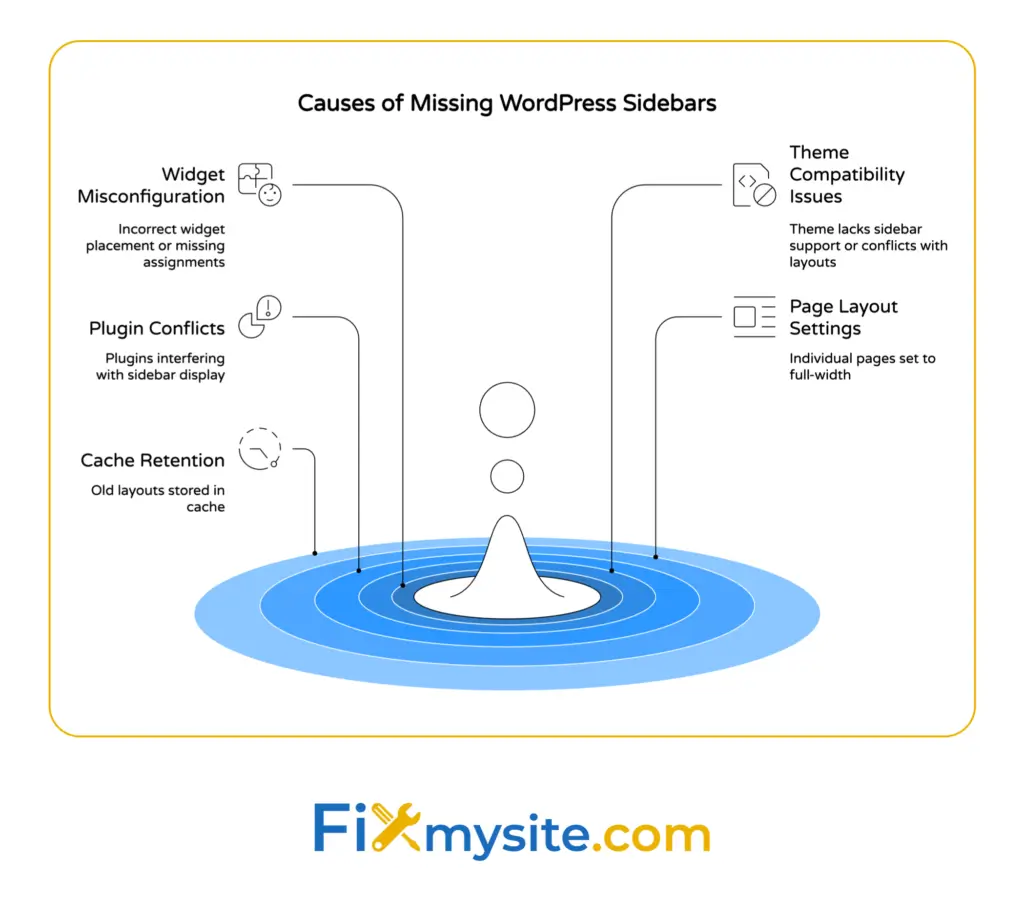
A missing WordPress sidebar typically stems from five common issues. Widget configuration errors, theme compatibility problems, plugin conflicts, page layout settings, or cache retention cause most sidebar display failures.

We’ve walked hundreds of WordPress site owners through this exact situation. The fix usually takes under 15 minutes once you know where to look.
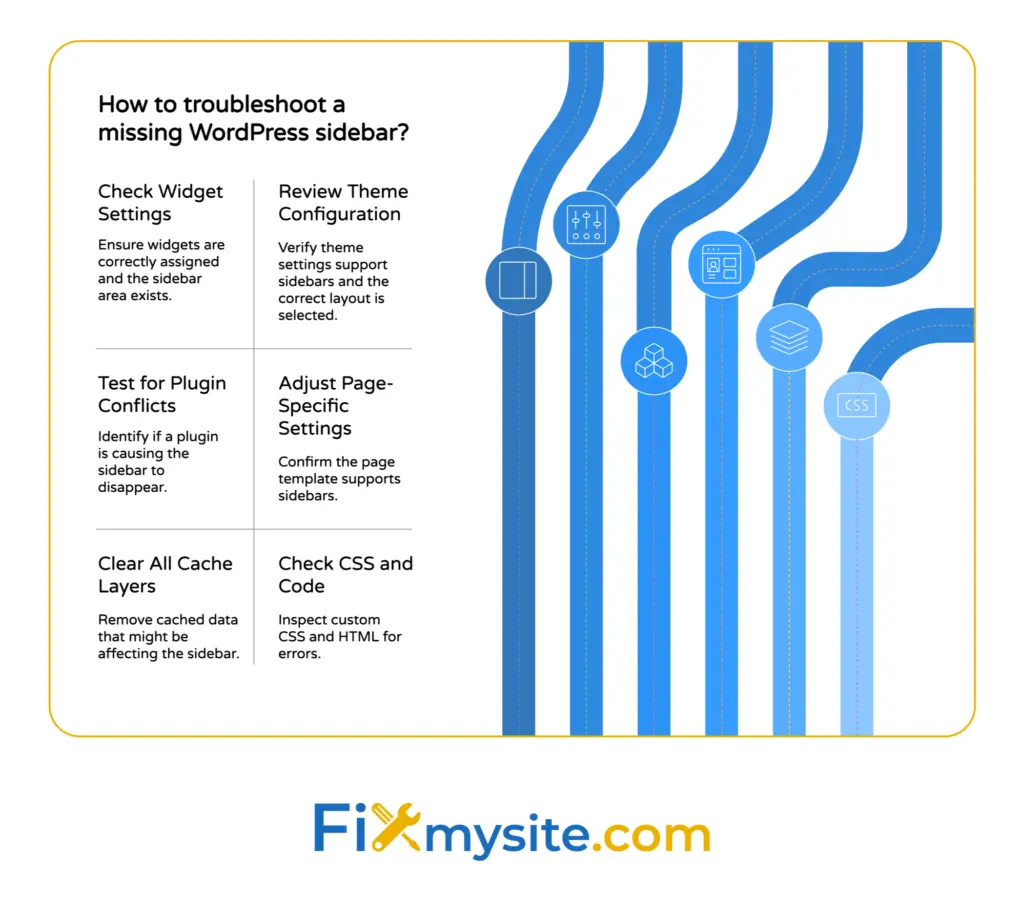
You’ll learn how to check your widget settings, identify theme conflicts, troubleshoot plugin interference, adjust page layout options, and clear stubborn cache files. We’ll show you each step using your WordPress dashboard.
By the end of this guide, your sidebar will be back where it belongs.
What Happens When Your WordPress Sidebar Disappears
Your sidebar contains important elements. Navigation menus, search boxes, recent posts, and other widgets that help visitors navigate your site.
When the sidebar vanishes, your entire page layout shifts. Content might stretch across the full width. Widgets disappear completely. Your site looks unprofessional.
Sidebar display problems rank among the most common WordPress errors reported by users. You’re not alone in dealing with this frustration.
The good news? Most sidebar issues trace back to simple configuration problems.
WordPress uses widget areas to control sidebar content. Your theme defines where these areas appear. When something breaks the connection between widgets and their display area, your sidebar stops showing.
This can happen after updating your theme, installing a new plugin, or changing page settings. Sometimes it occurs without any obvious trigger.
Check Your Widget Settings First
Start with the basics. Your widgets might be there but misconfigured.
Navigate to Your Widget Management Area
Log into your WordPress dashboard. Click Appearance in the left sidebar menu.
You’ll see two options for managing widgets. The Widgets page and the Customize option both lead to widget settings.
Select Widgets to access the traditional widget interface. This shows all available widget areas your theme supports.
Verify Your Sidebar Widget Area
Look for a widget area labeled “Sidebar,” “Primary Sidebar,” or “Main Sidebar.” The exact name depends on your theme.
Check if any widgets are assigned to this area. An empty sidebar widget area means nothing will display on your site.
Drag widgets from the Available Widgets section into your sidebar area. Add a Search widget or Recent Posts widget to test if the sidebar appears.
Save your changes and check your site in a new browser tab.
Confirm Widget Visibility Settings
Some plugins add visibility controls to widgets. These settings determine which pages show specific widgets.
Click on each widget in your sidebar area. Look for visibility options or display rules inside the widget settings.
Make sure your widgets aren’t set to hide on all pages. Adjust the visibility rules if needed.


Review Your Theme Configuration
Theme settings can cause the sidebar to disappear or appear inconsistently across the site. Let’s check your theme options next.
Access Your Theme Customizer
Go to Appearance and select Customize. This opens the WordPress Customizer where most themes store layout options.
Look for sections labeled “Layout,” “Sidebar Settings,” or “Page Layout.” Different themes organize these options differently.
The Customizer shows a live preview of your site. Changes appear immediately so you can see what affects your sidebar.
Check Page Layout Templates
Many themes offer multiple page layout options. Full-width templates deliberately hide the sidebar to create more visual space.
In the Customizer, look for layout settings under the appropriate section. Common options include “Sidebar Right,” “Sidebar Left,” “Full Width,” and “No Sidebar.”
If your layout is set to “Full Width” or “No Sidebar,” switch it to a sidebar layout option. Your sidebar should reappear.
Some themes let you set different layouts for posts versus pages. Check both settings if your sidebar only disappears on certain content types.
Verify Theme Sidebar Support
Not all WordPress themes support sidebars. Minimal or block-based themes sometimes skip sidebar functionality entirely.
Check your theme documentation to confirm it includes sidebar support. The theme developer’s website usually lists all supported features.
If your theme doesn’t support sidebars, you’ll need to switch themes or modify your current theme’s code. That’s where our WordPress website repair service can help if you’re not comfortable with code.
Having trouble with your Customizer? Our troubleshooting guide for the WordPress Customizer covers common configuration problems.
Identify Plugin Conflicts
Plugins that modify site layout or interact with widget areas can interfere with sidebar display. Time to test for conflicts.
Deactivate Plugins Systematically
Navigate to Plugins in your WordPress dashboard. You’ll see a list of all installed plugins.
Select all plugins using the checkbox at the top of the list. Choose “Deactivate” from the Bulk Actions dropdown menu.
Click Apply to deactivate all plugins at once. Check your site to see if the sidebar returns.
If the sidebar appears after deactivating all plugins, you’ve confirmed a plugin conflict. Now you need to find the culprit.
Reactivate Plugins One by One
Go back to your Plugins page. Activate one plugin at a time, checking your site after each activation.
When the sidebar disappears again, you’ve found the problematic plugin. That plugin either has a bug or incompatibility with your theme.
Common plugin types that cause sidebar issues include page builders, caching plugins, and custom CSS plugins. These tools modify how WordPress renders your pages.
Find Alternative Solutions
Once you identify the conflicting plugin, you have several options. Update the plugin to the latest version, check for known conflicts in the plugin support forum, or contact the plugin developer.
If no solution exists, consider replacing the plugin with an alternative that provides similar functionality. Many WordPress plugins have multiple competing options.
For more detailed guidance on WordPress plugin troubleshooting, check our step-by-step troubleshooting guide.
Adjust Page-Specific Layout Settings
WordPress lets you set custom layouts for individual pages and posts. Your sidebar might be hidden on specific pages only.
Check Individual Page Settings
Edit the page where your sidebar is missing. In the page editor, look for a “Page Attributes” or “Layout” section in the right sidebar.
Many themes add a “Template” dropdown in this section. Options might include “Default Template,” “Full Width,” “Left Sidebar,” or “Right Sidebar.”
Select a template that includes sidebar support. The exact name varies by theme, but avoid anything labeled “Full Width” or “No Sidebar.”
Review Block Editor Settings
If you’re using the WordPress block editor, layout settings appear in different locations. Click the page title or content area to reveal the page settings panel.
Look for a “Template” option in the right sidebar panel. Some block themes use “Page Layout” or “Sidebar Settings” instead.
Change the setting to show your sidebar. Save your changes and preview the page.
Bulk Update Multiple Pages
If multiple pages lost their sidebar, updating each one individually takes too much time. Some themes offer bulk layout options in the Customizer.
Check your theme documentation for bulk layout settings. This feature isn’t universal, but many popular themes include it.
Alternatively, you might need to update your theme’s default template. Our small WordPress tasks service can handle this kind of bulk update for you.

Clear Your WordPress Cache
Cached versions of your pages might show an old layout without the sidebar. Let’s clear that cached content.
Identify Your Caching Method
WordPress sites use several types of caching. Plugin-based caching, server-level caching, CDN caching, and browser caching all store old page versions.
Check your Plugins page for caching plugins like WP Rocket, W3 Total Cache, or WP Super Cache. These are the most common caching solutions.
Contact your web host if you’re unsure about server-level caching. Many hosts enable caching by default.
Clear Plugin Cache
Each caching plugin has its own process for clearing cached files. Most add a “Clear Cache” or “Purge Cache” button to your WordPress admin bar at the top of the screen.
You can also find cache clearing options in the plugin’s settings page. Navigate to Settings and look for your caching plugin’s menu item.
Click the appropriate button to clear all cached files. This forces WordPress to generate fresh versions of your pages with the current sidebar configuration.
Clear Your Browser Cache
Your web browser also stores cached versions of pages you visit frequently. These cached files might show the old layout without your sidebar.
Open a new incognito or private browsing window to bypass browser cache. If your sidebar appears in this window, you need to clear your browser cache.
The process varies by browser, but most use Ctrl+Shift+Delete (Windows) or Cmd+Shift+Delete (Mac) to open cache clearing options. Our browser cache troubleshooting guide provides detailed instructions for every major browser.
Disable Cache Temporarily
If clearing cache doesn’t help, temporarily deactivate your caching plugin. This eliminates cache as a potential cause.
Make your sidebar fixes without caching active. Once everything works correctly, reactivate your caching plugin and clear the cache one final time.
Look for CSS and Code Problems
Custom code sometimes hides sidebars unintentionally. Let’s check for CSS issues and coding errors.
Check Custom CSS
Navigate to Appearance and select Customize. Look for an “Additional CSS” section in the Customizer menu.
Review any custom CSS code you’ve added. Look for rules that might hide your sidebar, such as “display: none” or “visibility: hidden” applied to sidebar elements.
Try temporarily removing all custom CSS to see if your sidebar returns. If it does, restore your CSS code piece by piece to find the problematic rule.
Verify HTML Structure
Unclosed HTML tags can break your page layout and hide sidebar elements. This typically happens when adding custom HTML widgets or editing theme files.
Use your browser’s developer tools to inspect your page structure. Right-click anywhere on your page and select “Inspect” or “Inspect Element.”
Look for HTML errors highlighted in red. Check that all opening tags have corresponding closing tags.
Review Recent Theme Edits
If you recently edited theme files, those changes might have broken your sidebar. Navigate to Appearance and select Theme File Editor (if available).
Check the modification dates on theme files. Any files edited around the time your sidebar disappeared could contain the problem.
Compare your edited files to the theme’s original files. Revert changes if you’re unsure about your modifications.
Theme changes can cause major problems if something goes wrong. Our broken theme recovery guide can help if your site is seriously damaged.
When Your Sidebar Moves Below Content
Sometimes the sidebar doesn’t disappear completely. It drops below your main content instead of appearing beside it.
This happens when your content area becomes too wide, pushing the sidebar down. CSS width conflicts or oversized content cause this layout shift.
Check for images, tables, or other content that exceeds your content area’s maximum width. These elements force the sidebar to a new row.
Our detailed guide on fixing sidebars that appear below content covers this specific problem in depth.
Quick Answers to Common Sidebar Questions
How do I enable sidebar in WordPress?
Go to Appearance and select Widgets in your dashboard. Drag available widgets into the Sidebar area. If your theme supports sidebars, you can also customize their layout using the Customizer or widget settings.
Why did my Appearance menu disappear?
Check your user role. Only Administrators see the full Appearance menu. If you’re using a block-based theme, the menu may be replaced by the Editor option. Switch to a classic theme or verify your Administrator permissions to restore the Appearance menu.
How do I get my dashboard back in WordPress?
Log in at yoursite.com/wp-admin. If the dashboard is missing, clear your browser cache, disable conflicting plugins, or check your user role. Make sure you’re logged in with Administrator credentials.
Get Professional Help When You Need It
Most sidebar issues resolve with the troubleshooting steps above. Sometimes the problem runs deeper.
Complex theme conflicts, custom code errors, or corrupted WordPress files need professional attention. That’s when you should stop troubleshooting and get expert support.
Our team handles these exact problems every day. We can diagnose your sidebar issue, fix the underlying cause, and prevent it from happening again.
You shouldn’t spend hours troubleshooting when we can fix it in minutes. Check out our complete WordPress troubleshooting solutions to see how we handle common WordPress problems.
Your sidebar will be working properly again soon. Start with the widget check, move through theme settings, test for plugin conflicts, and clear your cache. One of these steps will identify your problem.
Need help right away? Visit our WordPress support page to get started. We’re here to help you through this.