


We know how frustrating it is when your WordPress site loads slowly. Every second feels like an eternity when visitors are waiting.
Slow page speed hurts more than just patience. It damages your search rankings, increases bounce rates, and costs you conversions.
This guide provides a complete checklist for speeding up your WordPress site. You will learn how to choose the right hosting, optimize images properly, implement caching strategies, clean your database, and fine-tune Core Web Vitals metrics.
Each step includes specific actions you can take today. No technical jargon, just clear instructions that work.
By the end, your site will load faster, rank higher, and keep visitors engaged. Take a deep breath and work through each section at your own pace.
Why WordPress Speed Optimization Matters for Your Business

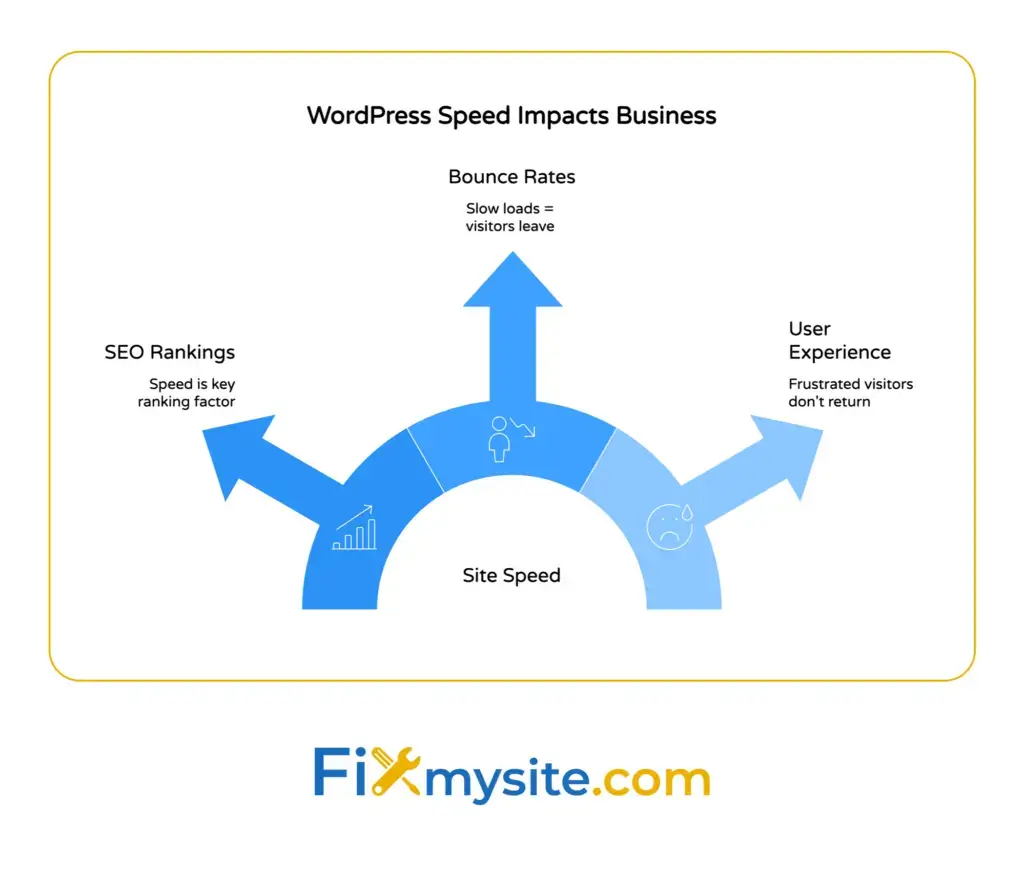
Site speed directly affects how well your business performs online. WordPress site speed is a key SEO ranking factor because slow-loading pages frustrate visitors, increase bounce rates, and harm user experience.
When your site loads slowly, potential customers leave. Search engines notice this behavior and lower your rankings.
Fast sites create better first impressions. Visitors stay longer, click more pages, and complete more purchases.
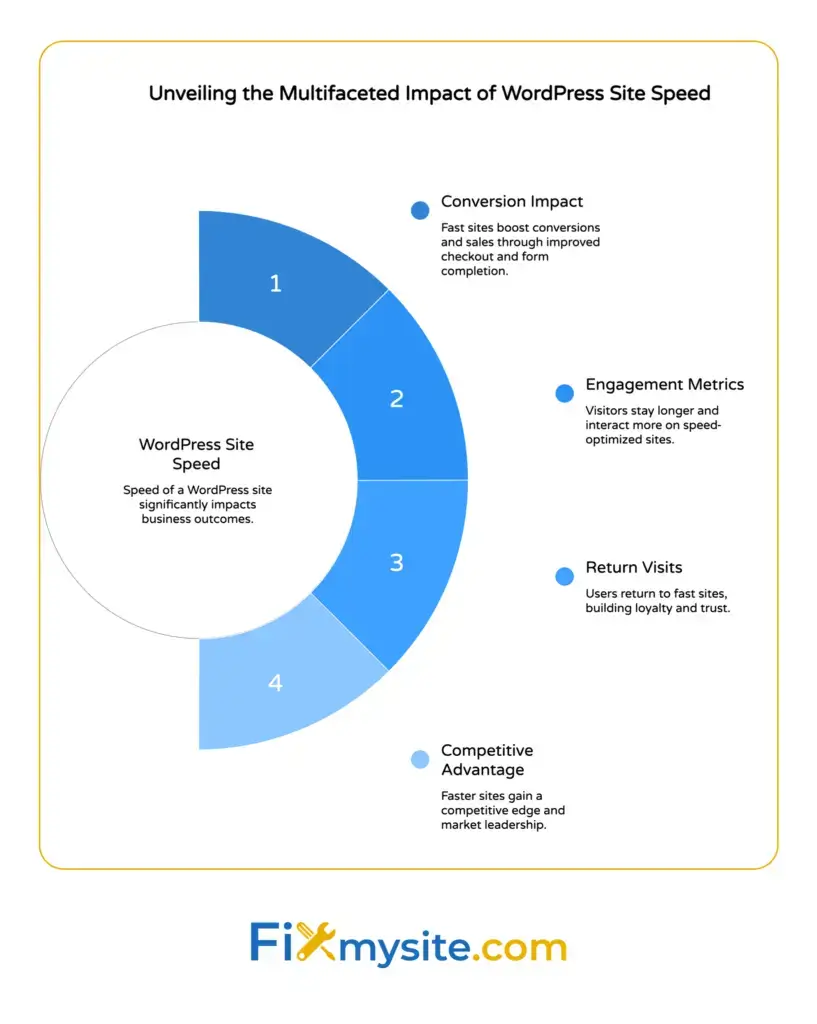
WordPress performance affects every metric that matters. Conversion rates, engagement time, and return visits all improve when pages load quickly.
Speed optimization is not optional anymore. It is a fundamental requirement for online success.

Choose Quality Managed WordPress Hosting
Your hosting provider forms the foundation of site performance. Everything else builds on this choice.
High-quality, fast hosting is essential because it forms the foundation for performance improvements like Core Web Vitals.
What Makes Hosting Fast
Fast hosting uses modern server technology. Look for providers offering SSD storage, PHP 8.0 or higher, and server-level caching.
Managed WordPress hosting handles technical optimization automatically. The hosting company updates software, monitors security, and optimizes server settings.
Server location matters too. Choose data centers close to your primary audience.
Hosting Features That Improve Speed
Premium hosting includes built-in CDN integration. Content Delivery Networks serve your files from locations worldwide.
Object caching reduces database queries. Redis or Memcached support speeds up dynamic content generation significantly.
Automatic backups protect your data without slowing your live site. Staging environments let you test changes safely.
If your site feels slow despite optimization efforts, your hosting might be the bottleneck. Upgrading hosting often delivers the biggest speed improvement.
Select a Lightweight Performance-Optimized Theme
Your theme controls how WordPress generates pages. Heavy themes slow everything down.
Choosing a lightweight, SEO-friendly theme with fast load times, mobile responsiveness, clean HTML5 code, and schema markup compatibility reduces bloat from unnecessary animations or scripts.
Signs of a Fast Theme
Lightweight themes load quickly out of the box. They avoid page builders, heavy animations, and excessive JavaScript.
Check theme demos with performance testing tools. Run PageSpeed Insights or GTmetrix on the demo site.
Good themes include minimal CSS and JavaScript files. They load only what each page needs.
Popular Fast WordPress Themes
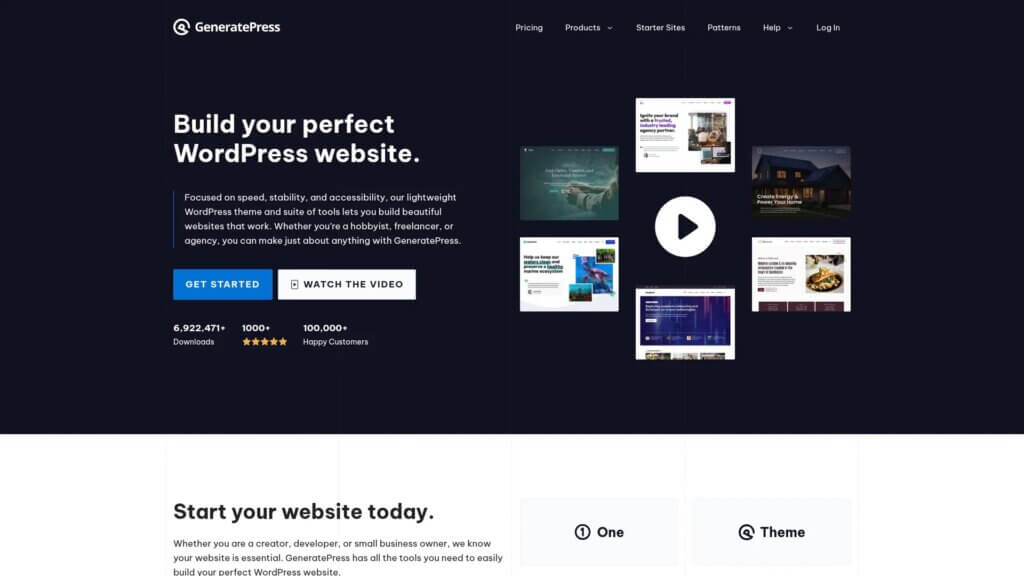
GeneratePress delivers excellent performance with minimal code. It loads in under one second on quality hosting.
GeneratePress offers extensive customization without sacrificing speed. The premium version adds more features while staying lightweight.

Astra and Kadence provide similar performance. Both themes prioritize speed and work well with page builders when needed.
Avoid themes with built-in sliders, animations, and dozens of font choices. These features sound appealing but destroy performance.


Implement a Robust Caching Strategy
Caching creates static versions of your pages. Visitors receive pre-built HTML instead of waiting for WordPress to generate each page.
Multiple caching layers work together for maximum speed. Each layer handles different content types.
Page Caching Basics
Page caching stores complete HTML files. When someone visits your site, they receive the cached file instantly.
WP Rocket handles page caching automatically. It creates cached files, manages cache clearing, and optimizes delivery.
WP Super Cache provides free page caching. It works well for smaller sites with straightforward needs.
Cache expires automatically after updates. Set reasonable expiration times based on how often you publish content.
Browser Caching Configuration
Browser caching stores files on visitor devices. Return visitors load your site faster because their browser already has images, CSS, and JavaScript files.
Configure browser caching through your caching plugin settings. Set different expiration times for different file types.
Static assets like images can cache for one year. CSS and JavaScript files should cache for one month.
Object and Database Caching
Object caching stores database query results. WordPress retrieves data from cache instead of querying the database repeatedly.
Your hosting provider must support object caching. Redis or Memcached handle object caching efficiently.
Enable object caching through your caching plugin if your host supports it. Performance improvements are immediate and substantial.
Now that caching handles static content delivery, you need to optimize the actual files visitors download.
Optimize Images Completely for Faster Loading
Images typically account for 50-70% of total page weight. Proper image optimization delivers massive speed improvements.
Choose Modern Image Formats
WebP images are 25-35% smaller than JPEG files with identical visual quality. AVIF format offers even better compression.
WebP Converter for Media converts existing images automatically. It creates WebP versions and serves them to compatible browsers.
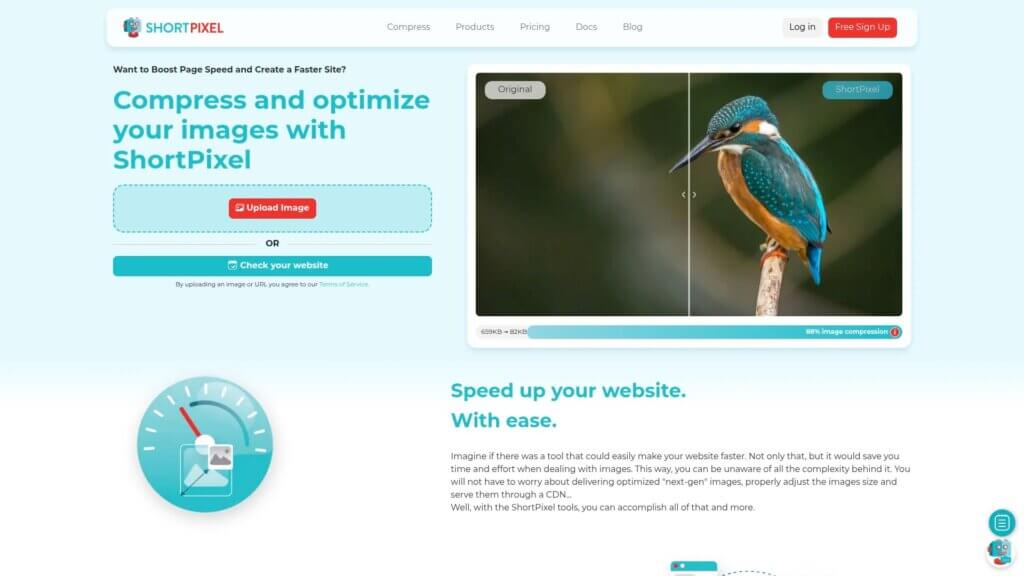
ShortPixel handles conversion and compression together. It optimizes images on upload and converts your existing library.
Compress Images Without Quality Loss
Image compression removes unnecessary data. Properly compressed images look identical but load much faster.
Imagify compresses images automatically during upload. Choose lossy compression for photographs and lossless for graphics with text.
Compress images before uploading when possible. Tools like TinyPNG optimize images in bulk.
Implement Lazy Loading
Lazy loading delays image loading until visitors scroll near them. Pages load faster because images below the fold wait.
WordPress includes native lazy loading since version 5.5. It works automatically for most images.
Caching plugins enhance lazy loading with additional features. They can lazy load videos, iframes, and background images too.
Set Proper Image Dimensions
Upload images at the exact size they display. Avoid uploading 3000px wide images when your content area is 800px wide.
WordPress creates multiple image sizes automatically. Your theme displays the appropriate size for each location.
Check your media library for oversized images. Replace unnecessarily large files with properly sized versions.
With images optimized, you can distribute them more efficiently using a content delivery network.
Leverage a Content Delivery Network
Content Delivery Networks store copies of your files on servers worldwide. Visitors download files from nearby locations instead of your hosting server.
How CDNs Improve Performance
CDNs reduce latency by serving content from geographically closer servers. A visitor in Australia loads files from an Australian server instead of your US-based host.
CDNs also reduce load on your hosting server. They handle static file delivery while your server focuses on generating dynamic content.
Most CDNs include additional security features. DDoS protection and SSL certificates often come standard.
Popular CDN Options
Cloudflare offers free CDN services with excellent performance. Their network spans over 200 cities globally.

BunnyCDN provides affordable premium CDN services. It delivers exceptional speed at low cost.

CDN Setup Steps
Sign up for your chosen CDN service. Most offer free tiers or trial periods.
Connect your WordPress site through a plugin. CDN Enabler handles Cloudflare and BunnyCDN integration.
Test your site after activation. Verify that images and CSS files load from CDN URLs.
Monitor CDN statistics regularly. Check bandwidth usage and cache hit rates to ensure proper configuration.

Clean and Optimize Your WordPress Database
Your database accumulates clutter over time. Post revisions, spam comments, and expired transients slow database queries.
Database Optimization Benefits
Regular database cleanup reduces database size. Smaller databases respond to queries faster.
Removing unnecessary data improves query efficiency. WordPress finds relevant information more quickly.
Database optimization prevents gradual performance degradation. Sites stay fast as they grow.
What to Clean From Your Database
Post revisions accumulate quickly. WordPress saves every draft and update by default.
Limit revisions to a reasonable number. Add this line to wp-config.php: define(‘WP_POST_REVISIONS’, 3);
Spam comments and trashed items waste database space. Delete them permanently instead of leaving them in trash.
Transients are temporary cached data. Expired transients should delete automatically but often remain.
Database Optimization Tools
WP-Optimize cleans and optimizes databases automatically. Schedule weekly cleanups for ongoing maintenance.
Advanced Database Cleaner provides detailed control. It identifies orphaned data and unused tables.
Back up your database before optimization. Most plugins include backup features, but manual backups provide extra safety.
Run optimization during low-traffic periods. Database cleanup can temporarily slow site performance.
Minify and Optimize CSS and JavaScript Files
CSS and JavaScript files contain unnecessary characters. Comments, whitespace, and verbose formatting increase file sizes.
Understanding Minification
Minification removes all unnecessary characters without changing functionality. Files become smaller and load faster.
Minified files are harder to read. Keep original versions for editing and development.
Automatic minification handles this process during page generation. Visitors receive minified files while you work with readable code.
Deferring JavaScript Loading
JavaScript often blocks page rendering. Deferring JavaScript allows pages to display before scripts execute.
Most caching plugins include JavaScript deferral options. WP Rocket handles this automatically with smart defaults.
Some scripts must load immediately. Payment processors and certain plugins require synchronous loading.
Critical CSS Optimization
Critical CSS includes only the styles needed for above-the-fold content. The rest loads after initial page rendering.
Implementing critical CSS manually is complex. Use Autoptimize for automatic critical CSS generation.
Test thoroughly after enabling critical CSS. Some themes display incorrectly until full CSS loads.
Reduce and Manage Plugin Usage
Every active plugin adds code that WordPress must execute. Too many plugins inevitably slow your site.
Audit Your Current Plugins
List all active plugins. Identify what each one does.
Deactivate plugins one at a time. Test site functionality after each deactivation.
Delete unused plugins completely. Deactivated plugins still consume server space.
Find Lightweight Plugin Alternatives
Heavy plugins often have lighter alternatives. Contact form plugins vary dramatically in resource usage.
Contact Form 7 provides basic functionality with minimal overhead. Avoid form builders with dozens of features you never use.
Social sharing plugins often load external scripts unnecessarily. Use lightweight options or add share buttons manually.
Consolidate Plugin Functionality
Some plugins overlap in functionality. Consolidate when possible.
WP Rocket handles caching, minification, and lazy loading together. This replaces three separate plugins.
Jetpack combines multiple features in one plugin. Enable only modules you actually need.
Fewer plugins mean simpler maintenance. Updates become less frequent and compatibility issues decrease.
Optimize Core Web Vitals Metrics
Optimizing Core Web Vitals like Largest Contentful Paint through hero image preloading and CDN serving is crucial because they influence Google’s Page Experience score and SEO.
Understanding Largest Contentful Paint
Largest Contentful Paint measures how quickly your main content loads. Google wants LCP under 2.5 seconds.
Hero images often determine LCP timing. Optimize and preload your largest above-the-fold image.
Server response time affects LCP directly. Quality hosting and caching improve LCP significantly.
Reducing Cumulative Layout Shift
Cumulative Layout Shift tracks unexpected page movement. Elements that shift during loading frustrate users.
Set explicit width and height attributes for images. This reserves space before images load.
Avoid inserting content above existing content. Ads and notifications that push content down increase CLS.
Improving Interaction to Next Paint
Interaction to Next Paint replaced First Input Delay in 2024. It measures overall page responsiveness.
Reduce JavaScript execution time. Heavy scripts delay user interactions.
Break up long JavaScript tasks. Smaller code chunks allow the browser to remain responsive.
Testing Core Web Vitals
Use PageSpeed Insights to measure Core Web Vitals. Test both mobile and desktop versions.
Google Search Console reports Core Web Vitals for your entire site. Check which pages need improvement.
GTmetrix provides detailed performance analysis with specific recommendations.
Control WordPress Heartbeat API Activity
Controlling the WordPress Heartbeat API reduces excessive admin-ajax.php requests that consume server resources and slow the backend.
What Heartbeat API Does
The Heartbeat API enables real-time features. It powers autosave, post locking, and login expiration notifications.
Heartbeat sends requests every 15-60 seconds by default. This creates constant server load.
Most sites do not need such frequent updates. Reducing heartbeat frequency saves significant resources.
Optimizing Heartbeat Settings
Heartbeat Control lets you adjust or disable heartbeat in different areas.
Increase intervals to 120 seconds for post editing. This maintains functionality while reducing load.
Disable heartbeat completely on the front end. Visitors never need real-time admin features.
Keep heartbeat active where needed. Disable it selectively rather than site-wide.
Optimize Font Loading Performance
Web fonts add visual polish but often slow page rendering. Optimized font loading maintains design quality while improving speed.
Font Loading Strategies
Use system fonts when possible. Fonts already on user devices load instantly.
Limit custom font usage to headings. Body text works fine with system fonts.
Choose font services carefully. Google Fonts offers optimized delivery but self-hosting often performs better.
Self-Hosting Fonts
Self-hosted fonts eliminate external requests. Your server delivers fonts along with other assets.
Download font files from Google Fonts. Upload them to your media library or theme folder.
Declare fonts in your CSS with @font-face rules. Specify local paths instead of Google URLs.
Font Display Property
The font-display CSS property controls loading behavior. Use font-display: swap for best performance.
Swap shows system fonts immediately, then switches to custom fonts when loaded. This prevents invisible text during loading.
Add font-display: swap to all @font-face declarations. Most font services support this parameter in their embed codes.
Limit Post Revisions and Autosave Frequency
WordPress saves post revisions automatically. While helpful for content recovery, unlimited revisions bloat your database.
Configure Revision Limits
Limit revisions in wp-config.php. Add this line: define(‘WP_POST_REVISIONS’, 5);
Five revisions provide adequate version history. Most users never need more.
Disable revisions completely with: define(‘WP_POST_REVISIONS’, false);
Consider your content workflow before disabling. Some teams rely on revision history.
Adjust Autosave Timing
WordPress autosaves every 60 seconds by default. Increase intervals to reduce server requests.
Add this to wp-config.php: define(‘AUTOSAVE_INTERVAL’, 300);
This changes autosave to every five minutes. Adjust based on your preferences.
Disable Unused WordPress Features
WordPress includes features many sites never use. Disabling unnecessary features reduces code execution.
Remove Emoji Scripts
WordPress loads emoji detection scripts by default. Modern browsers handle emojis natively.
Disable emoji scripts through your functions.php file or use Disable Emojis plugin.
This eliminates an external script request and reduces page weight.
Disable Embeds
WordPress embed functionality loads JavaScript on every page. Most sites use embeds rarely.
Disable embeds if you do not use YouTube videos or social media embeds. Your theme or plugin might include this option.
Manually embed content when needed. Direct HTML works fine for occasional embeds.
Limit Comments
Comments on old posts rarely add value. Close comments after 90 days.
WordPress includes automatic comment closing in discussion settings. Enable this under Settings > Discussion.
Paginate comments to limit database queries. Display 50 comments per page maximum.
Implement Performance Monitoring and Testing
Regular monitoring catches performance problems before they affect visitors. Establish baseline metrics and track changes.
Testing Tools and Methods
Test from multiple locations using different tools. Each tool measures different aspects.
PageSpeed Insights provides Google-specific metrics. Focus on Core Web Vitals scores.
GTmetrix offers detailed waterfall charts. These show exactly how pages load.
WebPageTest provides advanced testing options. Test from specific locations and devices.
Set Up Performance Monitoring
Query Monitor shows database queries, PHP errors, and hooks. It helps identify performance bottlenecks.
Monitor server resources through your hosting control panel. Watch CPU usage, memory consumption, and disk I/O.
Set up uptime monitoring with UptimeRobot. Free monitoring checks your site every five minutes.
Create a Testing Schedule
Test performance weekly after major changes. Run full audits monthly.
Document baseline metrics. Compare current performance against these baselines.
Test on different devices and connections. Mobile performance often differs significantly from desktop.
Take Action on Your WordPress Speed Today
You now have a complete WordPress speed optimization checklist. Each step improves performance measurably.
Start with hosting if your site feels consistently slow. Quality hosting provides the foundation for everything else.
Next, tackle image optimization. Images create the biggest quick wins for most sites.
Implement caching after optimizing content. Caching multiplies the benefits of other optimizations.
Then work through database cleanup, plugin audits, and Core Web Vitals improvements. Test after each change to measure impact.
Your site will load faster with each completed step. Visitors will stay longer, engage more, and convert better.
If you feel overwhelmed or need expert help, our team specializes in WordPress speed optimization. We handle the technical details so you can focus on your business.
You can also check out 12 expert WordPress speed techniques for additional strategies, or read our guide on diagnosing slow WordPress sites if you need help identifying specific problems.
Take that first step today. Your faster site is waiting.