



Your WordPress site is hauling around a massive burden with every page load. Images represent 50-80% of total page weight on most websites, which means visitors are waiting while dozens of offscreen images download before they even scroll.
The fix is simpler than you think. WordPress has included automatic lazy loading since version 5.5, adding the loading=”lazy” attribute to your images without any extra work.
But here’s what causes confusion: not all images should lazy load, native WordPress lazy loading has limitations, and improper setup can actually hurt your Core Web Vitals scores instead of helping them.
This guide walks you through everything you need to know. You’ll learn how WordPress native lazy loading works, when to use plugins for advanced control, and exactly which images to exclude to avoid performance penalties.
By the time you finish reading, you’ll know how to speed up your site without breaking your layout or damaging your SEO rankings.

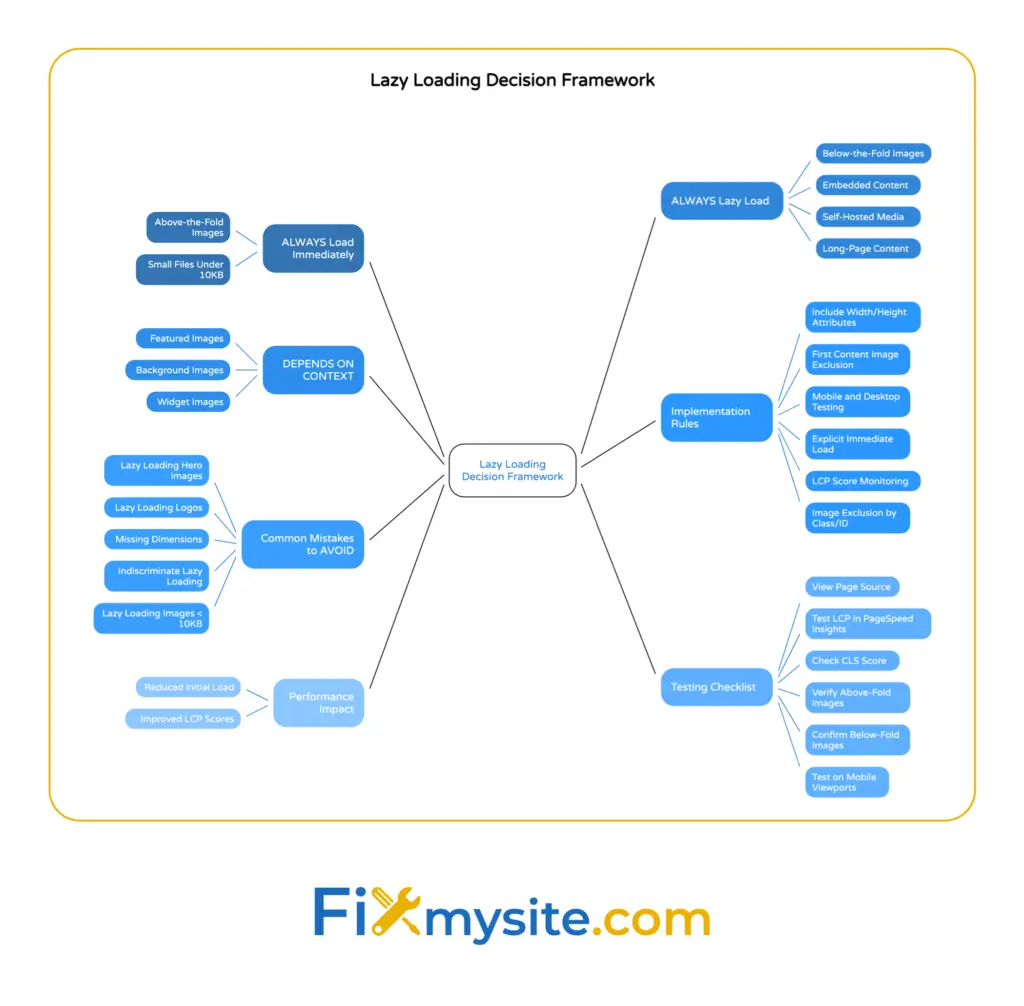
What Is Lazy Loading in WordPress?
Lazy loading changes when images download. Instead of loading everything at once when someone opens your page, only visible images load immediately.
Below-the-fold images wait. They don’t download until a visitor scrolls down far enough to see them.
Think about a blog post with 20 images. Without lazy loading, all 20 images download the moment someone lands on your page. With lazy loading enabled, maybe only the first 3 visible images download initially. The other 17 stay dormant until needed.
This approach saves bandwidth, reduces initial page load time, and improves the experience for visitors on slow connections or mobile devices. The best part is that visitors don’t notice any difference in functionality.
WordPress uses the native HTML loading attribute to handle this automatically. When WordPress adds loading=”lazy” to an image tag, modern browsers know to defer that image until it enters the viewport.
How the Loading Attribute Works
The loading attribute tells browsers when to fetch image resources. It accepts three values: lazy, eager, and auto.
The lazy value defers image loading until the browser calculates the image is close to entering the viewport. The eager value forces immediate loading regardless of position. The auto value lets the browser decide.
WordPress 5.5 and later versions automatically add the loading=”lazy” attribute to content images, featured images, and gallery images. This happens automatically without plugins or code changes.
Browser support covers approximately 95% of modern browsers. Legacy browsers that don’t recognize the loading attribute simply ignore it and load images normally.
What Gets Lazy Loaded Automatically
WordPress applies native lazy loading to specific image types. Content images inserted through the block editor receive the loading attribute automatically. Featured images in theme templates get lazy loading treatment.
Gallery images and widget images also lazy load by default. Images added through custom fields or manually coded templates might not, depending on how your theme developer implemented them.
Background images defined in CSS never get native lazy loading because the loading attribute only works on HTML image tags and iframes.


How Does Lazy Loading Work Behind the Scenes?
The browser monitors scroll position and calculates when offscreen images are about to become visible. Different browsers use different threshold distances for this calculation.
Chrome typically starts loading images when they’re within 1250 pixels of the viewport. Firefox uses a more conservative distance. These thresholds ensure images finish loading before users actually scroll to them.
When an image crosses the loading threshold, the browser fires a request to download it. The image appears as it loads, creating a seamless experience for the visitor.
Placeholder Behavior During Loading
WordPress requires width and height attributes on images to prevent layout shift during lazy loading. Without these dimensions, the browser doesn’t know how much space to reserve.
When dimensions exist, the browser creates an invisible placeholder box. As the image loads, it fills the reserved space without causing content below to jump around.
This placeholder system protects your Cumulative Layout Shift score, one of the Core Web Vitals that Google uses for ranking.
The Intersection Observer API
Advanced lazy loading plugins use the Intersection Observer API for more precise control. This JavaScript API watches when elements enter or exit the viewport.
Plugin developers can set custom thresholds for when images start loading. They can exclude specific images from lazy loading. They can even create fade-in effects as images appear.
The native WordPress implementation doesn’t use Intersection Observer. It relies entirely on the browser’s built-in loading attribute behavior.
Benefits of Lazy Loading Images in WordPress
Page speed improvements are the most obvious benefit. Lazy loading below-the-fold images can improve LCP and reduce initial page load time, especially on image-heavy pages.
Your server handles fewer requests on initial page load. Bandwidth consumption drops for both you and your visitors. Mobile users on limited data plans appreciate the reduced data transfer.
Core Web Vitals scores typically improve when lazy loading is implemented correctly. Largest Contentful Paint scores benefit because fewer resources compete during initial page render.
SEO Performance Impact
Google considers page speed as a ranking factor. Faster sites tend to rank better than slower competitors, all else being equal.
Lazy loading helps meet Google’s Core Web Vitals thresholds. These thresholds influence search rankings and user experience badges in search results.
However, incorrect lazy loading implementation can damage SEO. If you lazy load above-the-fold images, your Largest Contentful Paint score suffers instead of improving.
User Experience Advantages
Visitors see content faster when lazy loading reduces initial page weight. The browser can parse and render text content while images load progressively.
Bounce rates often decrease when pages load quickly. Users are more likely to stay and explore when they don’t wait for unnecessary resources.
The experience feels snappier even though the total loading time might be similar. Perceived performance matters as much as actual load time.

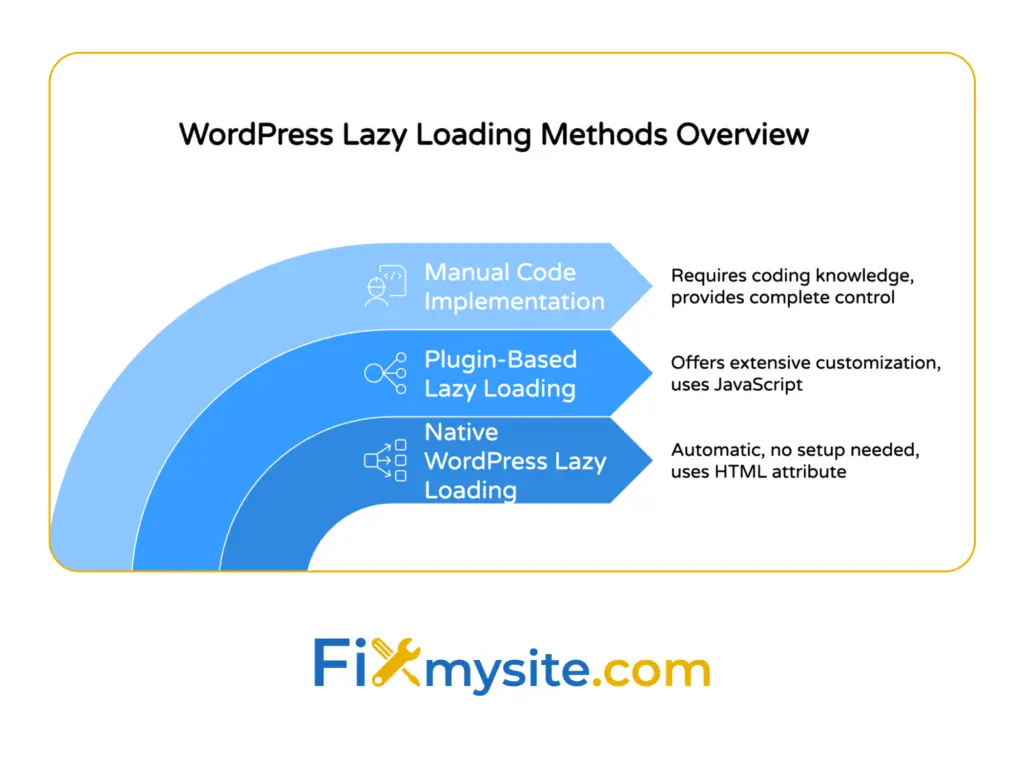
WordPress Native Lazy Loading (Version 5.5 and Later)
WordPress made lazy loading automatic starting in version 5.5, released in August 2020. If you’re running WordPress 5.5 or newer, your images already have lazy loading enabled.
No settings panel controls this feature. No toggle switch exists in the admin dashboard. WordPress applies the loading=”lazy” attribute silently in the background.
You can verify it’s working by viewing your page source. Find any content image and look for the loading attribute in the img tag.
Which Images WordPress Lazy Loads Automatically
WordPress targets specific image types for automatic lazy loading. Images inserted through the WordPress block editor get the loading attribute. Featured images receive it when themes use the proper WordPress functions.
Gallery images lazy load automatically. Images in widgets that use proper WordPress image functions get lazy loading treatment.
Custom-coded images might not lazy load if developers hard-coded img tags without using WordPress image functions like wp_get_attachment_image().
Images WordPress Excludes From Lazy Loading
WordPress automatically excludes certain images from lazy loading to protect performance. The first content image in a post doesn’t get lazy loading because it’s often above the fold.
However, this automatic exclusion isn’t always perfect. Sometimes WordPress misjudges which images are above the fold, especially with complex theme layouts.
Header logos never get lazy loading applied by default. Footer images also typically avoid lazy loading since they’re far from the initial viewport.
Limitations of Native WordPress Lazy Loading
The built-in WordPress implementation is basic. You can’t exclude specific images from lazy loading without code. You can’t lazy load background images since those require JavaScript solutions.
Video and iframe lazy loading work differently. WordPress added iframe lazy loading in version 5.7, but video requires additional handling.
No fade-in effects or advanced loading animations exist in the native implementation. If you want those features, you’ll need a plugin.
How to Enable Lazy Loading With a Plugin
Plugins offer more control than native WordPress lazy loading. They let you exclude specific images, lazy load videos and iframes, and customize loading behavior.
Most WordPress speed optimization strategies benefit from plugin-based lazy loading because of the additional flexibility.
Here’s how to set up lazy loading with a plugin.
Installing a Lazy Loading Plugin
Navigate to Plugins > Add New in your WordPress dashboard. Search for your chosen lazy loading plugin.
Click Install Now, then Activate once installation completes. The plugin dashboard appears in your WordPress sidebar.
Most plugins work immediately after activation with default settings. Advanced users can customize behavior through plugin settings.
Configuring Plugin Settings
Open your plugin’s settings page. Look for options to exclude specific images from lazy loading.
Add your logo, above-the-fold hero images, and critical content images to the exclusion list. These images should always use loading=”eager” to prevent performance problems.
Enable lazy loading for iframes and videos if your site uses embedded content. Configure fade-in animations if you want visual effects as images appear.
Save your settings and clear your cache if you’re using a WordPress cache plugin.
Testing Your Configuration
Open your site in an incognito browser window to avoid cache issues. Open your browser’s developer tools and switch to the Network tab.
Load your homepage and watch which images download immediately. Scroll down slowly and watch additional images load as you approach them.
Check your page source to confirm the loading attribute appears on appropriate images. Verify that excluded images use loading=”eager” or have no loading attribute.
Best WordPress Lazy Loading Plugins
Several plugins handle lazy loading well. Each has different strengths depending on your needs.
The right plugin depends on whether you need a standalone lazy loading solution or a complete performance package.
LazyLoad by WP Rocket
LazyLoad by WP Rocket is a lightweight, free plugin focused exclusively on lazy loading. It weighs only 2KB and works independently of the full WP Rocket plugin.
The plugin lazy loads images, iframes, and videos. It supports YouTube thumbnails to prevent heavy video embeds from slowing your site.
Configuration is minimal. Install, activate, and it works. Advanced users can add filters to customize behavior through code.
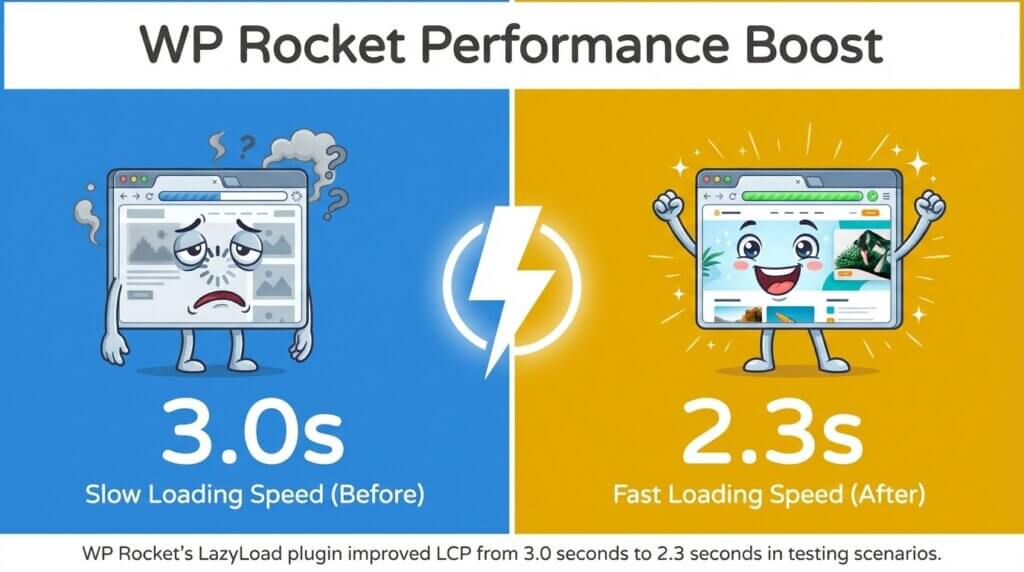
WP Rocket’s LazyLoad plugin improved LCP from 3.0 seconds to 2.3 seconds in testing scenarios with image-heavy pages.

Smush Image Optimization
Smush combines image compression with lazy loading. Smush includes built-in lazy loading that defers offscreen images and videos.

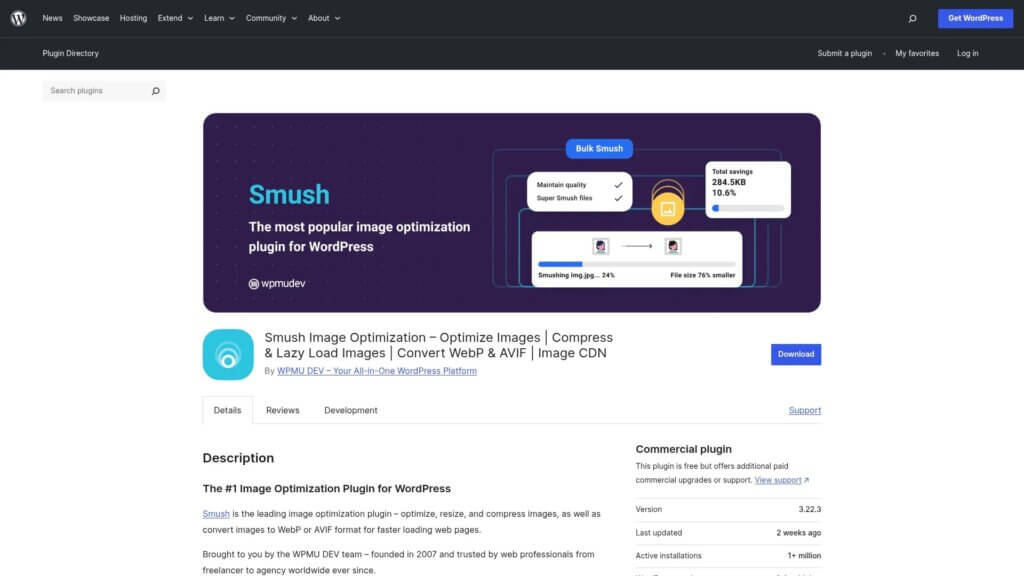
The plugin compresses images automatically on upload. Lazy loading works alongside compression to maximize performance gains.
Smush offers both free and pro versions. The free version handles lazy loading perfectly well for most sites.
Configuration options let you exclude specific images, disable lazy loading on certain pages, and customize loading animations.
a3 Lazy Load
a3 Lazy Load provides extensive customization options. The plugin works with images, videos, and iframes.
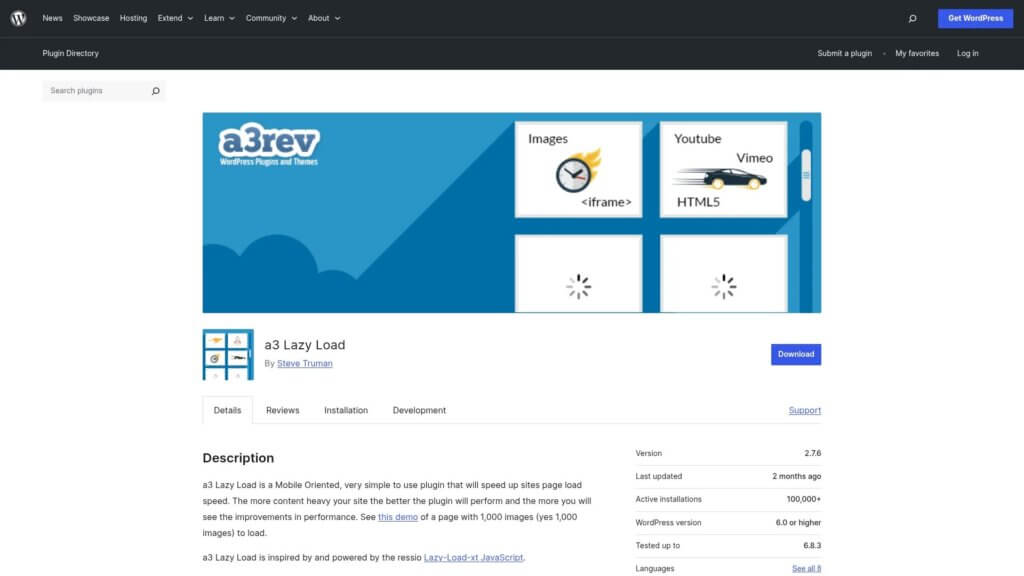
You can exclude images by class name, exclude entire pages from lazy loading, and set custom loading thresholds. The plugin supports mobile-specific settings separate from desktop configuration.
a3 Lazy Load includes options for fade-in effects, spinner animations, and placeholder images. These features add visual polish to the loading experience.
The plugin integrates well with popular page builders and doesn’t conflict with most themes.
All-in-One Performance Plugins
Full performance plugins like WP Rocket, NitroPack, and Perfmatters include lazy loading alongside caching, minification, and other optimizations.
These plugins cost money but provide complete performance solutions. If you need help with WordPress speed optimization beyond just lazy loading, an all-in-one solution makes sense.
The lazy loading features in these plugins are typically more advanced than standalone options. They offer granular exclusion rules, automatic critical image detection, and integration with other performance features.

Manual Implementation Without a Plugin
You can add lazy loading manually through code if you prefer not to use plugins. This approach gives you complete control over implementation.
Manual implementation requires editing your theme files. Back up your site before making any changes.
Using the wp_lazy_loading_enabled Filter
WordPress provides a filter to control lazy loading behavior. Add this code to your theme’s functions.php file:
function custom_disable_lazy_loading( $default, $tag_name, $context ) {
    if ( 'img' === $tag_name && 'header' === $context ) {
        return false;
    }
    return $default;
}
add_filter( 'wp_lazy_loading_enabled', 'custom_disable_lazy_loading', 10, 3 );
This example disables lazy loading for images in header context. Modify the conditions to match your needs.
The filter works with any WordPress function that outputs images. It affects images generated through the_post_thumbnail(), wp_get_attachment_image(), and similar functions.
Adding Loading Attributes to Custom Image Tags
For hard-coded image tags in your theme, add the loading attribute manually:
<img src="image.jpg" width="800" height="600" loading="lazy" alt="Description">
Include width and height attributes to prevent layout shift. These dimensions let the browser reserve proper space before the image loads.
Use loading=”eager” for critical above-the-fold images that must load immediately:
<img src="hero.jpg" width="1200" height="600" loading="eager" alt="Hero image">
Implementing JavaScript-Based Lazy Loading
For advanced control, use the Intersection Observer API. Add this JavaScript to your theme:
document.addEventListener("DOMContentLoaded", function() {
    const lazyImages = document.querySelectorAll('img[data-lazy-src]');

    const imageObserver = new IntersectionObserver((entries, observer) => {
        entries.forEach(entry => {
            if (entry.isIntersecting) {
                const img = entry.target;
                img.src = img.dataset.lazySrc;
                img.removeAttribute('data-lazy-src');
                imageObserver.unobserve(img);
            }
        });
    });

    lazyImages.forEach(img => imageObserver.observe(img));
});
This code watches for images with the data-lazy-src attribute. When an image enters the viewport, the script swaps data-lazy-src to src, triggering the download.
Adjust your image tags to use data-lazy-src instead of src:
<img data-lazy-src="image.jpg" width="800" height="600" alt="Description">
Lazy Loading Videos and iFrames
Videos and iframes consume even more bandwidth than images. A single YouTube embed can add several megabytes to your page weight.
Lazy loading videos prevents this bandwidth drain. The video only loads when visitors scroll to it or click to play.
Native iframe Lazy Loading
WordPress 5.7 added automatic lazy loading for iframes. The same loading=”lazy” attribute works on iframe elements:
<iframe src="https://www.youtube.com/embed/VIDEO_ID" loading="lazy"></iframe>
Most modern browsers support iframe lazy loading. This covers YouTube embeds, Vimeo videos, Google Maps, and other iframe content.
WordPress automatically adds loading=”lazy” to iframes inserted through the block editor. Manual iframe embeds might need the attribute added by hand.
YouTube Thumbnail Lazy Loading
Advanced lazy loading replaces YouTube embeds with thumbnail images. When a visitor clicks the thumbnail, the full video iframe loads.
This technique dramatically reduces initial page weight. A thumbnail image might be 50KB, while the full YouTube embed is several megabytes.
Plugins like WP Rocket’s LazyLoad include YouTube thumbnail replacement. The feature works automatically without manual configuration.
HTML5 Video Lazy Loading
For self-hosted videos using the HTML5 video tag, add the preload=”none” attribute:
<video preload="none" poster="thumbnail.jpg" controls>
    <source src="video.mp4" type="video/mp4">
</video>
The preload=”none” attribute prevents the browser from downloading video data until the visitor clicks play. The poster attribute shows a thumbnail while the video waits.
This approach works for all self-hosted video content. It’s particularly helpful if you host videos on your own server instead of using YouTube or Vimeo.
Common Lazy Loading Mistakes to Avoid
Lazy loading can hurt performance when implemented incorrectly. Improper implementation of lazy loading can impact Core Web Vitals, particularly Largest Contentful Paint.
These mistakes are easy to make but also easy to fix once you know what to watch for.
Lazy Loading Above-the-Fold Images
The biggest mistake is lazy loading images that appear immediately when the page loads. Your hero image, header logo, and first content image should never have loading=”lazy”.
When these critical images lazy load, your Largest Contentful Paint score increases. Google considers this a poor user experience.
Exclude above-the-fold images using loading=”eager” or by removing the loading attribute entirely. Most lazy loading plugins offer exclusion settings for this purpose.
Missing Width and Height Attributes
Images without width and height attributes cause layout shift as they load. The browser doesn’t know how much space to reserve.
When a lazy loaded image finally appears, it pushes content down. This creates a jarring experience and damages your Cumulative Layout Shift score.
Always include width and height attributes on images. Modern WordPress adds these automatically when you upload images through the media library.
Lazy Loading All Images Indiscriminately
Some aggressive lazy loading plugins lazy load every single image on your page. This includes critical images, small icons, and even 1×1 tracking pixels.
Small images under 10KB probably shouldn’t lazy load. The overhead of lazy loading tiny images exceeds any benefit.
Configure your lazy loading solution to exclude small images or use file size thresholds. Most quality plugins include this option.
Ignoring Browser Compatibility
About 5% of browsers don’t support native lazy loading. These legacy browsers ignore the loading attribute and load all images normally.
This usually isn’t a problem. The site still works, just without lazy loading benefits for those users.
If you need guaranteed lazy loading support for legacy browsers, use a JavaScript-based solution with a proper fallback. The Intersection Observer API works in more browsers than native lazy loading.
Testing and Measuring Lazy Loading Performance
Implementation only matters if it actually improves your site. Testing confirms whether lazy loading helps or hurts performance.
Several tools measure the impact of your lazy loading configuration. Use them before and after implementation to track improvements.
Using PageSpeed Insights
PageSpeed Insights analyzes your site’s Core Web Vitals scores. Enter your URL and run the test.
Look for the Largest Contentful Paint score in the results. This metric shows how long your largest above-the-fold element takes to load.
Properly implemented lazy loading should improve LCP by reducing competition for bandwidth during initial page load. If LCP gets worse after enabling lazy loading, you’re probably lazy loading above-the-fold images.
Check the “Defer offscreen images” suggestion in the Opportunities section. If this appears, you’re not lazy loading below-the-fold images effectively.
GTmetrix Performance Reports
GTmetrix provides detailed performance analysis including lazy loading recommendations. Run a test before implementing lazy loading to establish a baseline.

After implementing lazy loading, run another test. Compare the Total Page Size and Number of Requests metrics.
You should see fewer requests and lower page size on initial load. The Waterfall chart shows when images load relative to page rendering.
Real User Monitoring
Tools like Google Analytics 4 can track Core Web Vitals from real visitors. This data shows how your lazy loading implementation performs across different devices and connection speeds.
Navigate to Reports > Engagement > Pages and Screens in GA4. Enable the Web Vitals report to see real user LCP, FID, and CLS scores.
Real user data matters more than lab tests. A configuration that works well in PageSpeed Insights might perform differently for actual visitors.
Troubleshooting Lazy Loading Issues
Sometimes lazy loading doesn’t work as expected. These troubleshooting steps solve the most common problems.
Images Not Loading at All
If images never appear when you scroll to them, JavaScript errors might be blocking lazy loading scripts. Open your browser console and check for errors.
Conflicts between lazy loading plugins and other JavaScript can prevent images from loading. Try disabling other plugins temporarily to identify conflicts.
Check that your images have proper src attributes. Some lazy loading implementations use data-src instead, requiring JavaScript to swap the attributes.
Layout Shift Problems
If content jumps around as images load, width and height attributes are missing. Edit your images to include proper dimensions.
Some themes use CSS aspect ratio tricks instead of explicit dimensions. These don’t always work with lazy loading.
The aspect-ratio CSS property can help maintain proper spacing:
img {
    width: 100%;
    height: auto;
    aspect-ratio: 16 / 9;
}
Images Loading Too Late
If images don’t load until after they’re fully visible, the loading threshold might be too conservative. Plugin-based solutions often let you adjust the threshold distance.
Increase the loading threshold to 300-500 pixels above the viewport. This ensures images finish loading before users scroll to them.
Browser-native lazy loading thresholds can’t be adjusted. If native lazy loading feels too aggressive, switch to a plugin-based solution with configurable thresholds.
Taking the Next Step With Your Site Speed
You now know how lazy loading works, why it matters, and how to implement it correctly on your WordPress site. The native WordPress implementation handles basic lazy loading automatically for most users.
If you need more control, plugins like LazyLoad by WP Rocket or Smush provide advanced options. Manual implementation through code gives you complete customization.
The key is testing your implementation. Use PageSpeed Insights to verify that your Largest Contentful Paint score improves rather than getting worse.
Check out our guide on image optimization plugins to combine lazy loading with compression for maximum speed gains. Understanding recommended file sizes and resolutions helps you optimize images before implementing lazy loading.
If lazy loading and image optimization still leave your site slower than you’d like, our team can help. We specialize in WordPress speed optimization and can diagnose performance issues that go beyond just images.
Your visitors deserve a fast site. Lazy loading is one piece of that puzzle. The performance improvements start as soon as you implement it correctly.