



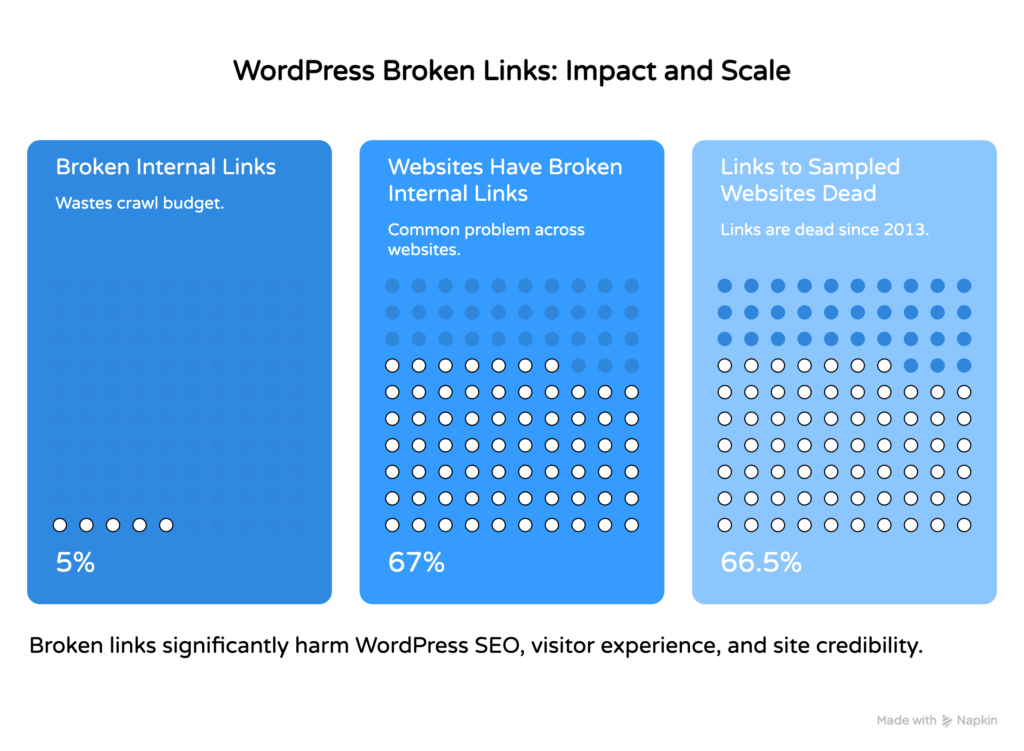
Broken links in WordPress are URLs that no longer load a working page, returning a 404 error or other HTTP failure instead. They damage your SEO by wasting crawl budget, signal a poorly maintained site to Google, and push real visitors away before they have a chance to engage. According to Ranktracker’s technical SEO analysis, 67% of websites have broken internal links. That is not a rare edge case. That is most websites, including yours.
We know this kind of thing sits at the bottom of your to-do list. It is not exciting work. But a single afternoon spent fixing broken links in WordPress can meaningfully improve how both Google and your visitors experience your site. This guide walks you through every method, from free plugins to manual checks, in plain steps you can follow today.

What Are Broken Links in WordPress (And Why They Hurt Your SEO)
A broken link is any hyperlink, internal or external, that points to a URL returning an error response instead of a live page.
The most common error is the 404 error, which means “page not found.” But you might also encounter 410 (gone), 500 (server error), or 301 redirect chains that go nowhere. Each one is a dead end for your visitor and a wasted signal for Google.
The SEO impact is specific and measurable. According to research cited by Broken Link Scan, if 5% of your internal links are broken, you are losing roughly 5% of your crawl budget with nothing to show for it. Google’s crawlers follow links to discover and index your content. When they hit a dead URL, they stop. That page may not get indexed at all.
There is a second problem. Seomator’s backlink analysis shows that backlinks remain a top-3 Google ranking factor, with first-position pages carrying 3.8 times more backlinks than pages in positions 2 through 10. When an external site links to a page on your WordPress site that no longer exists, that link equity disappears. You cannot afford to let that happen by accident.
And then there is the human side. According to Search Engine Journal’s bounce rate research, broken links and 404 error pages directly hurt engagement and retention, especially for first-time visitors. Someone who hits a dead end on their first visit rarely comes back.
Common Causes of Broken Links in WordPress
Broken links in WordPress form for a handful of predictable reasons, and knowing them makes prevention much easier.

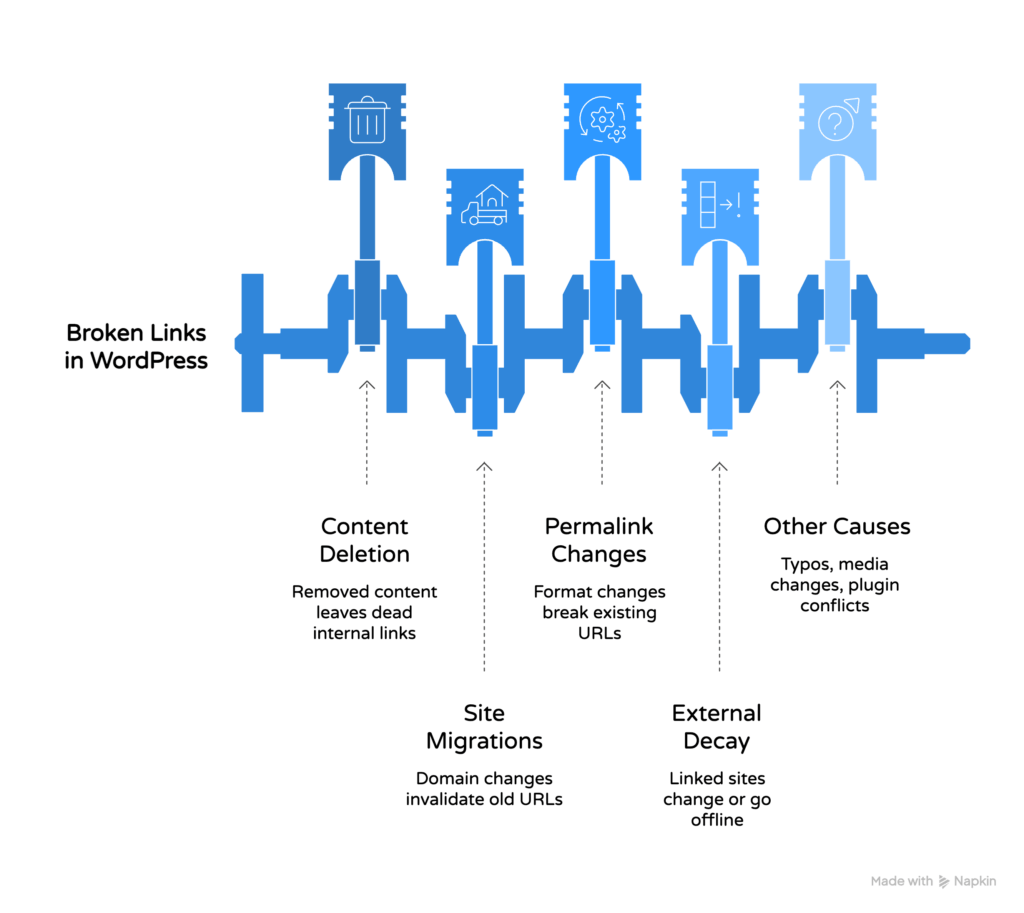
The single biggest cause is content deletion. You remove a post or page and forget there are internal links pointing to it elsewhere on your site. That URL now returns a 404 error to anyone who clicks it.
Site migrations are another major trigger. Moving WordPress from one domain to another, or from a subfolder to a root URL, can invalidate hundreds of links at once if the old URLs are not properly redirected. Our WordPress migration checklist covers exactly what to check before and after a move to avoid this.
Permalink structure changes cause the same problem at scale. If you edit your permalink settings in WordPress (for example, switching from numeric IDs to post names), every existing URL on your site changes. Without 301 redirects in place, every old link becomes a broken link overnight. You can read more about this in our guide on fixing broken permalinks in WordPress.
External links break for reasons outside your control. The site you linked to may have deleted the page, restructured their URL format, or gone offline entirely. A large-scale Ahrefs study of over 2 million domains found that at least 66.5% of links pointing to sampled websites since 2013 are now dead. External links decay constantly. Checking them regularly is not optional.
Other common causes include typos when manually entering a URL, changes to media file names or locations in the WordPress media library, and plugin or theme conflicts that alter URL structures without warning.
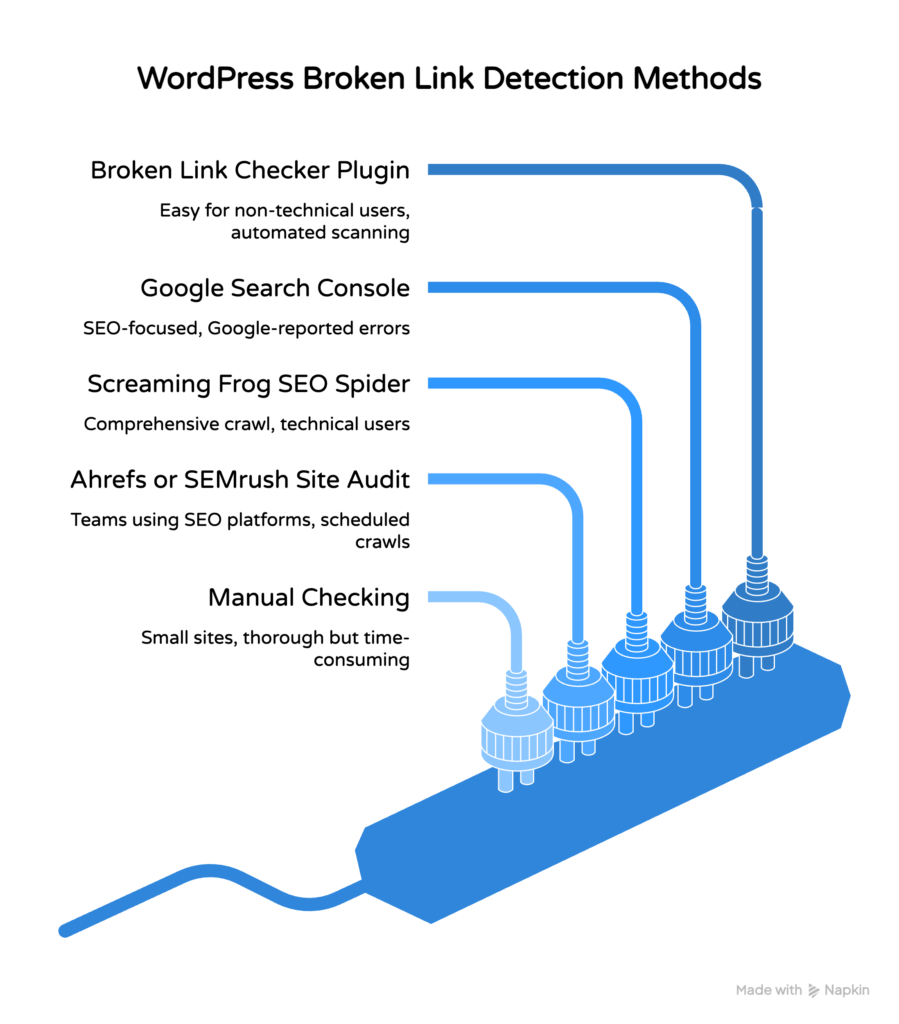
How to Find Broken Links in WordPress: 5 Methods
Finding broken links in WordPress requires a systematic approach, and the right method depends on your site size and technical comfort level.

Method 1: The Broken Link Checker Plugin
The Broken Link Checker plugin is the most widely used option for WordPress users. It has over 500,000 active installations according to WPScan’s plugin data, which reflects how useful it genuinely is for non-technical site owners.

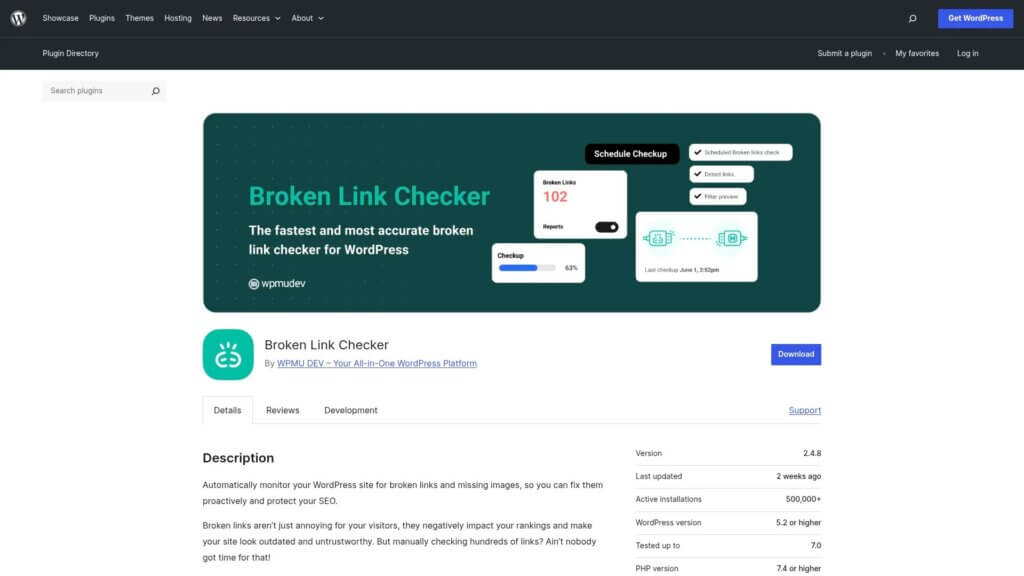
After installation, the plugin scans your posts, pages, comments, and custom fields automatically. It flags broken links directly inside your WordPress dashboard, and you can edit or remove them without opening each post individually. It also sends email alerts when new broken links appear.
One important note: the Broken Link Checker plugin runs scans on your server. On shared hosting, this can increase server load. If you notice performance issues after installing it, switch to its cloud-based mode or run scans manually during off-peak hours.
Method 2: Google Search Console
Google Search Console is a free tool from Google that reports crawl errors, including 404 errors on your WordPress site. Log in, go to the Coverage report, and look for pages with “Not Found” status.
This method only catches broken links Google has already crawled. It will not find every broken link on your site. But it is the most authoritative source because these are the exact errors affecting your Google rankings right now.
Method 3: Screaming Frog SEO Spider
Screaming Frog is a desktop crawler that mimics how Google visits your site. Run a crawl, then filter by “Client Error (4xx)” in the response codes report. You will see every broken internal link and broken external link on your site in one list.
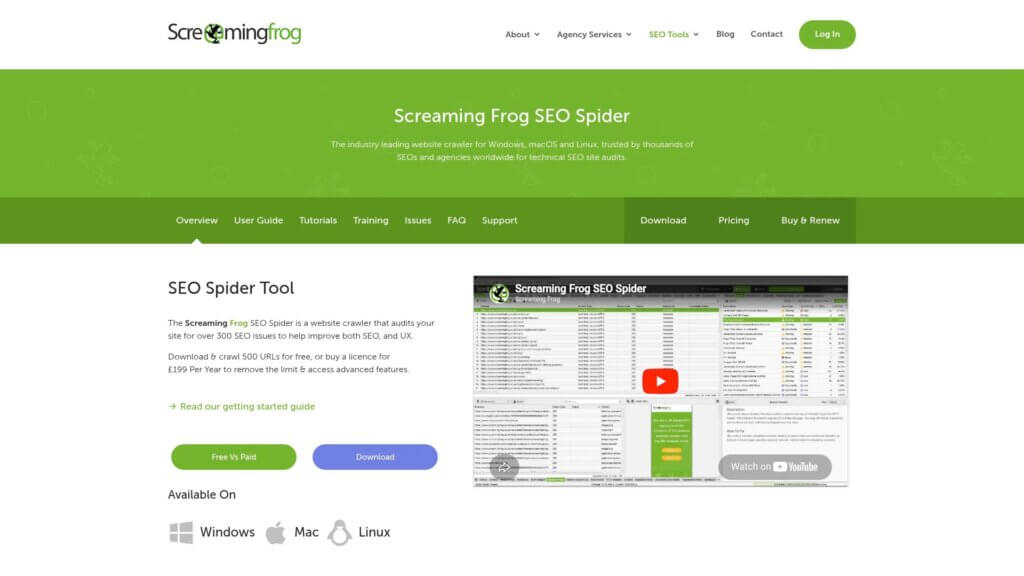
The free version crawls up to 500 URLs, which covers most small business sites. Larger sites need the paid version.
Method 4: Ahrefs or SEMrush Site Audit
Ahrefs and SEMrush both include site audit tools that flag broken links alongside other technical issues. These are the better choice if you are already using either platform for broader SEO work. Both tools crawl your site on a schedule and send reports when new issues appear.

Method 5: Manual Checking
For small sites with fewer than 20 pages, manual checking is genuinely viable. Open each post or page in your WordPress dashboard editor and click each hyperlink to confirm it loads. Slow? Yes. But thorough for sites where automated tools feel like overkill.
You can also use a free online tool like Dead Link Checker to scan a URL without installing anything.


How to Fix Broken Links in WordPress Step by Step
Once you have found your broken links, fixing them in WordPress takes one of three forms: update the URL, remove the link entirely, or set up a redirect.
Option A: Update the Link Directly in WordPress
- Log into your WordPress dashboard.
- Go to Posts or Pages and open the item containing the broken link.
- In the block editor, highlight the linked text and click the link icon.
- Replace the old broken URL with the correct, working URL.
- Click Update to save the change.
This is the cleanest fix. Use it whenever the content still exists at a new URL.
Option B: Remove the Link
If the linked page no longer exists anywhere and no suitable replacement exists, remove the link entirely. Highlight the linked text, click the link icon, and select “Remove link.” The text remains; only the hyperlink is removed. A plain text sentence is better than a dead link.
Option C: Replace with a Relevant Alternative
For broken external links, search for a replacement page that covers the same topic. Linking to a working, authoritative source is better for both SEO and your readers than leaving a gap.
If the broken link was pointing to a page on your own site that you have deleted, check whether you can restore the content or create a new page at that URL. Our guide on fixing WordPress posts returning 404 errors walks through when restoration makes sense.

Using the Broken Link Checker Plugin: Installation and Setup
The Broken Link Checker plugin is the most practical starting point for most WordPress site owners who want automated scanning without technical complexity.
Installing Broken Link Checker
- Log into your WordPress dashboard.
- Go to Plugins, then Add New Plugin.
- Search for “Broken Link Checker” in the search bar.
- Find the plugin by WPMU DEV and click Install Now.
- Once installed, click Activate.
After activation, the plugin appears under Settings in your WordPress dashboard. Open it to configure your scan preferences.
Configuring the Plugin
In the Broken Link Checker settings, you can choose which content types to scan: posts, pages, comments, custom fields, and more. Enable all of them for a complete picture. Set up email notifications so you hear about new broken links as they appear. You do not need to manually check the dashboard every week.
The plugin also offers a “cloud checking” option that moves the scan workload off your server. This is worth enabling on shared hosting plans where server resources are limited.
Fixing Links Directly from the Plugin
This is the part that makes the Broken Link Checker plugin genuinely useful. When the scan finds a broken link, it shows you the URL, the post it appears in, and the HTTP status code returned. You can click “Edit URL” to replace the broken URL inline, without opening the post editor at all.
For bulk fixes, select multiple broken links from the list and apply the same action to all of them at once. If you have a site with dozens of broken links pointing to an old domain, this bulk action saves significant time.
Not comfortable handling this yourself? We can take care of it for you. Our small WordPress tasks service covers exactly this kind of fix.
How to Set Up 301 Redirects for Broken Links in WordPress
A 301 redirect permanently forwards one URL to another, preserving link equity and sending both visitors and search engines to the right page.
Use a 301 redirect when you have deleted a page that had backlinks pointing to it, when you have changed your permalink structure, or when you have moved content to a new URL. Without a 301 redirect in place, every external link pointing to the old URL becomes a broken link that returns a 404 error.
Using the Redirection Plugin
The Redirection plugin by John Godley is the most popular free option in WordPress for managing 301 redirects without editing server files.
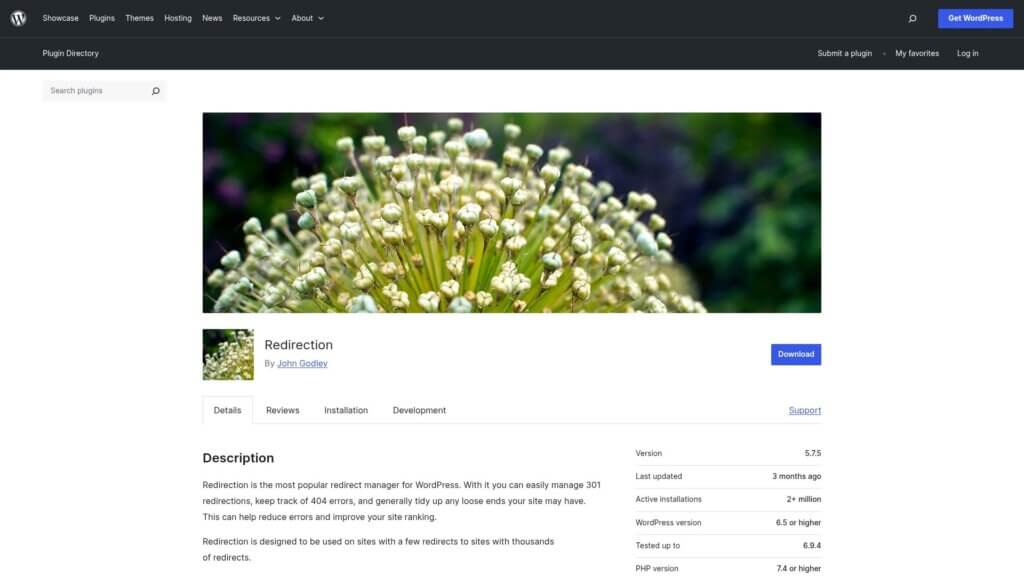
- Install and activate the Redirection plugin from your WordPress dashboard.
- Go to Tools, then Redirection in the dashboard menu.
- In the “Source URL” field, enter the old broken URL path (for example,
/old-page-name/). - In the “Target URL” field, enter the new working URL where visitors should land.
- Set the redirect type to 301 (permanent).
- Click Add Redirect.
The plugin logs all redirect activity, so you can confirm the redirect is working and see how often the old URL is being requested.
Using .htaccess for Redirects
If you prefer to set redirects at the server level rather than through a plugin, you can add 301 redirect rules directly to your .htaccess file. This method requires FTP or file manager access and is better suited to developers comfortable editing server configuration files.
A basic 301 redirect rule in .htaccess looks like this:
Redirect 301 /old-page/ https://yoursite.com/new-page/
Add this above the WordPress default rules in the file. Save and test the old URL to confirm it redirects correctly.
How to Prevent Broken Links in WordPress
Preventing broken links in WordPress is simpler than fixing them after the fact, and a few consistent habits keep your site clean over time.
Before deleting any post or page, check whether internal links point to it. The Broken Link Checker plugin can help here: search your link list for the URL you are about to remove. If links exist, either update them first or set up a 301 redirect before you delete the page.
When restructuring your permalink settings, always implement 301 redirects for every URL that will change. This is the most common cause of mass broken links in WordPress. The permalink settings guide on our site explains what to check before and after any permalink change.
Audit your external links at least twice a year. External pages disappear constantly. Set a calendar reminder and run a Screaming Frog crawl or a Broken Link Checker scan every six months. Catching broken external links early stops them from sitting on your site for a year before anyone notices.
For ongoing peace of mind, a WordPress care plan includes regular technical audits that cover broken links as part of routine site maintenance. You do not have to remember to do this yourself.
One more habit worth building: whenever you link to an external page, note the URL in a simple spreadsheet. It takes ten seconds. When that site goes offline or restructures, you have a record of every post you need to check.
Frequently Asked Questions About Fixing Broken Links in WordPress
These are the questions we see most often from WordPress site owners working through their broken link problems.
How many broken links does the average WordPress site have?
More than most site owners expect. Research from Ranktracker shows 67% of websites carry broken internal links. And because external links decay over time, a site that has published content for several years likely has broken external links too, even if the internal links are clean.
Will broken links directly lower my Google rankings?
Not in a single sweeping penalty, but yes over time. Broken links waste crawl budget, remove pages from Google’s index if they cannot be reached, and kill any link equity from external sites pointing to deleted pages. Each individual broken link is a small loss. A site full of broken links signals neglect to Google’s quality systems.
Is the Broken Link Checker plugin free?
Yes. The Broken Link Checker plugin is free to install from the WordPress.org plugin directory. It includes the core scanning, email alert, and inline editing features at no cost. WPMU DEV, the plugin developer, also offers a premium version with cloud-based scanning and additional options.
What is the difference between a 301 and 302 redirect?
A 301 redirect is permanent. It tells search engines the old URL has moved for good, and passes link equity to the new URL. A 302 redirect is temporary. It tells search engines the move is short-term, so link equity stays with the old URL. For fixing broken links, always use 301 unless you genuinely intend to restore the original URL later.
Can broken image links hurt SEO?
Yes. Missing images return 404 errors just like missing pages do. They affect page experience signals, slow down perceived performance, and look unprofessional to visitors. Check our guide on fixing broken image links in WordPress if your scan is returning errors from missing media files.
How often should I check for broken links?
Run a full scan every three months at minimum. If you publish new content regularly or link frequently to external sources, monthly checks are sensible. The Broken Link Checker plugin can automate this entirely by running background scans on a schedule and emailing you when something breaks.
What should I do if I find hundreds of broken links?
Do not try to fix them all manually. Use the Broken Link Checker plugin’s bulk action feature, or group the broken links by type first. Fix broken internal links before broken external links, since internal links directly affect how Google crawls your site. For sites with widespread link damage, our WordPress support service can handle the audit and cleanup for you.
Broken links are a maintenance problem, not a mystery. Find them, fix them, and set up a simple process to catch new ones before they pile up again. Your site will be cleaner, your SEO stronger, and your visitors will thank you by staying longer.