


Your WordPress database holds every post, page, comment, and setting your site has ever created. Over time, it fills with leftover data from deleted plugins, old post revisions, spam comments, and temporary files called transients. All this unnecessary data slows your site down and makes backups take longer.
Cleaning your WordPress database means removing this junk while keeping everything your site needs. The result is faster loading times, smoother admin performance, and smaller backup files.
We know this might sound technical if you have never worked with databases before. That is okay. We will walk you through three different methods, from simple plugin options to more advanced manual steps. You can pick the approach that feels right for your skill level.
Before we start, take a deep breath. We will make sure your data stays safe throughout this process.
Why Your WordPress Database Needs Regular Cleaning
Think of your WordPress database like a filing cabinet that never gets organized. Every time you save a draft, approve a comment, or install a plugin, new data goes in. When you delete that plugin or trash an old post, the data often stays behind.

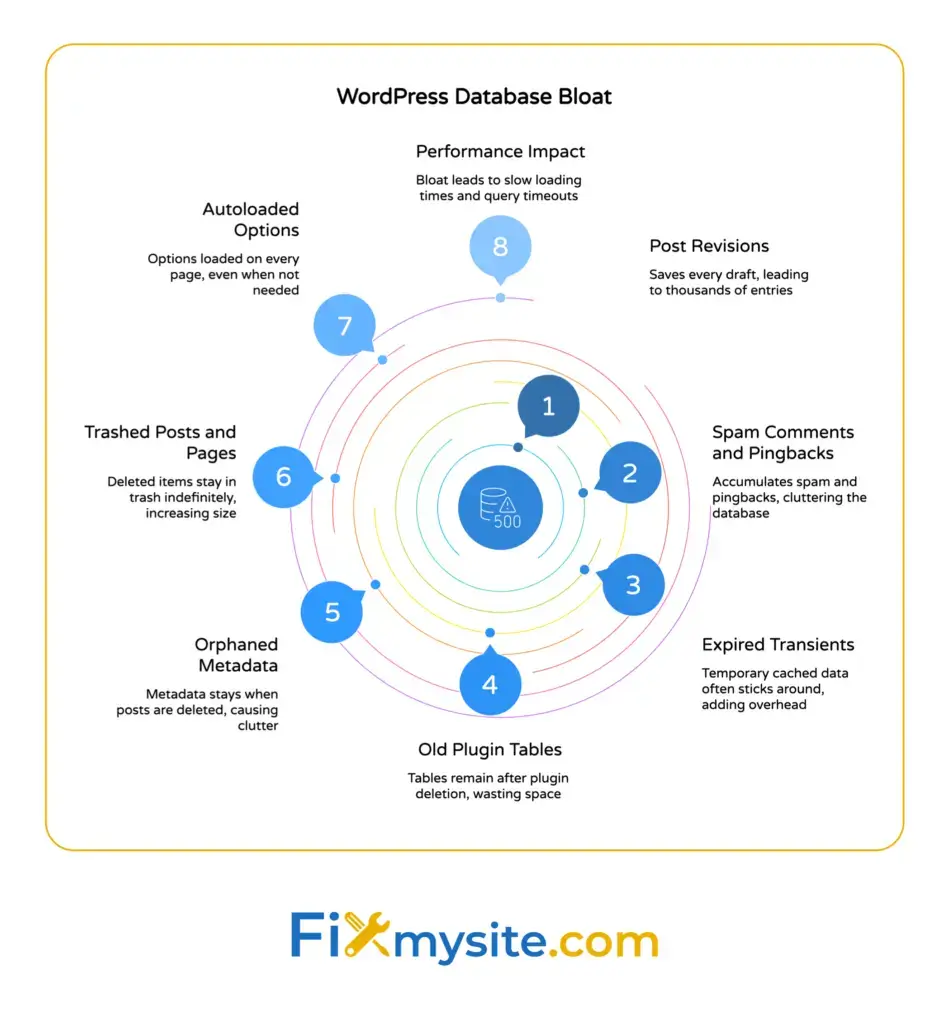
This creates database bloat. Your site has to search through all this extra information every time someone visits a page.
WordPress databases accumulate unnecessary data like residual plugin entries, expired transients, post revisions, spam comments, trashed posts, and autoloaded options, which slow site performance over time. The more your database grows, the longer queries take to run.
Common sources of database bloat include:
- Post revisions that multiply every time you edit content
- Spam comments and pingbacks waiting in your moderation queue
- Transients that should expire but stick around for months
- Old plugin tables from services you stopped using years ago
- Orphaned metadata with no connected posts or pages
You will notice the impact in several ways. Your admin dashboard might load slowly. Page load times increase. Database backups take longer to complete and eat up more storage space.
Regular database cleanup fixes these problems. You get better performance without upgrading your hosting plan or buying expensive optimization services.
Back Up Your Database Before Making Any Changes
This is the most important step. Never skip it.

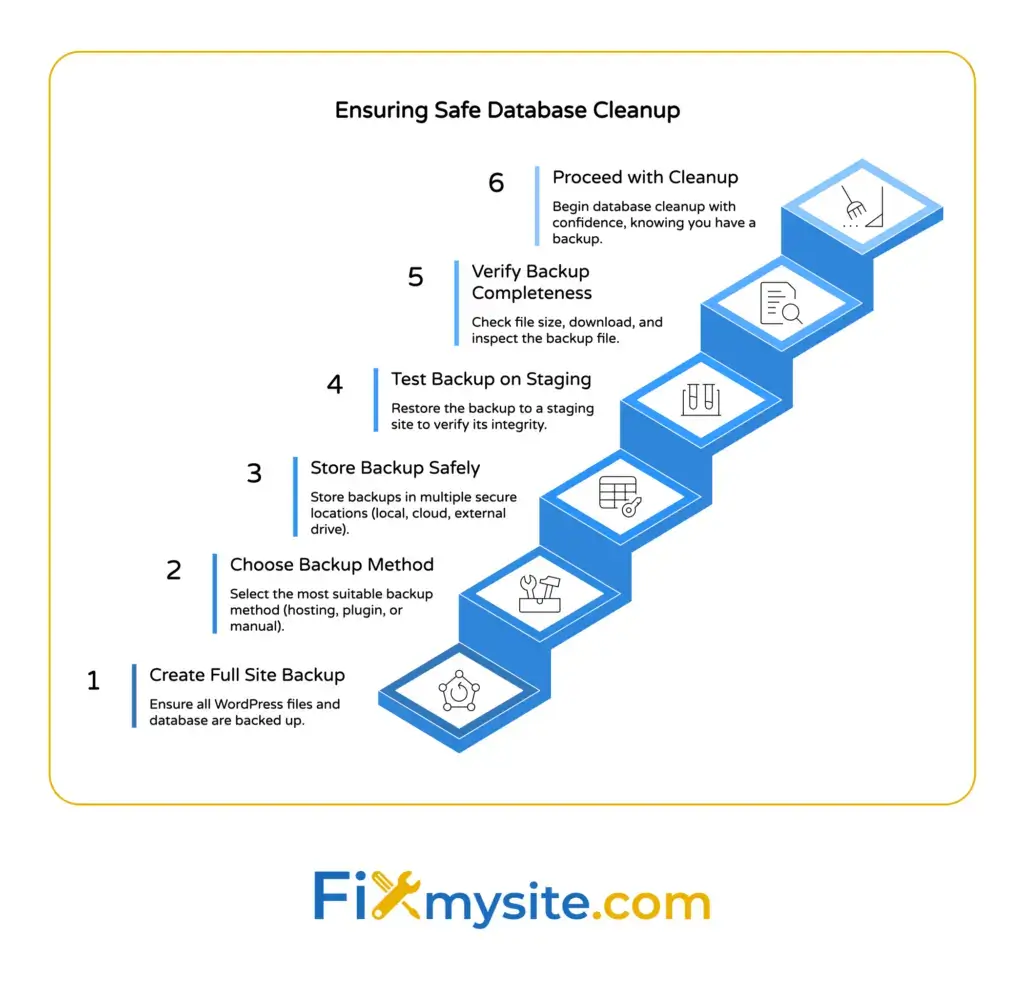
Database cleanup involves deleting information from your site. If something goes wrong, a backup lets you restore everything exactly as it was. Without one, you could lose posts, pages, or critical settings.
We recommend creating a full site backup, not just a database backup. This protects your files, themes, and plugins too.
How to Create a Database Backup
Most hosting providers include backup tools in your control panel. Look for options like “Backup” or “Database Backup” in cPanel or your hosting dashboard.
You can also use a WordPress backup plugin. Popular options include UpdraftPlus, BackupBuddy, and Duplicator. These tools let you download a complete copy of your site with a few clicks.
For manual backups, access phpMyAdmin through your hosting control panel. Select your WordPress database from the left sidebar. Click the “Export” tab at the top. Choose “Quick” export method and click “Go” to download a SQL file.
Store your backup file somewhere safe. Download it to your computer or save it to cloud storage like Google Drive or Dropbox.
Test Your Backup on a Staging Site
If you have access to a staging environment, test your cleanup there first. A staging site is a copy of your live website where you can experiment safely.
Many hosting companies provide staging sites as part of their WordPress plans. You can also create one using plugins like WP Staging or manually duplicate your site to a subdomain.
Run through the cleanup steps on your staging site. Check that everything works correctly. Only then should you perform the same cleanup on your live site.
Method 1: Clean Your Database with WordPress Plugins
Plugins offer the easiest way to clean your WordPress database. They handle the technical work for you, with simple interfaces that show exactly what will be deleted.
We will focus on two reliable options that we trust.
Using WP-Optimize for Database Cleanup
WP-Optimize automates cleaning of database tables, post revisions, auto-drafts, trashed posts, spam, and trashed comments with one-click or scheduled options. The plugin gives you complete control over what gets removed.
Install WP-Optimize from your WordPress dashboard. Go to Plugins, click Add New, search for “WP-Optimize”, and click Install Now. Activate the plugin after installation completes.
Find WP-Optimize in your admin menu. The main screen shows optimization options with checkboxes. You can select what to clean:
- Database tables that need optimization
- Post revisions beyond a certain number
- Auto-draft posts you never published
- Trashed posts and pages
- Spam and trashed comments
- Expired transient options
Check the boxes for items you want to remove. Start with conservative options like spam comments and trashed posts. You can always run another cleanup later for more aggressive optimization.
Click “Run optimization” to start the cleanup. The plugin shows progress as it works through each task. This usually takes less than a minute for most sites.
WP-Optimize also includes a scheduling feature. Set up automatic cleanups to run weekly or monthly. Your database stays clean without manual work.
Advanced Database Cleaner for Deeper Optimization
Advanced Database Cleaner takes a more detailed approach. It scans your entire database and identifies orphaned data that other plugins might miss.
Install it the same way you installed WP-Optimize. After activation, you will find it in your WordPress menu.
The plugin organizes cleanup tasks into tabs. The “Tables” tab shows all database tables, including old ones from deleted plugins. The “Options” tab displays entries in your wp_options table, where a lot of bloat accumulates.
Advanced Database Cleaner and WP-Optimize help analyze and manage autoloaded data without manual SQL queries, suitable for users avoiding phpMyAdmin. This makes it safer for people who feel nervous about database work.
Review each section carefully. The plugin marks items as “orphan” when they do not connect to any active plugin or theme. These are usually safe to delete, but always check before removing anything you are unsure about.
Use the “Clean” button to remove selected items. The plugin keeps a log of everything it deletes in case you need to reference it later.


Method 2: Manual Database Cleanup Using phpMyAdmin
phpMyAdmin gives you direct access to your WordPress database. This method requires more technical knowledge but offers complete control over what gets deleted.
Only use phpMyAdmin if you feel comfortable running SQL queries. One wrong command could break your site, which is why that backup we talked about earlier is so critical.
Accessing phpMyAdmin Through Your Hosting Panel
Log into your hosting control panel. Most hosts use cPanel, Plesk, or a custom dashboard. Look for a “Databases” section with a phpMyAdmin icon or link.
Click to open phpMyAdmin. You will see a list of databases on the left side. Find your WordPress database. It usually has a name related to your site or contains “wp” in the title.
Click your database name to expand it. This shows all the tables inside, with names like wp_posts, wp_comments, and wp_options. The “wp_” prefix might be different if you customized it during WordPress installation.
SQL Queries for Common Cleanup Tasks
phpMyAdmin has a “SQL” tab where you run database commands. Each query targets specific types of unnecessary data.
Before running any query, make absolutely sure you have that backup ready. Double-check the table names match your database. The queries below assume a standard “wp_” prefix.
Delete Post Revisions:
DELETE FROM wp_posts WHERE post_type = 'revision';This removes all saved revisions from your posts and pages. Run it only if you do not need access to older versions of your content.
Remove Auto-Drafts:
DELETE FROM wp_posts WHERE post_status = 'auto-draft';WordPress creates auto-drafts when you start writing. These pile up if you create and abandon posts frequently.
Clean Trashed Posts:
DELETE FROM wp_posts WHERE post_status = 'trash';Items in your trash stay in the database until you empty it. This query removes them permanently.
Delete Spam Comments:
DELETE FROM wp_comments WHERE comment_approved = 'spam';Spam comments take up space even when marked as spam. This clears them out completely.
Remove Orphaned Post Metadata:
DELETE pm FROM wp_postmeta pm LEFT JOIN wp_posts wp ON wp.ID = pm.post_id WHERE wp.ID IS NULL;When you delete posts, their associated metadata sometimes stays behind. This query finds and removes those orphaned entries.
Paste each query into the SQL tab one at a time. Click “Go” to execute it. phpMyAdmin shows how many rows were affected. Take note of these numbers in case you need to verify the cleanup worked correctly.
Optimizing Database Tables
After deleting data, optimize your database tables. This reorganizes the remaining information for better performance.
In phpMyAdmin, stay on your WordPress database. Look below the list of tables for a “Check All” option. Select it to highlight every table.
Find the dropdown menu that says “With selected” at the bottom of the table list. Choose “Optimize table” from the options.
phpMyAdmin runs the optimization and displays results for each table. Most will show “OK” status when finished.
Understanding and Managing Post Revisions
Post revisions are one of the biggest sources of database bloat. WordPress saves a new revision every time you click “Update” while editing.
Write a blog post and update it ten times? That is ten copies sitting in your database. Multiply this across hundreds of posts and you can see how quickly the numbers add up.
Limiting Future Post Revisions
You can control how many post revisions WordPress keeps. This prevents the problem from returning after you clean your database.
Open your wp-config.php file. You will find this in your WordPress root directory, accessible through FTP or your hosting file manager.
Add this line above the comment that says “That’s all, stop editing!”:
define('WP_POST_REVISIONS', 3);Change the number 3 to however many revisions you want to keep. WordPress will automatically delete older revisions beyond this limit.
You can also disable revisions completely by setting the value to false:
define('WP_POST_REVISIONS', false);We recommend keeping at least two or three revisions. They help you recover from editing mistakes or revert unwanted changes.
Cleaning Existing Post Revisions Safely
If you already have thousands of revisions, limiting future ones does not help with existing bloat. You need to clean what is already there.
The WP-Optimize plugin we discussed earlier handles this well. It lets you choose how many revisions to keep per post while deleting the rest.
For manual cleanup, use the phpMyAdmin query we shared in the previous section. Just understand that it removes ALL revisions, not just old ones.
A middle ground approach uses the WP-CLI command line tool if your host supports it:
wp post delete $(wp post list --post_type='revision' --format=ids)This command finds all revisions and deletes them through WordPress functions rather than direct database manipulation.
Removing Transients and Temporary Data
Transients are temporary data stored in your WordPress database. Plugins use them to cache information that expires after a set time.
The problem is that expired transients often do not get deleted automatically. They accumulate in your wp_options table, slowing down database queries.
What Transients Do and Why They Stick Around
When a plugin needs to store temporary information, it creates a transient. For example, a social media plugin might cache your follower count for 24 hours to avoid constant API calls.
WordPress is supposed to delete these transients when they expire. In practice, this cleanup does not always happen. Deactivated plugins leave transients behind. High-traffic sites generate more transients than the cleanup process can handle.
Over time, your wp_options table fills with hundreds or thousands of expired transients. Each one adds a tiny bit of overhead to database queries.
Clearing Expired Transients
The WP-Optimize plugin includes a transient cleanup option. Check the box for “Clean all expired transients” and run the optimization.
For manual removal through phpMyAdmin, use this query:
DELETE FROM wp_options WHERE option_name LIKE '_transient_%';This removes all transients, both expired and active. That is usually fine since plugins will regenerate any transients they still need.
A safer approach that only removes expired transients requires a more complex query:
DELETE FROM wp_options WHERE option_name LIKE '_transient_timeout_%' AND option_value < UNIX_TIMESTAMP();This checks the expiration time and only deletes transients that have already expired.

Optimizing the wp_options Table and Autoloaded Data
Your wp_options table stores site settings, plugin configurations, and theme options. It is one of the most accessed tables in your WordPress database.
The real performance issue comes from autoloaded data. These are options WordPress loads on every single page request, whether they are needed or not.
Understanding Autoloaded Options
Optimizing autoloaded data in the wp_options table can speed up sites by reducing memory load during page requests. When you have megabytes of autoloaded data, every page view has to process all that information.
Check your autoloaded data size in phpMyAdmin with this query:
SELECT SUM(LENGTH(option_value)) as autoload_size FROM wp_options WHERE autoload='yes';The result shows total bytes. Divide by 1024 twice to convert to megabytes. Anything over 1 MB suggests you have optimization opportunities.
Identifying and Cleaning Problematic Autoloaded Options
Find your largest autoloaded options with this query:
SELECT option_name, LENGTH(option_value) as option_size FROM wp_options WHERE autoload='yes' ORDER BY option_size DESC LIMIT 20;This shows the 20 biggest autoloaded options. Look for entries from plugins you no longer use or options that do not need to load on every page.
You can change an option from autoloaded to not autoloaded in phpMyAdmin. Click the wp_options table, find the option_name, and click “Edit”. Change the autoload value from “yes” to “no”.
Be careful here. Some options need to autoload for your site to work correctly. Only change settings you understand, and test your site after making changes.
The safer approach uses a plugin like Query Monitor to identify slow database queries. This helps you find performance issues without manually editing database values.
Handling Orphaned Data and Plugin Leftovers
When you delete a plugin, WordPress removes the plugin files. What it does not always remove are the database tables and options that plugin created.
These leftovers serve no purpose. They just take up space and add clutter to your database structure.
Finding Tables from Deleted Plugins
Open phpMyAdmin and look at your database table list. Standard WordPress tables have names like wp_posts, wp_users, and wp_comments.
Any table with a different naming pattern probably came from a plugin. Common examples include tables starting with wp_woo_ (WooCommerce), wp_yoast_ (Yoast SEO), or wp_wpforms_ (WPForms).
Check if you still use the plugin associated with each custom table. If you deleted that plugin months ago, the table is safe to remove.
Click the checkbox next to the table name in phpMyAdmin. Select “Drop” from the “With selected” dropdown at the bottom. Confirm the deletion when prompted.
Cleaning Plugin Options from wp_options
Plugins also store settings in the wp_options table. These entries stick around after plugin deletion.
Find them by searching for option names that match deleted plugins. If you removed a plugin called “Super Cache Pro”, search wp_options for entries containing “super_cache”.
Click the wp_options table in phpMyAdmin. Use the Search tab to look for option names containing the plugin identifier. Delete any rows that appear in the results.
The Advanced Database Cleaner plugin we mentioned earlier automates this process. It shows you all orphaned options and tables in an organized interface, making cleanup much safer.
Regular Maintenance Schedule for Database Health
Database cleanup is not a one-time task. Your WordPress database needs regular attention to stay healthy and fast.
We recommend setting up a maintenance schedule based on how actively you update your site.
Creating an Automated Cleanup Routine
WP-Optimize includes scheduling features. Go to the plugin settings and enable automatic cleanups. Choose weekly or monthly intervals depending on your publishing frequency.
Select conservative cleanup options for automated runs. Save aggressive optimization for manual sessions when you can monitor the results.
Good automated cleanup tasks include:
- Deleting spam comments older than 7 days
- Removing post revisions beyond your configured limit
- Clearing expired transients
- Emptying trash for posts and comments
Quarterly Deep Cleaning Tasks
Every three months, schedule time for deeper database maintenance. This catches issues that automated cleanup might miss.
Your quarterly checklist should include:
- Review and remove unused plugin tables
- Check autoloaded data size and optimize if needed
- Audit wp_options for orphaned entries
- Optimize all database tables in phpMyAdmin
- Test site speed before and after cleanup
Document what you do during each maintenance session. Note which tables you removed and how much space you freed. This helps you track patterns and refine your cleanup process over time.
Measuring Performance Improvements After Cleanup
Database cleanup should make your site faster. Test before and after to confirm you are getting real results.
We recommend measuring several metrics to get the full picture.
Database Size Reduction
Check your database size in phpMyAdmin before cleanup. Note the total megabytes shown at the bottom of your table list.
Run your cleanup tasks, then refresh phpMyAdmin and check the size again. You should see a noticeable reduction.
The percentage decrease depends on how bloated your database was initially. Sites that have never been cleaned might shrink by 30-50%. Well-maintained sites might only drop 5-10%.
Page Load Time Improvements
Database optimization removes unnecessary data to boost site performance, reduce backup sizes, and improve load times, with WP-Optimize recommended for streamlining the process. Use tools like GTmetrix, Pingdom, or Google PageSpeed Insights to test your site before cleanup.
Run the same tests after optimization. Compare the results, paying attention to server response time and total page load duration.
Database cleanup typically improves server response time by 100-300 milliseconds. This might not sound like much, but it adds up across thousands of page views.
Admin Dashboard Responsiveness
Database bloat affects your WordPress admin area more than the front end. Time how long it takes to load the Posts screen or open a page for editing.
After cleanup, these admin tasks should feel noticeably snappier. You might save several seconds on operations that query large amounts of data.
| Metric | What to Measure | Expected Improvement |
|---|---|---|
| Database Size | Total MB in phpMyAdmin | 5% to 50% reduction |
| Server Response Time | TTFB in speed tests | 100 to 300ms faster |
| Admin Load Time | Posts page load duration | 1 to 3 seconds faster |
| Backup File Size | Database backup file MB | Matches database reduction |
When to Get Professional Help with Database Issues
Sometimes database problems run deeper than simple cleanup can fix. You might encounter errors that do not go away or performance issues that persist after optimization.
We understand how frustrating this can be. You have done everything right, backed up your data, run cleanups carefully, but something still feels wrong.
Signs You Need Expert Database Support
Watch for these warning signs that indicate more serious database problems:
Database connection errors that appear randomly or persist after cleanup. These might point to server configuration issues or corrupted tables that need repair.
Extremely slow admin performance even after optimization. This could indicate indexing problems or issues with specific queries that need professional analysis.
Missing content or data corruption after cleanup. If posts disappeared or display incorrectly, you need immediate help to restore from backup and identify what went wrong.
Error messages mentioning specific tables being crashed or marked as needing repair. Table corruption requires careful diagnosis and repair procedures.
How Our Team Can Help
If you are dealing with complex database issues, our WordPress speed optimization service includes thorough database analysis and cleanup.
We handle everything from basic optimization to advanced repair work. Our team carefully examines your database structure, identifies problems, and fixes them without risking your data.
For sites experiencing database errors or persistent performance problems, check our database optimization guide for more in-depth technical solutions.
You can also explore our WordPress care plans for ongoing database maintenance. We monitor your database health, run regular optimizations, and catch problems before they affect your site performance.
Keeping Your WordPress Database Clean Long-Term
You have learned three different ways to clean your WordPress database. You understand what causes bloat and how to remove it safely.
The key to long-term database health is consistency. Set up automated cleanup for routine tasks. Schedule quarterly deep cleaning sessions. Monitor your database size and performance regularly.
Start with the plugin method if you are new to database optimization. WP-Optimize gives you safe, guided cleanup options that work well for most sites. As you gain confidence, you can try manual phpMyAdmin queries for more control.
Your first cleanup will show the biggest improvements. After that, regular maintenance keeps your database lean and fast. Think of it like regular exercise for your website.
Take that database backup right now if you have not already. Then pick your cleanup method and work through the steps at your own pace. Your site will thank you with faster loading times and smoother performance.
If you run into any problems or need help with complicated database issues, we are here. Reach out to our support team and we will get your database running smoothly again.