


If your WordPress scheduled tasks are running slowly or not at all, the problem is usually WP-Cron. This built-in system triggers when visitors load your pages, not on a reliable schedule. That means low-traffic sites miss executions, and high-traffic sites overload your server.
The solution? Disable WP-Cron and set up real server cron jobs instead.
This guide walks you through exactly how to optimize WordPress cron jobs for better performance and reliability. You’ll learn when WP-Cron causes problems, how to safely disable it, and three practical methods for implementing server-level scheduling that actually works.
No more missed backup jobs. No more delayed post publications. Just scheduled tasks that run exactly when they should.

What Is WP-Cron and How Does It Work?
WP-Cron is WordPress’s built-in scheduling system. It handles scheduled tasks like publishing posts, checking for updates, and running automated backups.
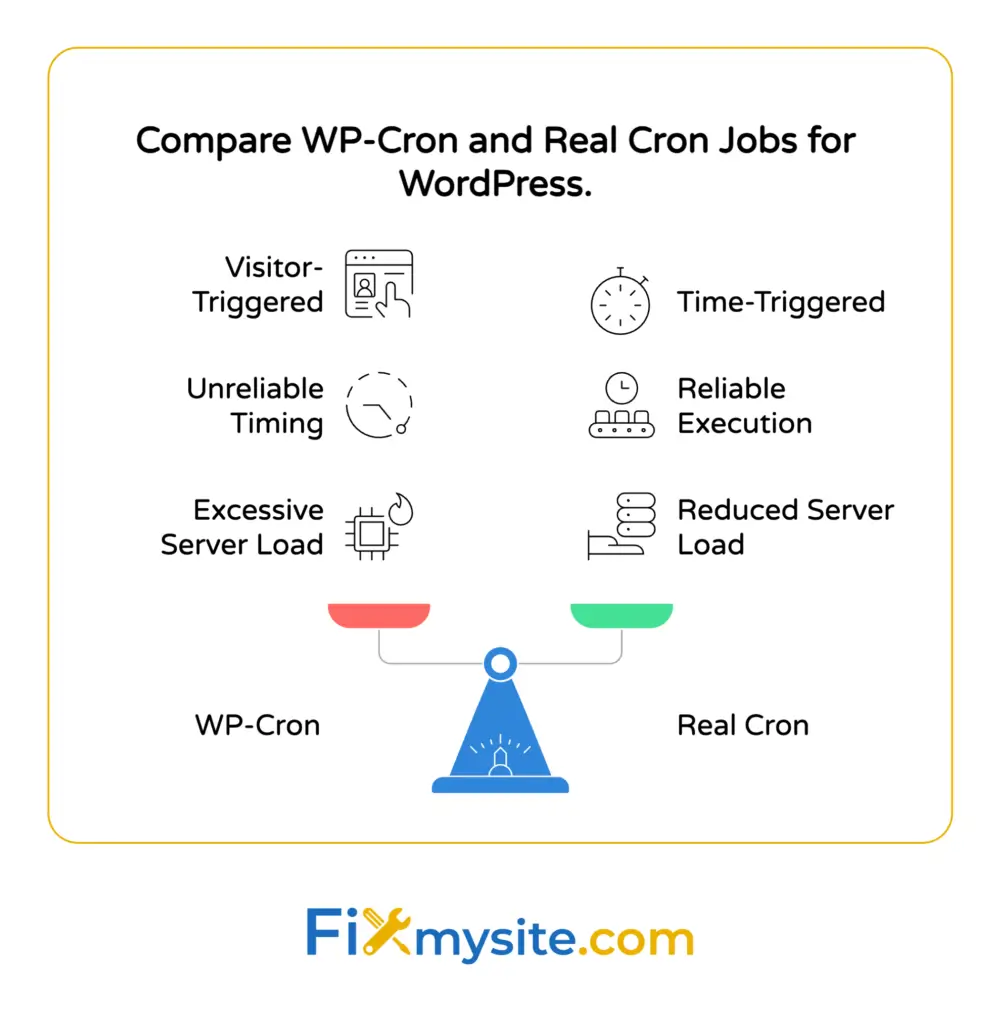
But here’s the catch: WP-Cron doesn’t run on a real schedule.
Instead, it checks for scheduled tasks every time someone visits your site. When a page loads, WordPress looks at the wp-cron.php file to see if any tasks are due. If tasks need to run, WordPress executes them during that page load.
This approach works for sites with steady traffic. Visitors trigger the cron check regularly, so scheduled tasks run close to their intended time.
However, this traffic dependency creates serious problems for many sites.
How WP-Cron Triggers on Page Loads
Every page load sends an HTTP request to wp-cron.php in the background. This request spawns a separate process that checks scheduled events and runs any that are due.
The process happens asynchronously, meaning your visitors don’t wait for cron tasks to complete. But those background processes still consume server resources.
On high-traffic sites, this creates hundreds or thousands of cron checks per hour. Each check queries your database to find scheduled tasks, even if nothing needs to run.
The Traffic Dependency Problem
Low-traffic sites face the opposite problem. If nobody visits your site, WP-Cron never triggers.
Your scheduled post set for 9:00 AM might not publish until 2:00 PM when someone finally visits. Critical backup jobs could miss their scheduled window entirely.
This unreliability makes WP-Cron unsuitable for sites that need consistent task execution. That’s where server cron jobs come in.
Understanding WP-Cron Limitations and Performance Issues
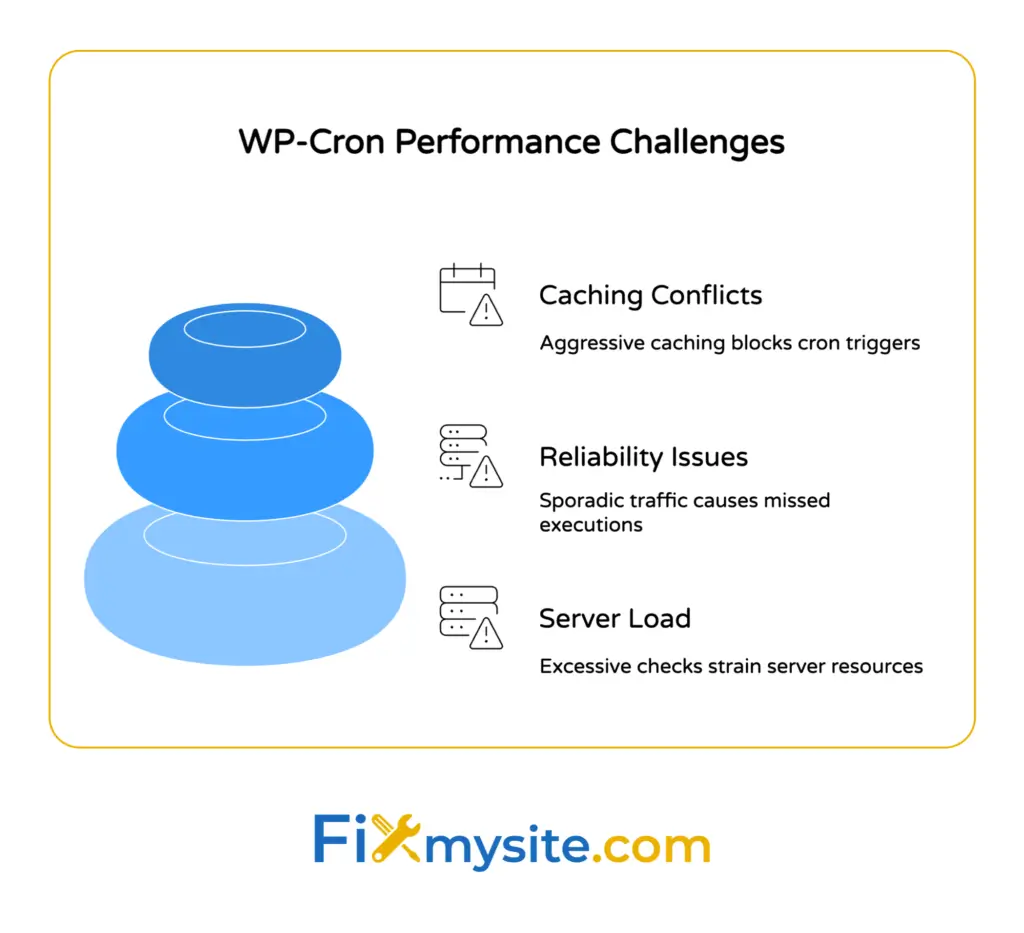
WP-Cron creates three major performance problems that affect sites differently based on their traffic patterns.

Server Load from Excessive Cron Checks
High-traffic sites trigger wp-cron.php constantly. Each visitor spawns a background check, even if scheduled tasks already ran seconds ago.
These redundant checks waste server resources. According to WordPress performance research, WP-Cron can impact performance when background processes are not properly managed.
The database queries add up quickly. WP-Cron checks the options table for scheduled events, queries post meta for revision cleanup, and scans for plugin update checks.
On a site with 1,000 visitors per hour, that’s 1,000 unnecessary database queries just to check the schedule.
Reliability Problems on Low-Traffic Sites
Sites with sporadic traffic suffer from missed executions. Your cron job might be scheduled for every 10 minutes, but if nobody visits for an hour, nothing runs.
This breaks time-sensitive functionality:
- Scheduled posts don’t publish on time
- Backup plugins miss their scheduled windows
- Security scans don’t run at consistent intervals
- Email digest plugins can’t send at specific times
The unreliability gets worse overnight or during slow periods when your site matters most for automated maintenance tasks.
Caching Conflicts with WP-Cron
Page caching plugins create another problem. When visitors hit cached pages, the wp-cron.php request might not trigger at all.
This means your cron jobs depend on cache misses. Sites with aggressive caching might go hours without triggering scheduled tasks, even with decent traffic.
Some caching solutions specifically block wp-cron.php to improve performance, which completely breaks WordPress’s built-in scheduling system.
Why You Should Disable Default WP-Cron
Disabling WP-Cron and using server cron jobs solves all three problems. But before you make this change, understand what you’re gaining.
Benefits of Server-Level Cron Jobs
Real cron jobs run on schedule, regardless of traffic. Your server triggers scheduled tasks at exact intervals you specify.
This approach eliminates traffic dependency completely. Whether you have zero visitors or ten thousand, cron jobs run precisely when configured.
According to managed hosting optimization practices, server-side cron jobs eliminate performance drops by preventing background execution during user page loads.
Your visitors get faster page loads because WordPress no longer spawns background processes on every request. Database queries decrease significantly.
When Disabling WP-Cron Makes Sense
Consider disabling WP-Cron if your site matches any of these scenarios:
- Low traffic with time-sensitive scheduled posts
- High traffic causing server load spikes
- Aggressive caching that blocks cron triggers
- Mission-critical scheduled tasks that must run on time
- Performance optimization projects focusing on database queries
For most WordPress sites, the benefits outweigh the minor setup complexity. You gain reliability and performance in exchange for five minutes of configuration.


How to Disable WP-Cron Step by Step
Disabling WP-Cron requires editing one configuration file. This change tells WordPress to stop checking for scheduled tasks on page loads.
Before you start, back up your site. While this is a simple change, having a backup protects you if something goes wrong.
Editing wp-config.php to Disable WP-Cron
Connect to your site using FTP or your hosting file manager. Navigate to your WordPress root directory where wp-config.php lives.
Download wp-config.php to your computer as a backup. Then open the file in a text editor.
Find this line:
/* That's all, stop editing! Happy publishing. */Add this code right before that line:
define('DISABLE_WP_CRON', true);Save the file and upload it back to your server. This single line stops WordPress from triggering wp-cron.php on page loads.
Verifying WP-Cron Is Disabled
Test your change by visiting your site and checking the page source. Search for “wp-cron.php” in the source code.
If you still see wp-cron.php requests, clear your cache and try again. Some caching plugins need a manual cache clear to reflect configuration changes.
You can also use browser developer tools to monitor network requests. Load a page and check the Network tab for any wp-cron.php calls.
No wp-cron.php requests means the DISABLE_WP_CRON constant is working correctly.
Method 1: Setting Up Real Server Cron Jobs
With WP-Cron disabled, you need to trigger scheduled tasks manually. Server cron jobs handle this by requesting wp-cron.php at regular intervals.
This method gives you complete control over timing and execution. You decide exactly when WordPress checks for scheduled tasks.
Creating a Cron Job in cPanel
Most shared hosting accounts include cPanel with a cron job interface. Log into cPanel and find the “Cron Jobs” icon under Advanced.
Select your desired interval from the dropdown menus. For most sites, every 15 minutes works well. This balances timeliness with server resource usage.
In the Command field, enter:
wget -q -O - https://yourdomain.com/wp-cron.php?doing_wp_cron >/dev/null 2>&1Replace “yourdomain.com” with your actual domain name. This command tells the server to request wp-cron.php every 15 minutes.
The flags in this command matter:
- -q runs wget in quiet mode without output
- -O – sends output to standard output instead of a file
- >/dev/null discards the output
- 2>&1 redirects error messages
Alternative Command Using curl
Some servers don’t have wget installed. Use curl instead:
curl -s https://yourdomain.com/wp-cron.php?doing_wp_cron >/dev/null 2>&1The -s flag runs curl in silent mode. The rest of the command works the same way as the wget version.
Setting Up Cron Jobs via SSH
For VPS or dedicated servers, configure cron jobs directly through SSH. Connect to your server and run:
crontab -eThis opens your user’s crontab file in a text editor. Add this line:
*/15 * * * * wget -q -O - https://yourdomain.com/wp-cron.php?doing_wp_cron >/dev/null 2>&1The */15 syntax means “every 15 minutes.” Save and exit the editor to activate your cron job.
Verify your cron job with:
crontab -lThis displays all active cron jobs for your user account.
Choosing the Right Cron Interval
The ideal interval depends on your scheduled tasks. Sites with time-sensitive posts might need 5-minute intervals. Sites with only daily maintenance tasks can use hourly checks.
| Interval | Best For | Resource Impact |
|---|---|---|
| Every 5 minutes | Time-sensitive publishing | Higher |
| Every 15 minutes | Most WordPress sites | Balanced |
| Every 30 minutes | Low-maintenance sites | Lower |
| Every hour | Minimal scheduled tasks | Minimal |
Consider your most urgent scheduled task. If you schedule posts to publish at specific times, choose an interval that keeps delays acceptable.
Method 2: Managing Cron Jobs with WP Crontrol Plugin
The WP Crontrol plugin provides a visual interface for managing scheduled tasks. This makes troubleshooting easier without command-line access.

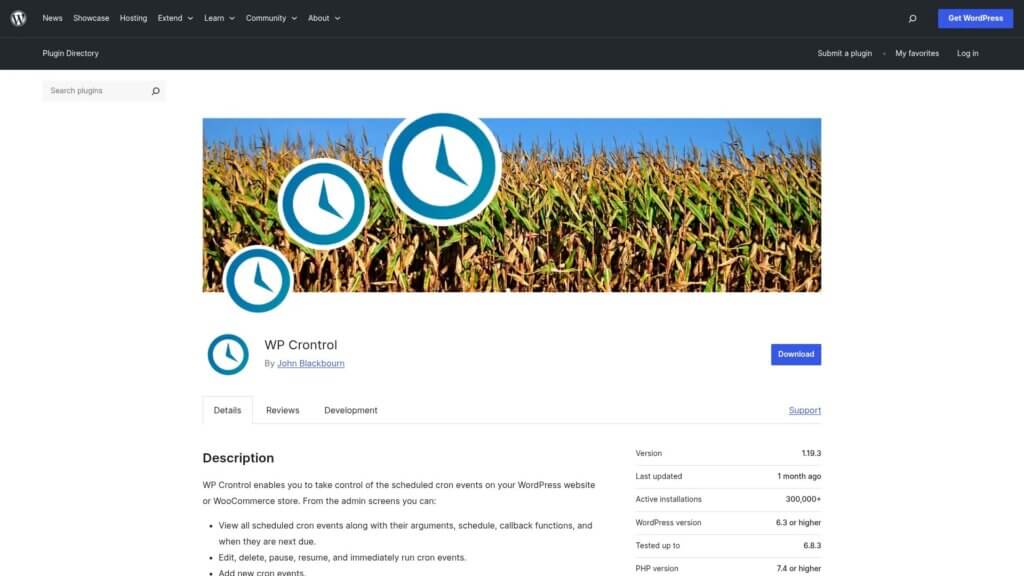
Install WP Crontrol from your WordPress dashboard. Go to Plugins > Add New and search for “WP Crontrol.”
Click Install Now, then Activate. The plugin adds a new Tools > Cron Events menu item.
Viewing All Scheduled Events
Navigate to Tools > Cron Events to see every scheduled task on your site. The interface shows:
- Hook name identifying each scheduled task
- Next run time for upcoming executions
- Recurrence pattern for repeating tasks
- Task arguments if any are passed
This visibility helps identify problematic cron jobs. Look for tasks that run too frequently or haven’t executed in a long time.
Testing Cron Job Execution
WP Crontrol lets you trigger any scheduled task immediately. Find the task you want to test and click “Run Now.”
This runs the task outside its normal schedule. Use this feature to test if your server cron job setup works correctly.
After disabling WP-Cron and setting up server cron, run a task manually. If it executes successfully, your configuration is correct.
Creating Custom Cron Events
The plugin also lets you create custom scheduled events. Click “Add Cron Event” at the top of the page.
Enter a hook name, choose when to run it, and select a recurrence pattern. This helps test custom intervals or add tasks that aren’t plugin-based.
You can also modify existing events by changing their recurrence schedule. This fine-tunes task timing without editing plugin code.

Method 3: Using WP-CLI for Cron Management
WP-CLI provides command-line control over WordPress cron jobs. This method works best for developers managing multiple sites or automating cron optimization.
Install WP-CLI on your server following the official documentation. Most managed WordPress hosts include it by default.
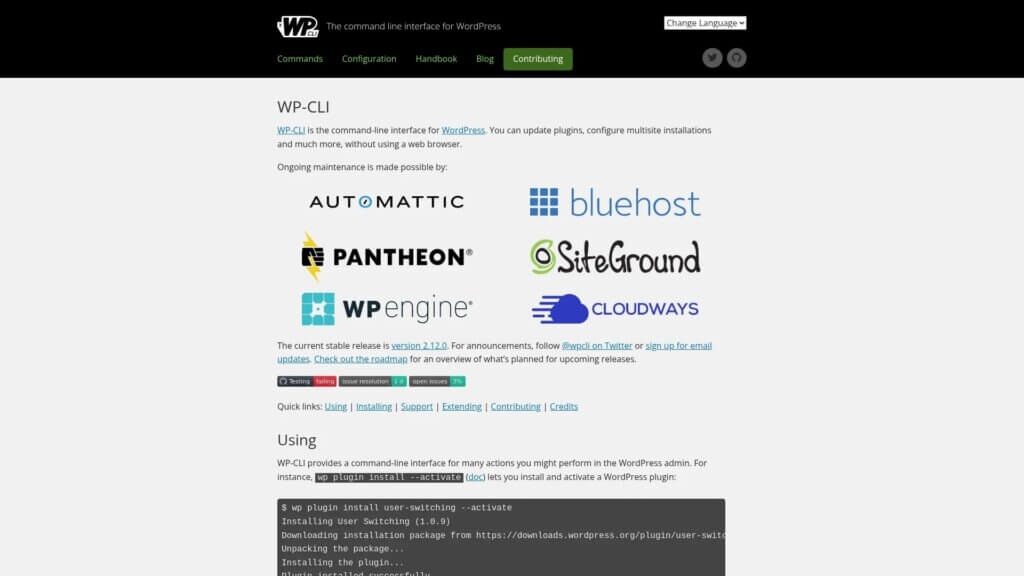
Listing All Cron Events via Command Line
Connect to your server via SSH and navigate to your WordPress directory. Run:
wp cron event listThis displays all scheduled events with their next run times and recurrence patterns. The output is cleaner than viewing database tables directly.
Filter the output to find specific hooks:
wp cron event list --fields=hook,next_run,recurrenceRunning Cron Events Manually
Test a specific cron hook by running:
wp cron event run hook_nameReplace “hook_name” with the actual hook you want to test. This executes the task immediately, useful for debugging scheduled tasks.
Run all due tasks at once with:
wp cron event run --due-nowThis catches up any tasks that missed their scheduled time, helpful after server downtime.
Creating Server Cron Jobs with WP-CLI
Instead of using wget or curl, call WP-CLI directly in your crontab. This approach skips the HTTP request overhead:
*/15 * * * * cd /path/to/wordpress && wp cron event run --due-now >/dev/null 2>&1Replace “/path/to/wordpress” with your actual WordPress installation path. This method runs faster than HTTP-based cron triggers.
The downside is WP-CLI must be installed and configured correctly. Test the command manually before adding it to your crontab.
Best Practices for WordPress Cron Optimization
Optimizing cron jobs goes beyond just disabling WP-Cron. Follow these practices to maintain reliable scheduled task execution.
Monitor Cron Job Execution
Set up monitoring to catch failed cron jobs early. Many monitoring services can alert you if wp-cron.php stops responding.
Check your cron job logs regularly. Look for tasks that consistently fail or take excessive time to complete.
WP Crontrol shows execution history in your WordPress dashboard. Review it monthly to identify patterns or problems.
Optimize Database Queries in Scheduled Tasks
Some performance issues come from inefficient scheduled tasks, not the scheduling system itself. According to WordPress performance optimization research, database optimization for cron tasks, including handling failed cron job leftovers, improves overall site speed.
Review plugins that add scheduled tasks. Check their database queries for efficiency problems.
Consider staggering resource-intensive tasks. Don’t run backups, optimization, and security scans simultaneously.
Clean Up Unnecessary Scheduled Events
Deactivated plugins often leave orphaned cron jobs behind. These unused tasks waste server resources checking for work that never exists.
Use WP Crontrol to identify tasks from plugins you no longer use. Delete them to reduce unnecessary database queries.
Run this cleanup quarterly as part of regular site maintenance. It’s especially important after testing multiple plugins or changing hosting providers.
Test Changes on Staging Sites First
Always test cron optimization changes on a staging environment before applying them to production. This catches configuration errors that could break scheduled functionality.
Verify scheduled posts still publish correctly after disabling WP-Cron. Test backup plugins to ensure they complete successfully.
Consider using staging environments for WordPress hosting to safely test all site changes including cron optimization.
Document Your Cron Configuration
Keep notes about your cron job setup. Document the interval you chose and why it works for your site.
Record the exact command you added to crontab. This saves time if you need to recreate the configuration after a server migration.
Include this information in your site documentation alongside other technical configurations. Future administrators will thank you.
Troubleshooting Common Cron Job Issues
Even properly configured cron jobs sometimes fail. Here’s how to diagnose and fix common problems.
Scheduled Tasks Not Running
First, verify your server cron job is active. Check crontab with:
crontab -lIf you don’t see your wp-cron.php command, the cron job isn’t configured. Add it following the steps in Method 1 above.
Test the command manually. Copy your cron command and run it directly in SSH:
wget -q -O - https://yourdomain.com/wp-cron.php?doing_wp_cronIf this fails, your URL might be incorrect or your server might block the request. Check server logs for error messages.
Performance Problems After Disabling WP-Cron
If performance gets worse after optimization, your cron interval might be too frequent. Reduce the frequency from every 5 minutes to every 15 minutes.
Check which scheduled tasks run most often. Use WP Crontrol to review execution frequency and identify resource-heavy tasks.
Consider offloading intensive tasks to off-peak hours. Schedule backups and maintenance tasks for low-traffic periods.
For ongoing performance issues, review your WordPress speed optimization strategy to identify other bottlenecks.
Conflicts with Security Plugins
Some security plugins block automated requests to wp-cron.php. This breaks server-level cron jobs completely.
Whitelist your server’s IP address in your security plugin settings. This allows the cron job to access wp-cron.php without triggering security blocks.
Alternatively, disable rate limiting specifically for wp-cron.php requests. Most security plugins offer per-file exceptions.
Verifying Cron Job Success
Test your setup by scheduling a post for 20 minutes in the future. If it publishes on time, your cron configuration works correctly.
Enable WordPress debugging to see cron-related errors. Add these lines to wp-config.php:
define('WP_DEBUG', true);
define('WP_DEBUG_LOG', true);
define('WP_DEBUG_DISPLAY', false);
Check wp-content/debug.log for cron-related error messages after your scheduled post should have published.
When to Get Professional Help
Some sites need expert assistance with cron optimization. Complex hosting environments or custom scheduled tasks sometimes require professional troubleshooting.
Consider getting help if you’re experiencing persistent issues with scheduled tasks. Professional WordPress support can diagnose problems faster than trial and error.
Server configuration errors are particularly tricky without command-line experience. If you’re uncomfortable editing crontab files or testing SSH commands, professional help prevents costly mistakes.
For sites with custom plugins that add complex scheduled tasks, developers can optimize those tasks for better performance. This goes beyond basic cron job configuration into code-level optimization.
Need help optimizing your WordPress cron jobs? Our WordPress support team handles cron configuration, performance optimization, and scheduled task troubleshooting. We’ll implement the right solution for your specific site needs.
Maintaining Optimized Cron Jobs Long-Term
Cron optimization isn’t a one-time fix. Regular maintenance keeps scheduled tasks running efficiently.
Review your cron events quarterly. Check WP Crontrol for orphaned tasks from deactivated plugins and delete them.
Monitor execution times for scheduled tasks. If tasks start taking longer to complete, investigate why. Database growth or inefficient queries often cause gradual performance degradation.
Test scheduled task execution after major WordPress updates. Core updates sometimes change how cron jobs behave, requiring configuration adjustments.
Keep documentation current when you make changes. Update your notes whenever you adjust cron intervals or add new scheduled tasks.
Consider including cron optimization in your regular WordPress maintenance plan. Proactive monitoring catches problems before they affect your site operations.
Regular maintenance also includes database optimization to keep cron jobs running efficiently. Clean databases mean faster scheduled task execution.
Key Takeaways
WP-Cron creates performance problems and reliability issues. Traffic-dependent execution means tasks miss their schedules on low-traffic sites and overload servers on high-traffic sites.
Disabling WP-Cron and setting up server cron jobs solves both problems. You gain reliable scheduling and improved performance with minimal configuration.
The process is straightforward: add one line to wp-config.php, then create a server cron job to trigger wp-cron.php at regular intervals. Choose 15-minute intervals for most sites.
Use tools like WP Crontrol or WP-CLI to manage and monitor scheduled tasks. Regular maintenance keeps your optimization effective long-term.
Start with the basic server cron setup. Test thoroughly on a staging site before applying changes to production. Monitor execution to verify everything works correctly.
Your scheduled tasks will run exactly when they should, your visitors will experience faster page loads, and your server will handle resources more efficiently. That’s WordPress cron optimization done right.