


We understand how frustrating it is when Chrome won’t load your website. That sinking feeling hits when you see the dreaded error message. Don’t worry – we’re here to walk you through this challenging situation together. Take a deep breath because we’ll help you get back online quickly.
Chrome loading issues affect millions of users daily. These problems can stem from browser cache conflicts, extension interference, DNS resolution failures, or network configuration errors. The good news is that most issues can be resolved with systematic troubleshooting steps that we’ll guide you through.
This guide covers the most effective solutions we’ve seen work for website owners and users. We’ll start with quick fixes and progress to advanced techniques. By the end, you’ll have the tools to diagnose and resolve Chrome loading problems confidently. Let’s get your websites loading properly again.
Understanding Why Websites Won’t Load in Chrome
Chrome loading failures rarely happen without warning signs. Understanding the root causes helps you choose the right solution path. Most loading issues fall into specific categories that respond to targeted fixes.

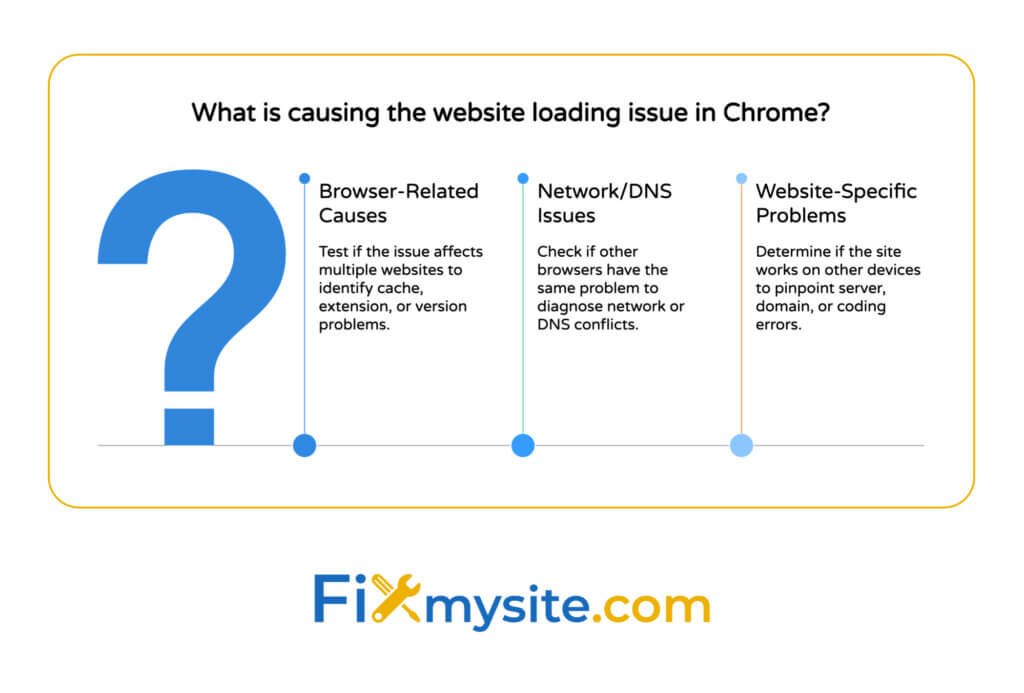
Common Browser-Related Causes
Browser cache corruption creates the most frequent loading problems. When Chrome stores outdated or damaged cache files, websites can’t display properly. Extensions also interfere with loading by blocking scripts or modifying page content unexpectedly.
Outdated Chrome versions sometimes struggle with modern website features. Security settings may block legitimate content if configured too restrictively. These browser-level issues usually affect multiple websites rather than just one site.
Network and DNS Issues
DNS cache problems prevent Chrome from finding website servers correctly. Your computer stores DNS information locally to speed up browsing. When this cache becomes corrupted, websites appear unreachable even when they’re online.
Network configuration conflicts can block Chrome’s internet access. Proxy settings, VPN connections, and firewall rules sometimes prevent normal website communication. These issues typically affect all browsers, not just Chrome specifically.

Website-Specific Problems
Server-side issues cause websites to become genuinely inaccessible.Website loading failures often result from server issues, domain problems, coding errors, excessive plugins, or resource limits. These problems affect all visitors using any browser.
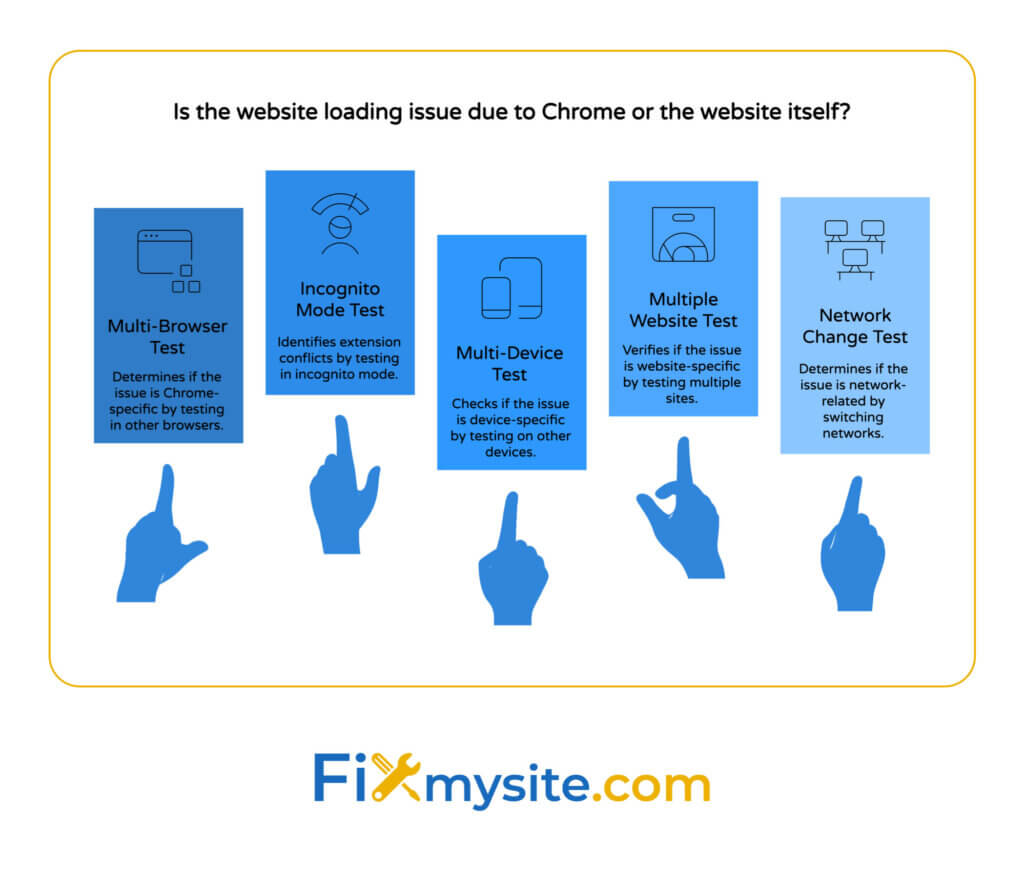
Security certificate errors trigger Chrome’s protection mechanisms. When websites use expired or invalid SSL certificates, Chrome blocks access automatically. Understanding whether the problem is browser-specific or website-wide helps determine your next steps.
Quick Browser Fixes That Usually Work
Now that you understand the common causes, let’s tackle the solutions that resolve most Chrome loading issues. These quick fixes address browser-level problems without requiring technical expertise.
Clear Cache and Browsing Data
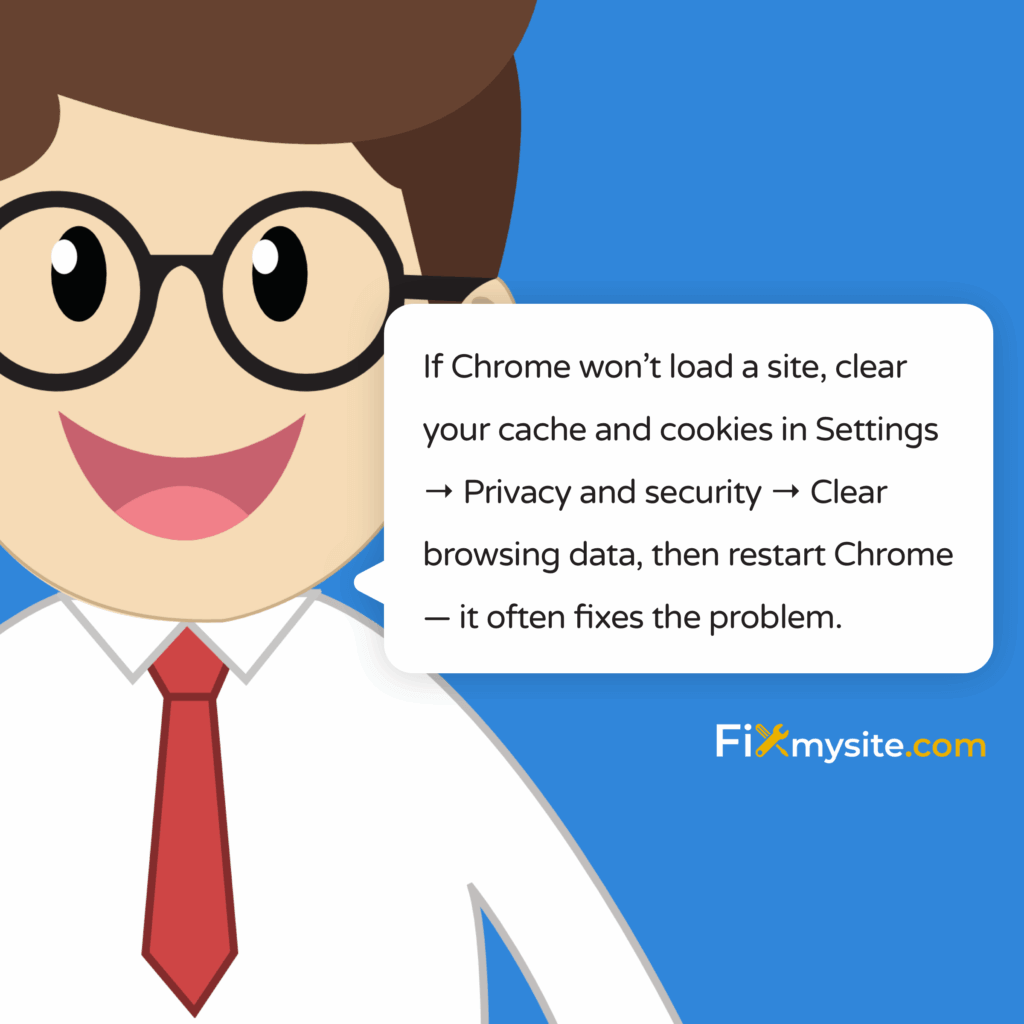
Start by clearing Chrome’s stored data, which often resolves loading conflicts immediately.Access clearing options via Chrome’s settings under “Privacy and security” → “Clear browsing data”. This removes corrupted cache files that prevent proper page loading.
Select “All time” as your time range for thorough cleaning. Check boxes for browsing history, cookies, and cached images. Leave passwords and autofill data unchecked unless you want to re-enter login information everywhere.
After clearing data, restart Chrome completely before testing websites. This ensures all temporary files are properly removed and Chrome starts fresh.


Disable Extensions Temporarily
Extensions frequently cause loading problems by blocking content or modifying page behavior.Disabling extensions one by one helps identify issues if a website loads after disabling a specific extension. This systematic approach pinpoints problematic add-ons quickly.
Navigate to chrome://extensions/ in your address bar. Toggle off extensions one at a time, testing the problematic website after each change. Ad blockers and privacy extensions commonly interfere with site loading.
Once you identify the problematic extension, either remove it permanently or configure its settings appropriately. Many extensions offer whitelisting options for specific websites.
Update Chrome to Latest Version
Outdated Chrome versions lack security patches and compatibility updates. Click the three dots menu, select “Help,” then “About Google Chrome.” Chrome will automatically check for and install available updates.
Restart Chrome after updating to ensure new features load properly. Updated versions often resolve loading issues with modern websites that use newer web technologies.
| Fix Method | Time Required | Success Rate |
| Clear Cache Data | 2-3 minutes | High for cache issues |
| Disable Extensions | 5-10 minutes | High for extension conflicts |
| Update Chrome | 3-5 minutes | Medium for compatibility |
Advanced Network and DNS Solutions
When browser fixes don’t resolve the loading issue, network-level problems are likely causing the trouble. These advanced solutions target DNS resolution and network configuration conflicts.
Flush DNS Cache on Your System
DNS cache corruption prevents Chrome from locating website servers correctly.Flushing Chrome’s DNS cache is done by visiting chrome://net-internals/#dns and clicking “Clear host cache”. This removes outdated DNS entries that point to incorrect server addresses.
For system-level DNS flushing on Windows, open Command Prompt as administrator. Type “ipconfig /flushdns” and press Enter. Mac users should open Terminal and run “sudo dscacheutil -flushcache” instead.
Restart Chrome after flushing DNS cache to ensure clean DNS lookups. Test the problematic websites to verify they load correctly with fresh DNS information.
Check and Modify Hosts File
The hosts file can override DNS settings and prevent website access. The hosts file can override DNS settings and result in errors like ERR_CONNECTION_REFUSED if mapped to an invalid IP such as 0.0.0.0. Malware sometimes modifies this file to block legitimate websites.
Navigate to C:\Windows\System32\drivers\etc\hosts on Windows or /etc/hosts on Mac/Linux. Open the file with administrator privileges using Notepad or a text editor.
Look for entries containing the problematic website names. Delete any suspicious lines that redirect websites to 0.0.0.0 or 127.0.0.1. Save the file and restart Chrome to apply changes.
Reset Network Settings
Network configuration conflicts sometimes require complete reset to resolve. Open Chrome settings, navigate to “Advanced,” then “Reset and clean up.” Select “Restore settings to original defaults.”
This reset removes custom proxy settings, clears stored certificates, and restores default security configurations. Your bookmarks and saved passwords remain intact during this process.
For system-level network reset on Windows, run “netsh winsock reset” in Command Prompt as administrator. Restart your computer after completing network resets to ensure changes take effect.

Troubleshooting Specific Chrome Errors
Different error messages require targeted solutions based on their underlying causes. Understanding specific error types helps you apply the most effective troubleshooting approach quickly.
ERR_CONNECTION_REFUSED Errors
This error indicates that Chrome cannot establish a connection to the website server. Check if other websites load normally to determine whether the problem affects all sites or just specific ones.
For site-specific issues, the website server may be temporarily down or experiencing high traffic. Wait a few minutes and try again. If the error persists across multiple sites, network configuration problems are likely responsible.
Verify your internet connection by testing other devices on the same network. Contact your internet service provider if connection problems affect multiple devices simultaneously.
DNS_PROBE_FINISHED_NXDOMAIN Issues
This error means Chrome cannot find DNS records for the requested website. The domain name may be misspelled, expired, or experiencing DNS server problems.
Double-check the website URL for typing errors. Try accessing the site using a different DNS server like Google’s 8.8.8.8 or Cloudflare’s 1.1.1.1 for comparison.
Change your DNS settings temporarily to test if your current DNS provider is experiencing outages. Many DNS issues resolve automatically within a few hours.
Security Certificate Problems
Certificate errors occur when websites use expired, invalid, or self-signed SSL certificates.Chrome’s Safe Browsing technology automatically warns users and blocks access to protect against security threats. These blocks prevent potential security risks.
For legitimate websites with certificate issues, you can usually proceed by clicking “Advanced” then “Proceed to [website] (unsafe).” Only do this for websites you trust completely.
Contact the website owner about certificate problems if you encounter them repeatedly. Proper SSL certificates are essential for secure web browsing and search engine rankings.
- Verify the website URL is correct and properly formatted
- Test the same website on a different device or network
- Check if the website works in Chrome’s incognito mode
- Try accessing the website using a different browser for comparison
- Contact the website administrator if errors persist across multiple devices
When to Seek Professional Help
Some Chrome loading issues require technical expertise beyond basic troubleshooting steps. Recognizing when to seek professional assistance saves time and prevents potential security risks.
Persistent loading problems that affect business-critical websites need immediate professional attention. If you manage WordPress sites experiencing loading issues, specialized support can identify server-level problems that browser troubleshooting cannot resolve.
Security-related loading failures may indicate malware infections or compromised system settings. Professional diagnosis ensures your computer remains secure while restoring normal website access.
For website owners whose sites won’t load in Chrome, the problem likely exists on the server side. Professional WordPress support services can diagnose hosting issues, plugin conflicts, and performance problems that affect browser compatibility.
At Fixmysite, we understand how stressful website loading problems can be for your business. Our team specializes in WordPress troubleshooting, security fixes, and performance optimization to ensure your sites load perfectly in all browsers.
Quick Answers to Common Questions
Why won’t my website page load?
A website page may not load due to server issues, domain or hosting problems, coding errors, excessive plugins, or resource limits such as PHP memory or execution time. Common causes include expired domains, internal server errors, broken code, or inefficient scripts that delay rendering.
Why is Chrome suddenly blocking websites?
Chrome may suddenly block websites if they are flagged as unsafe due to malware, phishing, or deceptive content, or if they use outdated security protocols. Chrome’s Safe Browsing technology automatically warns users and blocks access to protect against security threats.
Don’t let Chrome loading issues disrupt your productivity or business operations. Start with the browser-level fixes we’ve outlined, then progress to network solutions if needed. Most loading problems resolve quickly with systematic troubleshooting.
When basic fixes don’t work, professional support ensures your websites function properly across all browsers. We’re here to help you navigate these technical challenges and keep your online presence running smoothly.