


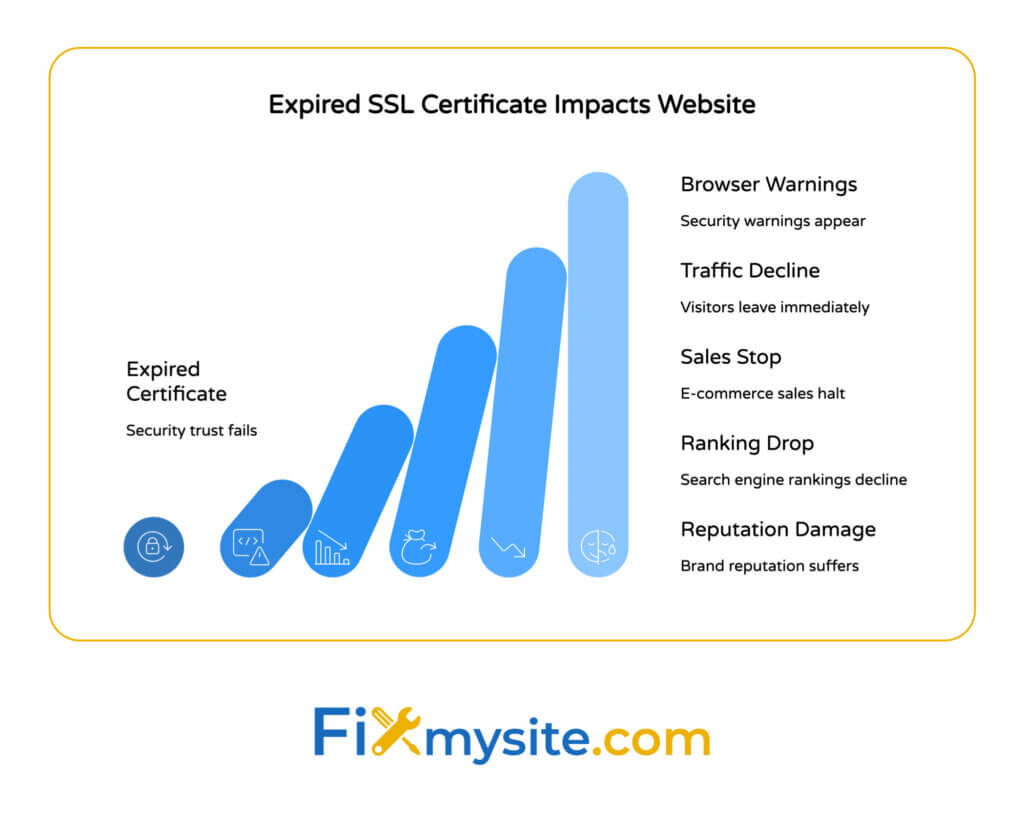
When your SSL certificate expires, your WordPress site immediately stops being secure. Browsers display big red warnings, visitors see “Your connection is not private,” and many leave before ever reaching your content. Your site doesn’t go completely down, but the damage is real.
We know this feels scary, especially if you’re not technically minded.
Here’s what actually happens the moment your certificate expires. Your website continues to function, but browsers no longer trust the encrypted connection. Visitors see security warnings that look alarming and professional. Most people will close that browser tab and never come back.
The encryption itself still works technically, but modern browsers like Chrome, Firefox, and Safari are designed to protect users from potentially unsafe connections. They can’t verify your site’s identity anymore, so they warn visitors away.
This isn’t just about visitor experience. Search engines notice expired certificates too. Your SEO rankings can drop. Customer trust evaporates. And if you run an online store, sales stop almost immediately.
Don’t worry though. We’re going to walk you through exactly what’s happening, why SSL certificates expire, and how to fix everything quickly. You’ll understand the issue clearly and know exactly what to do next.

What Is an SSL Certificate and Why Does It Matter?
An SSL certificate creates an encrypted connection between your website and your visitors’ browsers. This encryption protects sensitive information like passwords, credit card numbers, and personal data from being intercepted.
Think of it like a secure envelope for your website traffic.
When someone visits your WordPress site, the SSL certificate proves your site’s identity. It’s issued by a Certificate Authority, which acts as a trusted third party. These organizations verify that you actually own your domain before issuing a certificate.
You can tell a site has an active SSL certificate by looking at your browser’s address bar. Secure sites show “https://” instead of “http://” and usually display a padlock icon. This visual indicator tells visitors their connection is encrypted and safe.
Without a valid SSL certificate, your WordPress site appears untrustworthy. Modern browsers actively warn users away from sites without proper encryption. Even if your site is perfectly safe, expired certificates trigger the same warnings as genuinely dangerous sites.


What Happens the Moment Your SSL Certificate Expires
The second your SSL certificate hits its expiration date, browsers stop trusting your website’s encrypted connection. The change happens instantly, not gradually.
Browser Security Warnings Take Over Your Site
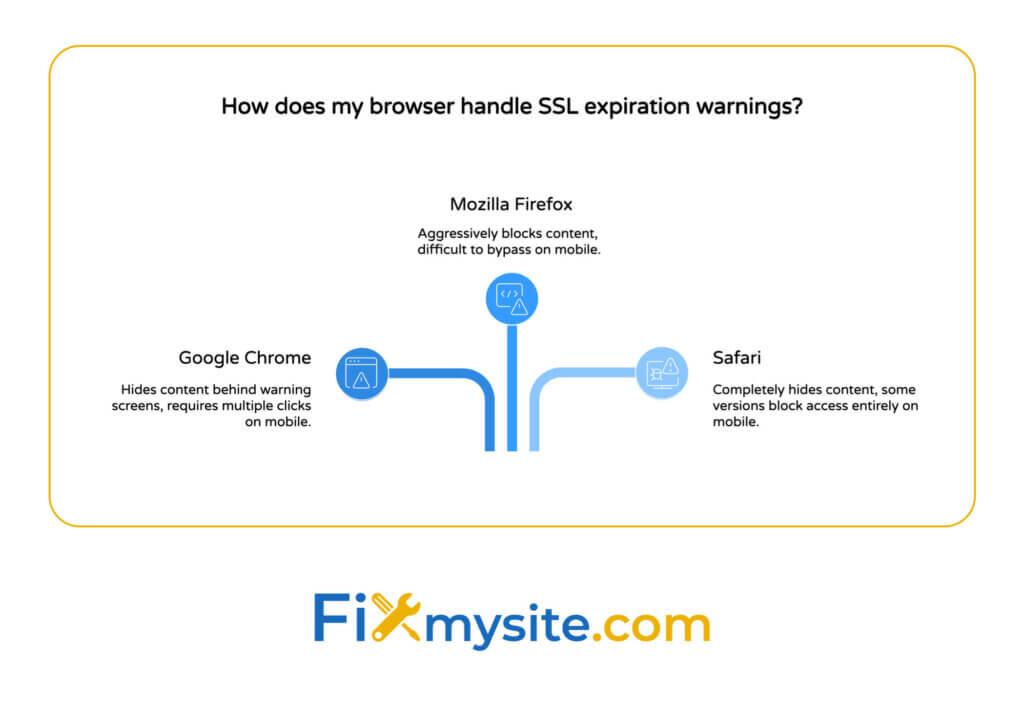
Every major browser displays aggressive security warnings when visitors try to access your site. Chrome shows “Your connection is not private” with a red warning triangle. Firefox displays “Warning: Potential Security Risk Ahead” in bold text. Safari tells users “This Connection Is Not Private.”
These warnings look scary on purpose. They’re designed to protect users from potentially unsafe connections. Unfortunately, most visitors can’t tell the difference between an expired certificate and an actual security threat.
The warnings often hide your website content completely. Visitors must click through multiple screens to reach your site, and many browsers make this difficult on purpose. Some mobile browsers won’t let users proceed at all.
Visitor Trust Disappears Immediately
Studies show most people leave immediately when they see security warnings. They don’t read the details or understand what expired means. They just see danger and close the tab.
This happens even to loyal customers who visit your site regularly. The warning message overrides their trust in your brand. They worry their information might be stolen or their device might get infected.
For e-commerce sites, the damage is immediate and measurable. Sales stop completely. Customers abandon their shopping carts. They often take their business to competitors rather than risk a potentially unsafe transaction.
Your Website Still Functions Technically
Here’s something important to understand. Your WordPress site continues running normally on the server side. All your pages load correctly. Your database works fine. Forms and features function as expected.
The encryption itself still works technically too. Data still gets encrypted during transmission. But browsers no longer trust that encryption because they can’t verify your site’s identity anymore.
This creates a strange situation where your site works perfectly but appears completely broken to visitors. The technology functions, but the trust layer fails.
Search Engine Rankings Start Declining
Search engines like Google prioritize secure websites in their rankings. When your SSL certificate expires, search engines notice quickly. They want to protect their users from potentially unsafe sites.
Your rankings don’t disappear overnight, but they start sliding. Google may show security warnings in search results next to your site. This reduces click-through rates even before visitors reach your site.
The longer you leave an expired certificate in place, the more damage accumulates. Search engines increasingly demote your pages. Competitors with valid certificates move ahead of you in search results.

Why SSL Certificates Expire in the First Place
SSL certificates expire by design, not by accident. Certificate Authorities set expiration dates for important security reasons.
The primary reason is security standards evolve constantly. Encryption methods that were secure five years ago might be vulnerable today. Expiration forces website owners to update to stronger encryption regularly.
Expiration also ensures Certificate Authorities can revoke trust from compromised certificates. If a company goes out of business or a certificate gets stolen, the expiration date limits potential damage. Attackers can’t use stolen certificates forever.
Domain ownership changes over time too. Someone might sell a domain or abandon a website. Expiration ensures certificates don’t remain valid for domains that change hands. This protects the new owners from being associated with old certificates.
Most SSL certificates are valid for one year and require manual or automated renewal to maintain security. Some providers offer longer terms, but annual renewal has become the industry standard.
How Long Do SSL Certificates Last?
SSL certificate validity periods have gotten shorter over the years. This trend reflects increasing security concerns and the need for regular updates.
Currently, the maximum validity period for publicly trusted SSL certificates is 398 days. This is roughly 13 months. Certificate Authorities cannot issue certificates that last longer, even if you want to pay for multi-year coverage.
This wasn’t always the case. Several years ago, SSL certificates could last three or even five years. But security experts pushed for shorter validity periods to improve overall internet security.
The shorter duration means more frequent renewals. This can feel inconvenient, but it serves important purposes. Websites must update their encryption more regularly. Certificate Authorities must reverify domain ownership more often. And compromised certificates expire faster.
Free SSL certificates from services like Let’s Encrypt typically last 90 days. This even shorter period encourages automation. Free SSL certificates like Let’s Encrypt are widely supported and can be managed with plugins or automated tools.
Understanding Certificate Validity Periods
When you purchase or obtain an SSL certificate, it includes specific start and end dates. The certificate becomes valid at the start date and expires exactly at the end date.
There’s no grace period. At the moment of expiration, browsers immediately stop trusting the certificate. Even being one minute past expiration triggers full security warnings.
Many hosting providers offer automatic renewal to prevent these sudden expirations. The system renews your certificate before it expires, maintaining continuous security coverage. This automation removes the burden of remembering renewal dates.
Can You Use an Expired SSL Certificate?
Technically, you can leave an expired SSL certificate on your server. Your WordPress site will continue serving content. The certificate will still attempt to encrypt connections.
But you absolutely shouldn’t do this.
Every browser will display security warnings to every visitor. Your traffic will plummet immediately. Legitimate visitors won’t be able to tell your site apart from genuinely dangerous websites.
The encryption provided by an expired certificate isn’t trustworthy anymore. Browsers can’t verify the certificate’s authenticity. This opens the door to man-in-the-middle attacks where someone intercepts the supposedly encrypted connection.
Running a website with an expired SSL certificate damages your reputation severely. Even after you fix the problem, some visitors will remember the security warning. They’ll remain hesitant about trusting your site with their information.
The Real-World Cost of Expired Certificates
Major companies have learned this lesson the hard way. GitHub experienced a brief SSL certificate expiration that caused widespread access problems. Spotify had an incident that prevented millions of users from accessing their service.
Even Microsoft Azure suffered an SSL certificate expiration that took down services worldwide. These incidents show that even large technical organizations struggle with certificate management.
For small businesses and individual website owners, the damage can be devastating. An e-commerce site losing sales for even a few hours represents significant revenue loss. Blogs lose readership that may never return.

Security Risks of Expired SSL Certificates
Expired SSL certificates create genuine security vulnerabilities, not just appearance problems. The risks extend beyond visitor warnings to actual technical dangers.
Man-in-the-Middle Attacks Become Possible
When browsers don’t trust your SSL certificate, they can’t verify they’re actually connecting to your real website. An attacker could potentially intercept the connection and pose as your site.
This type of attack is called a man-in-the-middle attack. The attacker sits between your visitor and your server, capturing data that passes through the connection. They can steal passwords, payment information, and personal data.
With a valid SSL certificate, browsers verify the certificate’s authenticity through the Certificate Authority. This verification proves the connection goes to your real server, not an imposter. Expired certificates break this verification chain.
Data Encryption Loses Its Trustworthiness
The encryption itself still functions with an expired certificate. Data gets scrambled during transmission. But browsers and users can’t trust that encryption anymore because identity verification has failed.
This creates a false sense of security. Website owners might think their site is still protected because encryption continues working. But the trust layer that makes encryption valuable has broken down.
Modern security depends on both encryption and authentication. You need to encrypt the data and verify you’re sending it to the right place. Expired certificates break the authentication half of this equation.
Vulnerability to Phishing and Impersonation
Attackers can create fake versions of websites with expired certificates. Since browsers already display warnings for the real site, visitors can’t easily distinguish between the legitimate expired site and a malicious copy.
This makes phishing attacks more effective. Scammers can send emails directing people to fake login pages. The fake page shows similar security warnings to the real site, so visitors don’t recognize the danger.
Your brand reputation suffers even if you’re the victim. Customers blame you for not maintaining proper security, even if attackers are impersonating your site.
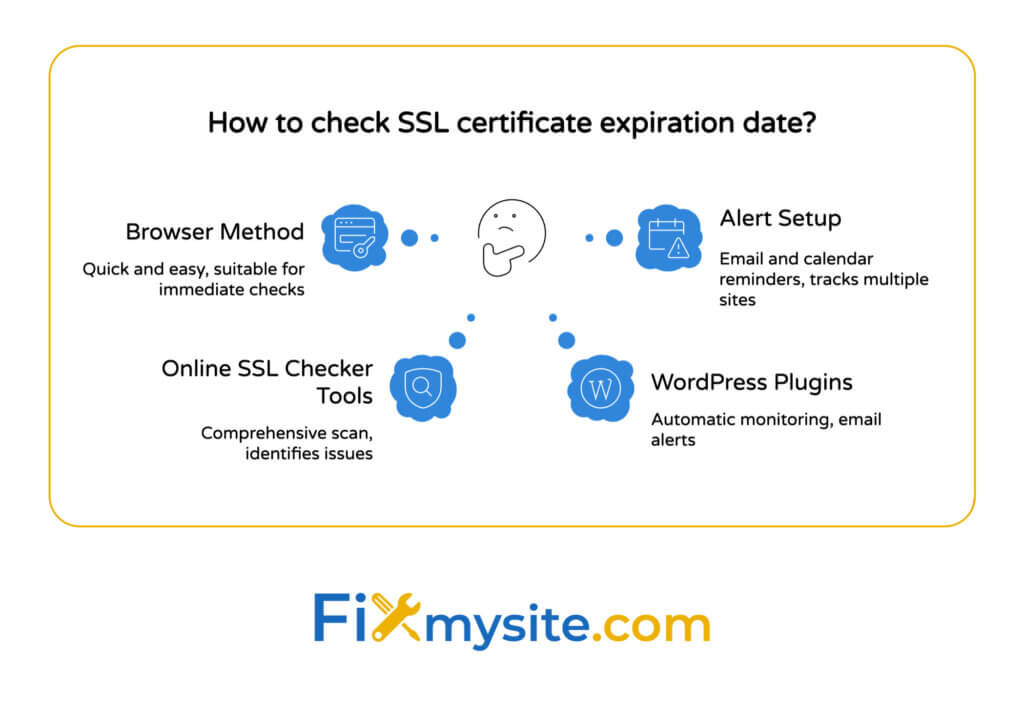
How to Check Your SSL Certificate Expiration Date
Checking when your SSL certificate expires takes just a few seconds. You don’t need technical knowledge or special tools.
Using Your Browser to Check Certificate Details
The simplest method uses any web browser. Visit your WordPress site and look for the padlock icon in the address bar. Click that padlock to see security information.
In Chrome, click the padlock, then click “Connection is secure,” then click “Certificate is valid.” You’ll see detailed information including the expiration date.
Firefox users can click the padlock, then click “Connection secure,” then “More information,” then “View Certificate.” The expiration date appears clearly in the certificate details.
Safari shows similar information through the padlock icon. Click it and select “Show Certificate” to view expiration dates and other certificate details.
Online SSL Checker Tools
Tools like SSL Labs allow you to check certificate details, including expiration dates. These services provide more detailed information than browsers alone.
Simply enter your domain name into the SSL checker. The tool scans your certificate and displays comprehensive information. You’ll see expiration dates, encryption strength, and potential configuration problems.
These tools often identify issues you might not notice otherwise. They check for weak encryption, improper certificate chains, and compatibility problems with different browsers.
WordPress Plugins for SSL Monitoring
WordPress users can simplify SSL management and renewal using plugins such as Really Simple SSL. These plugins monitor your certificate status automatically.
Many security plugins include SSL monitoring as part of their feature set. They send email alerts when your certificate approaches expiration. This automated monitoring prevents surprises.
Some plugins even handle renewal automatically, working with your hosting provider to refresh certificates before they expire. This removes the manual burden of tracking expiration dates.
Setting Up Expiration Alerts
Most Certificate Authorities send renewal reminder emails as your expiration date approaches. Make sure these emails go to an address you check regularly.
Add calendar reminders as a backup. Set an alert for 30 days before expiration and another at 14 days. This gives you plenty of time to renew before the certificate expires.
If you manage multiple WordPress sites, consider using a spreadsheet to track all your certificates. Record the domain, provider, and expiration date for each site. Review this list monthly.
How to Renew an Expired SSL Certificate
Renewing an SSL certificate is straightforward once you understand the process. The exact steps depend on your hosting provider and certificate type.
Renewal Through Your Hosting Provider
Most hosting companies make SSL renewal simple. Log into your hosting control panel and look for the SSL or security section. You’ll see your current certificate status and renewal options.
Many hosts offer one-click renewal for SSL certificates. Click the renewal button, confirm your payment information, and the system handles the rest automatically. The new certificate gets installed within minutes.
Some hosting providers include free SSL certificates as part of your hosting plan. These often renew automatically without any action needed from you. Check your hosting documentation to understand your specific situation.
The price range for a WordPress SSL certificate varies from $7 to $500 per year depending on the validation level and features you need.
Renewing Let’s Encrypt Certificates
Let’s Encrypt provides free SSL certificates that last 90 days. The short duration is designed to encourage automation rather than manual renewal.
If your hosting provider supports Let’s Encrypt, they usually handle renewal automatically. The system requests a new certificate before the old one expires, maintaining continuous coverage.
For manual Let’s Encrypt renewals, you’ll use command-line tools like Certbot. Run the renewal command, verify domain ownership, and install the new certificate. The process takes just a few minutes.
Installing the New Certificate
After renewal, the new certificate must be installed on your server. Most hosting providers handle this automatically during the renewal process.
If you manage your own server, you’ll need to install the certificate files manually. This involves uploading the certificate, private key, and certificate chain to the correct directories. Then restart your web server to activate the new certificate.
Test your site immediately after installation. Visit your WordPress site in multiple browsers to confirm the padlock icon appears. Check the certificate details to verify the new expiration date.
Dealing with Already-Expired Certificates
If your certificate has already expired, the renewal process remains the same. You renew the certificate exactly as you would before expiration. There’s no special recovery process.
The key difference is urgency. Every minute your site shows security warnings costs you visitors and trust. Prioritize the renewal and installation immediately.
After installing the renewed certificate, monitor your site traffic and search rankings. They should recover within a few days. If you notice lingering problems, check your WordPress site health for other issues.
Preventing SSL Certificate Expiration Problems
Prevention is always easier than emergency renewal. A few simple practices keep your SSL certificates current without stress.
Enable Automatic Renewal
Automatic renewal eliminates human error from the equation. Your hosting provider or Certificate Authority renews your certificate before it expires, without requiring your attention.
Most modern hosting plans include automatic SSL renewal as a standard feature. Verify this is enabled in your hosting control panel. Look for an “auto-renew” toggle or checkbox in your SSL settings.
For Let’s Encrypt certificates, automation is essential given the 90-day validity period. Configure Certbot or your hosting control panel to handle renewals automatically. Test the automation by checking that renewal happens successfully.
Set Up Monitoring and Alerts
Even with automatic renewal, monitoring provides a safety net. Things can fail. Payment methods expire. Server configurations change. Monitoring catches problems before they affect visitors.
Use services that check your SSL certificate daily and email you when expiration approaches. Many free and paid services offer this monitoring. They’ll alert you with plenty of time to take action.
Consider multiple alert methods. Email might get overlooked. Add SMS alerts or Slack notifications for critical certificates. Redundant notifications ensure someone notices if something goes wrong.
Maintain Updated Payment Information
Automatic renewal fails if your payment method is declined. Keep your credit card information current with your hosting provider and Certificate Authority.
Set reminders to review payment information quarterly. This simple habit prevents renewal failures due to expired cards or changed billing addresses.
Some providers send payment failure notifications, but don’t rely on this. Check your payment status proactively rather than waiting for alerts.
Document Your SSL Configuration
Keep records of your SSL certificate details. Note where you purchased it, what type it is, and how renewal works. This documentation helps if you need to troubleshoot problems.
Include login credentials for your Certificate Authority account. Store this information securely but accessibly. When certificates need emergency renewal, you don’t want to waste time searching for login details.
For agencies managing multiple client sites, maintain a centralized spreadsheet. Track every domain, certificate provider, expiration date, and renewal method. Review this list monthly to catch approaching expirations.
What to Do If Your Site Shows SSL Errors
Sometimes your SSL certificate is valid, but visitors still see errors. These issues require different solutions than simple renewal.
Mixed Content Warnings
Mixed content occurs when your HTTPS site loads some resources over HTTP. Browsers block these insecure resources and display warnings. Images, scripts, or stylesheets might fail to load.
Check your WordPress site for hardcoded HTTP URLs. Replace them with HTTPS versions. Update your WordPress address and site URL in the general settings to use HTTPS.
Really Simple SSL and similar plugins scan your site for mixed content. They automatically rewrite URLs to use HTTPS, solving most mixed content problems quickly.
Certificate Name Mismatch Errors
Name mismatch errors happen when your certificate domain doesn’t match your actual domain. This occurs if you install a certificate for “example.com” but access the site via “www.example.com”.
The solution depends on your situation. Either get a certificate that covers both versions of your domain, or redirect all traffic to one version consistently.
Wildcard certificates cover your main domain and all subdomains. They cost more but eliminate name mismatch problems if you use multiple subdomains.
Certificate Chain Issues
SSL certificates rely on a chain of trust from your certificate to the Certificate Authority’s root certificate. If part of this chain is missing, browsers display errors.
This usually happens during certificate installation if you forget to include the intermediate certificates. The solution is reinstalling your certificate with the complete certificate chain.
Your Certificate Authority provides all necessary chain files. Make sure you install both your domain certificate and the intermediate certificate bundle.
When to Get Professional Help
Some SSL problems require technical expertise to solve. If you’ve tried the basic fixes and errors persist, it’s time to get professional help.
Server configuration issues, certificate chain problems, and compatibility issues can be complex. Don’t waste hours troubleshooting if you’re not comfortable with server administration.
We help WordPress site owners fix SSL certificate problems quickly. Whether you need emergency renewal, error troubleshooting, or ongoing monitoring, we’re here to help. Our team handles the technical details so you can focus on your business.
Moving Forward with Confidence
SSL certificate expiration is stressful, but it’s also manageable. You now understand what happens when certificates expire and how to prevent problems.
Take action today to check your current certificate status. Set up monitoring and enable automatic renewal. These simple steps prevent future emergencies.
If you’re currently dealing with an expired certificate, don’t panic. Renew it through your hosting provider or Certificate Authority. Install the new certificate and test your site. The problem resolves quickly once you take action.
Your WordPress site’s security matters. Valid SSL certificates protect your visitors and maintain their trust. They’re essential for modern websites, not optional extras.
Need help with your SSL certificate? We understand how overwhelming technical issues can feel. Our WordPress support team specializes in security problems, including SSL certificate errors. Get in touch and we’ll make sure your site stays secure and trusted.
Don’t let expired certificates drive away your visitors. Take control of your site security today.