



The WooCommerce add to cart button stops working for a handful of well-documented reasons: a plugin conflict blocking JavaScript, a caching plugin serving a stale version of your product page, incomplete product data hiding the button entirely, misconfigured permalink settings breaking WooCommerce URL routing, or a theme conflict interfering with WooCommerce’s front-end scripts. Each cause has a direct fix, and you can work through all of them systematically without touching a single line of code, unless you want to.
We know how stressful this is. Your store is open, customers are landing on your product pages, and nothing happens when they click. Take a breath. This guide walks through every common cause in plain English, with clear steps and exact navigation paths, so you can find the problem and fix it without needing a developer.
What the WooCommerce Add to Cart Button Does and Why It Matters
The WooCommerce add to cart button is the single action that starts every purchase on your store, triggering an AJAX request that adds the chosen product to the customer’s session cart without reloading the page.
When that button fails, the purchase stops. Full stop. The Baymard Institute has calculated the average cart abandonment rate at 70.22%, meaning most visitors already leave before buying. A broken add to cart button on top of that pushes abandonment close to 100%. And according to Noibu’s research on JavaScript errors in ecommerce, JavaScript errors can cause stores to unknowingly lose 5 to 10% of revenue. A broken button is not a minor inconvenience. It is a direct revenue loss.
The button also does more than just add items. It validates product selections for variable products, checks stock status, and confirms that required product fields are complete. If any of those checks fail quietly, the button either disappears or does nothing when clicked. That is why the fix depends on understanding the cause first.

Common Reasons the WooCommerce Add to Cart Button Is Not Working
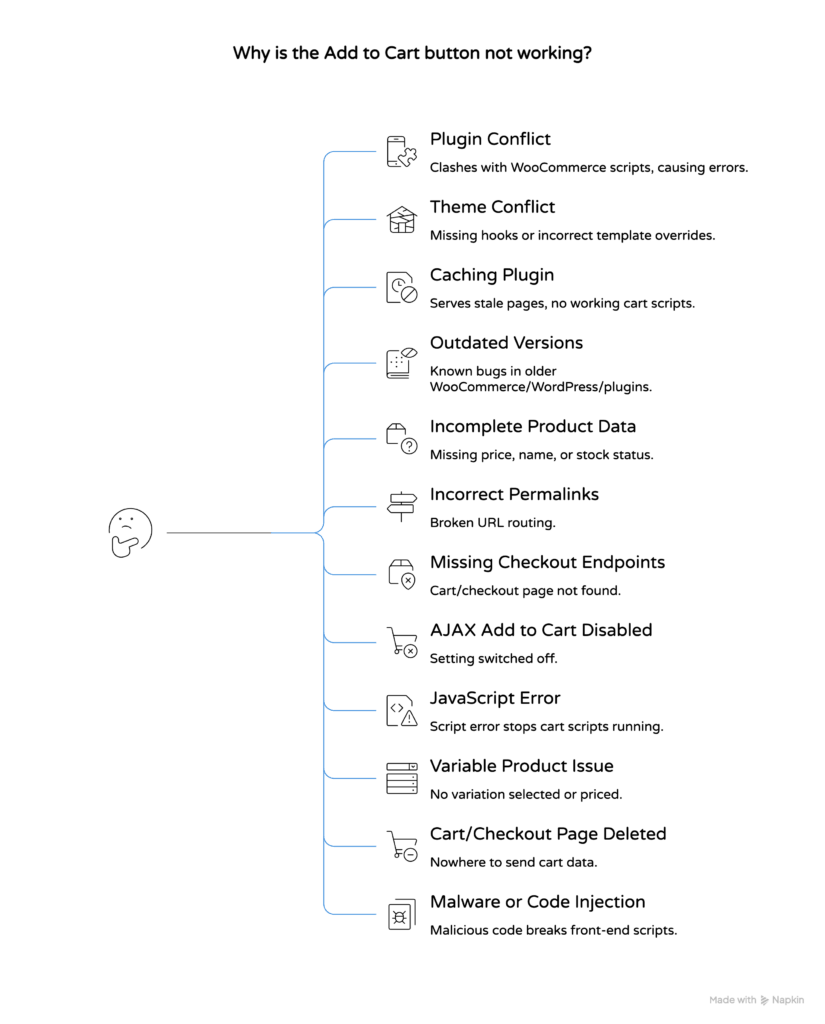
The WooCommerce add to cart button fails for twelve distinct reasons, and identifying the right one before making changes saves a lot of time.
The most frequent causes are:
- Plugin conflict — another plugin clashes with WooCommerce scripts, blocking the add to cart AJAX call
- Theme conflict — your active theme is missing required WooCommerce hooks or overrides core template files incorrectly
- Caching plugin serving stale pages — a cached version of the product page has no working cart functionality
- Outdated WooCommerce, WordPress, or plugin versions — known bugs in older versions break the button
- Incomplete product data — a missing price, no product name, or unset stock status hides the button
- Incorrect permalink settings — broken URL rules prevent WooCommerce from routing cart requests properly
- Missing or misconfigured checkout endpoints — WooCommerce cannot find the cart or checkout page
- AJAX add to cart disabled — the setting is switched off in WooCommerce settings
- JavaScript error on the page — a script error earlier in the page load stops cart scripts from running
- Variable product with no variation selected or priced — the button stays hidden until all required attributes are chosen
- Cart or checkout page deleted or unpublished — WooCommerce has nowhere to send the cart data
- Malware or code injection — malicious code interferes with front-end scripts
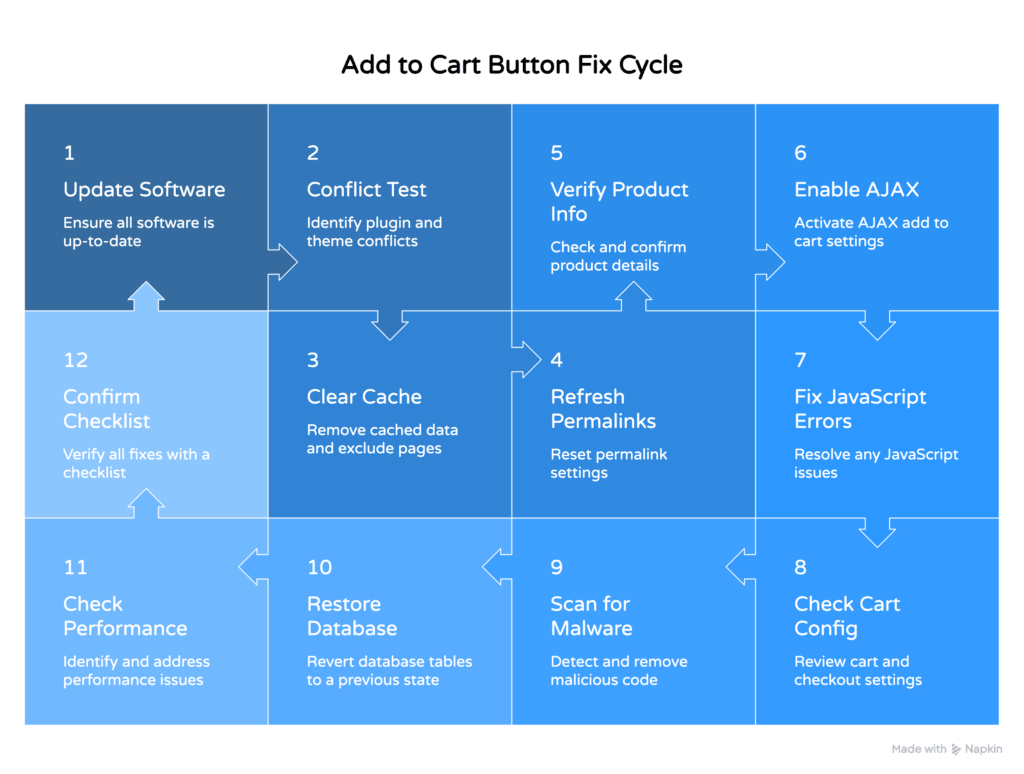
Work through the fixes below in order. The most common causes come first.
For a broader look at how plugin issues affect WordPress sites, the guide on resolving WordPress plugin conflicts quickly covers the diagnostic process in detail alongside the steps below.

Fix 1: Update WordPress, WooCommerce, Plugins, and Themes
Outdated software is one of the most common reasons the WooCommerce add to cart button stops working, because WooCommerce releases frequent updates that fix known cart and checkout bugs.
Before anything else, check your versions. An older version of WooCommerce may have a documented bug that causes the add to cart button to fail silently on certain product types, and the fix is already in the latest release.
How to Update WordPress Core
Go to your WordPress dashboard. Navigate to Dashboard > Updates. If a WordPress update is available, click Update Now. Wait for it to finish before moving on.
How to Update WooCommerce and Plugins
From the WordPress dashboard, go to Dashboard > Updates and scroll down to the Plugins section. Check the boxes next to WooCommerce and any other plugins showing an update available. Click Update Plugins.
Alternatively, go to Plugins > Installed Plugins. You will see an “Update now” link under any plugin with an available update. Update WooCommerce first, then update your other plugins one by one.
How to Update Your Theme
Go to Appearance > Themes. If your theme shows an available update, click Update now. If you are using a child theme, update the parent theme. Your child theme customizations are not affected by updating the parent.
After all updates are complete, visit a product page and test the add to cart button. If it works, the problem was a known bug in an older version. If the button is still not working, move to the next fix.
Fix 2: Run a Plugin and Theme Conflict Test
A plugin conflict is the single most frequent cause of the WooCommerce add to cart button not working, because according to WordPress.org’s official troubleshooting documentation, the three main causes of plugin conflicts are incompatible code, poorly written code, and overlapping functions, any of which can silently break cart scripts.
The safest way to confirm a plugin conflict is to deactivate everything except WooCommerce and test the button. If it works, a plugin was the cause. Then you reactivate plugins one by one to find which one breaks it.
How to Test for a Plugin Conflict
Go to your WordPress dashboard and navigate to Plugins > Installed Plugins. Select all plugins except WooCommerce using the checkboxes. From the Bulk actions dropdown, choose Deactivate, then click Apply.
Now visit a product page and test the add to cart button. If it works, a plugin conflict was the cause.
To identify the specific plugin, reactivate your plugins one at a time. After each reactivation, test the add to cart button. When the button breaks again, the plugin you just activated is the conflict. You can then either replace it, contact its developer, or check for a compatibility update.
The research confirms that plugin conflicts can cause product information to display incorrectly or cause the checkout process to stop working entirely, so this test is worth doing even if the conflict seems unlikely.
How to Test for a Theme Conflict
A theme conflict follows a similar pattern. Your active theme may be missing WooCommerce template hooks or overriding cart scripts in a way that breaks the add to cart button.
Go to Appearance > Themes. Activate a default WordPress theme such as Storefront (WooCommerce’s own theme) or Twenty Twenty-Four. Then test the add to cart button on a product page.
If the button works on the default theme, your original theme is causing the conflict. Contact your theme developer, check for a theme update, or look for a WooCommerce-compatible version of the theme.


Fix 3: Clear Your Website Cache and Exclude WooCommerce Pages
A caching plugin can cause the WooCommerce add to cart button to appear broken by serving visitors a static, cached version of your product page that does not include working cart scripts or current stock data.
This is one of those problems that looks mysterious but has a simple fix. Clear your cache, then configure your caching plugin to exclude WooCommerce pages permanently.
How to Clear Your Cache
The exact steps depend on which caching plugin you use.
For W3 Total Cache: go to Performance > Dashboard in your WordPress dashboard. Click Empty All Caches.
For WP Rocket: go to Settings > WP Rocket. Click the Clear Cache button in the top right of the dashboard panel.
After clearing the cache, visit a product page and test the add to cart button. If it works, the caching plugin was serving a stale page.
For more detailed help with this specific issue, the browser cache troubleshooting guide covers both server-side and browser-side cache problems step by step.
How to Exclude WooCommerce Pages from Cache
Cart and checkout pages must never be cached. WooCommerce stores session data on these pages, and a cached version breaks the entire checkout flow, not just the add to cart button.
In WP Rocket: go to Settings > WP Rocket > Advanced Rules. Under “Never Cache URL(s)”, add the following URLs on separate lines:
/cart//checkout//my-account/
In W3 Total Cache: go to Performance > Page Cache > Advanced. Find the “Never cache the following pages” field and add the same three URLs.
Save your settings, then test the add to cart button again.
Fix 4: Check and Fix Your WooCommerce Permalink Settings
Incorrect WooCommerce permalink settings can break the add to cart button by corrupting the URL rules that WooCommerce uses to route cart requests, product pages, and checkout endpoints.
Refreshing your permalink settings is quick and safe. It does not change your URLs. It just flushes and rewrites the URL rules stored in your database, which fixes a surprising number of WooCommerce errors in one step.
How to Refresh Permalink Settings
Go to your WordPress dashboard. Navigate to Settings > Permalinks. Do not change anything. Simply scroll to the bottom of the page and click Save Changes. WordPress will flush and regenerate all URL rewrite rules.
After saving, test the add to cart button on a product page. Many WooCommerce issues, including a non-functional add to cart button, disappear after this single step.
How to Check WooCommerce Endpoint Settings
WooCommerce uses specific checkout endpoints to handle the cart, checkout, order confirmation, and account pages. If these endpoints are missing or conflicting with other plugin slugs, the add to cart button may fail or redirect incorrectly.
Go to WooCommerce > Settings > Advanced > Page setup. Check that each endpoint field has a value. The default values are:
- Pay:
order-pay - Order Received:
order-received - Add Payment Method:
add-payment-method - Delete Payment Method:
delete-payment-method - Set Default Payment Method:
set-default-payment-method
If any field is blank, type in the default value shown above. Click Save Changes, then refresh your permalinks again using Settings > Permalinks > Save Changes.
Fix 5: Complete Your Product Information and Verify Pricing
WooCommerce hides the add to cart button automatically when a product is missing required information, most commonly a price, a product name, or correct stock status settings.
This one catches people off guard. The button does not show an error. It just disappears. And it happens more often than you might expect, especially after importing products or duplicating existing ones.
How to Check and Fix Product Data
Go to your WordPress dashboard and navigate to Products > All Products. Find the product with the broken add to cart button and click Edit.
Scroll down to the Product data section and check the following:
- Regular price: must not be blank. Enter a price, even if it is $0.00 for a free product.
- Stock status: set to “In stock” if the product is available. An “Out of stock” status hides the add to cart button by default.
- Product name: must not be blank.
- Catalog visibility: go to the Publish panel on the right. Make sure visibility is set to “Public” and the product is not set to “Hidden”.
For simple products, missing price is the most common reason the add to cart button is not working. Set a price and click Update.
Variable Products and Missing Variations
For variable products, the add to cart button stays hidden until a valid variation exists with a price. Go to Product data > Variations. Check that at least one variation is saved and has a price set.
If variations exist but the button still does not appear, go to Product data > Attributes and confirm that the attributes used in your variations are marked as “Used for variations.”
Also check that no variation is set to “Out of stock” when it should be available. WooCommerce will hide the add to cart button for any variation without a price or with a stock status of out of stock.
If your WooCommerce products are not displaying at all, the WooCommerce products not showing recovery guide covers visibility and catalog settings in more detail.

Fix 6: Enable AJAX Add to Cart and Check WooCommerce Settings
WooCommerce includes a setting that enables AJAX add to cart functionality on product archive pages, and disabling it can cause the add to cart button to redirect instead of adding items, or to do nothing at all depending on your theme.
How to Enable AJAX Add to Cart
Go to WooCommerce > Settings > Products > General. Look for the option labeled “Add to cart behaviour.” Check the box next to “Enable AJAX add to cart buttons on product archives pages.” Click Save Changes.
This setting controls whether clicking the add to cart button on shop and category pages triggers an AJAX request or redirects to the product page. Most themes expect AJAX to be enabled. If your theme requires a page reload to add items, disabling AJAX is intentional but worth confirming with your theme documentation.
How to Check Your WooCommerce Status Page
The WooCommerce Status page is one of the most useful diagnostic tools available, and most store owners never look at it.
Go to WooCommerce > Status. This page shows your server environment, active plugins, theme details, WooCommerce settings, and any configuration problems WooCommerce has detected. Items marked in red are problems that need attention. Items marked in yellow are warnings.
Common red errors that affect the add to cart button include:
- Cart page not set
- Checkout page not set
- WooCommerce database update required
- Ghost sessions (leftover data from uninstalled plugins)
For each red error on this page, WooCommerce usually provides a direct fix link or a description of what to correct. Work through each one.
While you are on the Status page, click the Get system report button and copy the report. If you need to contact support, this report gives a developer everything they need to diagnose your site without guessing.
Fix 7: Diagnose and Fix JavaScript Errors
JavaScript errors are a leading technical cause of the WooCommerce add to cart button not working, because a single script error earlier in the page load can prevent the cart AJAX scripts from running at all.
The scale of this problem across ecommerce sites is worth noting. Noibu’s research found that over 94% of ecommerce websites have five or more unresolved JavaScript errors live at any given time. Most store owners have no idea they exist.
How to Find JavaScript Errors in Your Browser
Open your product page in a browser. Press F12 (or right-click anywhere and choose Inspect) to open developer tools. Click the Console tab.
Reload the page. Any JavaScript errors will appear in red. Look for errors that mention WooCommerce, jQuery, or any plugin name. These are the most likely culprits.
Common JavaScript errors that break the add to cart button include:
- jQuery is not defined (jQuery loaded in the wrong order)
- Cannot read properties of undefined (a plugin script referencing missing elements)
- Failed to load resource (a script file returning a 404 error)
Once you identify the error, check whether it corresponds to a specific plugin. Deactivating that plugin and retesting is often the fastest resolution.
For a more detailed walkthrough of diagnosing and fixing script issues, the guide on fixing JavaScript problems in WordPress covers the most common errors and their solutions.
How to Enable WordPress Debug Mode
If the browser console does not give you enough information, enable WordPress debug logging to capture server-side errors.
Open your wp-config.php file. Find the line that reads:
define( 'WP_DEBUG', false );
Replace it with:
define( 'WP_DEBUG', true );define( 'WP_DEBUG_LOG', true );define( 'WP_DEBUG_DISPLAY', false );
Save the file. Errors will now be logged to /wp-content/debug.log. Check this file after testing the add to cart button for any WooCommerce-related errors. Once you have finished diagnosing, set WP_DEBUG back to false.
Fix 8: Check Your Cart and Checkout Page Configuration
The WooCommerce add to cart button relies on a correctly configured cart page and checkout page in your WooCommerce settings, and if either page has been deleted, unpublished, or assigned incorrectly, the button will fail.
This happens more often after a site migration or after installing a new theme that created duplicate WooCommerce pages.
How to Verify Cart and Checkout Page Assignments
Go to WooCommerce > Settings > Advanced > Page setup. Check that the following fields point to the correct pages:
- Cart page: should point to a published page containing the
woocommerce_cartshortcode or the WooCommerce Cart block - Checkout page: should point to a published page containing the
woocommerce_checkoutshortcode or the WooCommerce Checkout block - My Account page: should point to a published page containing the
woocommerce_my_accountshortcode
If any field is blank or pointing to a page that no longer exists, create a new page with the correct shortcode, publish it, and assign it here. Click Save Changes. Then refresh your permalinks at Settings > Permalinks > Save Changes.
After saving, test the add to cart button. If the cart and checkout pages were not properly assigned, the button will start working immediately.
Fix 9: Check for Malware or Code Injection
Malware injected into your WordPress site can interfere with front-end scripts, including the WooCommerce add to cart button, by overwriting or disabling JavaScript files.
If you have worked through all the fixes above and the add to cart button is still not working, malware is worth checking. Signs that point toward a security issue include: the problem appeared suddenly with no other changes, you notice unfamiliar files or code in your theme or plugin folders, or your hosting provider has flagged suspicious activity.
How to Scan for Malware
Install Wordfence Security from Plugins > Add New. Run a full scan from Wordfence > Scan. Wordfence will flag any modified core files, suspicious code, or known malware signatures.
If Wordfence finds an infection, follow its guided removal steps. For a more thorough clean, the WordPress malware removal service handles infections that require deeper file-level cleanup and verification.
Fix 10: Restore WooCommerce Database Tables
Missing or corrupted WooCommerce database tables can cause the add to cart button to fail with no visible error, because WooCommerce cannot read or write the session data needed to process cart requests.
This is less common but worth checking if nothing else has resolved the issue.
How to Run the WooCommerce Database Update Tool
Go to WooCommerce > Status > Tools. Look for the option labeled “Update database.” Click Run. This tool checks whether your database tables match the current version of WooCommerce and creates or updates any that are missing or outdated.
After running the tool, go to WooCommerce > Status and check for any remaining red errors. Then test the add to cart button again.
If you suspect deeper database corruption, your hosting provider’s support team can help you verify table integrity. Most managed WordPress hosts provide database access through phpMyAdmin or a similar tool.
Fix 11: Check for Slow Site Performance Causing Button Timeouts
A slow-loading WooCommerce product page can cause the add to cart button to appear broken when the real problem is that cart scripts are timing out before they finish loading.
Performance issues are a less obvious cause of add to cart failures, but the numbers make the connection clear. According to Yottaa’s Web Performance Index, third-party apps account for 44% of total page load times on ecommerce sites. When pages load slowly, JavaScript-dependent features like AJAX cart requests are the first things to fail.
Check your product page load time using Google PageSpeed Insights. If your score is below 50 on mobile, slow performance may be contributing to the add to cart button not working.
The slow WooCommerce website fix guide covers the most effective ways to speed up a WooCommerce store, including image optimization, script management, and hosting improvements.
Fix 12: Use a Summary Checklist to Confirm Everything Is Fixed
The WooCommerce add to cart button not working is almost always caused by one of the issues above, and the checklist below gives you a quick reference for confirming each fix has been applied correctly.
Work through this list after completing the fixes. If any item is unchecked, go back to the relevant fix section above.
| Checklist Item | Where to Check | Status |
|---|---|---|
| WordPress, WooCommerce, plugins, and themes are up to date | WordPress dashboard > Updates | Done / Pending |
| Plugin conflict test completed | Plugins > Installed Plugins | Done / Pending |
| Theme conflict test completed | Appearance > Themes | Done / Pending |
| Cache cleared and WooCommerce pages excluded from cache | Caching plugin settings | Done / Pending |
| Permalinks refreshed | Settings > Permalinks > Save Changes | Done / Pending |
| Checkout endpoints verified | WooCommerce > Settings > Advanced | Done / Pending |
| Product price and stock status confirmed | Products > Edit Product > Product data | Done / Pending |
| AJAX add to cart enabled in WooCommerce settings | WooCommerce > Settings > Products | Done / Pending |
| WooCommerce Status page checked for red errors | WooCommerce > Status | Done / Pending |
| JavaScript errors checked in browser console | F12 > Console tab | Done / Pending |
| Cart and checkout pages correctly assigned | WooCommerce > Settings > Advanced > Page setup | Done / Pending |
| Malware scan run | Wordfence > Scan | Done / Pending |
If you have worked through every item on this list and the add to cart button is still not working, the issue is likely a less common combination of factors that requires a closer look at your specific setup.
We are here to help. Our WordPress repair support team can diagnose and fix WooCommerce add to cart issues quickly, without you having to troubleshoot any further on your own. And if you would like ongoing protection so problems like this are caught before they affect your store, take a look at our WordPress care plans.